



 Written by admin
The following guide shows how to install TizenTube Cobalt on Firestick, Google TV, and Android devices.
TizenTube Cobalt is an ad-free YouTube app that provides the complete YouTube experience without frustrating advertisements. This is similar to other ad-free YouTube alternatives like SmartTube or NewPipe.
TizentTube was built for ‘Tizen OS’ which is the Operating System for Samsung Smart TVs but users can also install the “Cobalt” version created for Android-based OS.
TizenTube Cobalt has been gaining more popularity as it recently updated to version 1.0.8 and works well on streaming devices like the Amazon Firestick and Google/Android TV boxes.
Below you will find installation tutorials, a feature breakdown, and our honest review.
In this guide, we are installing TizenTube Cobalt on our Onn 4K Plus, but these instructions also work on any Fire TV, Android TV, or Google TV device.
1. You must first install the Downloader app on your device. If you haven’t done this, refer to our Downloader Tutorial. Make sure it is the official Downloader app by AFTVNews.
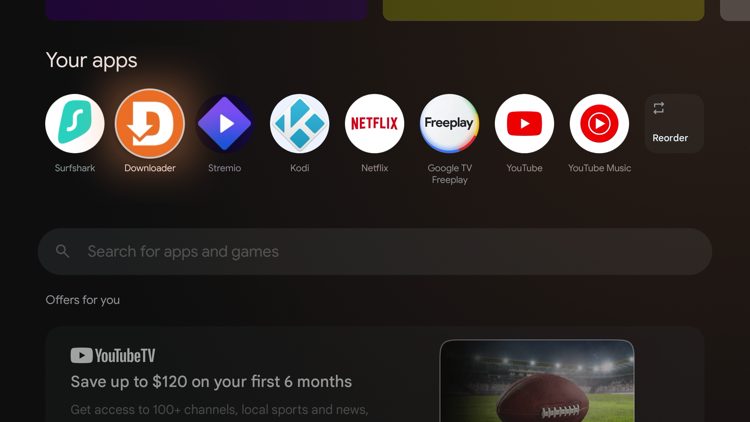
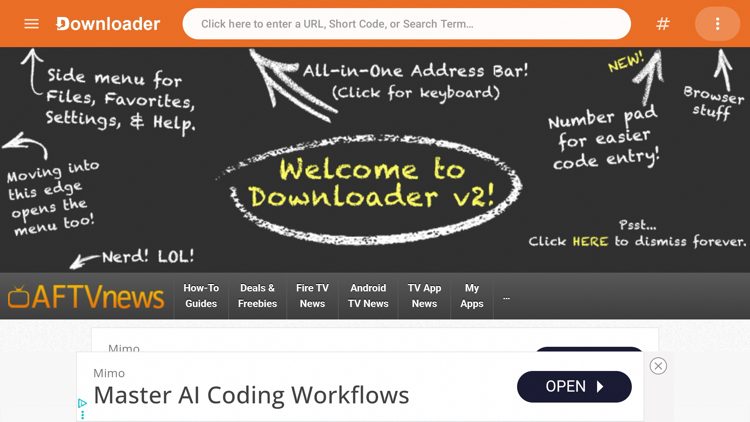
2. Then launch Downloader and click the search bar on top.
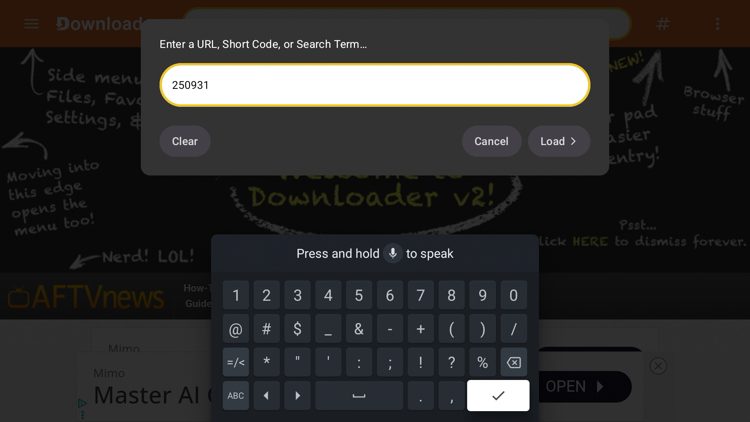
3. Enter the code 250931 to access the TROYPOINT Toolbox and click Go.
4. Wait a few seconds until you are redirected to the TROYPOINT Toolbox page.
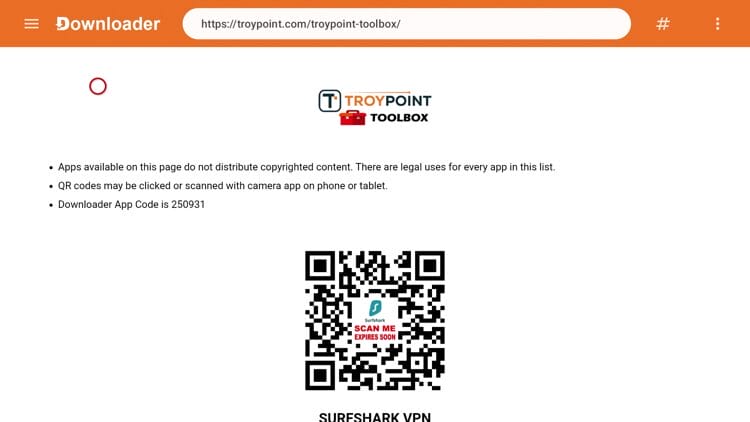
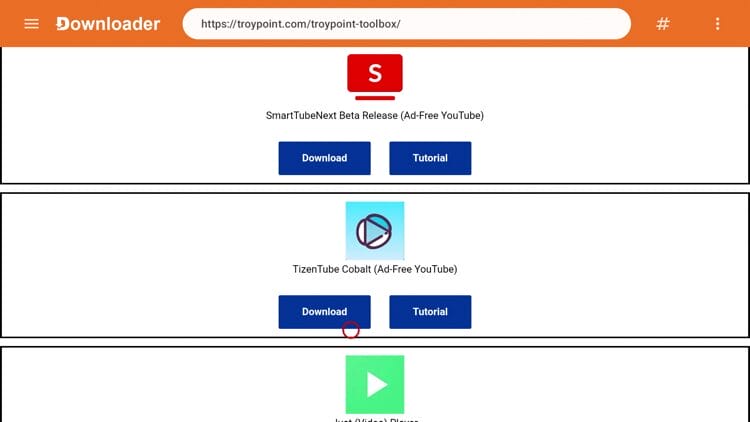
5. Once in the TP Toolbox, scroll down to locate TizenTube Cobalt and click Download.
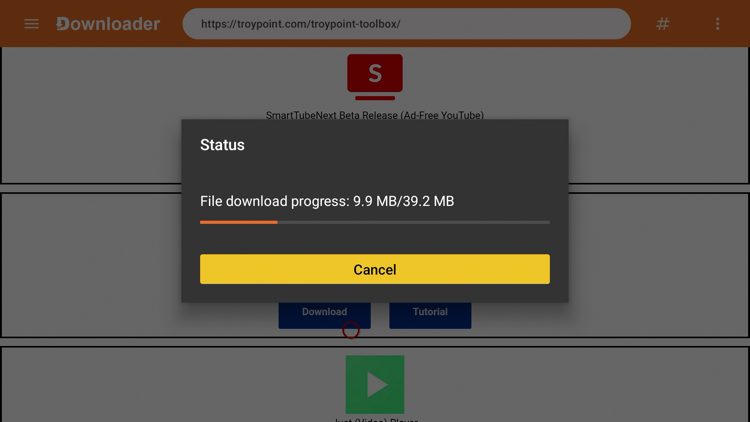
6. Wait a few seconds for the file to download.
Your online activity is monitored by your ISP, app/addon/IPTV devs, government, and all websites.
🔒 Become anonymous while streaming & downloading with Surfshark VPN
Save 73% with 24-Month Plan + Get 3 FREE Months
Use on Unlimited Devices & Share 1 Account with Entire Family
CLAIM DEAL HERE
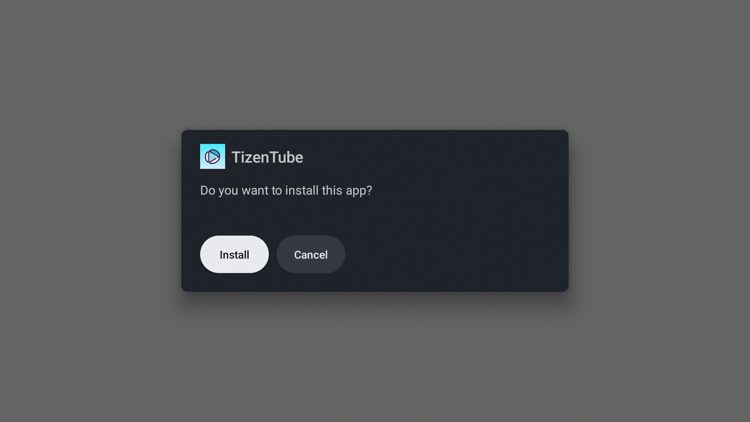
7. Click Install.
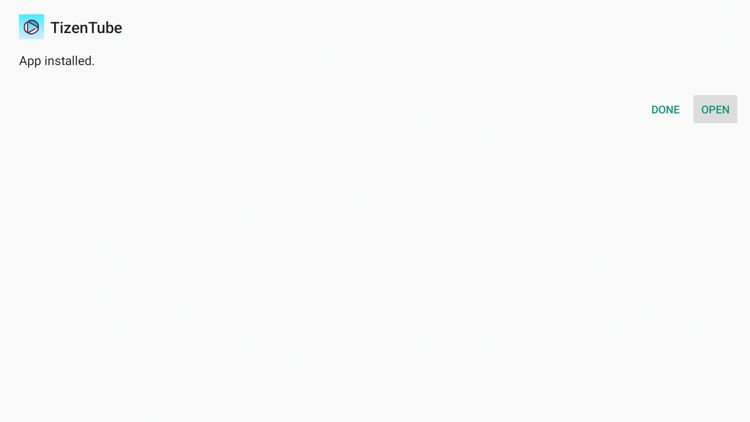
8. Click Open.
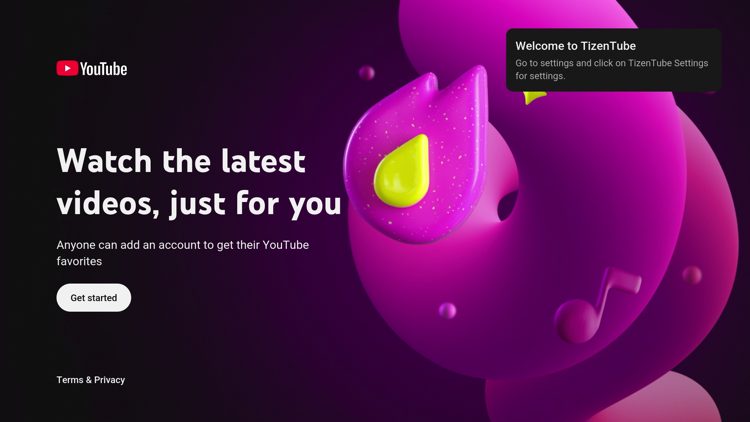
9. Click Get started.
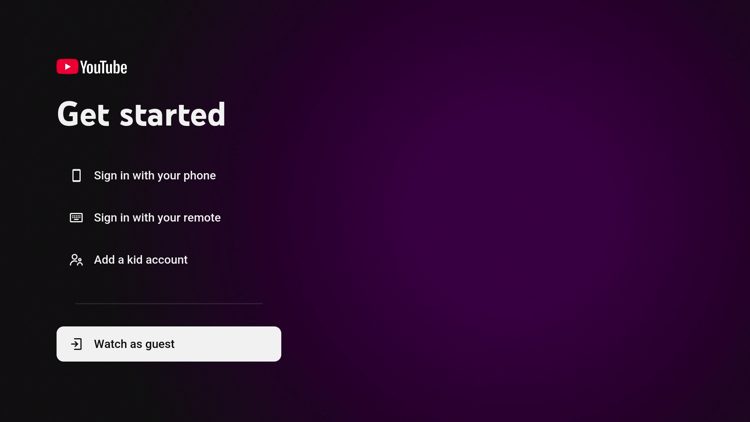
10. You can sign in with your YouTube account if you want but we chose to Watch as guest.
11. You have successfully installed TizenTube Cobalt on your device!
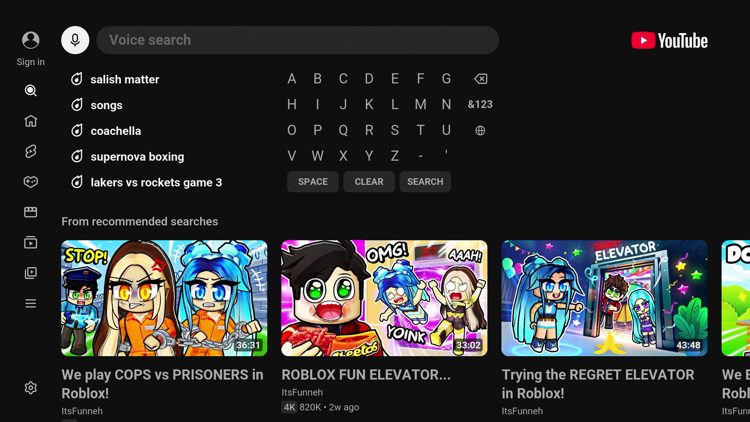
As you will see after launching the app, TizenTube Cobalt mimics the official YouTube app and has nearly all of the same qualities/features.
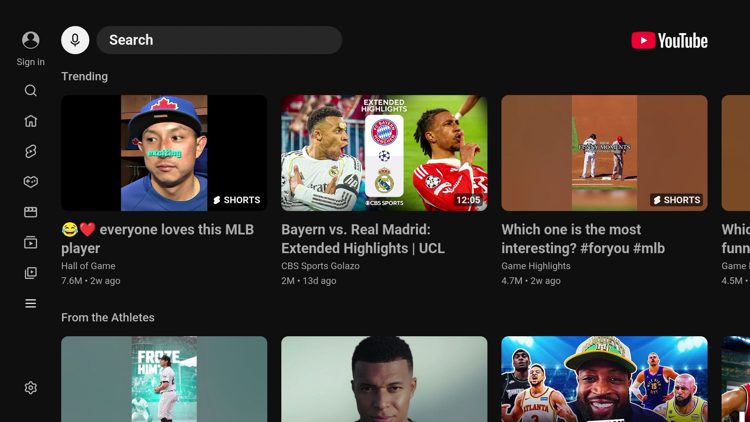
And just like YouTube you can stream news, sports, movies, gaming, Shorts, and create your own playlists.
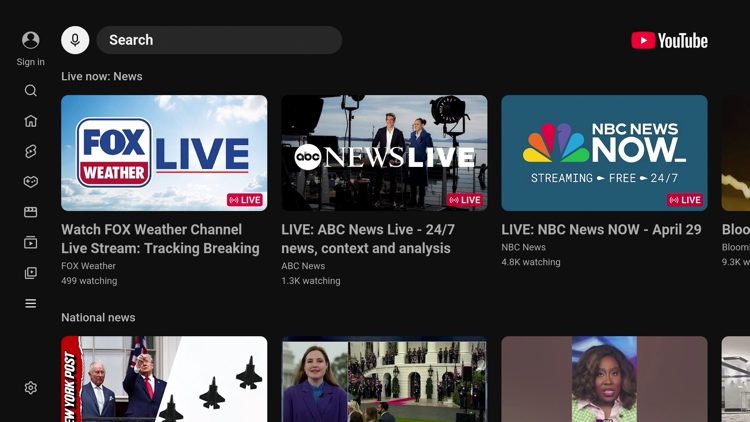
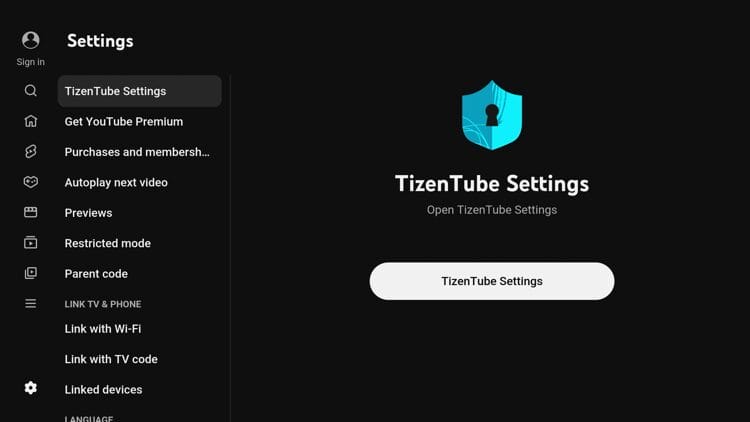
To access the settings, click the settings icon on the bottom left and select TizenTube Settings.
You can then adjust various settings such as Ad Block, SponsorBlock, Subtitles, Video Players, and Miscellaneous Settings.
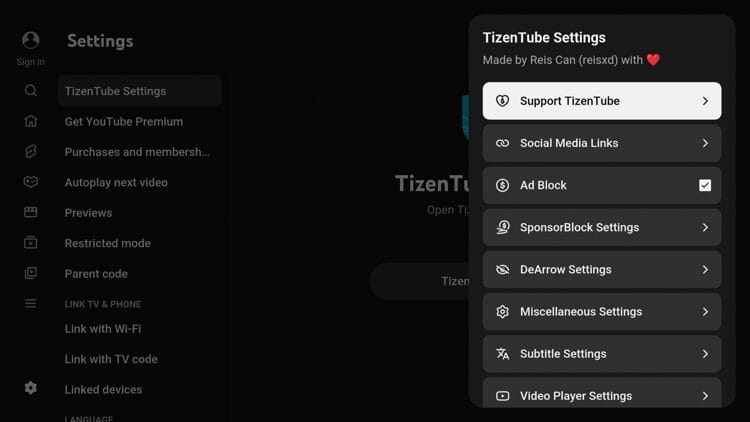
Other features provided within this app that we don’t always see with other ad-free platforms include:
For more details on TizenTube Cobalt, refer to the official TizenTube website and GitHub repository.
After testing TizenTube, here’s a breakdown of what works well and where this app falls short:
We scanned the official APK file for TizenTube Cobalt with VirusTotal to see if there were any harmful files associated with it.
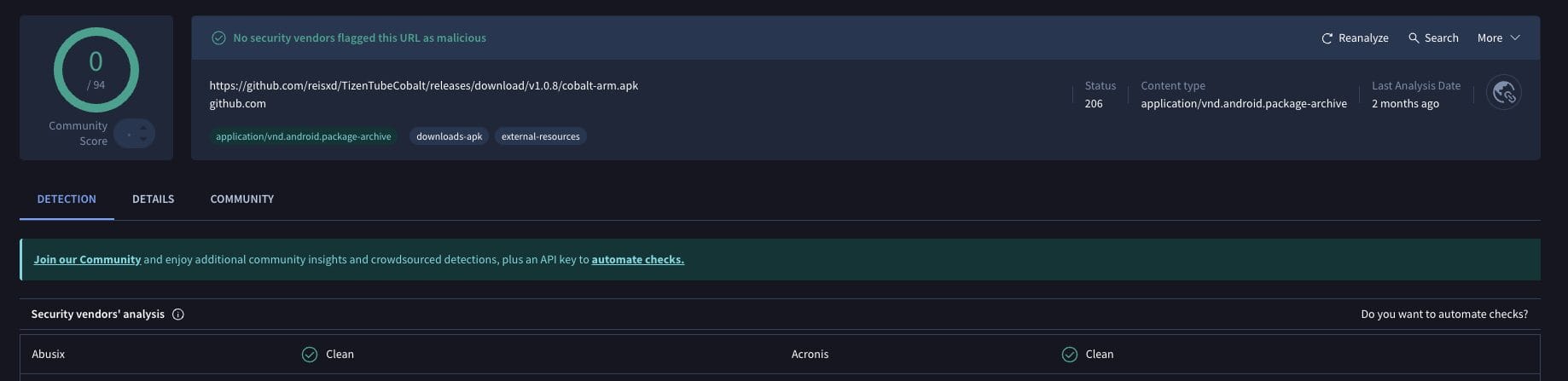
As you can see, the TizenTube Cobalt application is clean which is always a plus when using unverified 3rd party apps such as this.
However, users should still proceed with caution using protective measures such as a VPN which will encrypt your online connection and make you completely anonymous.
TizenTube Cobalt offers a solid ad-free YouTube alternative for cord-cutters who want a clean viewing experience without paying for Premium.
The built-in SponsorBlock and DeArrow features push it past the basic ad-blocking that other tools provide, though periodic breaks from YouTube’s countermeasures are worth expecting. For users running a Fire TV or Android TV/Google TV device, this app is worth testing.
Have you tried using TizenTube to stream ad-free YouTube videos? We want to know your thoughts in the comments below!
This page includes affiliate links where TROYPOINT may receive a commission at no extra cost to you. Many times, visitors will receive a discount due to the special arrangements made for our fans. Learn more on my Affiliate Disclaimer page.



© IPTVSub is Proudly Owned by win-design