



 Written by admin
Use the instructional guide below to learn how to install and use Debrify on your preferred media device.
Debrify is a new all-in-one streaming APK that works in conjunction with popular Debrid Services to provide links for playback in high definition.
Users can browse, stream, and download Video on Demand content, including Movies and Television Shows.
This tool is especially useful for users who already utilize services like Real-Debrid, TorBox, or PikPak, as it helps prioritize faster, more reliable links while reducing clutter from low-quality or duplicate results.
Debrify is best suited for advanced users looking to fine-tune performance and streamline playback without constantly sorting through sources manually.
If you are a Stremio User, you will notice that Debrify has Stremio Addon compatibility so you can easily install your favorite addons for access to Catalogs and more.
IMPORTANT NOTE: Debrify is still in beta so there are a few kinks that still need ironing out. We expect to see improvements as the development continues.
Currently, the app is available for installation on nearly any device, including Android mobile, Windows PC, MacOS, iOS, Linux, Firestick, and Android/Google TV Devices.
We will be installing Debrify on the Onn 4K Pro, but you can follow along with any device you prefer such as streaming boxes like the Google TV Streamer, Fire TV, NVIDIA SHIELD, and more.
We have broken our guide down into different steps for full installation and setup.
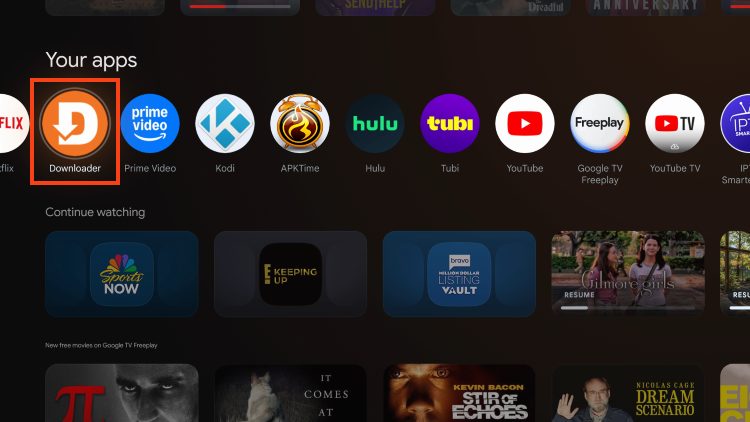
1. Install Downloader from your respective App Store. Enable Unknown Sources and launch the app for use.
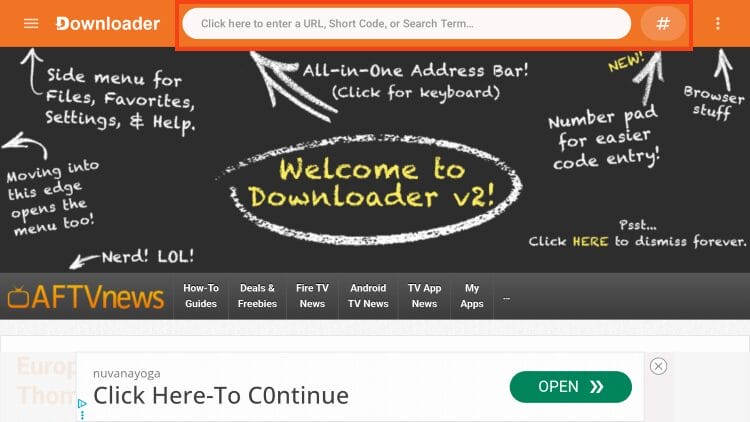
2. Click the hashtag icon or URL Menu Bar.
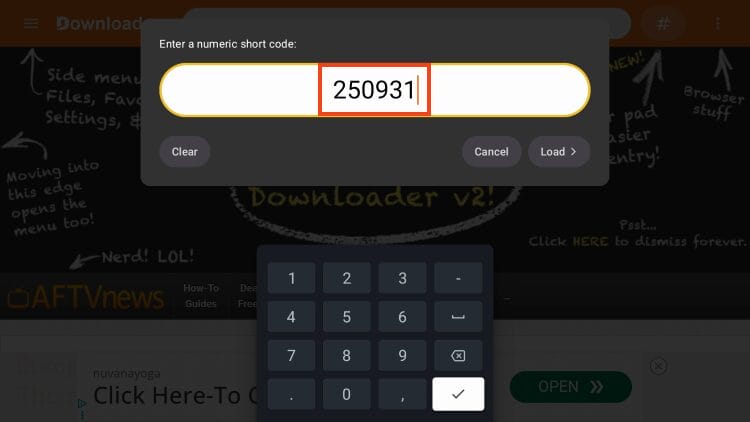
3. Type 250931 and click Load. This is the Downloader Code for the TROYOINT Toolbox.
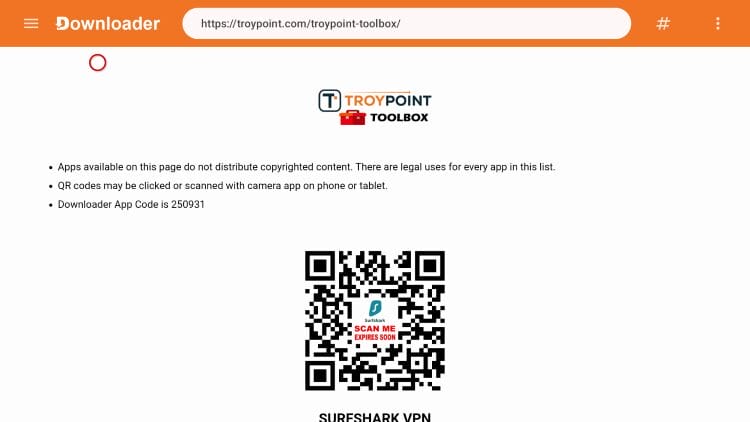
4. You are now on the home screen of the TROYPOINT Toolbox.
Your online activity is monitored by your ISP, app/addon/IPTV devs, government, and all websites.
🔒 Become anonymous while streaming & downloading with Surfshark VPN
Save 73% with 24-Month Plan + Get 3 FREE Months
Use on Unlimited Devices & Share 1 Account with Entire Family
CLAIM DEAL HERE
5. Scroll down to find Debrify and click Download.
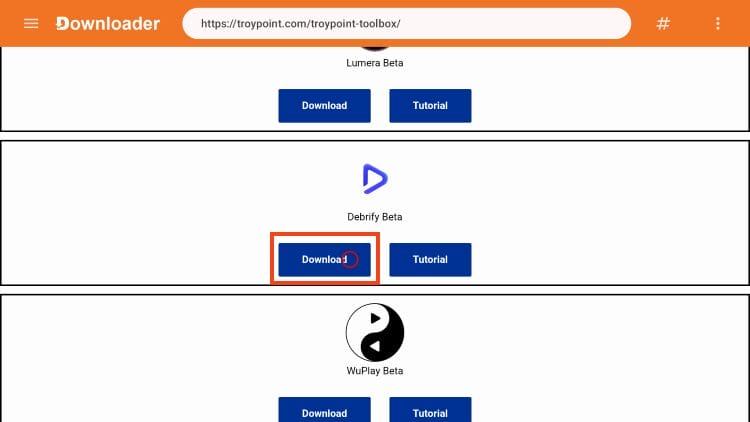
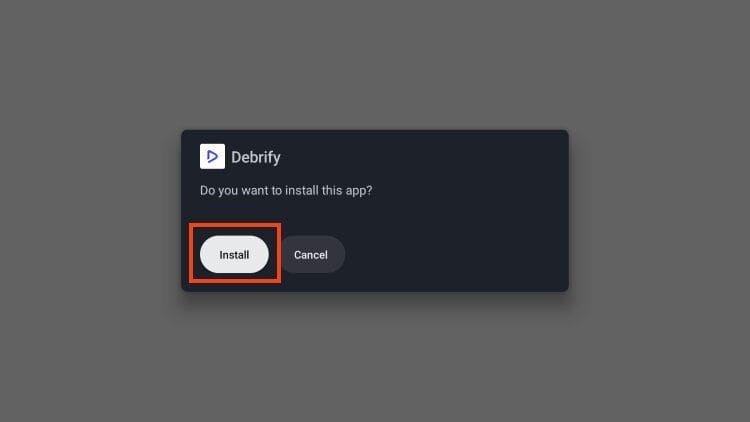
6. Select Install.
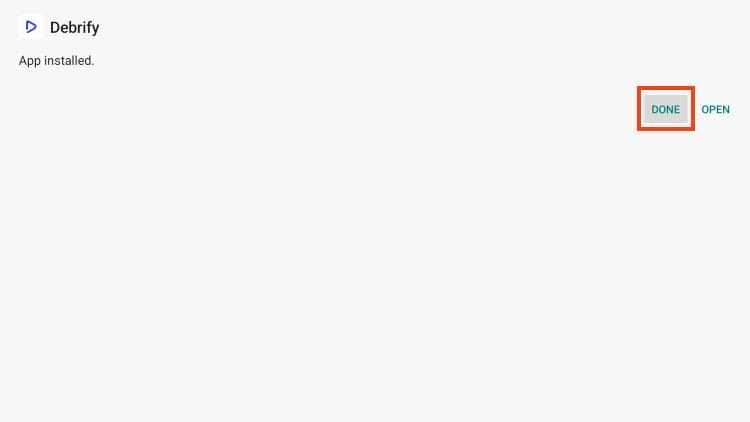
7. Click Done.
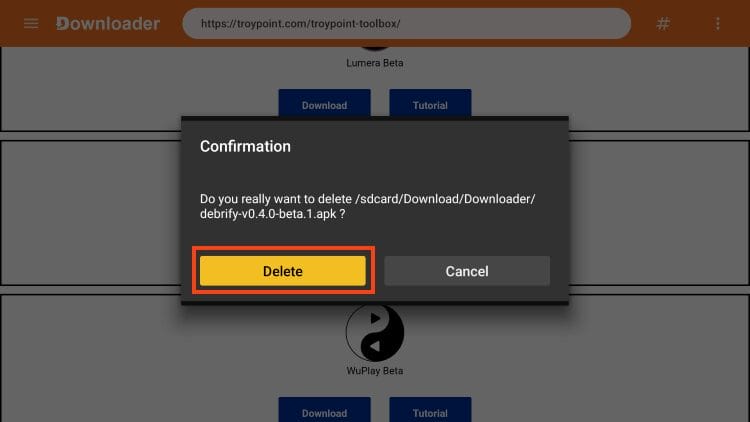
8. Choose Delete (to remove the installation file).
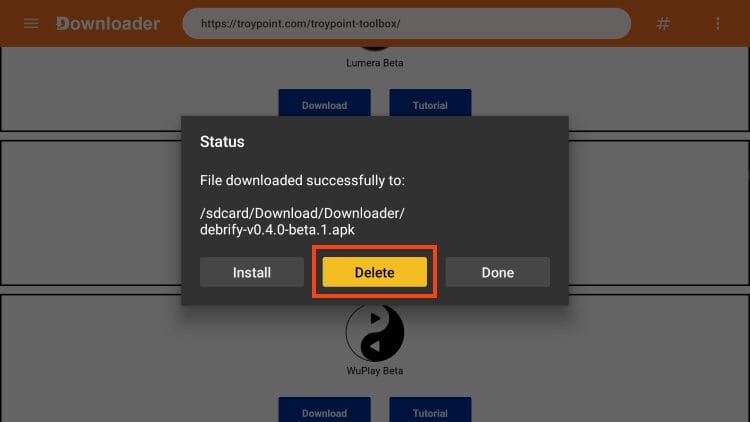
9. Click Delete again.
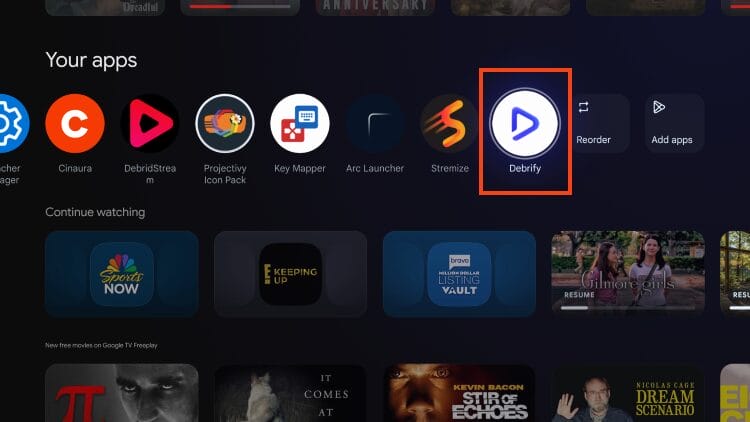
We will now configure the application for use.
1. From your home screen, launch the Debrify app.
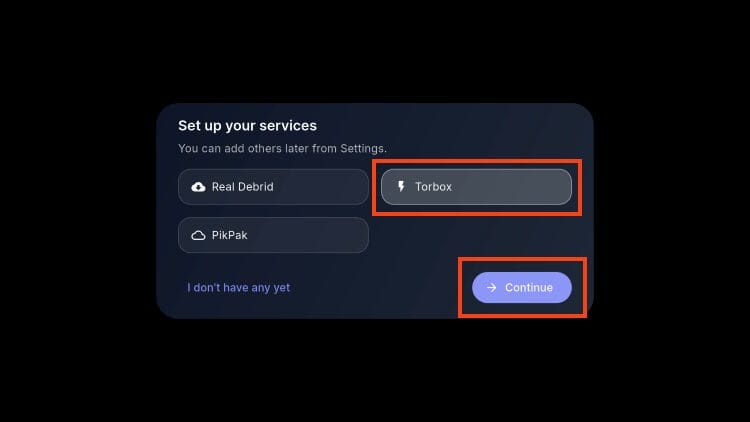
2. You are now prompted to integrate your Debrid Service. Add your API Key (we used TorBox) and click Continue.
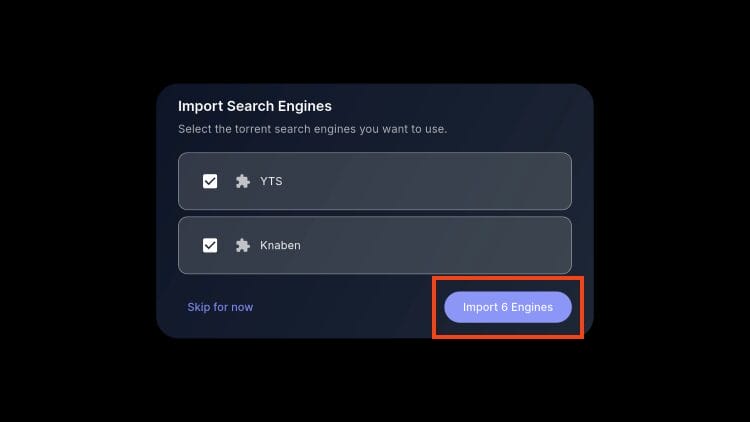
3. Select the Search Engines you want to import and click Import.
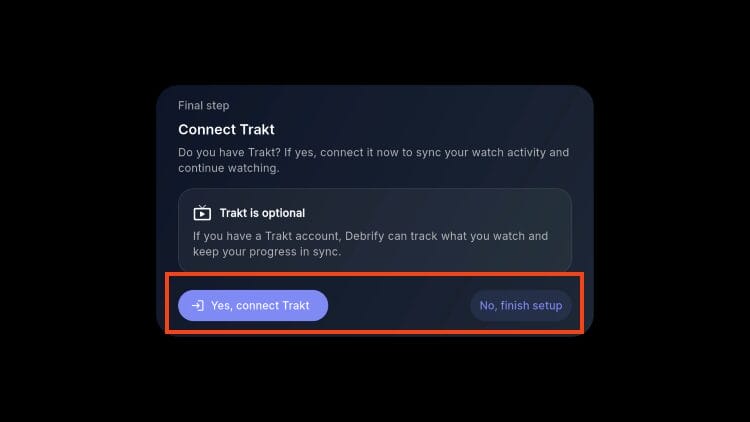
4. Connect your Trakt account if you prefer or click No, finish setup.
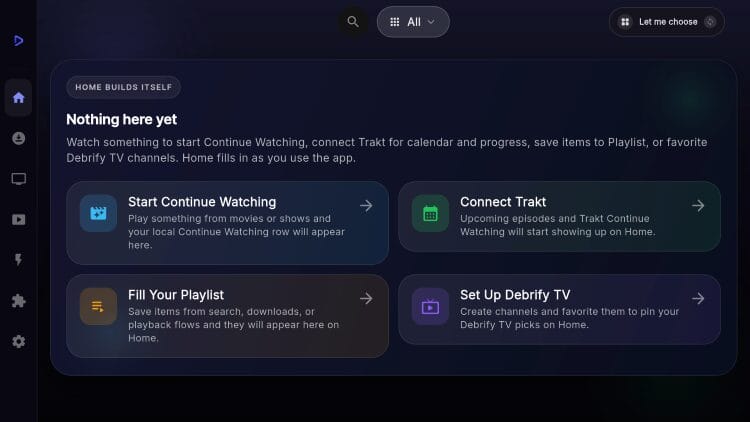
5. You are then met with the home screen of the Debrify app.
Continue reading for further details.
After adding your Debrid Service, you can browse the application to find content to stream!
Debrify functions a bit differently from other media hub applications and is mostly used to search for Films and more.
When you launch the app, there is no media displayed, so there are a few ways we can browse for content.
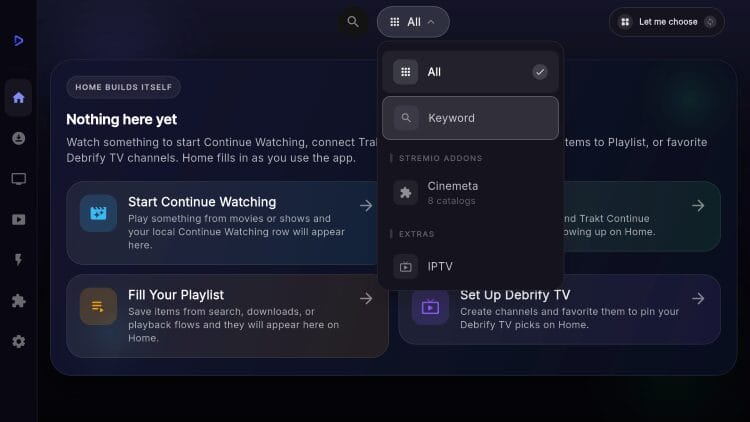
The first is by using the search bar at the top of the screen and typing out the movie or TV show you are looking for. Many prefer to use the “Keyword” search.
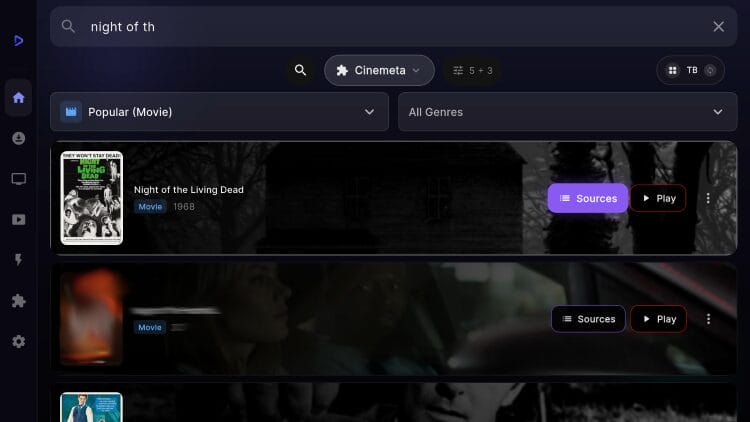
You can then type the title you want to stream!
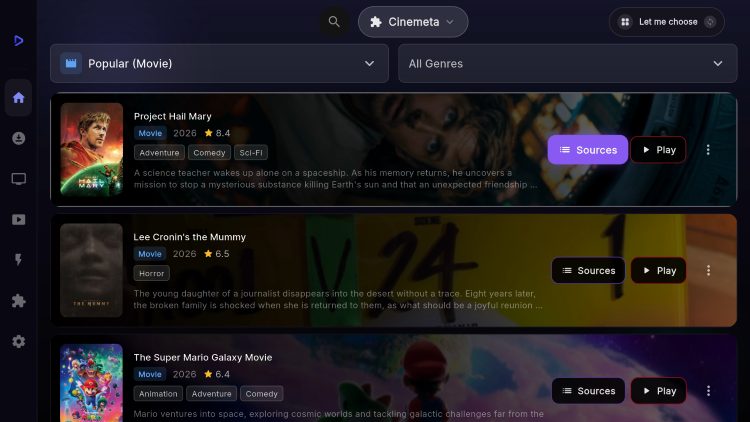
If you want to browse Categories, you can do so via Cinemata which comes pre-installed. Select this from the top drop-down menu.
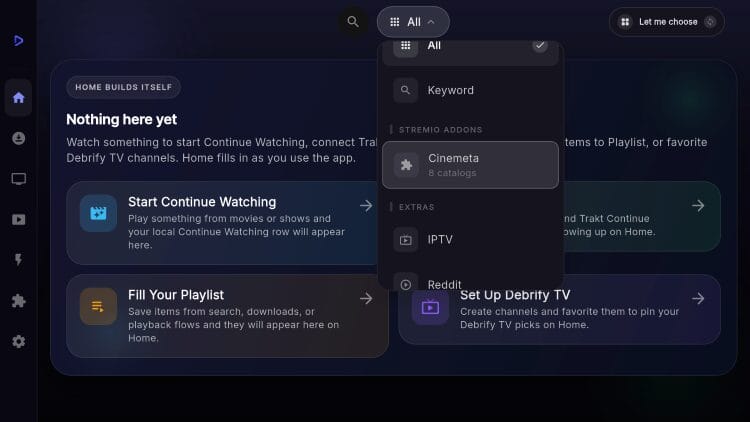
You will then have numerous categories you can choose from to find your film or show.
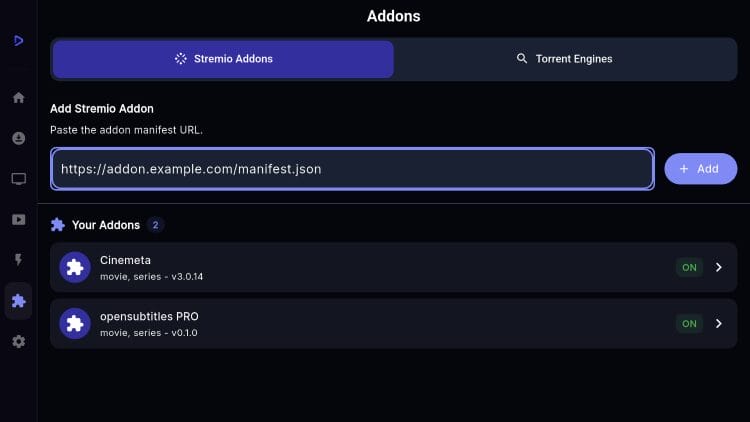
Those who prefer to use other Stremio Addons can install them within Settings.
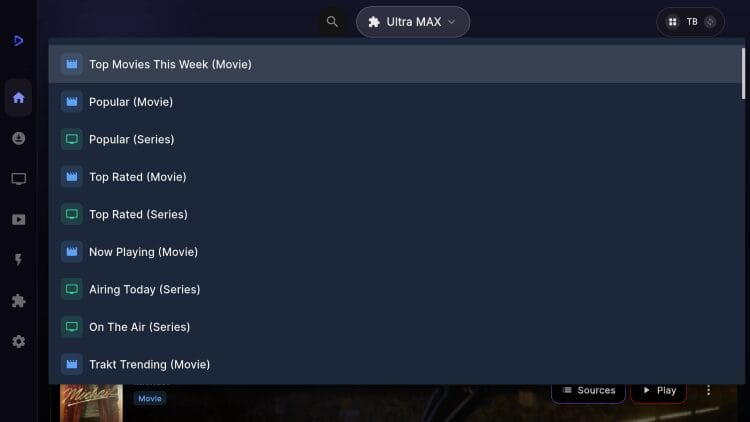
If you want a more enhanced experience with Debrify, you can add Stremio Addons. The best way to do this is by adding a Catalog addon such as Ultra Max or other.
Currently, Cinemata comes pre-installed but you can also add other outlets of your preference by selecting the Addons tab from the left side menu and inputting your Manifest URL.
Once you have your Addon installed, you can select it from the top drop-down and browse available media.
After you find what you are looking for, you have a few options for playback within Debrify.
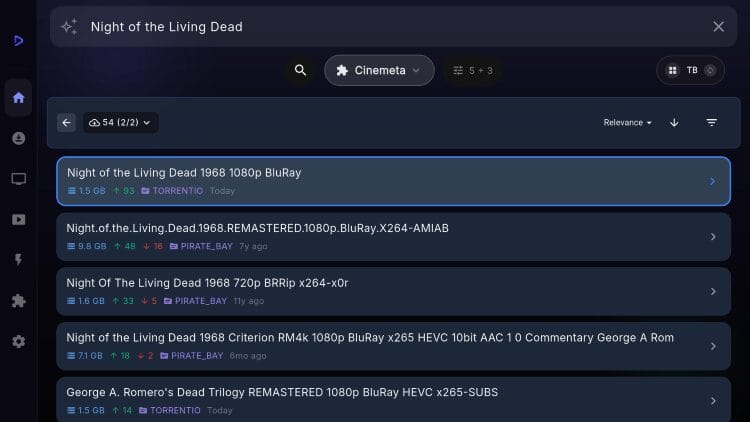
You can choose between Sources or Play. The play option will automatically select the best link.
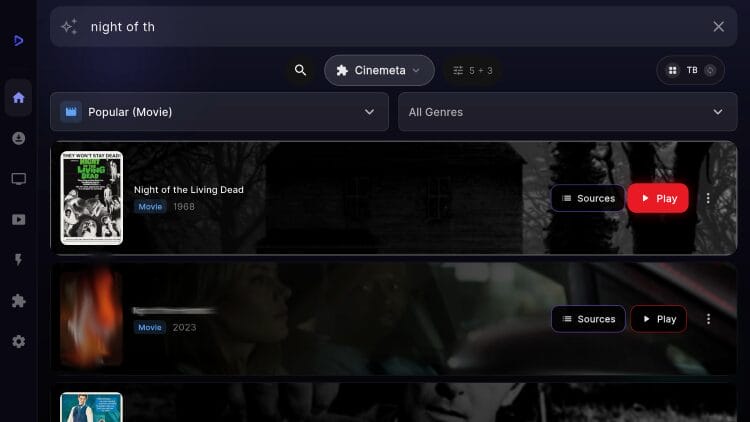
If you choose Sources, you will be provided with a full list of links to choose from based on size, source, and more.
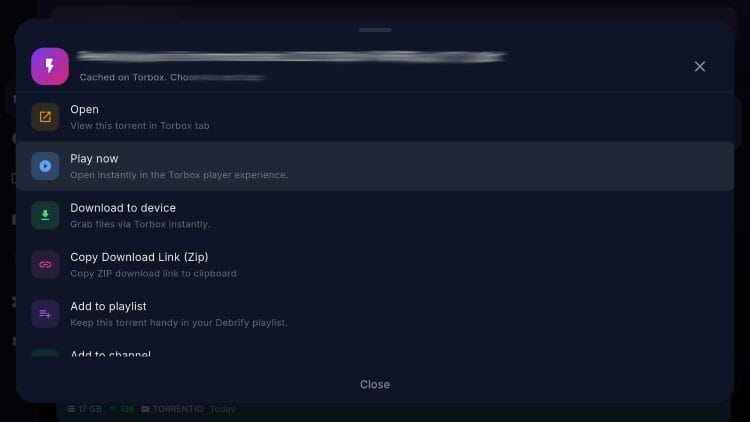
If you select the 3 vertical dots next to your title, you are also provided with other options, including the ability to download the file.
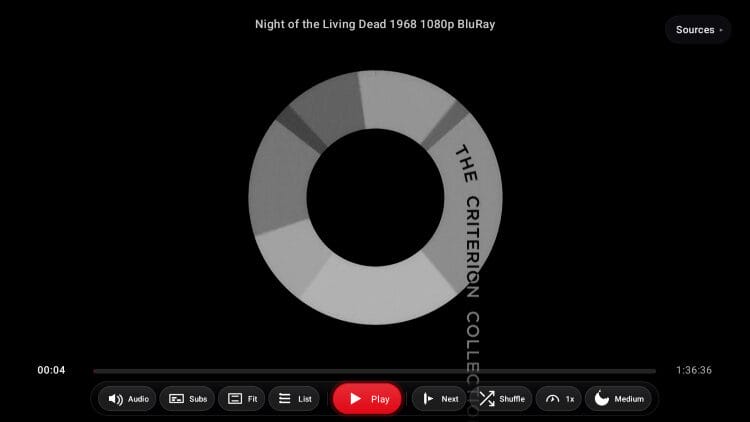
Within playback are numerous settings, including Subtitles, Display orientation, Audio levels, speed, and more.
You can also browse your debrid torrents/history and access these files for streaming and more.
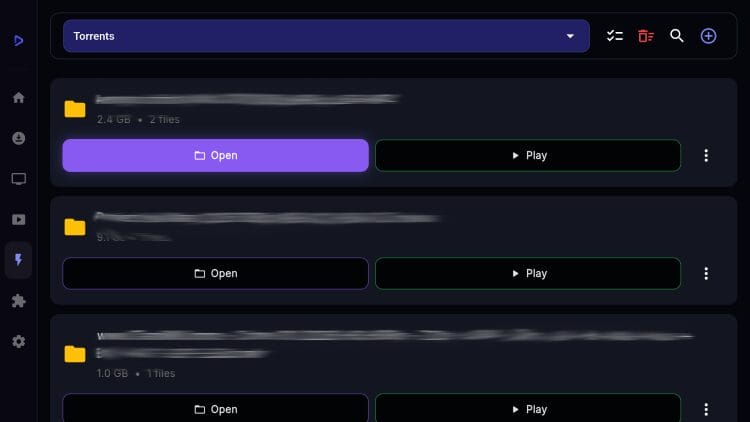
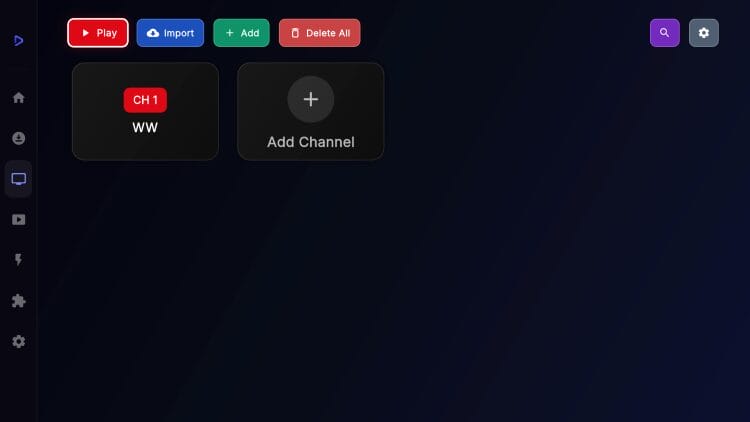
Another additional feature available is Debrify TV for watching Channels.
You can integrate/edit this with your preferred Playlist/Channels.
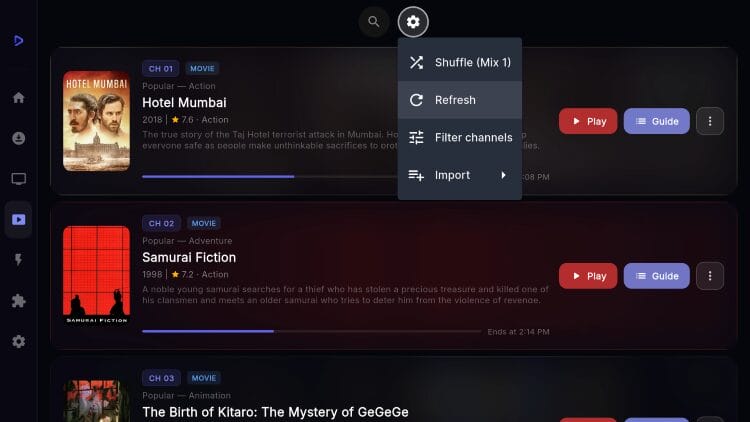
As you will see, there is also a Stremio TV tab, which is a random film generator based on your installed Catalogs.
You can easily browse, choose a title, or adjust settings using Shuffle, Refresh, Filter, and Import.
There are a few Key Settings worth mentioning within the Debrify App.
Users can adjust the Home Page Layout, Player Settings, Startup/App Launch, and more.
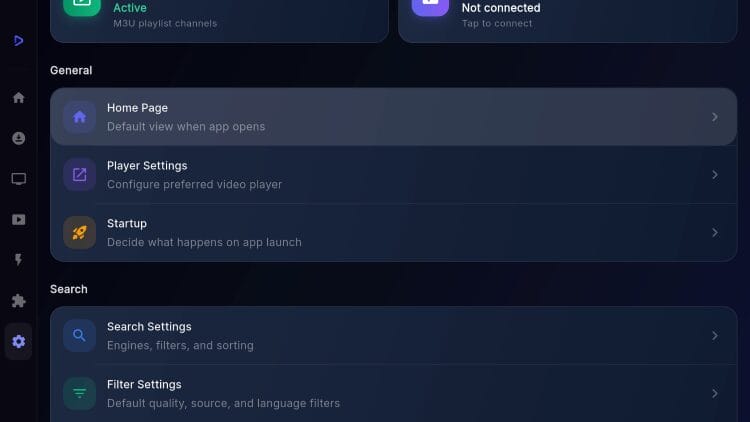
You can also adjust Search (Engines, Filters, Sorting), Provider Settings, and Configure Quick Play options.
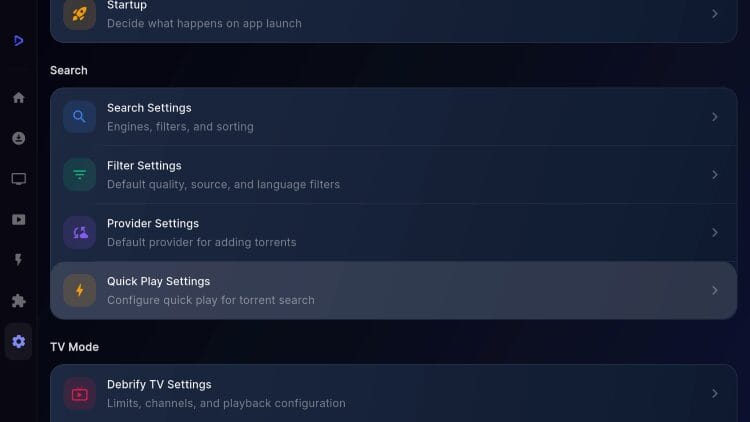
We strongly recommend checking out all of the available Settings and adjusting to your preference.
Debrify is definitely worth checking out if you are in the market for a fresh streaming app.
We are happy to see another media hub app make its way to the streaming scene with Debrify.
As mentioned earlier, it functions much differently from what many are used to with popular applications such as Stremio and Nuvio.
However, we still have high hopes for this app in the future and will continue to monitor as it makes its way towards a stable release.
For more information, check out the Debrify Official Website.
Give it a try today and let us know what you think in the comments below!
This page includes affiliate links where TROYPOINT may receive a commission at no extra cost to you. Many times, visitors will receive a discount due to the special arrangements made for our fans. Learn more on my Affiliate Disclaimer page.



© IPTVSub is Proudly Owned by win-design