

Search Your Query

All Cart

Cart

  • Home
  • How to Install Genesis Kodi Addon (Revived & Debrid Only)

How to Install Genesis Kodi Addon (Revived & Debrid Only)

images images
  • admin Written by admin
  • April 28, 2026
  • 4 minutes

The following tutorial shows how to install the Genesis Addon on the latest version of Kodi.

Genesis Kodi Addon

Genesis is one of the most popular Kodi add-ons of all time that was originally developed by ‘lambda’ around 2014 during the transition from “XBMC” to “Kodi.”

This add-on paved the way for others as it was the first to scrape dozens of different streaming sources for movies and TV shows in a clean user-interface. The notable clones following Genesis were Exodus, Covenant, Venom, Genesis Reborn, and several other add-ons we see today.

This new and improved ‘Genesis’ lives inside the Zues768 Repository and requires a premium debrid service to access content. We provide debrid integration steps following the add-on installation.

In the tutorial below we are using an Onn 4K Plus to install the Genesis add-on. These same steps also work on any device that runs the Kodi software like Fire TV, Google TV/Android TV boxes, PCs, Macs, tablets, and more.

How to Install Genesis Kodi Addon

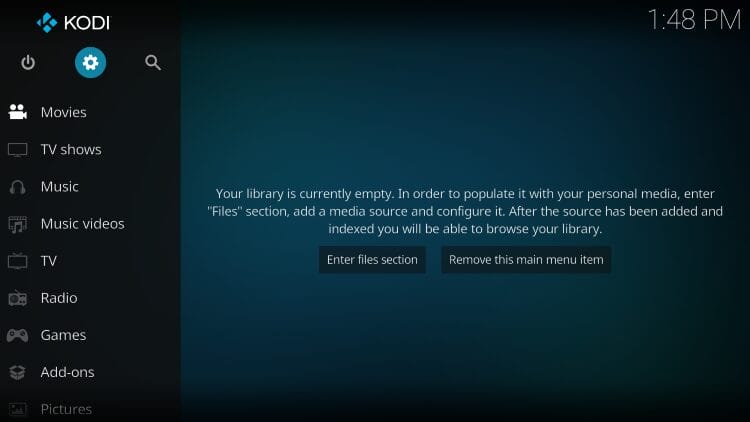
  • Launch Kodi
  • Click the settings icon  Kodi Settings Icon

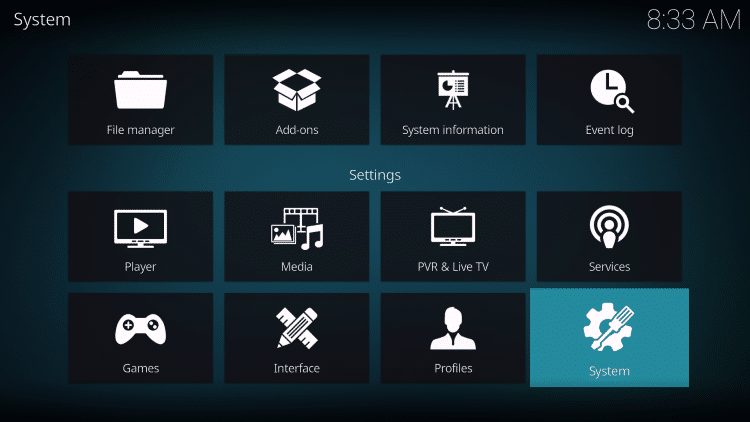
Click Settings to install scrubs v2

click system

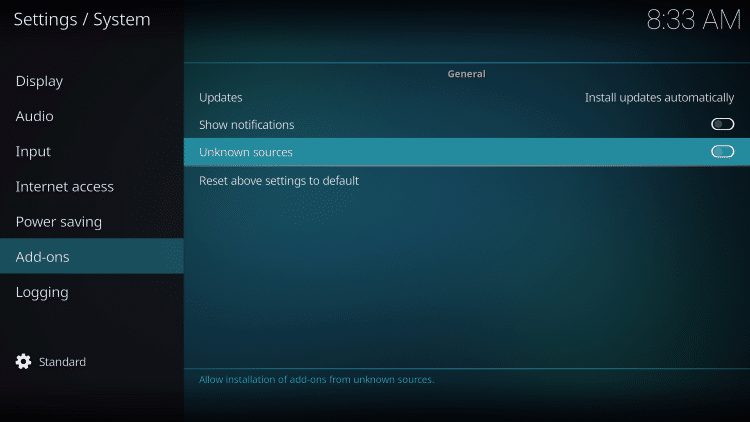
  • Hover over Add-ons menu item and turn on Unknown sources if not already on

turn on unknown sources

click yes

  • Click back on remote to go back to the System page
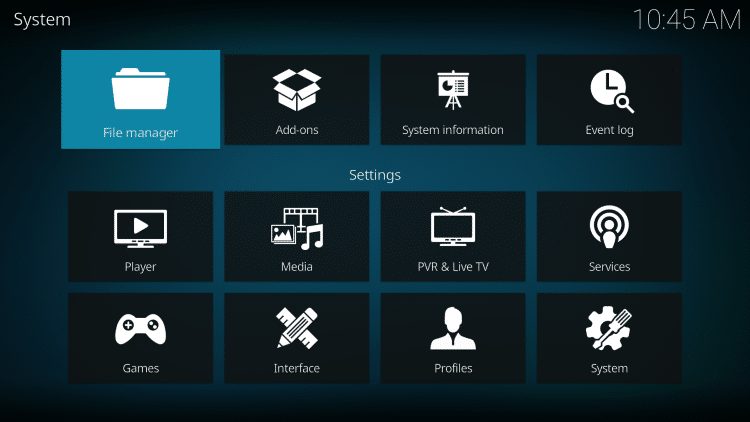
  • Select File Manager

select file manager

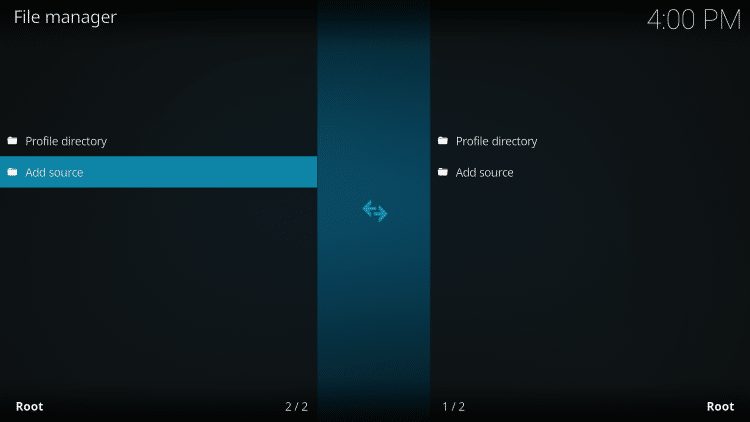
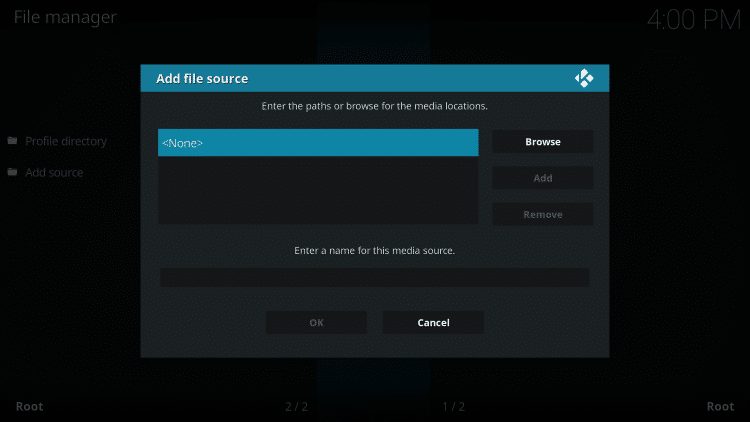
click add source

click none

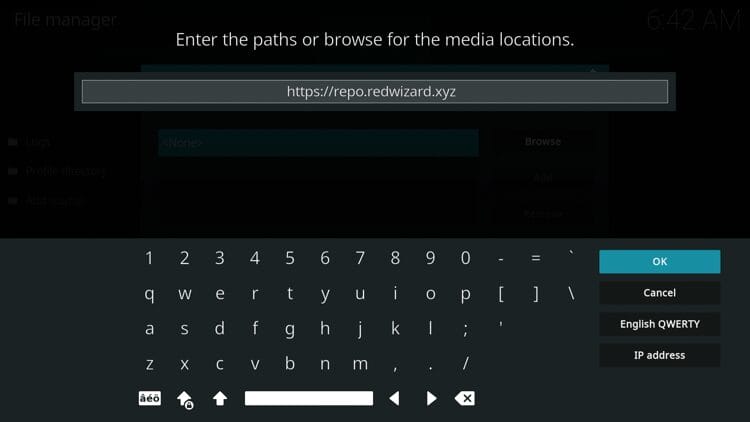
  • Type the following URL exactly how it is listed here – https://repo.redwizard.xyz and click OK.

Type the following URL exactly how it is listed here – https://repo.redwizard.xyz and click OK.

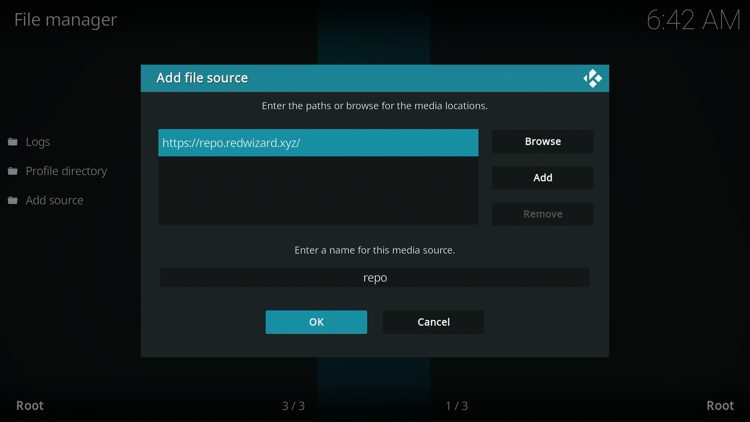
  • Type “repo” or any other name you would like to identify this source as and click OK

Type "repo" or any other name you would like to identify this source as and click OK

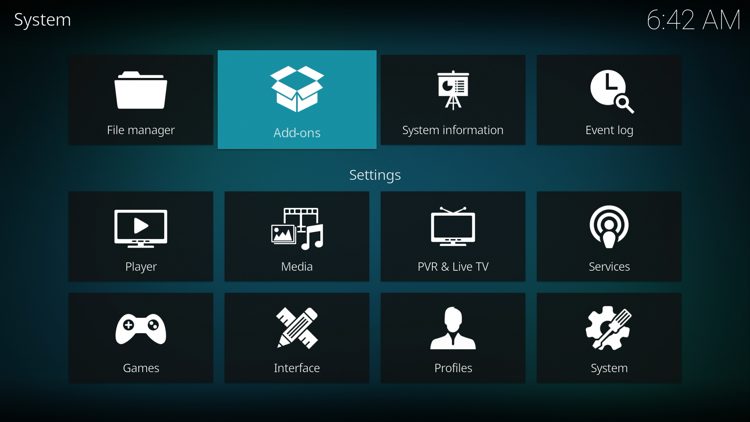
  • Click the back button on your remote until you are on the System screen. Then click Add-ons

Click the back button on your remote until you are on the System screen. Then click Add-ons

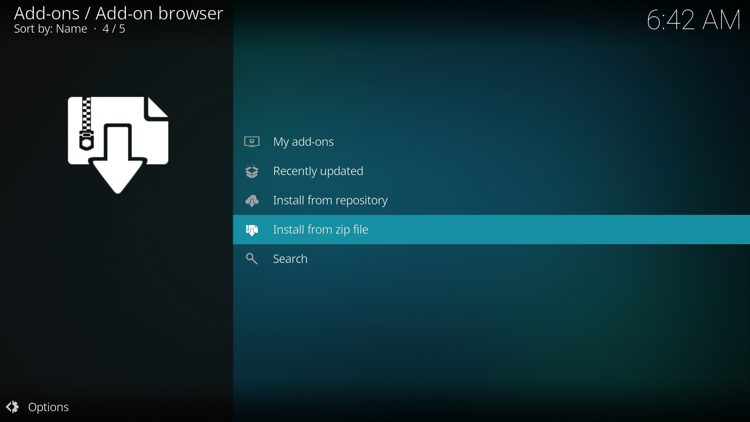
  • Click Install from zip file

Click Install from zip file

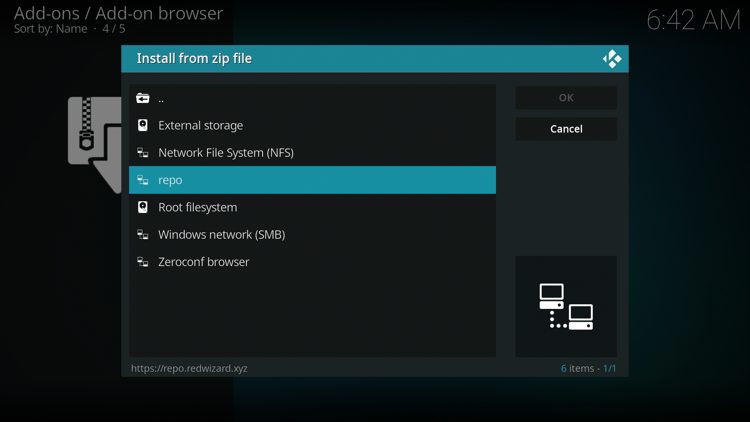
  • Select “repo” or whatever you named the media source in the previous step

Select "repo" or whatever you named the media source in the previous step

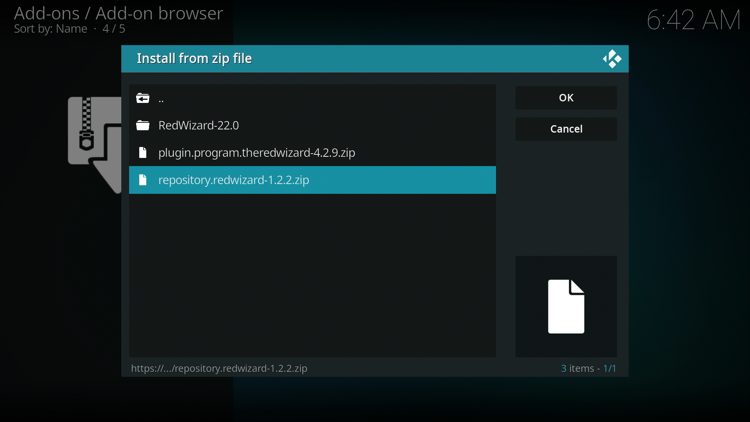
  • Click the zip file URL – repository.redwizard.zip and click OK.

Click the zip file URL - repository.redwizard.zip and click OK.


🛑 HURRY – SURFSHARK VPN DISCOUNT

Surfshark VPN Exclusive Discount

Your online activity is monitored by your ISP, app/addon/IPTV devs, government, and all websites.

🔒 Become anonymous while streaming & downloading with Surfshark VPN

Save 73% with 24-Month Plan + Get 3 FREE Months

Use on Unlimited Devices & Share 1 Account with Entire Family

CLAIM DEAL HERE
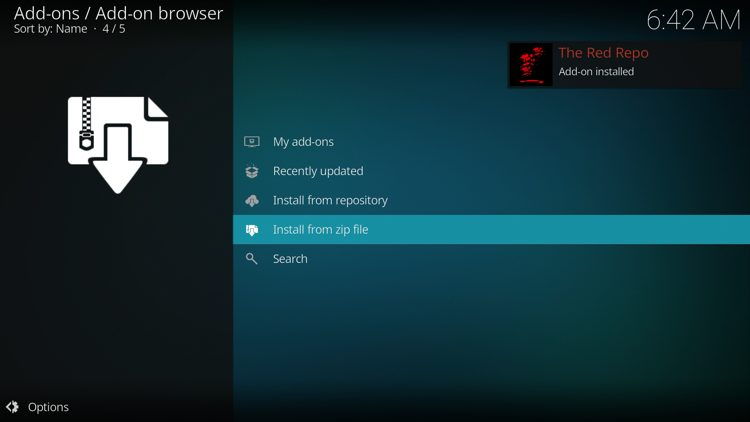
 

  • Wait for “The Red Repo Add-on installed” message to appear

Wait for the "The Red Repo Add-on installed" message to appear

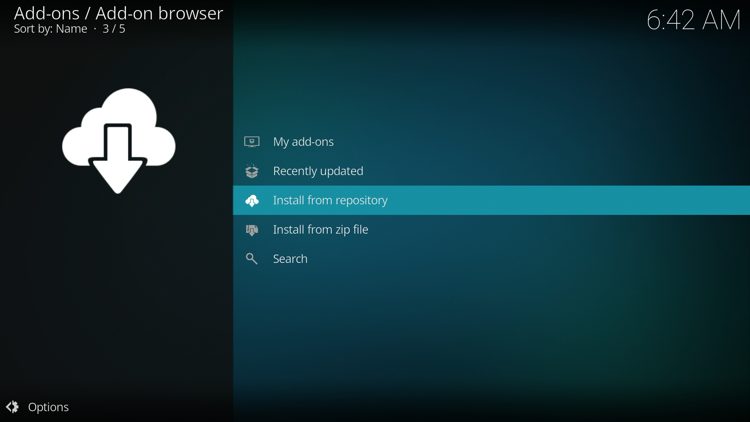
  • Next click Install from repository

Next click Install from repository

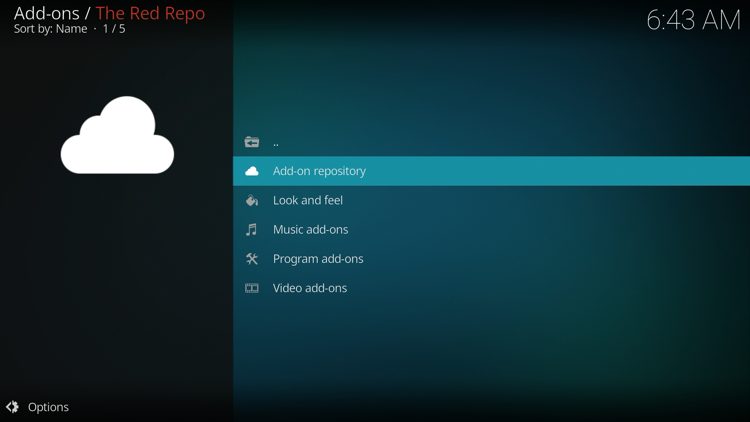
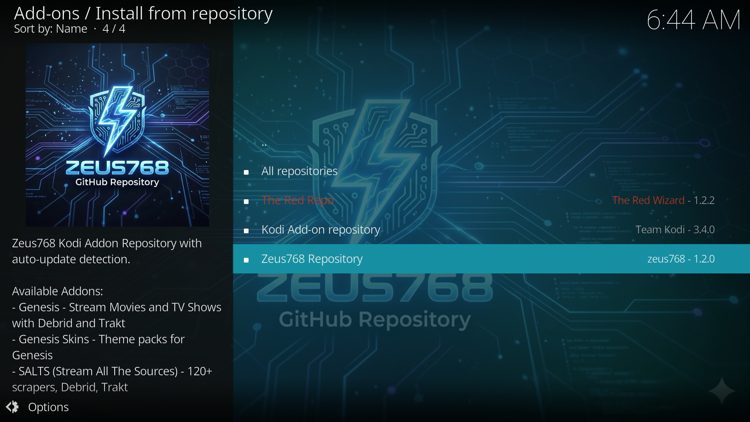
  • Then click Add-on repository

Click Add-on repository

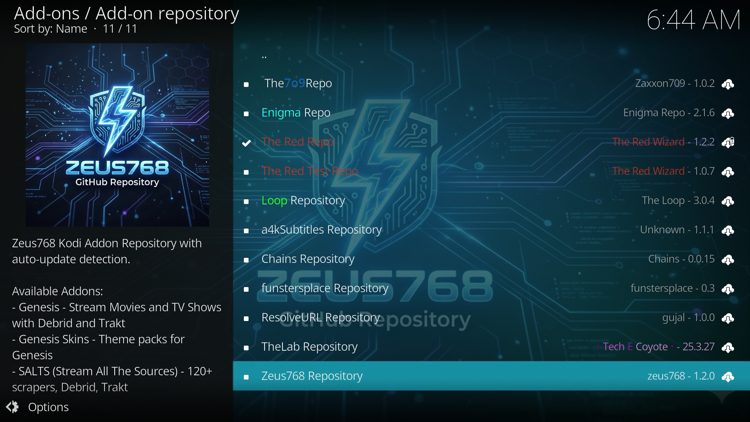
  • Select the Zeus768 Repository

Select the Zeus768 Repository

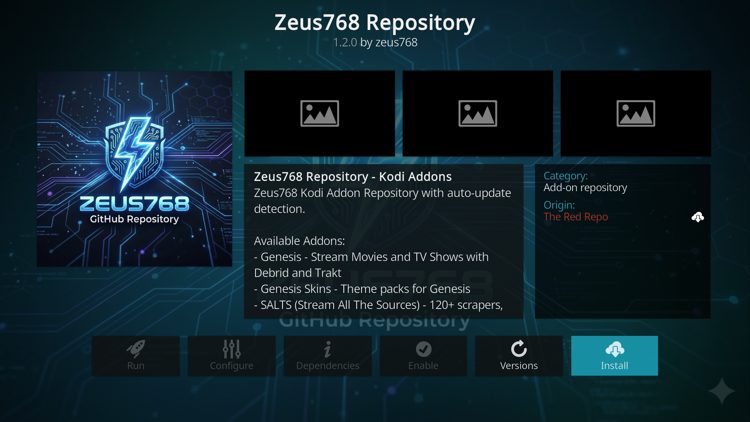
Click Install

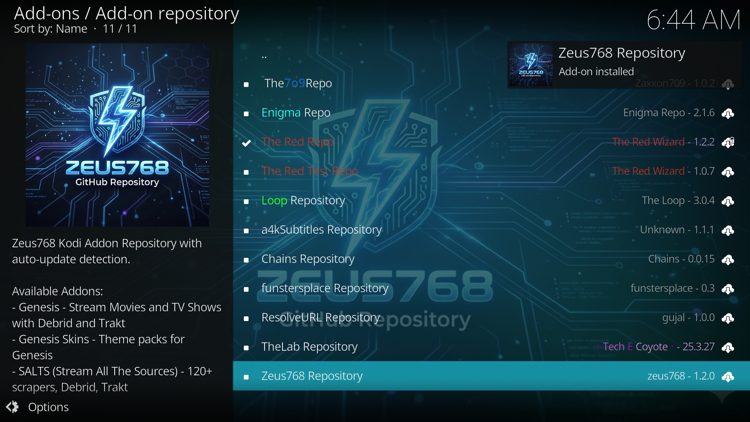
  • Wait for the “Zeus768 Repository Add-on installed” message to appear

Wait for the "Zeus768 Repository Add-on installed" message to appear

  • Click the back button on your remote a few times and select the Zeus768 Repository

Click the back button on your remote a few times and select the Zeus768 Repository

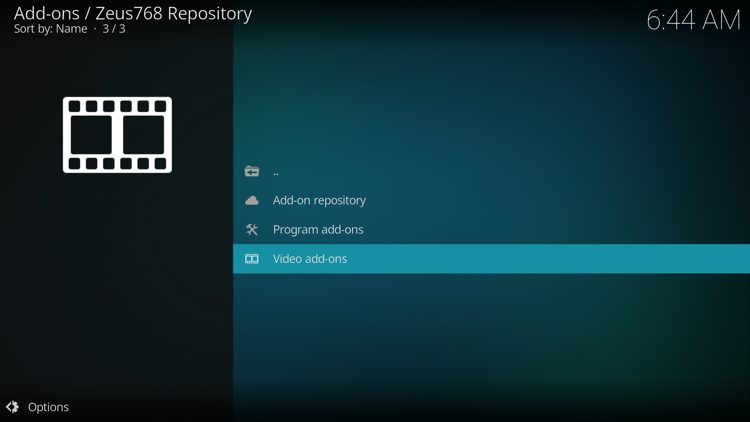
  • Scroll down and select Video add-ons

Scroll down and select Video add-ons

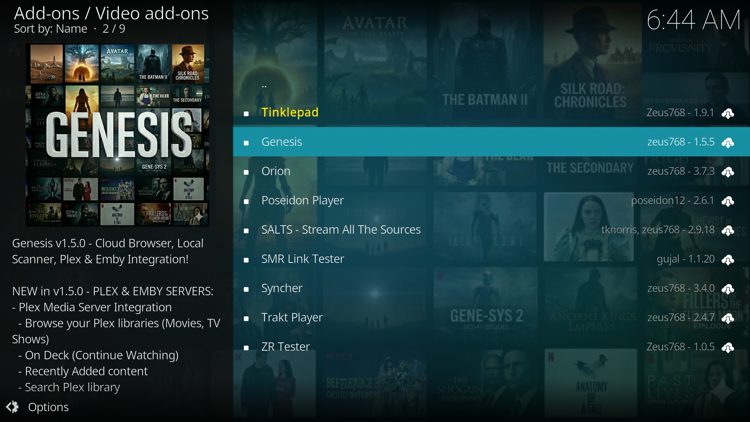
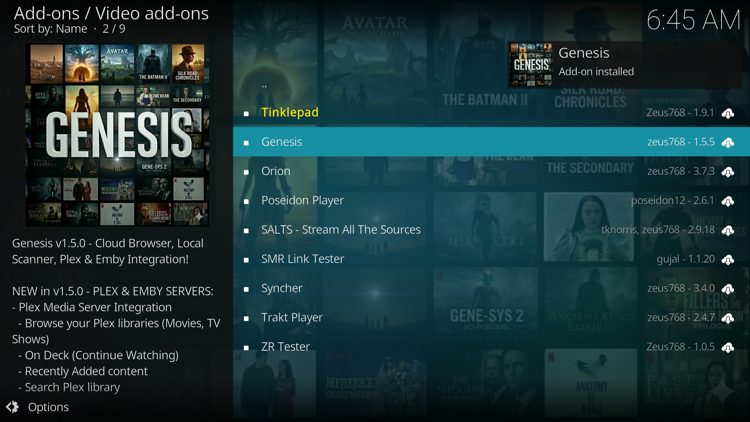
Click Genesis

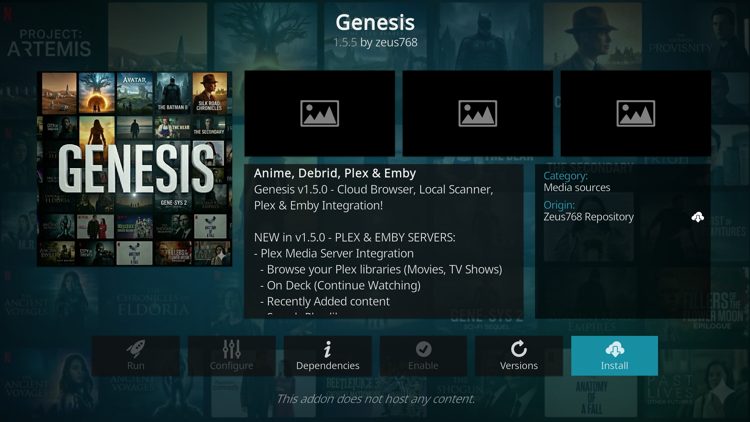
Click Install

  • Wait a minute or two for the add-on to fully install

Wait a minute or two for the add-on to fully install

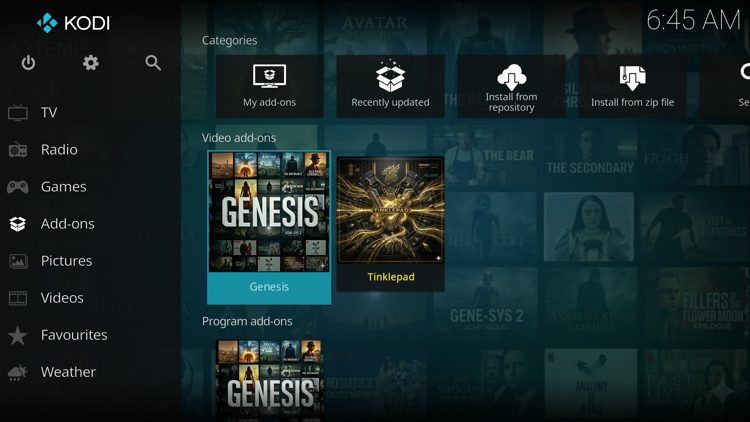
  • Then go back to the Home screen of Kodi and select Add-ons, then choose Genesis

Then go back to the Home screen of Kodi and select Add-ons, then choose Genesis

  • You have successfully installed the Genesis add-on!

You have successfully installed the Genesis add-on!

Installation is now complete and continue reading below for integrating a premium debrid service.

How to Integrate Debrid Services

In this example we are integrating Real-Debrid but this process will also work for any debrid service like AllDebrid, Premiumize, TorBox, and more.

1. From the main menu of the Genesis add-on, scroll down and click Debrid Services.
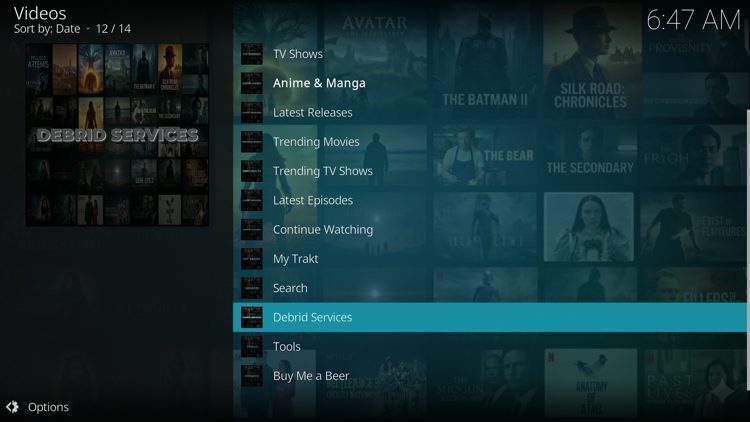
From the main menu of the Genesis add-on, scroll down and click Debrid Services.

2. Click Authorize Real-Debrid.
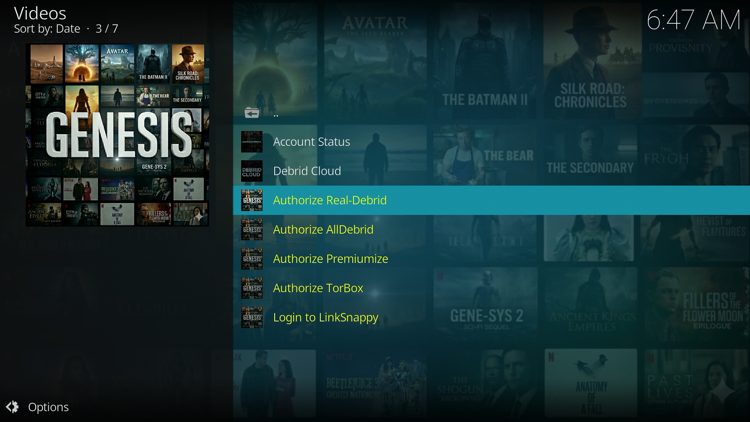
Click Authorize Real-Debrid.

3. You are then provided with a real-debrid authorization code.
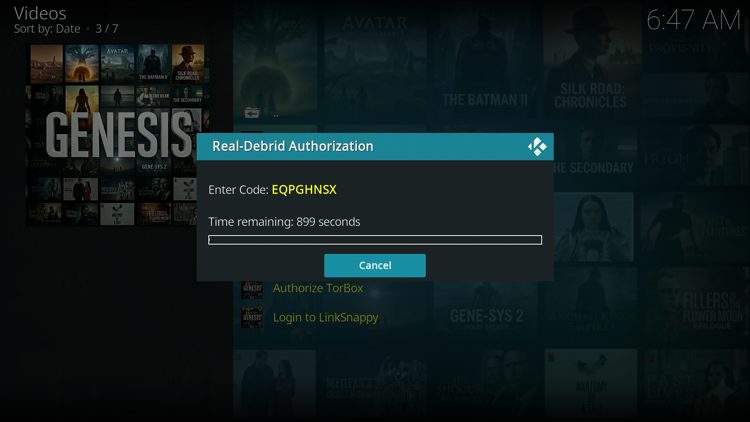
You are then provided with a real-debrid authorization code.

4. Visit real-debrid.com/device and enter the provided code.
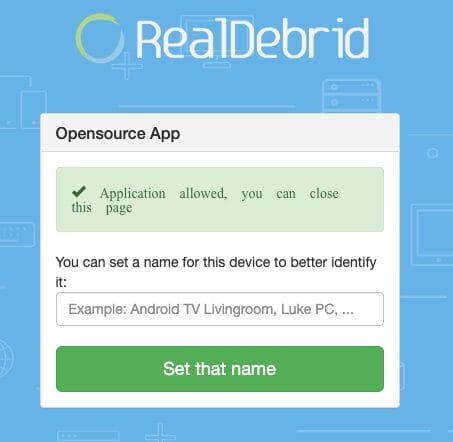
Visit real-debrid.com/device and enter the provided code.

5. Return to Kodi and you should notice your Real-Debrid account is now logged in.
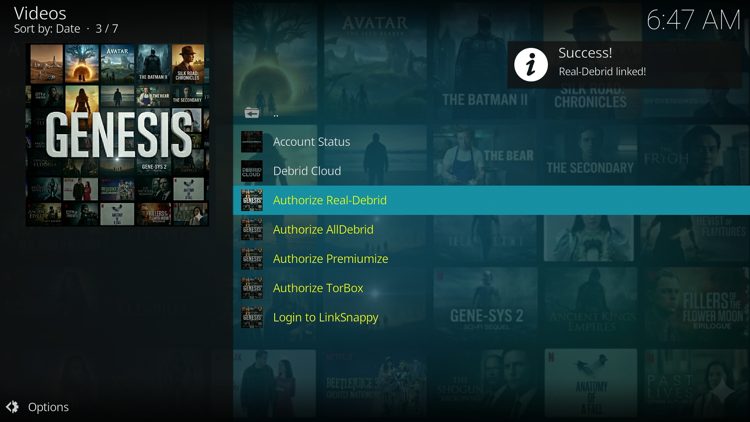
Return to Kodi and you should notice your Real-Debrid account is now logged in.

6. You can now stream tons of on-demand movies and TV shows. When streaming content you will notice a ‘Source Picker’ that allows you to filter sources which is a nice feature.

*While testing this app we are streaming Night of the Living Dead which is a public domain movie not protected by copyright.
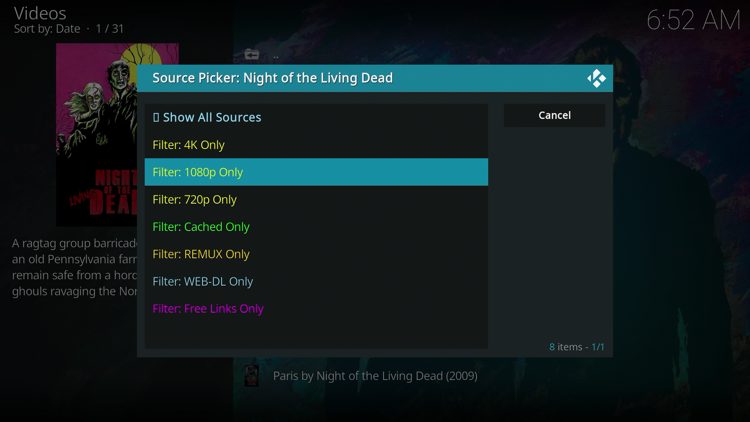
You can now stream tons of on-demand movies and TV shows.

Genesis Addon Features & Details

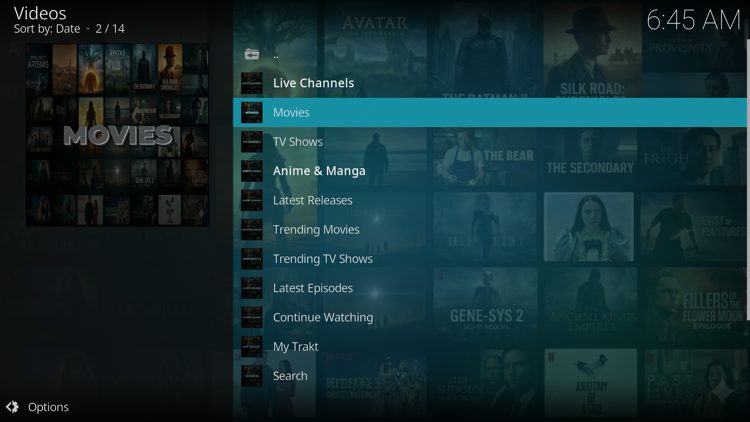
The Genesis add-on should work very well on any Kodi device when paired with a debrid service. There are a ton of categories that include Movies, TV Shows, Anime/Manga, Live Channels, My Trakt, Search, and more.

Genesis Addon Categories

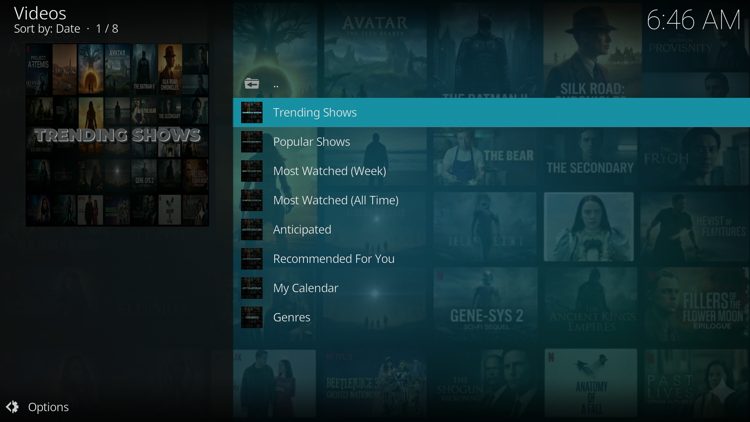
TV Shows

TV Shows

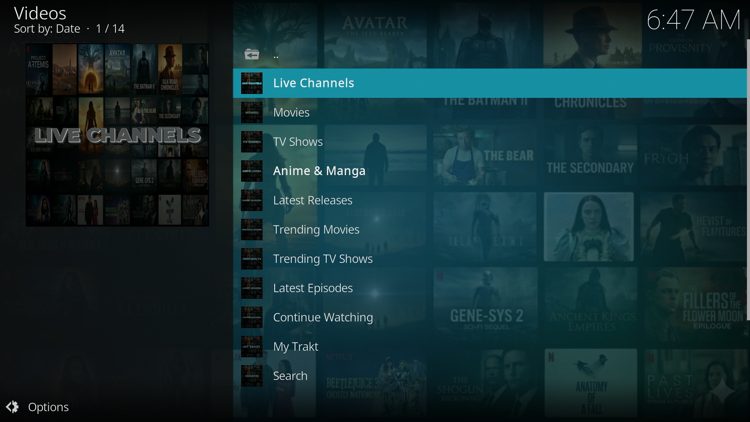
Live Channels

Live Channels

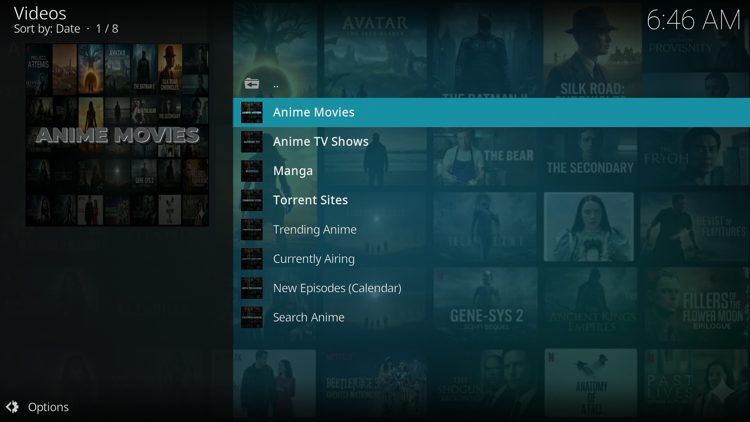
Anime & Manga

Anime & Manga

Genesis Kodi Addon Review

Here’s what our testing revealed about the long-standing ‘Genesis’ add-on:

What We Like

  • Revival of a landmark Kodi addon name, now updated for the latest version (21 Omega)
  • Categories cover Movies, TV Shows, Live Channels, and Trakt
  • Real-Debrid, Premiumize, AllDebrid, and TorBox all supported out of the box
  • Built-in Source Picker filters streaming links in ways most add-ons don’t offer
  • Anime and Manga sections are unusual to find within add-ons
  • Same developer behind the recently revived SALTS, with proven update commitment
  • Trakt integration syncs viewing progress across devices

What We Don’t Like

  • Third-party source with no verified licensing for content
  • VirusTotal flagged one suspicious file in the host repository URL
  • No free streaming links are available
  • Easy to confuse with the original 2014 Genesis or older revivals like Reborn and Resurrected
  • Brand new revival means long-term update commitment is unproven
  • Older Kodi versions may experience errors

Is The Genesis Addon Legal?

It’s impossible for TROYPOINT to determine whether these unverified add-ons like ‘Genesis’ hold the proper licensing.

TROYPOINT recommends only accessing media not protected by copyright such as those that fall under Public Domain status.

The end-user is responsible for all content accessed through unverified apps. For verified options, see our list of legal streaming apps.

Is it Safe to Use?

Before using this add-on it is important to scan their repository URL with VirusTotal. Here is the screenshot of the scan results.
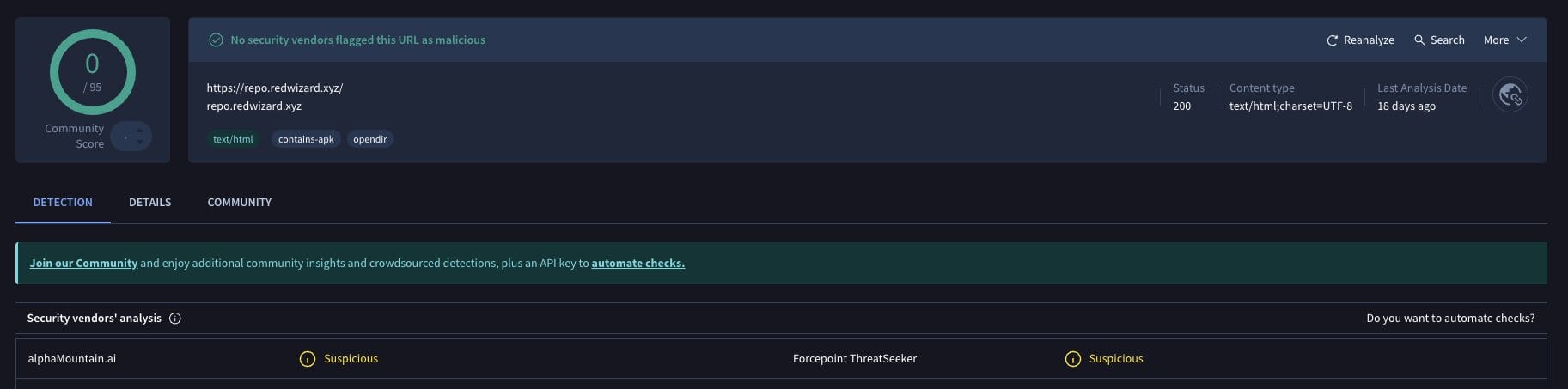
Genesis Addon VirusTotal Scan

VirusTotal found one suspicious file with viruses/malware within the The Red Repo URL. We should always protect ourselves with a VPN when streaming content from unverified 3rd party add-ons.

A VPN will provide you with an anonymous connection while using questionable add-ons such as this. See our VPN on Firestick tutorial for more information.

Have you tried installing the new and improved Genesis add-on? Let us know your thoughts in the comments below!

This page includes affiliate links where TROYPOINT may receive a commission at no extra cost to you. Many times, visitors will receive a discount due to the special arrangements made for our fans. Learn more on my Affiliate Disclaimer page.


Images Images