



 Written by admin
Learn How to Configure & Install the TorBox Stremio Addon using our step by step guide below.
We provide a screenshot tutorial to follow along with as well as a video guide that has important details regarding this addon that you should know.
The TorBox addon works directly with the TorBox Service which is a debrid provider that hosts streaming links for consumption.
It is currently one of the Best Debrid Services available for tons of reasons including its no log policy and the ability to share/sync your account across multiple devices.
TorBox is available for integration in most popular Stremio Addons, however, you can also go directly to the source by installing the official addon as shown below.
This is the best way to get instant streaming links on any Stremio device including Google/Android TV Boxes that are the most popular streaming boxes available today.
In this guide, we will install the TorBox Stremio addon for use on the Onn 4K Pro Box but this will also work for any device you have the Stremio app installed on.
Make sure to watch the video below to fully understand how to configure and use the TorBox Stremio Addon!
Register for Stremio Account Here
Before getting started, make sure you have installed and set up Stremio on your preferred media device.
We will install TorBox Stremio Addon by using the Bootstrapper Addon on our PC but you can also follow along on a mobile device with any browser you prefer.
1. If you don’t already have one, sign Up for a TorBox Account (we suggest the Essential Plan) by CLICKING HERE.
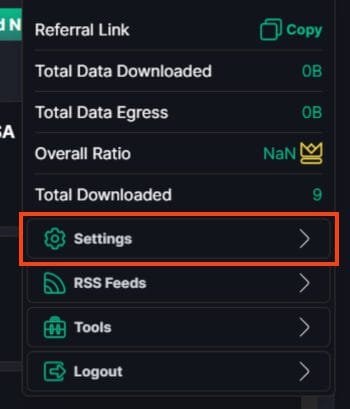
2. Use your preferred Browser and visit the official TorBox website and open your Account. Launch Settings.
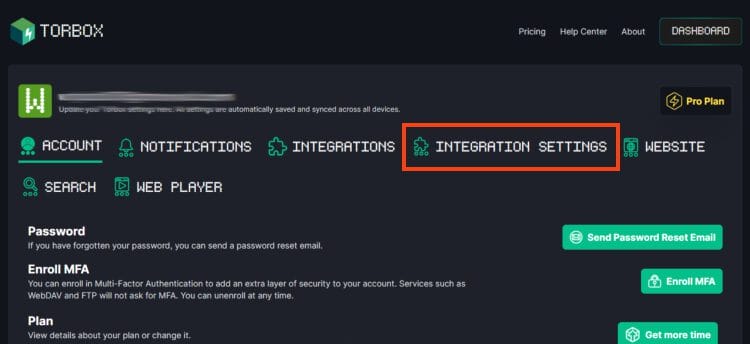
3. Click Integration Settings.
Your online activity is monitored by your ISP, app/addon/IPTV devs, government, and all websites.
🔒 Become anonymous while streaming & downloading with Surfshark VPN
Save 87% with 24-Month Plan + Get 3 FREE Months
Use on Unlimited Devices & Share 1 Account with Entire Family
CLAIM DEAL HERE
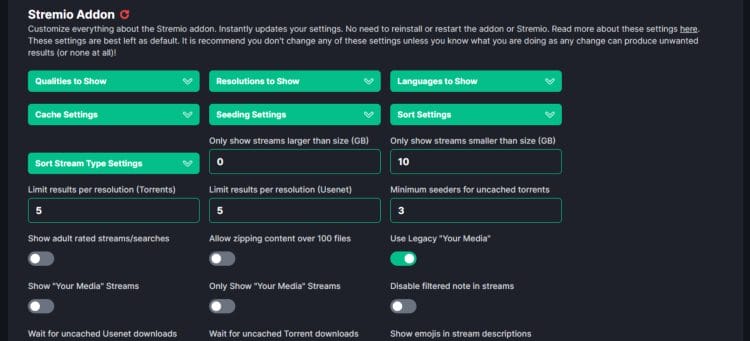
4. Adjust Configuration Settings to your desired Preference.
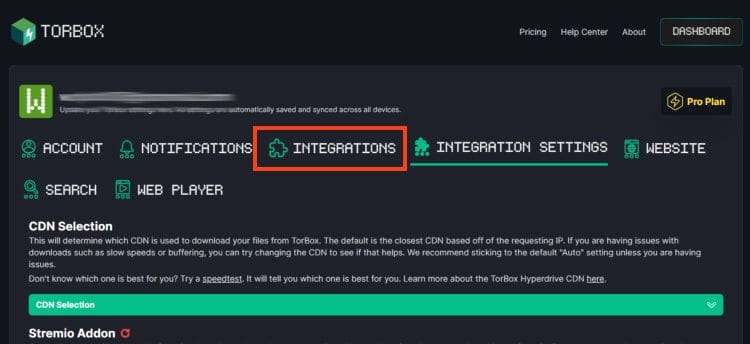
5. Scroll back up and click Integrations.
6. Find Stremio Addon and click Copy Manifest URL.
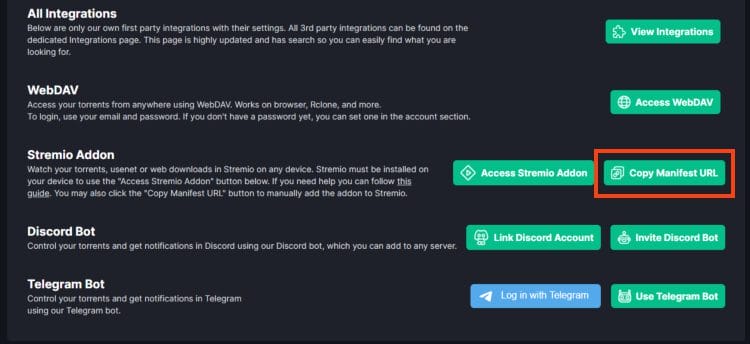
We will now use the Stremio Acccount Bootstrapper addon to easily install TorBox with additional quality addon choices.
1. In a new tab, visit the Stremio Account Bootsrapper official website – bootstrapper.stremaddon.net.
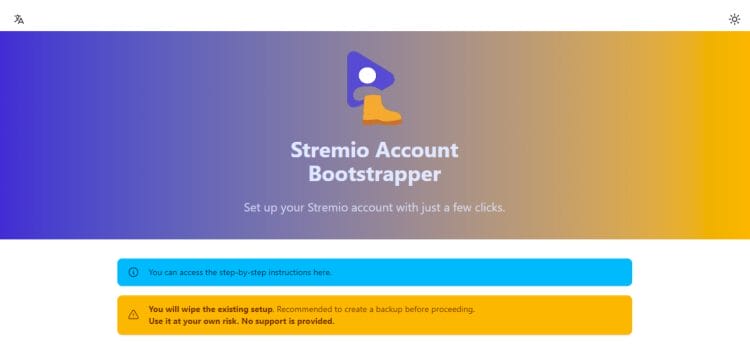
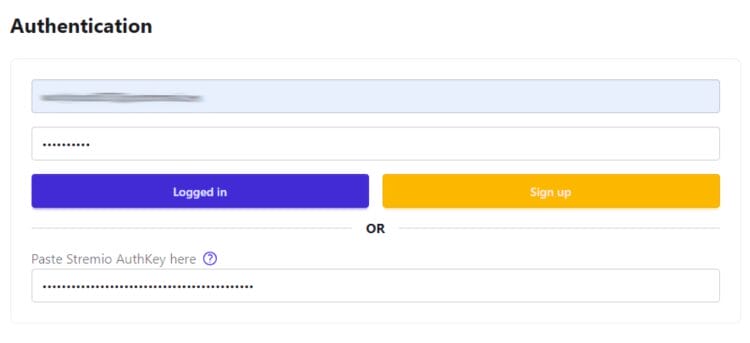
2. Login to Stremio with your account credentials.
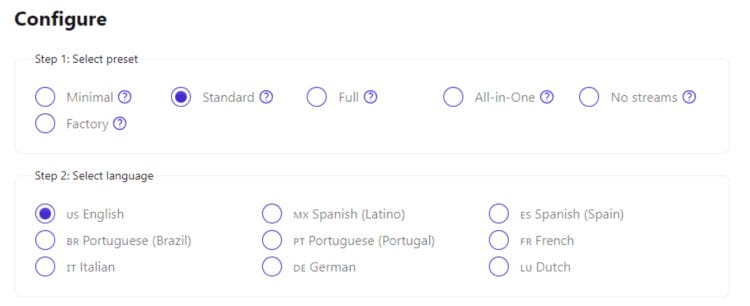
2. Scroll down and configure the Settings to your liking.
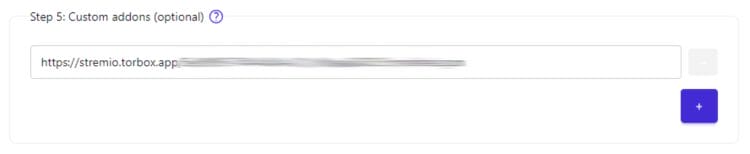
3. Under Step 5, “Custom addons”, paste the TorBox Manifest URL we copied earlier into the URL bar.
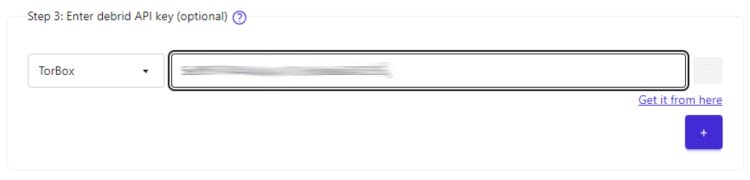
4. Scroll up to Step 3 and choose TorBox. Input your TorBox API Key.
1. Scroll back down to Step 8 and click Load Addons Preset.

2. Click Sync to Stremio.

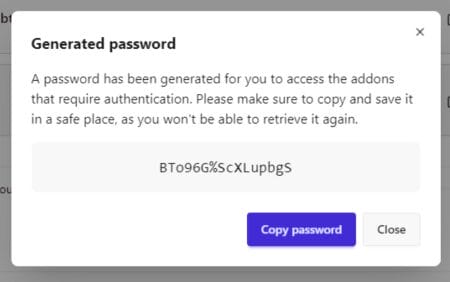
3. Copy and Save Password for future (if needed).
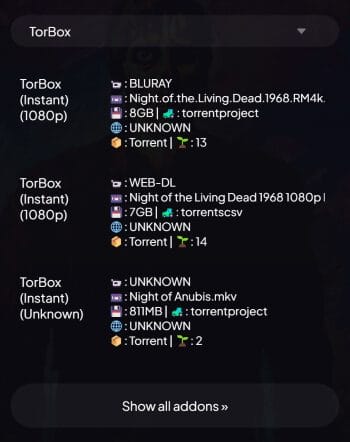
4. You can now launch the Stremio addon and choose your title. You will see TorBox links displayed for playback.
Enjoy!
When configuring TorBox, there are numerous Settings worth checking out that will give you more control of the Stremio addon.
This includes the ability to adjust Qualities, Resolutions, Languages, and more to appear when providing links. Users can also configure the limit results per resolution and the file size of each link.
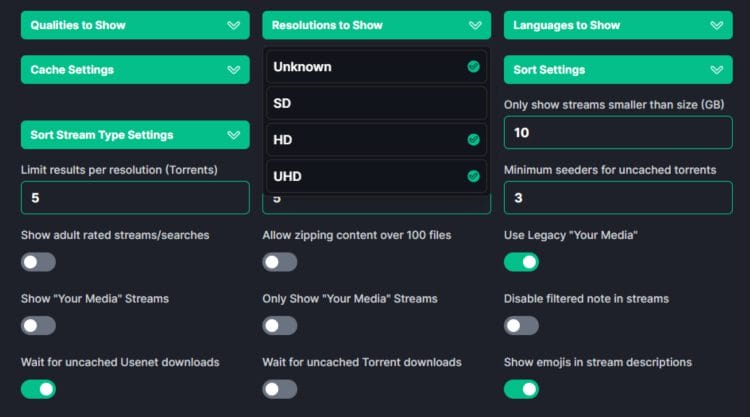
There are tons of additional preferences you can edit such as Emojis in description, allow zipping, adult rated content, and more.
The Torbox addon is a great choice for anyone who uses the Stremio application and is a TorBox Debrid Subscriber.
If you are a TorBox/Stremio user, install the TorBox addon using our guide above and let us know what you think in the comments below!
This page includes affiliate links where TROYPOINT may receive a commission at no extra cost to you. Many times, visitors will receive a discount due to the special arrangements made for our fans. Learn more on my Affiliate Disclaimer page.



© IPTVSub is Proudly Owned by win-design