


 Written by admin
This short guide will show you how to Reset any Firestick or Fire TV device to factory settings in seconds.
Resetting your Amazon Firestick to factory default settings is one of the best ways to reboot the system and make it run faster. A clean reset will erase all installed applications and tools, meaning it will be as good as new.
You must be aware the resetting your Fire TV to factory settings is not the same as restarting/rebooting the device.
When you reset your device, you will be erasing everything on the system. After your system reboots, you will need to reinstall all your old applications.
Sometimes a factory reset of your Amazon Firestick is necessary, as a quick reboot does not always fix the underlying issues on your device.
There are two methods to resetting an Amazon Firestick or Fire TV:
We provide step-by-step screenshot tutorials for both of these methods below. We are using an Amazon Firestick 4K Max in these examples.
The process of resetting a Firestick with your remote will usually take less than a minute, and sometimes you can’t access your Fire TV settings due to a frozen screen. Just follow these quick steps to reset your device.
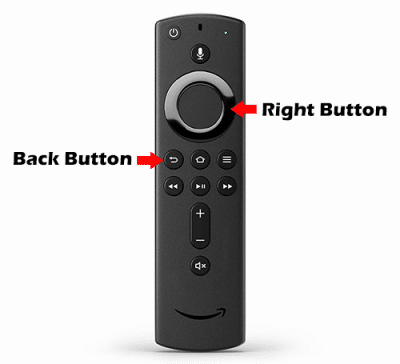
1. Press the Right and Back buttons together on your Firestick remote for at least 10 seconds.
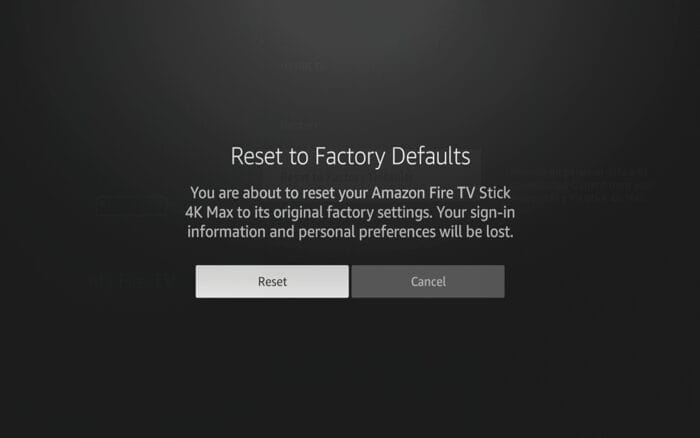
2. The “Reset to Factory Defaults” screen should appear. Click Reset to perform a factory reset.
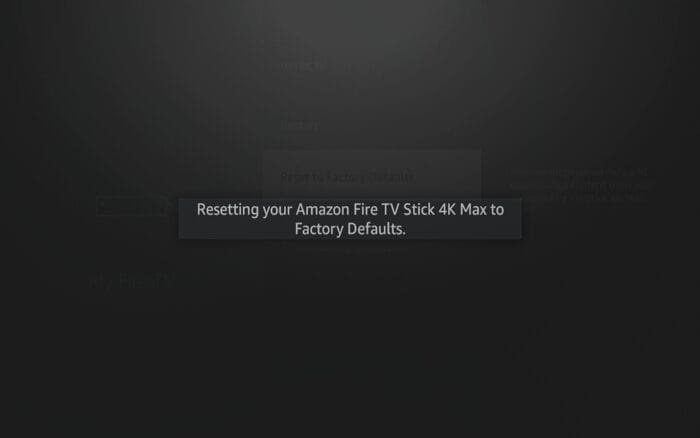
3. That’s it! After initiating a factory reset on your Firestick this process will take a few minutes.
If the remote shortcut is not working for whatever reason, you can reset your Firestick manually within the device settings. Follow the screenshots below to perform a factory reset manually.
1. From your Fire TV home screen, hover over the hamburger icon and click Settings on the bottom left.
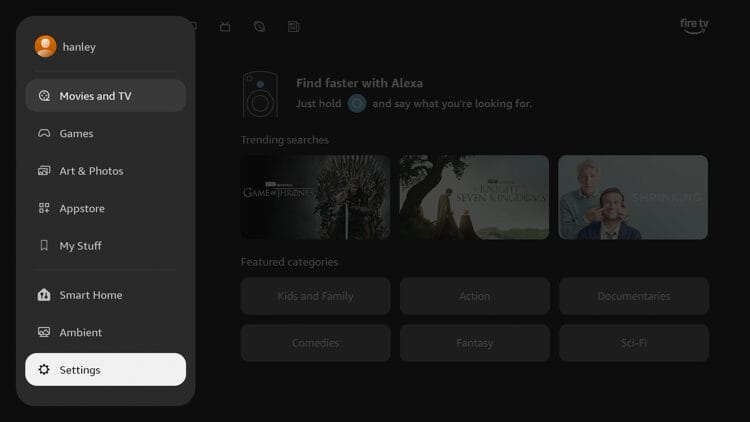
2. Scroll My Fire TV.
Your online activity is monitored by your ISP, app/addon/IPTV devs, government, and all websites.
🔒 Become anonymous while streaming & downloading with Surfshark VPN
Save 87% with 24-Month Plan + Get 3 FREE Months
Use on Unlimited Devices & Share 1 Account with Entire Family
CLAIM DEAL HERE
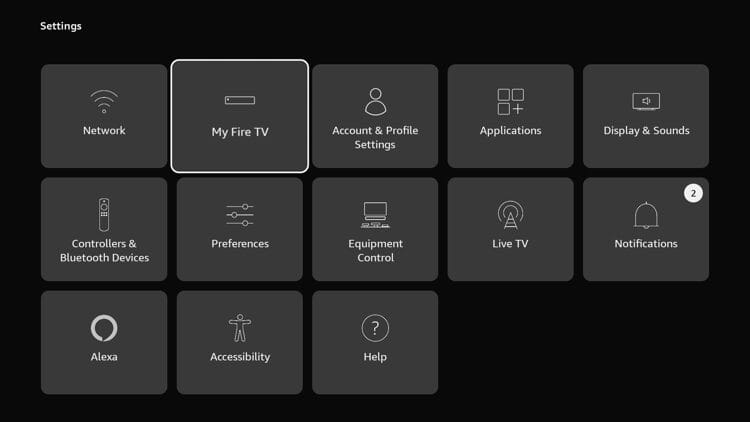
3. Then scroll down and click Reset to Factory Defaults.
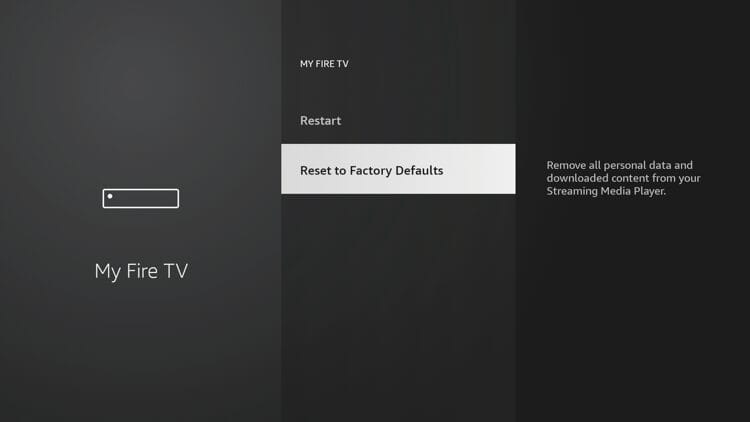
4. Click Reset.
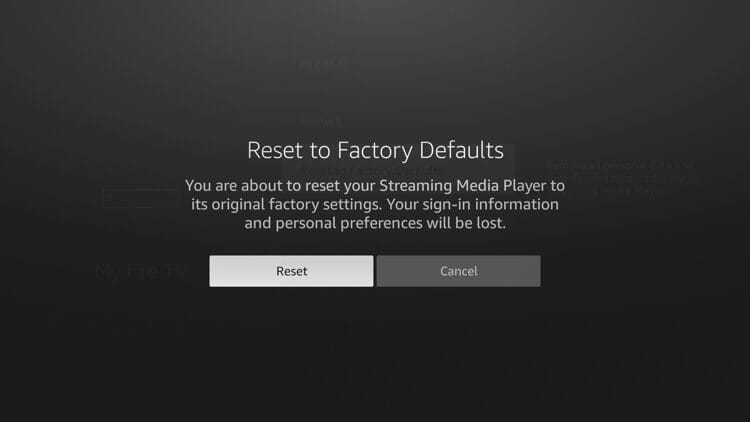
5. You will then see a screen that says “Resetting your Fire TV to Factory Defaults.”
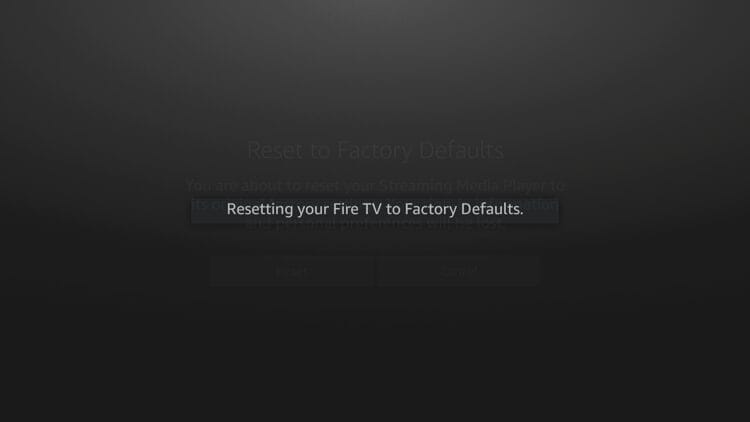
6. Wait a few minutes for the reset process to finalize.
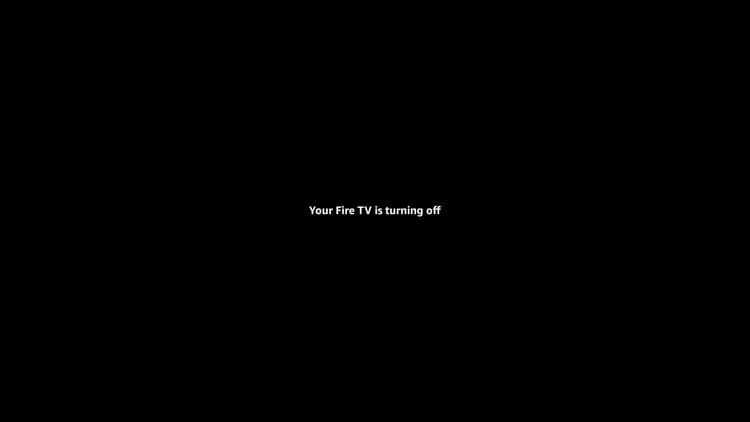
7. That’s it! Now click the home button on your remote to begin the Firestick setup process.
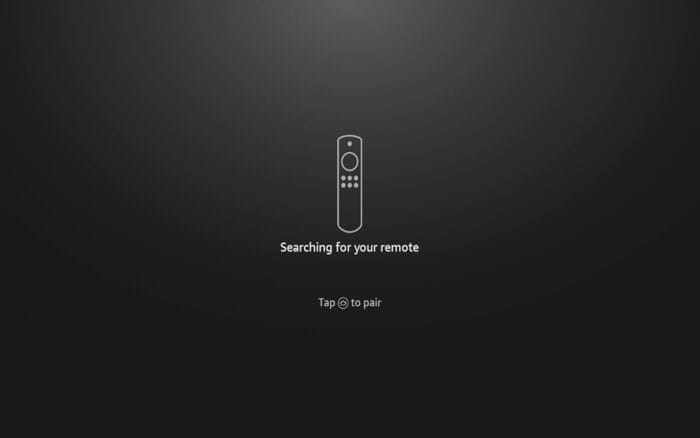
Enjoy a fresh start and better working device to install all of your favorite applications and more. You can refer to Amazon’s support documentation for more details on the reset process.
A factory reset is the fastest way to clear out storage problems, app crashes, and sluggish performance on your Firestick or Fire TV.
Just remember that this process will erase everything on the device, so be prepared to reinstall your apps and go through the setup wizard again. If a simple restart fixes the issue, there’s no need to go through a full reset.
How often do you reset your Firestick/Fire TV device? Let us know in the comments below!
This page includes affiliate links where TROYPOINT may receive a commission at no extra cost to you. Many times, visitors will receive a discount due to the special arrangements made for our fans. Learn more on my Affiliate Disclaimer page.



© IPTVSub is Proudly Owned by win-design