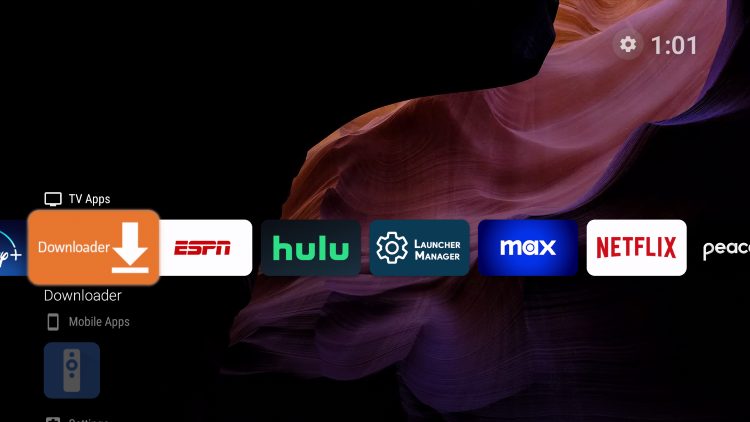
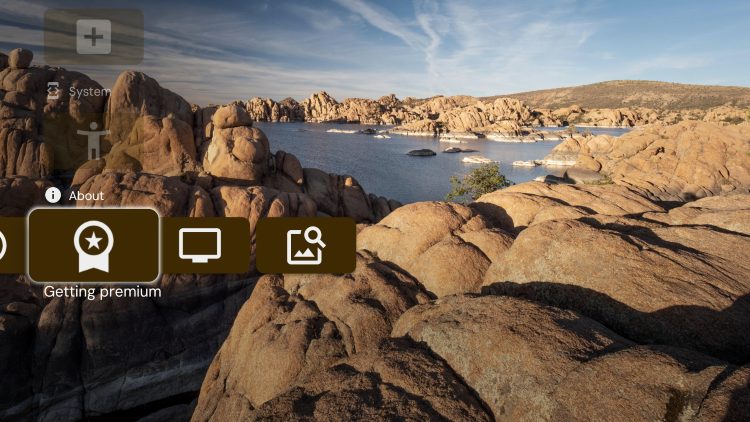
This guide will show you how to install the Projectivy Launcher on Firestick and Android TV to upgrade your interface.
Projectivy is a custom launcher created by Spocky12 that will change the default user interface on your device to remove ads and much more.
The developer of this launcher frequently updates it with new advancements and improvements. The latest version is V4.67 which was released in August of 2025 and has tons of added features.
Most of us know that streaming devices such as the Amazon Firestick are riddled with unwanted advertisements and bloatware that fill up the home screen.
Luckily, we can remove all unwanted ads and customize our home screen with a 3rd party launcher and Projectivy is one of the best available.
It removes the clutter and only displays your installed apps/APKs for instant access.
NOTE: Check out our video guide below that will explain this in more detail and show you the ultimate Firestick Hack.
Projectivy Launcher Special Video Guide
Projectivy allows for more customization options, removes sponsored/suggested content, displays all side-loaded apps, and more.
In the guides below we will show how to install and set up the Projectivy Launcher on a Fire TV Stick 4K Max as well as Android or Google Boxes such as the onn. 4K Pro.
Those familiar with launchers may have used the popular Wolf Launcher or another launcher in the past.
Important Note: In order to use the Projectivy Launcher correctly, we must install two separate applications. Make sure to follow the guide step by step so you don’t miss anything.
How to Install Projectivy Launcher on Firestick/Fire TV
Below, you will find screenshot guides that will show how to install Projectivy Launcher on the Amazon Firestick and all Fire TV devices running Fire OS 6 or above.
Projectivy has recently been added to the Google Play Store so if you are using an Android (or Android TV) device, you can install directly via Google Play.
Step 1: Prepare to Install with Downloader
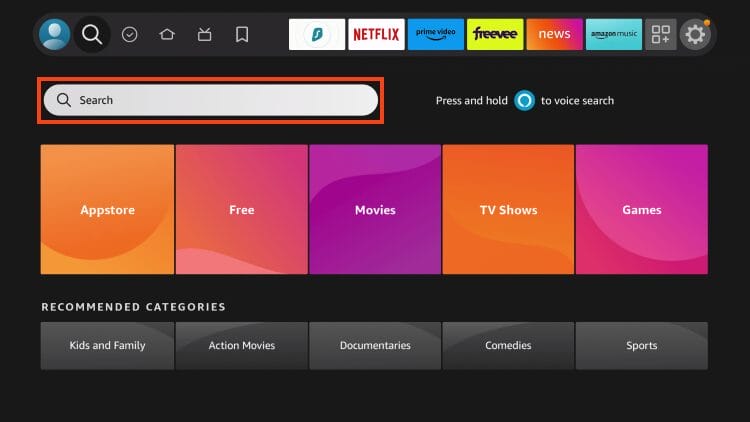
1. Open the Search bar.
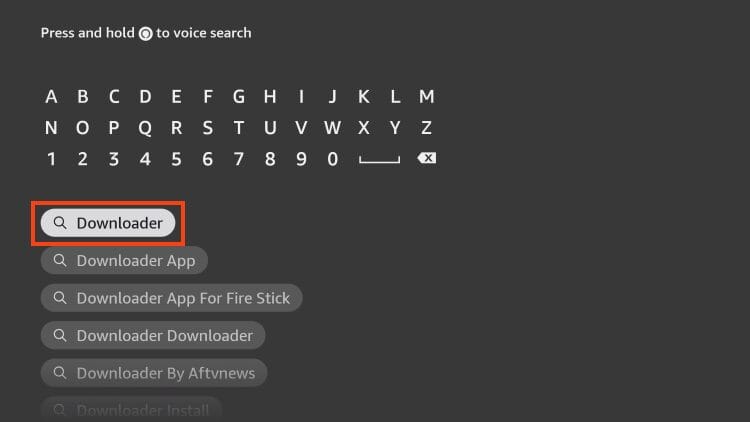
2. Search for Downloader.
🛑 DON’T SLEEP ON THISSurfshark VPN Exclusive DiscountYour online activity is monitored by your ISP, app/addon/IPTV devs, government, and all websites.🔒 Become anonymous while streaming & downloading with Surfshark VPNSave 87% with 24-Month Plan + Get 3 FREE MonthsUse on Unlimited Devices & Share 1 Account with Entire Family
CLAIM DEAL HERE
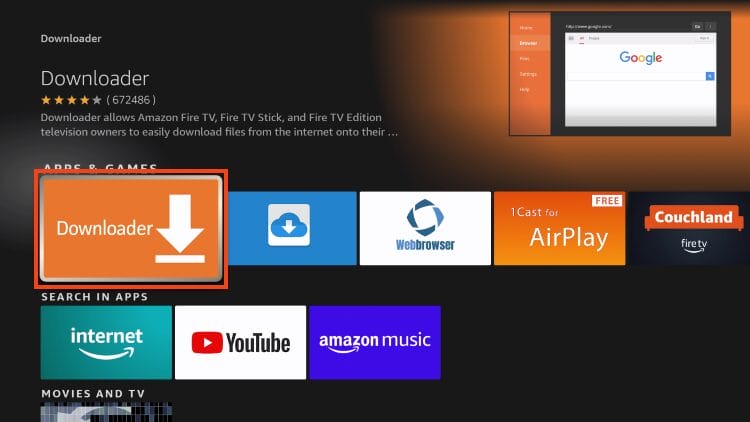
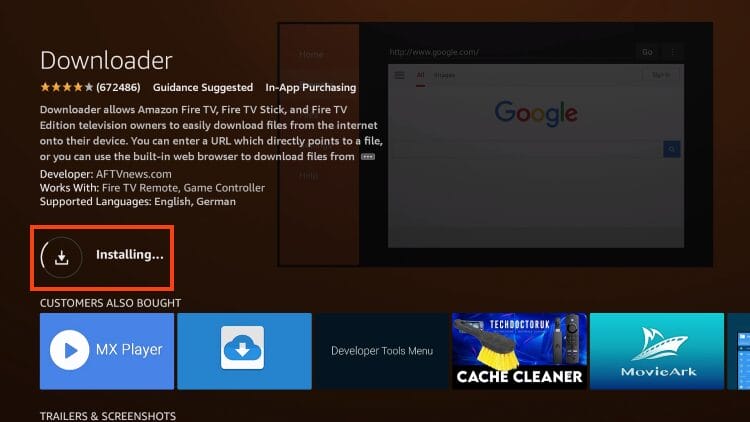
3. Choose the Downloader app.
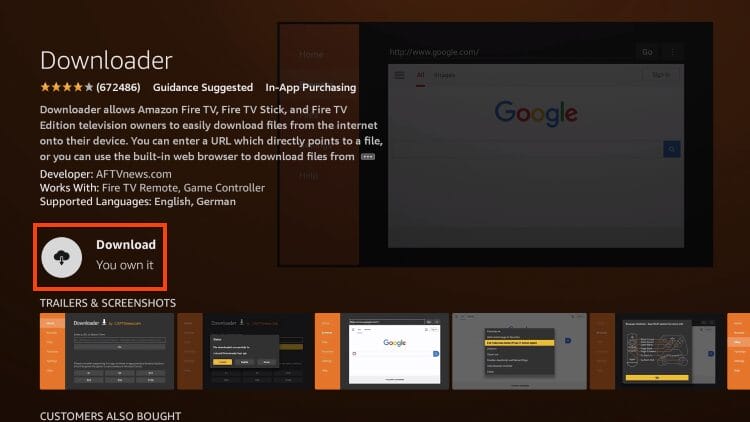
4. Click Download.
5. Wait for the Downloader app to install.
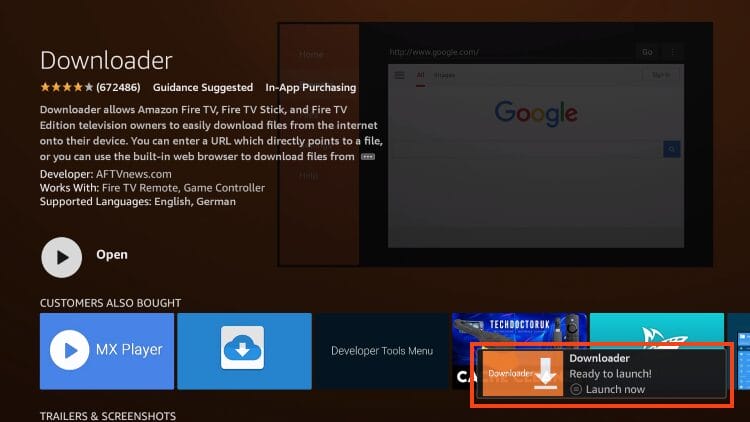
6. You will get a notification when it installs.
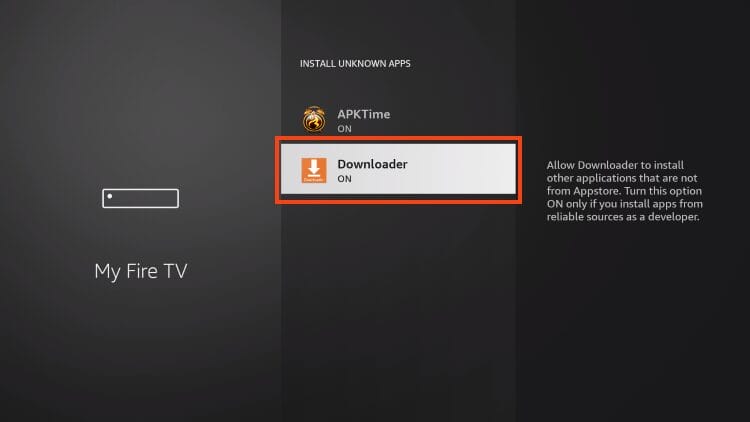
7. Launch Settings and turn on Unknown Apps for Downloader.
Step 2: Install Launch on Boot
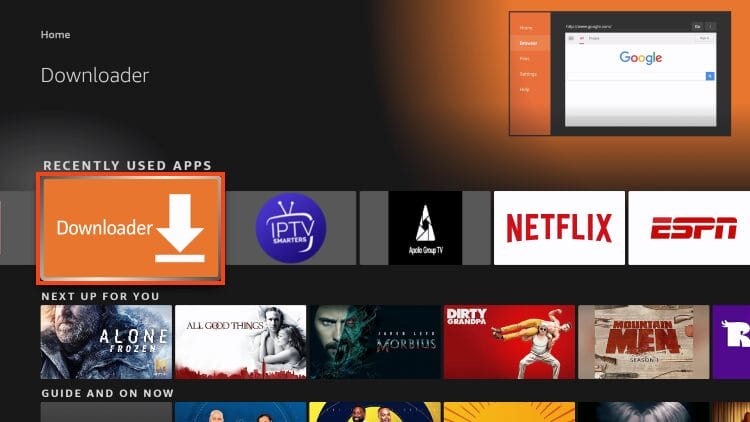
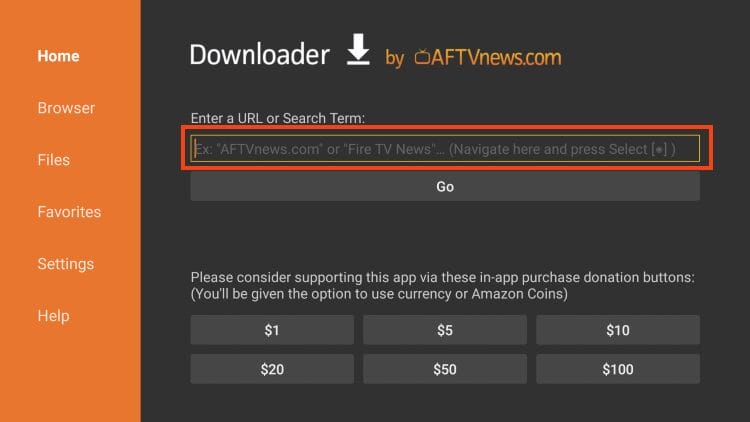
1. Open Downloader.
2. Click the URL Bar.
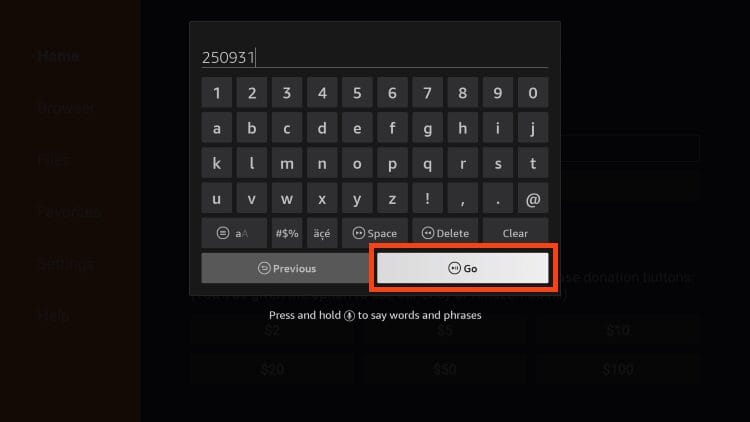
3. Type the Downloader Code for TROYPOINT Toolbox: 250931 and click Go.
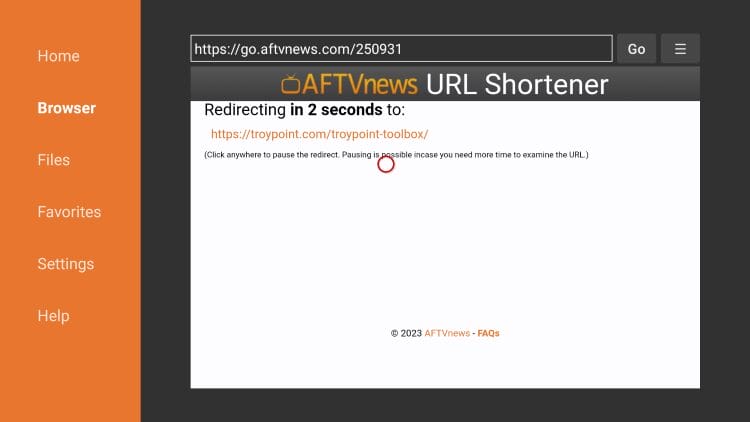
4. You will see a redirect page.
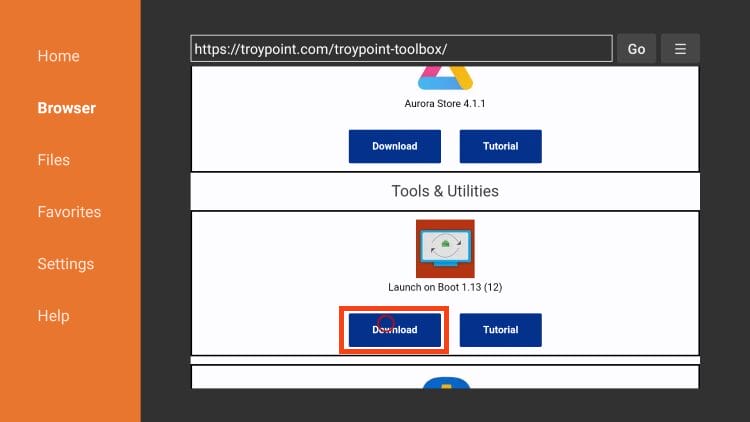
5. Within the Toolbox, scroll down to find Launch on Boot and click Download.
ء
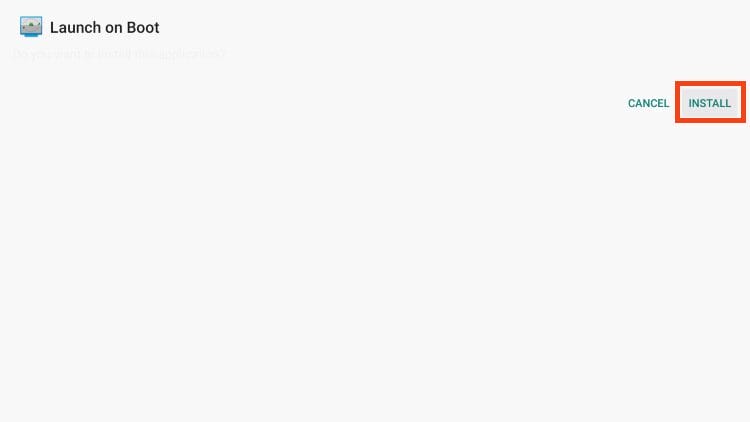
6. Click Install.
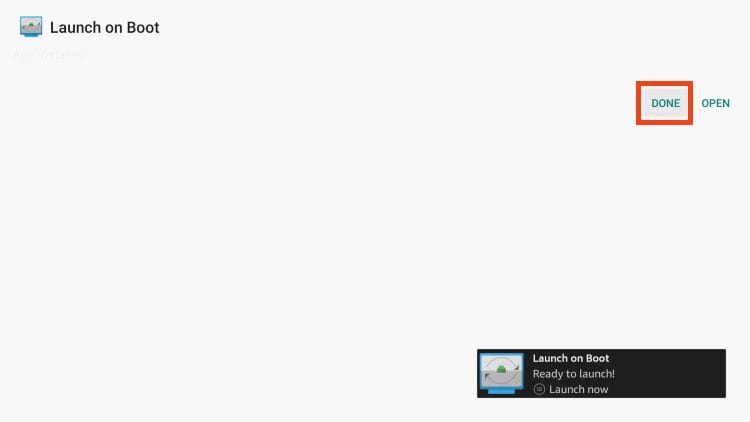
7. After seeing the installation confirmation message, click Done.
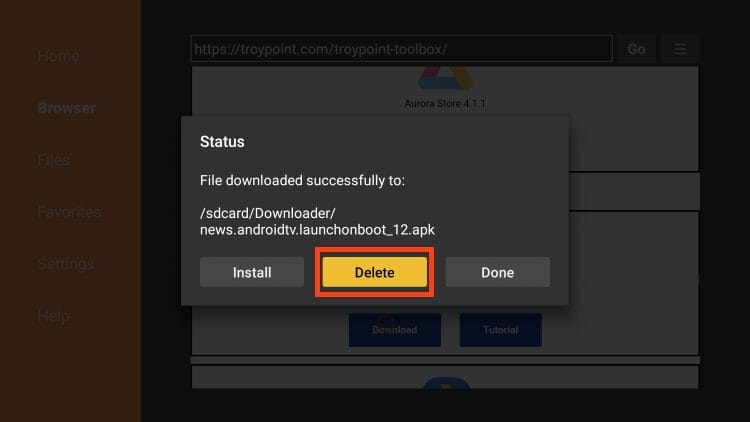
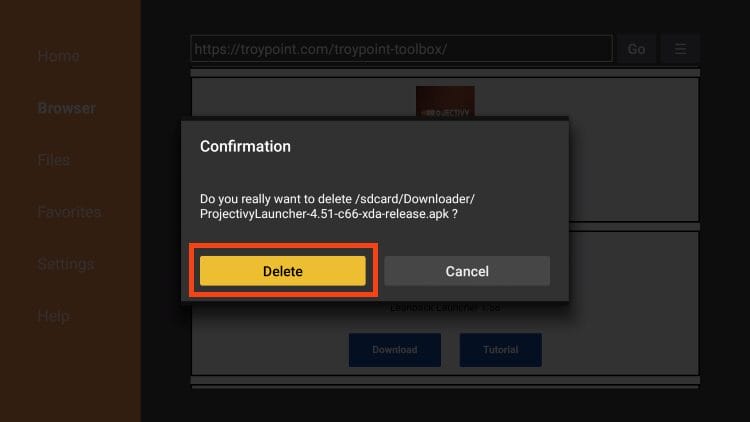
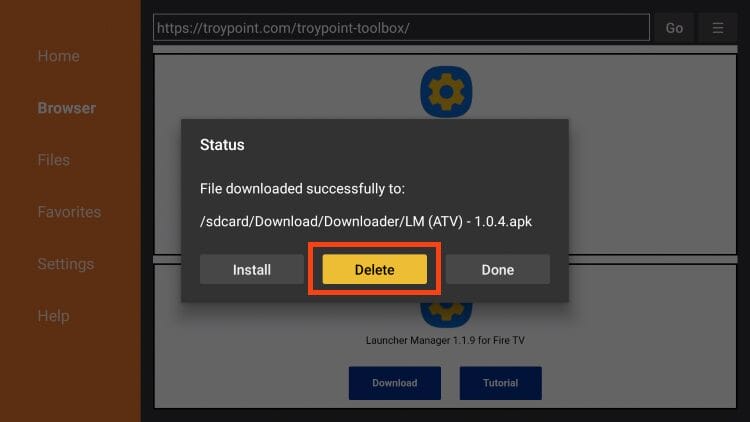
8. Choose Delete.
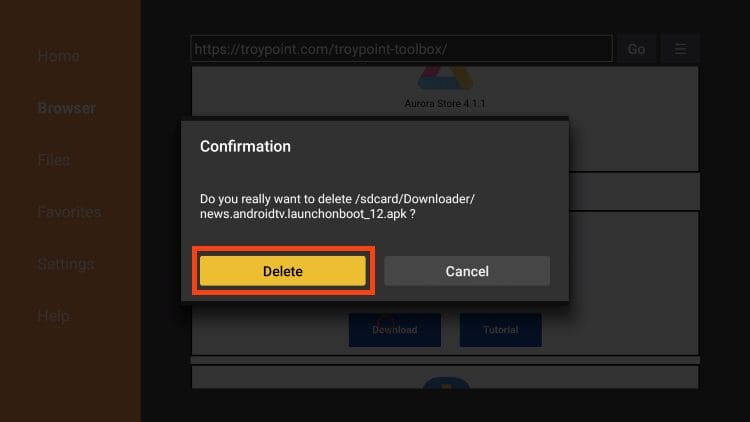
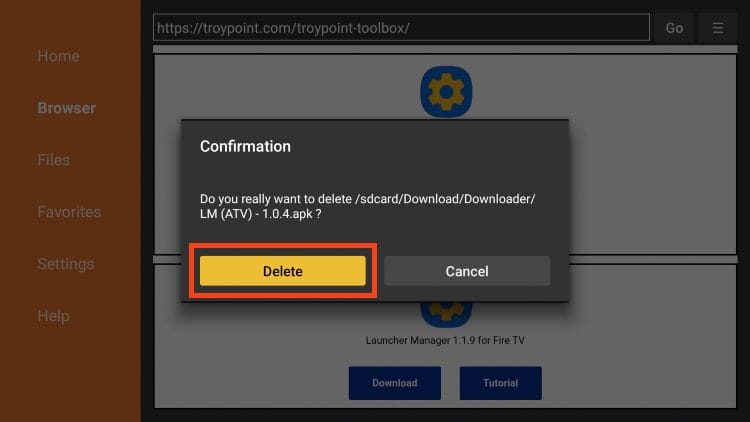
9. Select Delete again.
We will now install Projectivy using the steps below.
Step 3: Install Projectivy Launcher
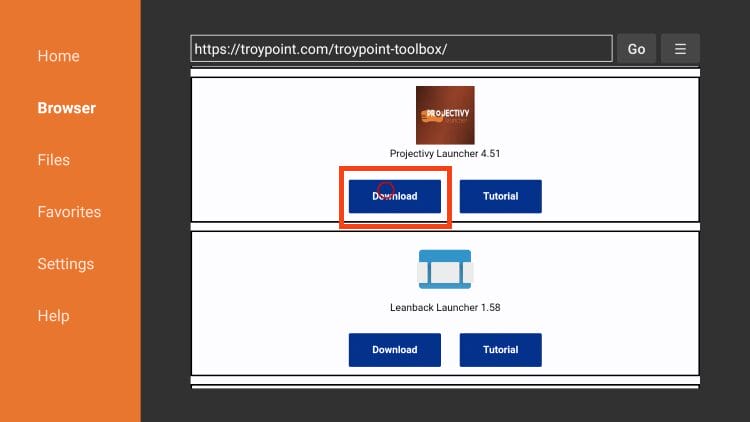
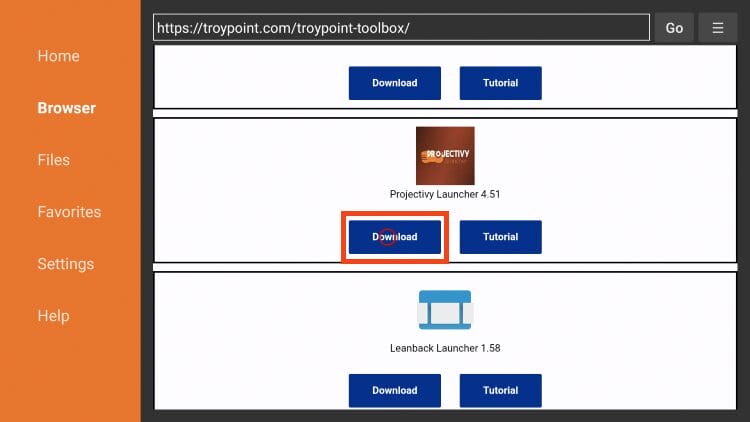
1. Back in the TROYPOINT Toolbox, find Projectivy Launcher and click Download.
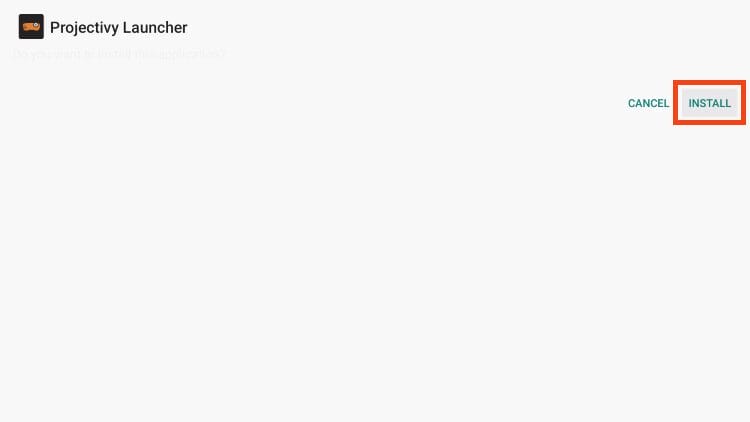
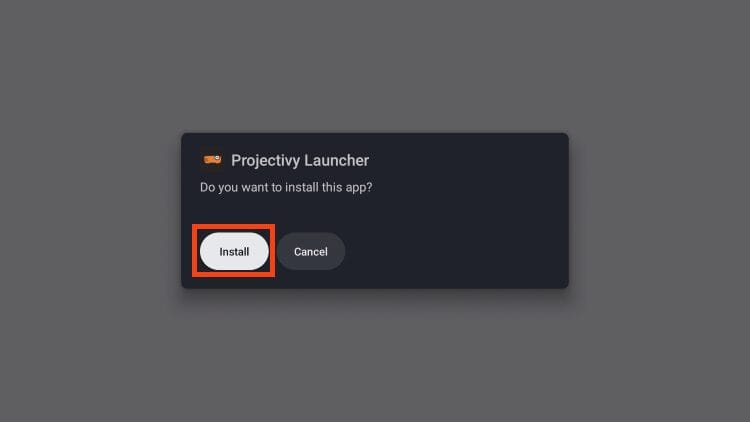
2. Click Install.
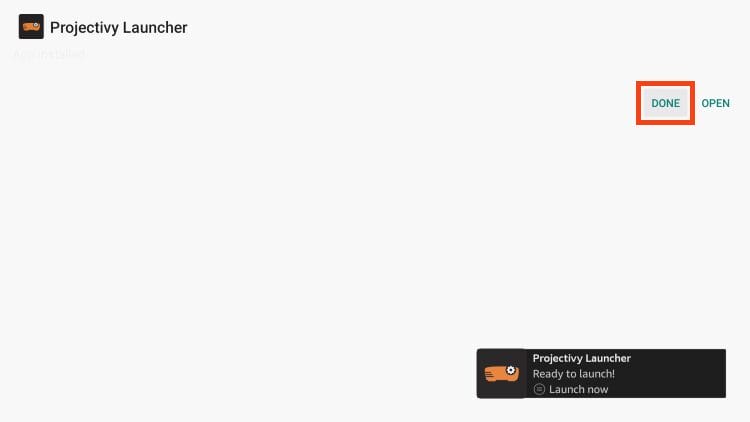
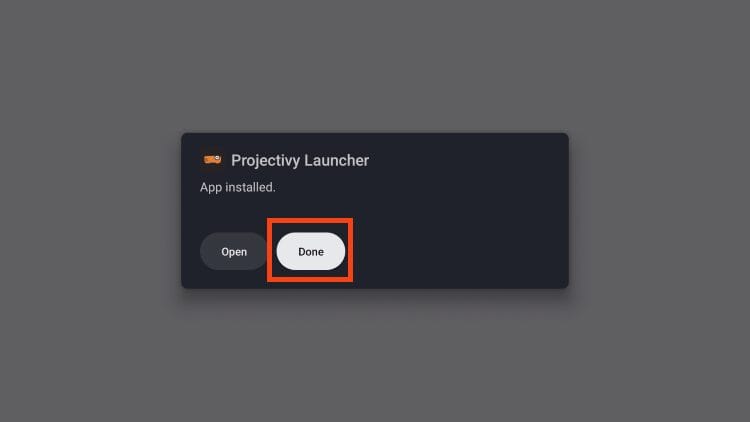
3. Choose Done.
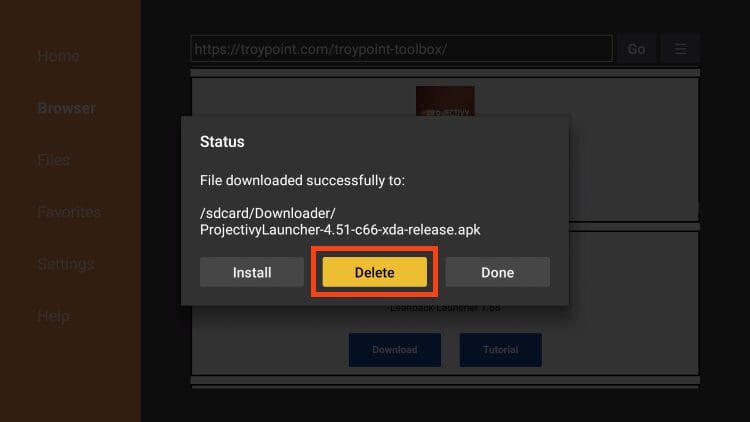
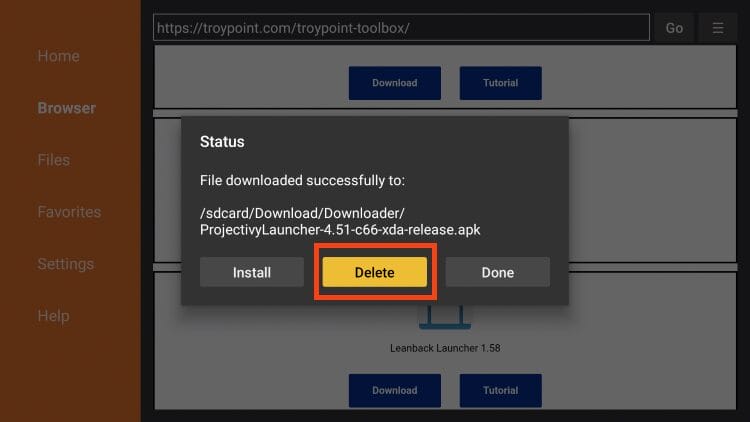
4. When prompted, click Delete.
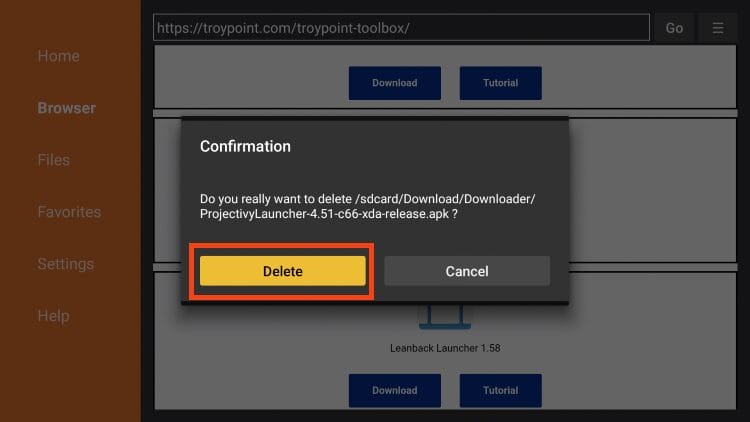
5. Select Delete again.
Installation is complete! Now, we can enable the Projectivy Launcher for use.
Step 4: Enable Projectivy within Launch on Boot
1. Return to your Applications on Firestick and open the Launch on Boot app.
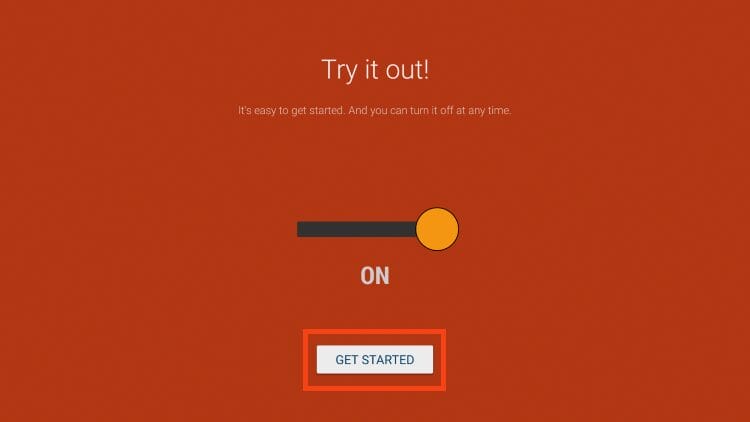
2. Scroll through the introduction messages and click Get Started.
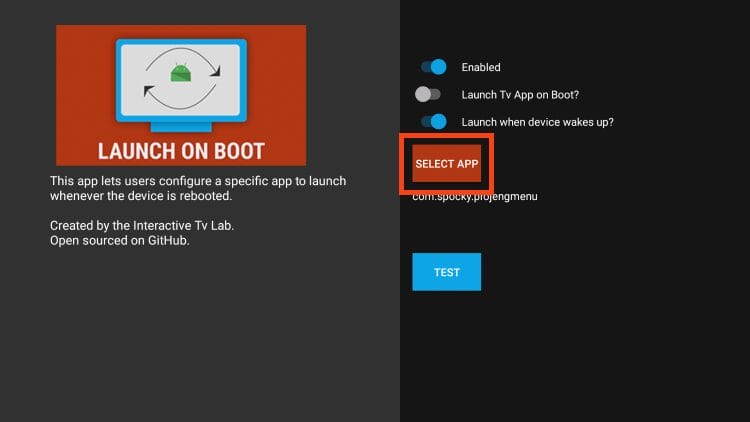
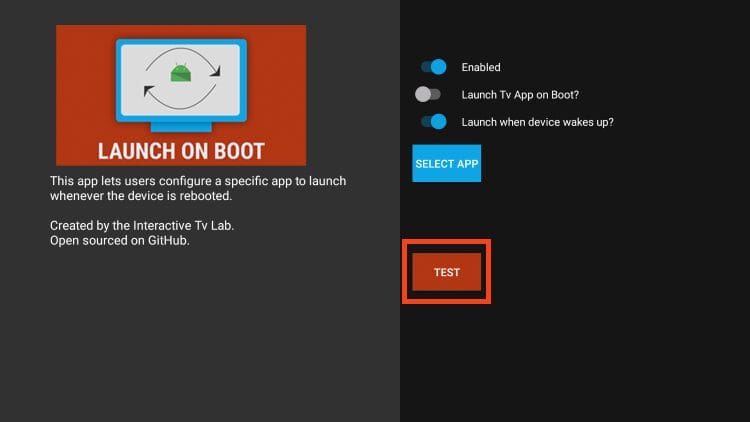
3. Click the toggles for Enabled and Launch when device wakes up? Then choose Select App.
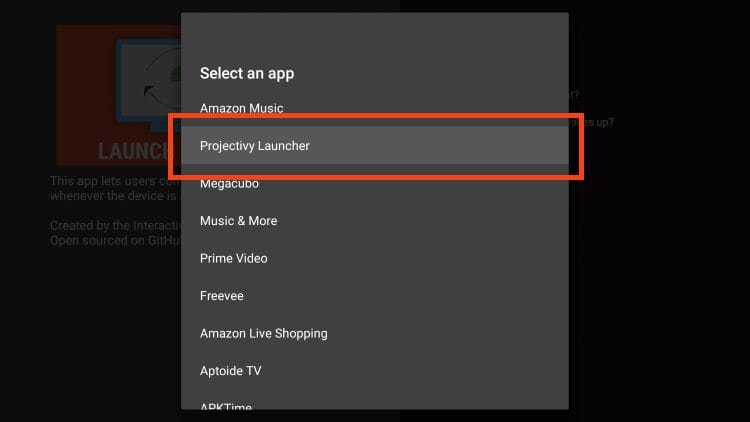
4. Choose Projectivy Launcher.
5. Click Test.
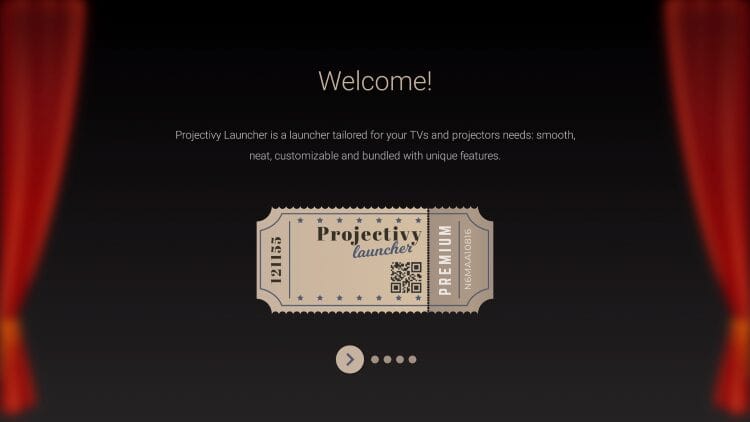
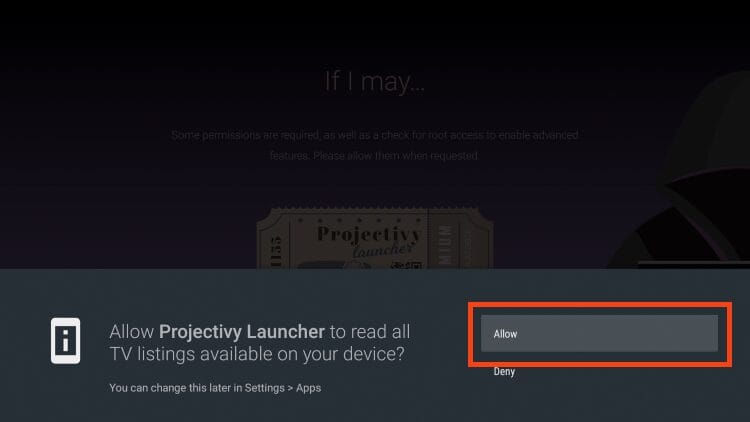
6. Scroll through Projectivy introduction messages and click Allow.
7. If prompted, select Allow.
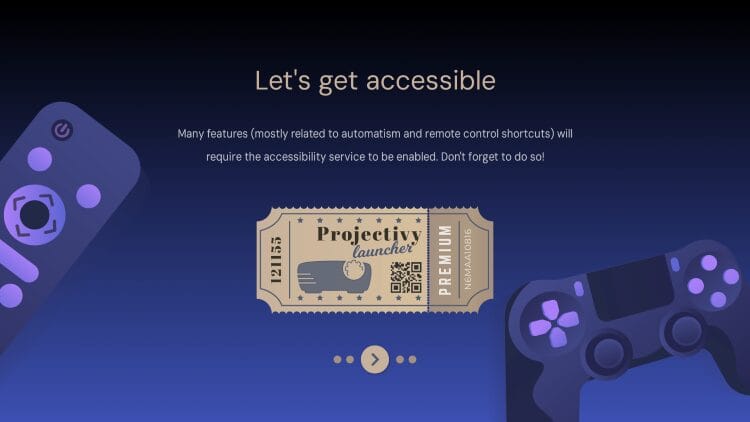
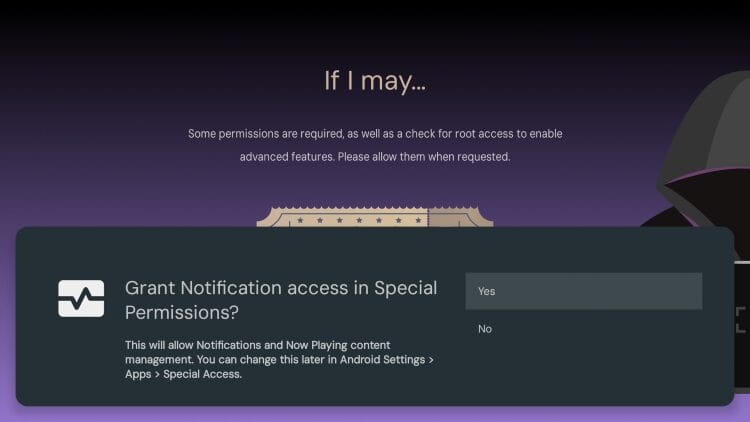
8. As you can see, you must also enable accessibility to use the app.
9. Choose Yes.
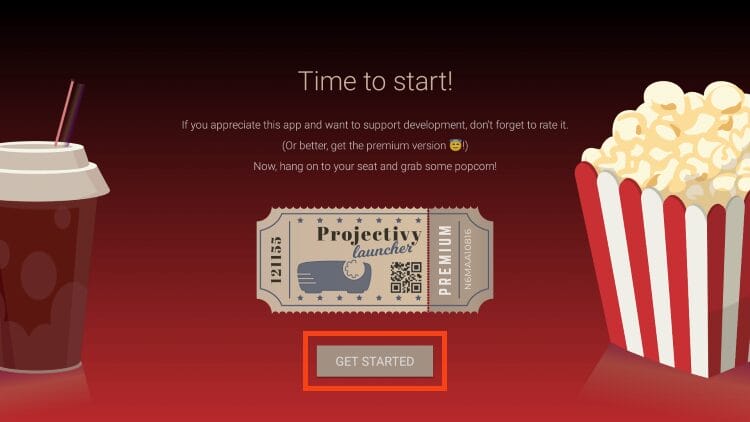
10. Click Get Started.
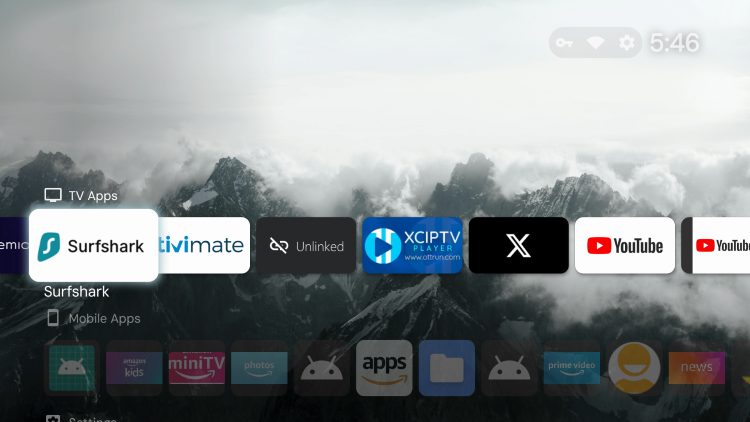
11. You will now see the Projectivy Launcher interface with your installed applications and no ads!
That’s it! You have now activated Projectivy Launcher on your Firestick device.
Projectivy Launcher on Android TV/Google TV
Android TV/Google TV Users users can also install Projectivy Launcher to eliminate ads that take over these home screens and much more.
This includes tons of Android TV devices such as NVIDIA SHIELD, Google TV Streamer, MECOOL, onn. Google TV Box, and more.
In this guide, we show how to install Projectivy on Chromecast with Google TV via the Downloader App.
You can also find it within the Google Play Store. However, for the latest release, we suggest using the guide below.
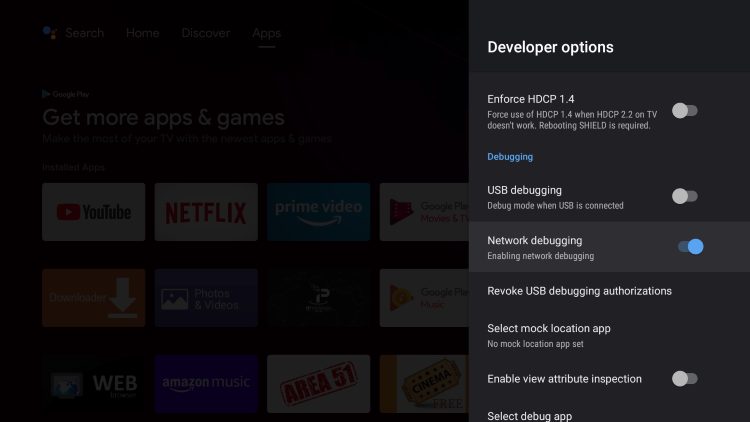
NOTE: Prior to installing Projectivy, you must enable debugging. If you are using an NVIDIA SHIELD, you can find this within Developer Options:
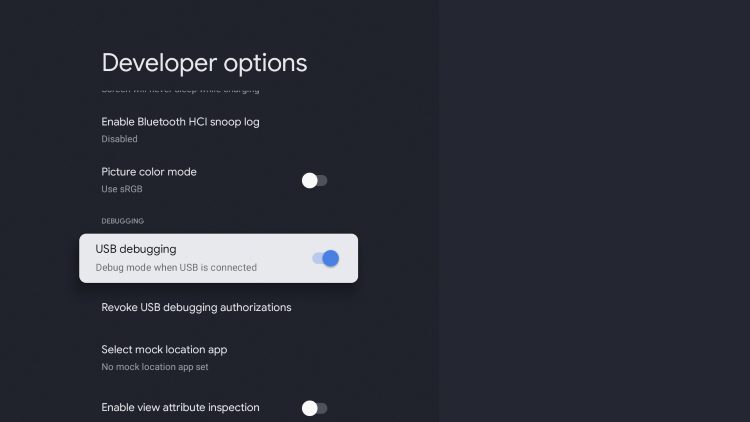
Those using a Google TV device such as Chromecast or onn. can find USB debugging within Developer options as well.
Continue reading to learn How to Install Projectivy Launcher on Android TV:
How to Install Projectivy Launcher on Android TV/Google TV
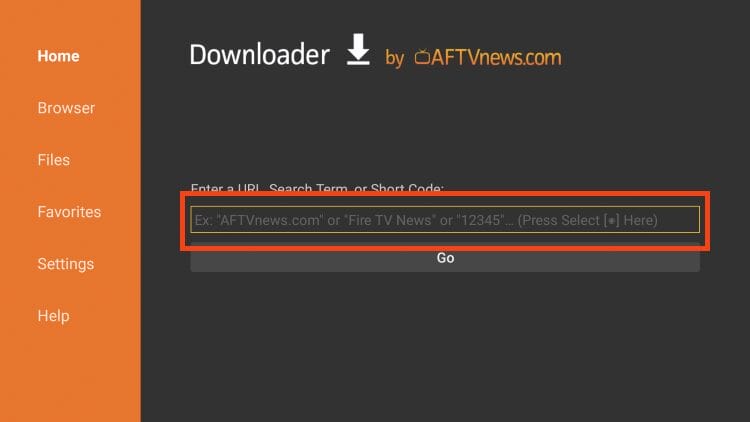
1. Launch the Downloader App and click the Select button on your remote to open the URL bar.
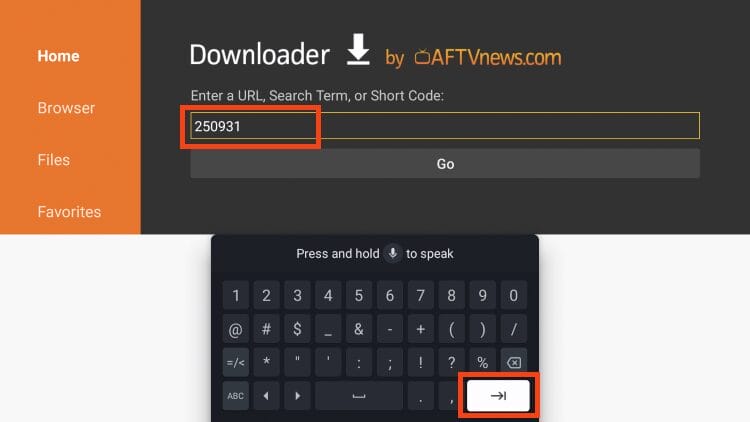
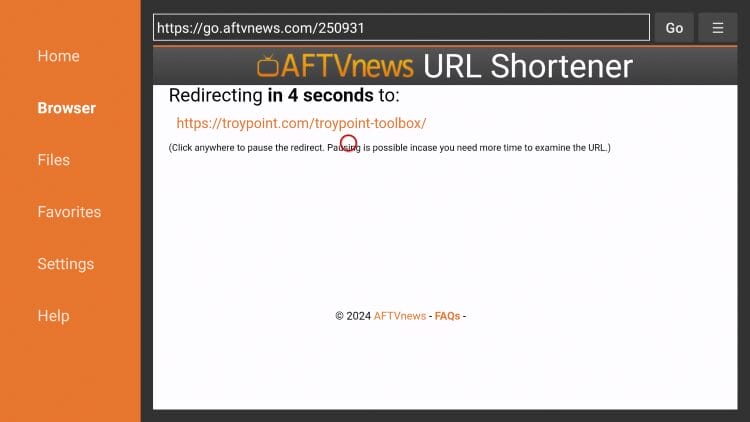
2. Type the Downloader Code for TROYPOINT Toolbox which is 250931 and click the go button.
3. You will then encounter Redirect page.
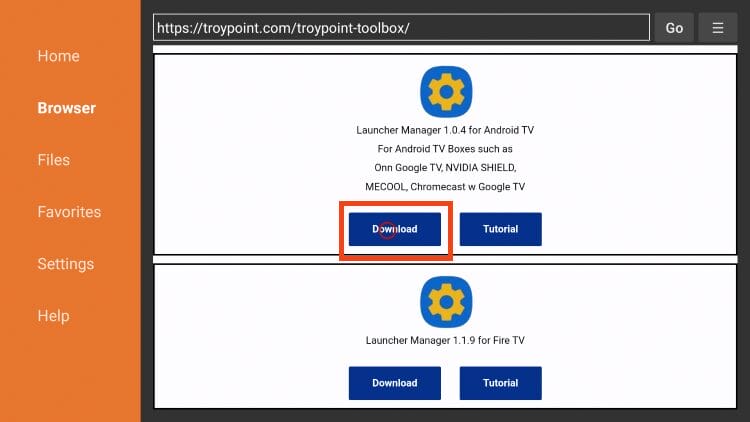
4. In the Toolbox, scroll down to find Launcher Manager and click the Download button.
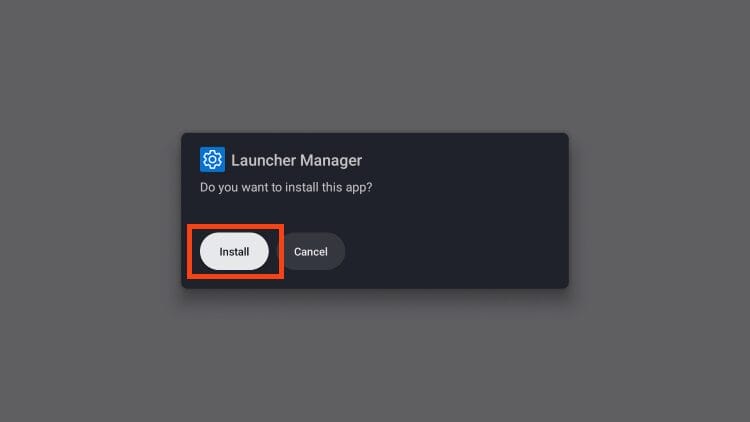
5. Click Install.
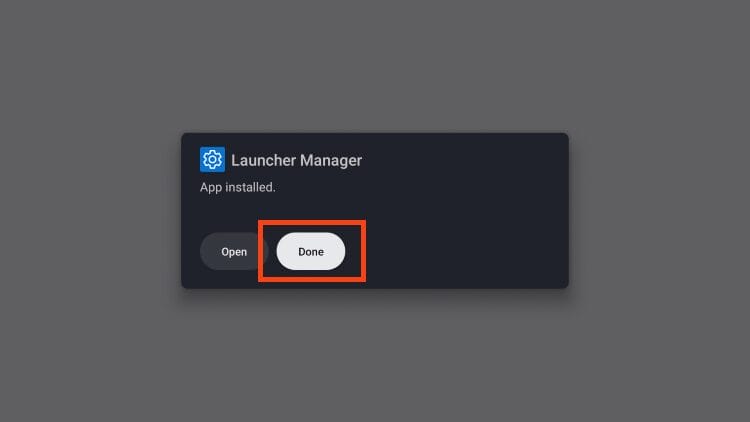
6. Choose Done.
7. Click delete to remove the installation file.
8. Select delete again.
9. Back in the TROYPOINT Toolbox, find Projectivy Launcher and click Download.
10. Select Install.
11. Click Done.
12. Click Delete.
13. Choose delete again.
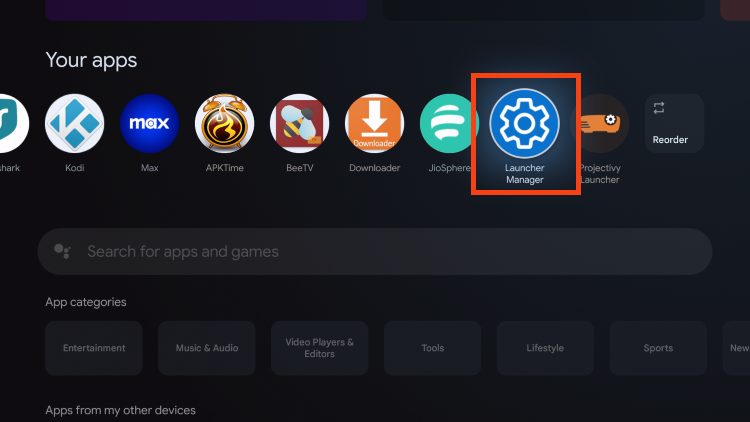
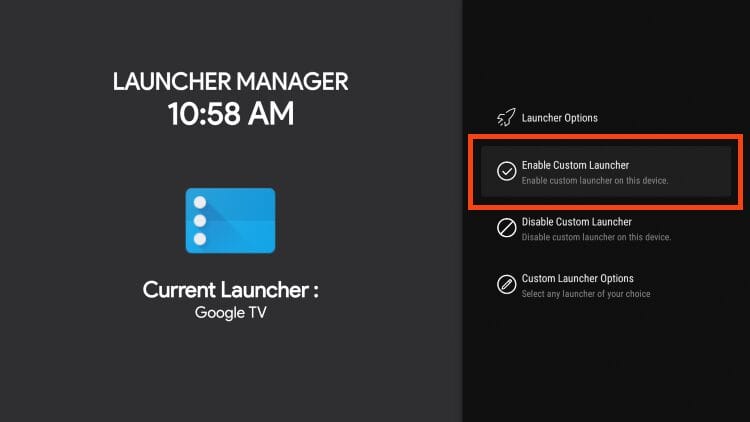
14. Return to the home screen of your device and open Launcher Manager.
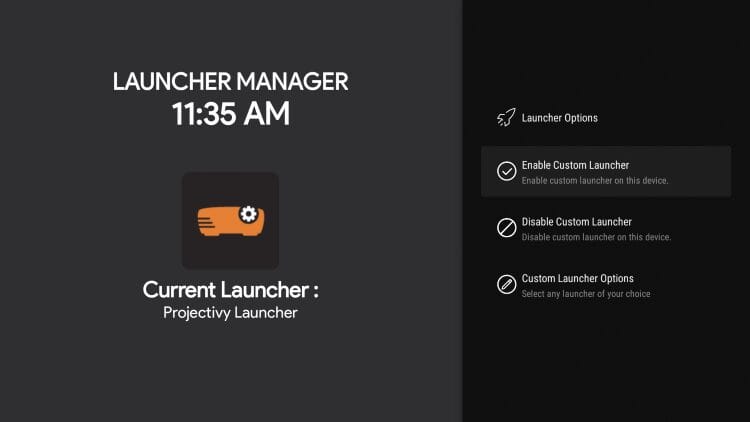
15. Select Enable Custom Launcher
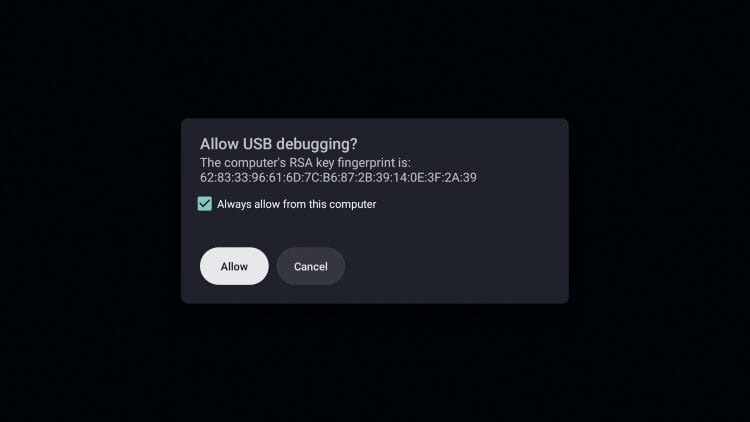
16. Enable toggle to Always allow from this computer for USB debugging and click Allow.
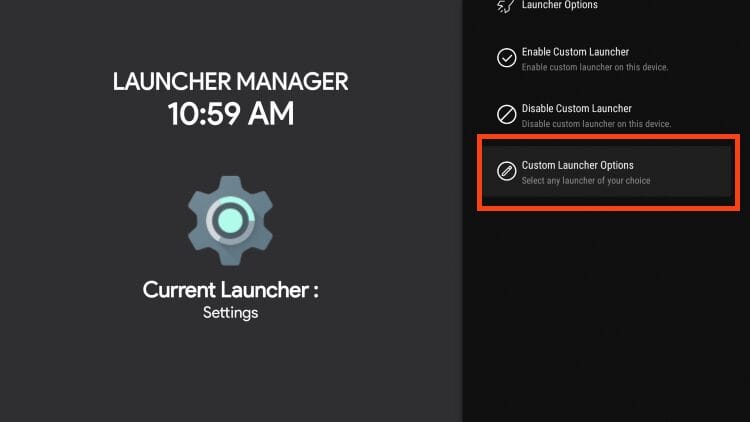
17. Click Custom Launcher Options.
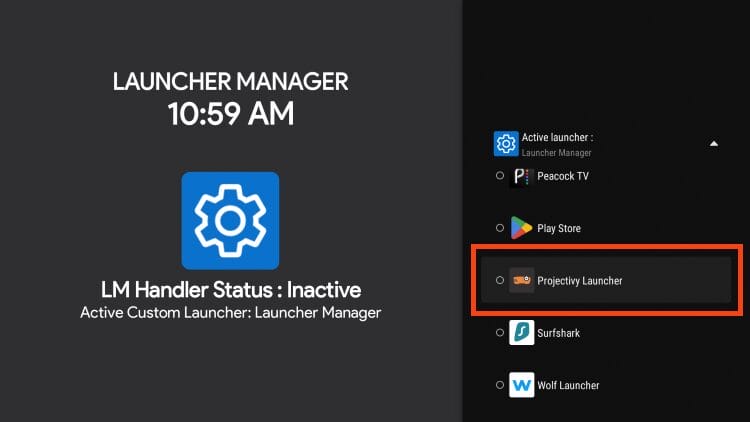
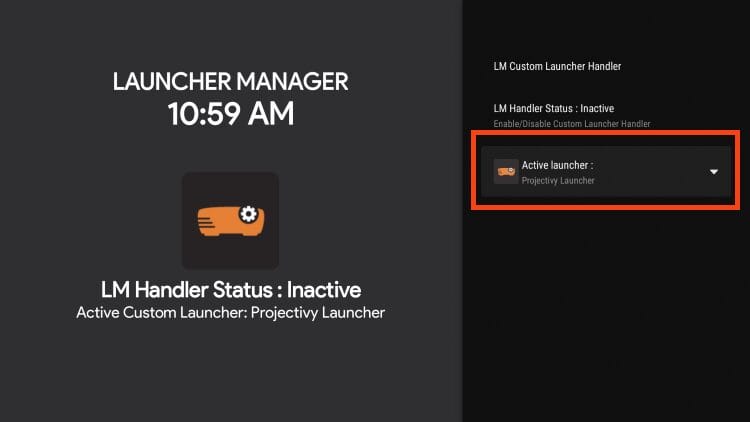
18. Choose Projectivy Launcher.
19. Projectivy is now set as the Active launcher.
20. Projectivy will display as the Current Launcher.
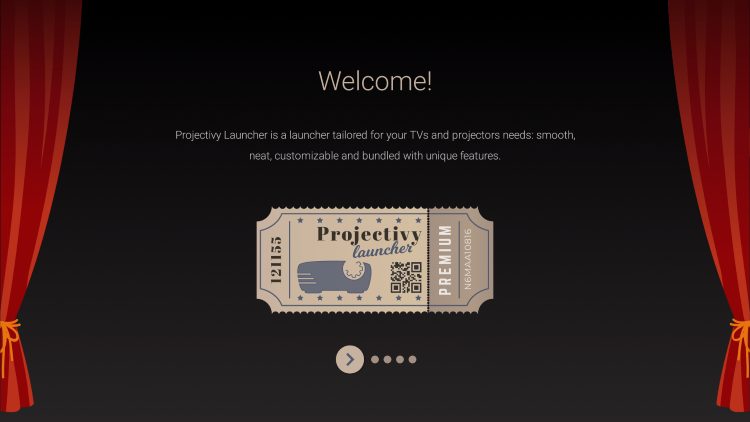
21. Click the back button again and scroll through the welcome messages.
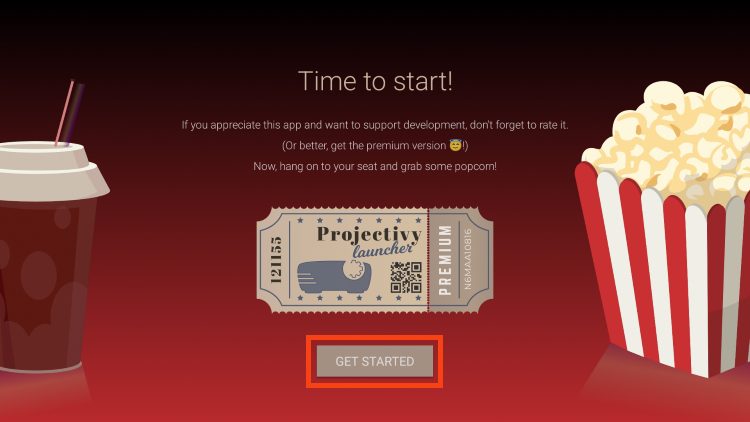
22. Click Get Started.
23. You are now met with the Projectivy Launcher home screen.
Custom Launchers including Projectivy has tons of settings and features to customize your home screen.
Removing ads is the best feature this provides as well as options to add Display Profiles, rearrange apps, and much more.
We suggest testing all options within Projectivy to make the most of this launcher on your preferred media device.
Description & Details
The best way to find all available features is by navigating and testing the application to see the full functionality it provides.
There are tons of great assets you will find that make it one of the best launchers available today.
With the latest upgrade comes some new improvements that are welcome changes among Projectivy users.
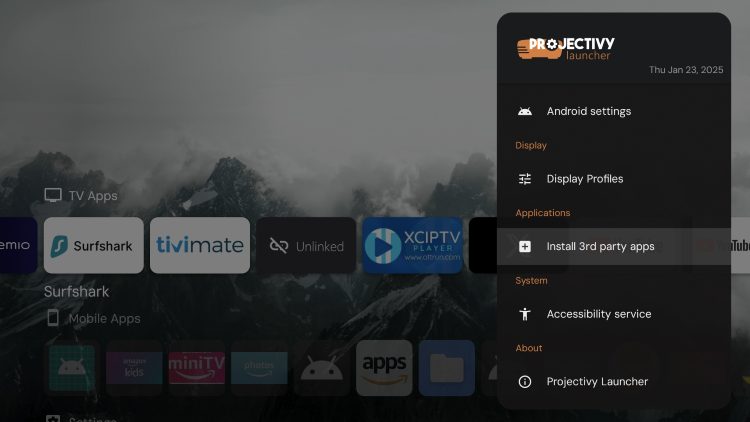
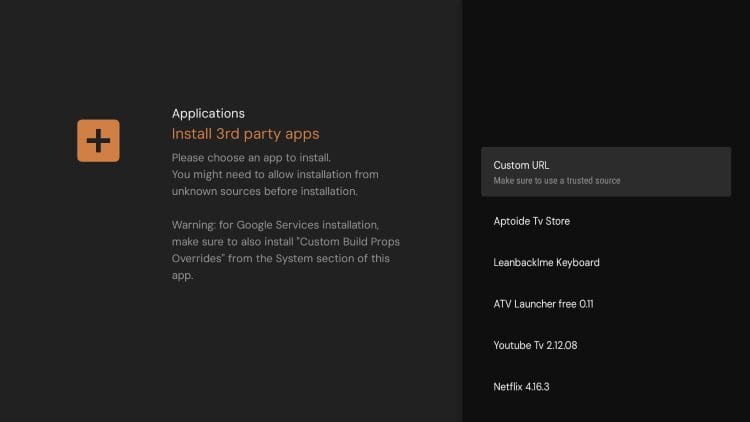
This includes the ability to Install 3rd party apps directly from the home screen of your device.
You can do so with a Custom URL (like you would with Downloader) or via Aptoide TV etc.
If you see the Accessibility message at the bottom, make sure to click Enable.
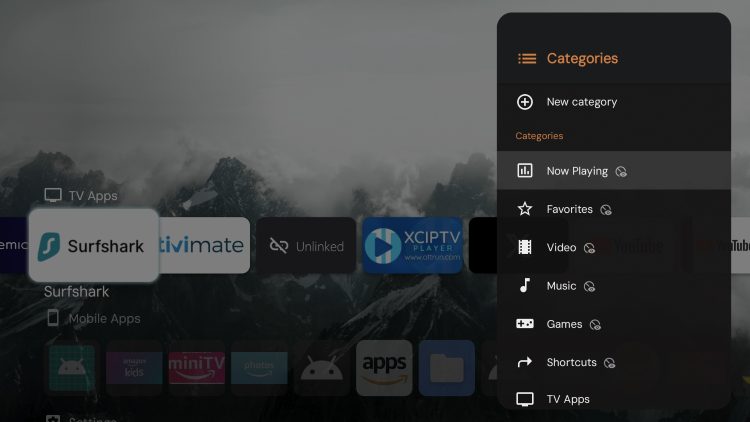
You can also adjust Categories to your preference by adding/removing/replacing different options.
If you love Projectivy, you can opt for the Premium version which offers advanced features not supported by the free platform.
Final Thoughts from Troy
Using a custom launcher such as Projectivy is one of the best ways to eliminate ads and clean up the interface on your favorite device.
If you are not a fan of the default Fire TV interface, try installing this launcher on your Firestick/Fire TV/Android/Google box today!
Special thanks to spocky12, the developer of the Projectivy Launcher.
This page includes affiliate links where TROYPOINT may receive a commission at no extra cost to you. Many times, visitors will receive a discount due to the special arrangements made for our fans. Learn more on my Affiliate Disclaimer page.



 Written by admin
 The developer of this launcher frequently updates it with new advancements and improvements. The latest version is V4.67 which was released in August of 2025 and has tons of added features.
Most of us know that streaming devices such as the Amazon Firestick are riddled with unwanted advertisements and bloatware that fill up the home screen.
Luckily, we can remove all unwanted ads and customize our home screen with a 3rd party launcher and Projectivy is one of the best available.
It removes the clutter and only displays your installed apps/APKs for instant access.
NOTE: Check out our video guide below that will explain this in more detail and show you the ultimate Firestick Hack.
The developer of this launcher frequently updates it with new advancements and improvements. The latest version is V4.67 which was released in August of 2025 and has tons of added features.
Most of us know that streaming devices such as the Amazon Firestick are riddled with unwanted advertisements and bloatware that fill up the home screen.
Luckily, we can remove all unwanted ads and customize our home screen with a 3rd party launcher and Projectivy is one of the best available.
It removes the clutter and only displays your installed apps/APKs for instant access.
NOTE: Check out our video guide below that will explain this in more detail and show you the ultimate Firestick Hack.