



 Written by admin
This tutorial shows how to install The Crew Kodi Addon on Firestick, Android TV, and any device.

The Crew has long been considered one of the top ranked Kodi add-ons available today. This is an all-in-one add-on that features movies, TV shows, live channels, sports, adult content, and much more.
Those who have used Kodi have probably heard of The Crew by now. It has been around for several years and is found within many popular Kodi builds.
The developers are continually updating The Crew to keep it running at peak performance with the most recent version being V2.0.6.
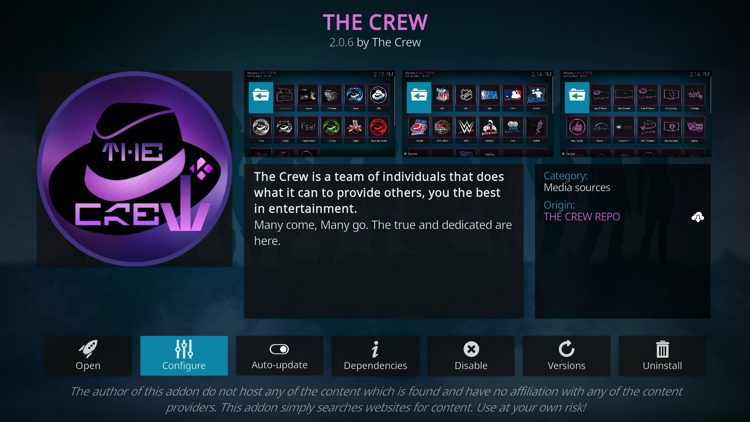
Below you will find both a video tutorial and a screenshot guide to install The Crew on your Kodi device. This process will work on the Amazon Firestick, Fire TV, Android TV/Google TV, Windows PC, Mac, and Android phones or tablets.
Prior to using The Crew, you must first install the Kodi application on your Firestick or other device.
Install Link Referenced in Video: https://team-crew.github.io
Get Huge Kodi VPN Discount

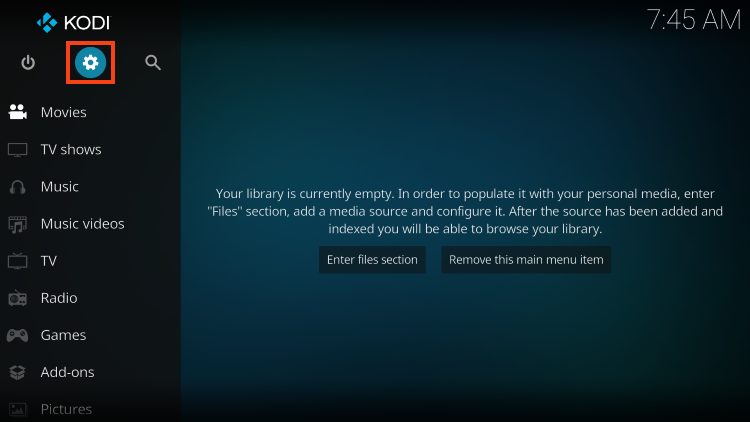
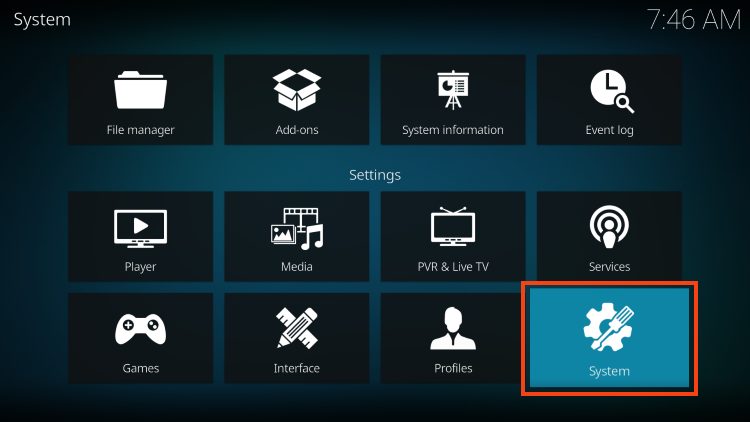
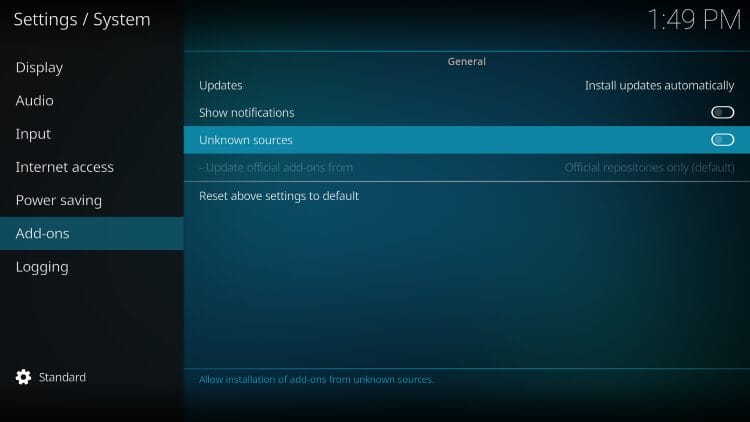
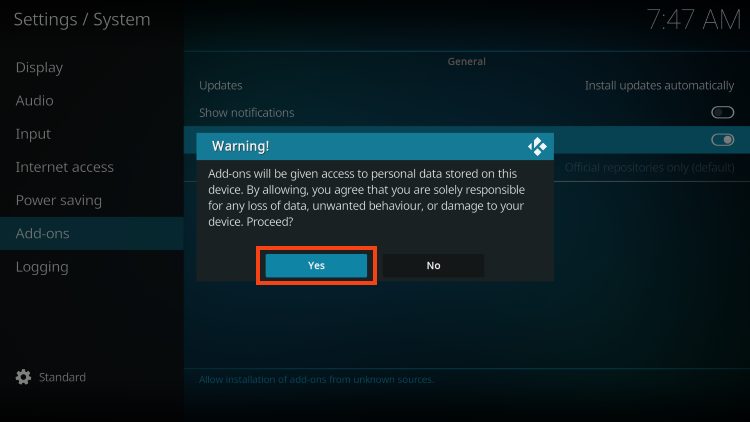
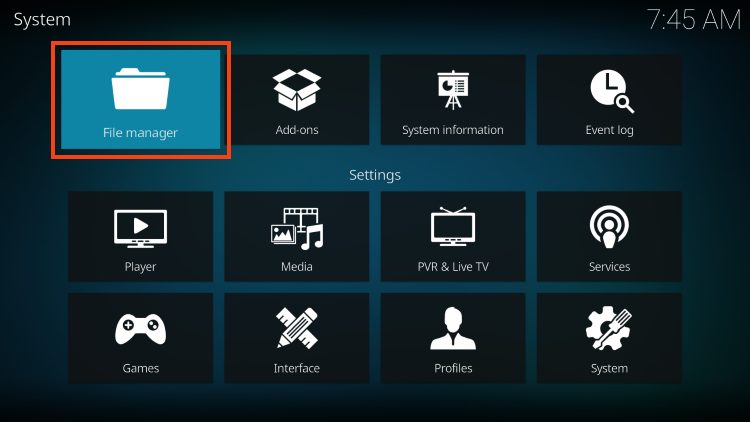
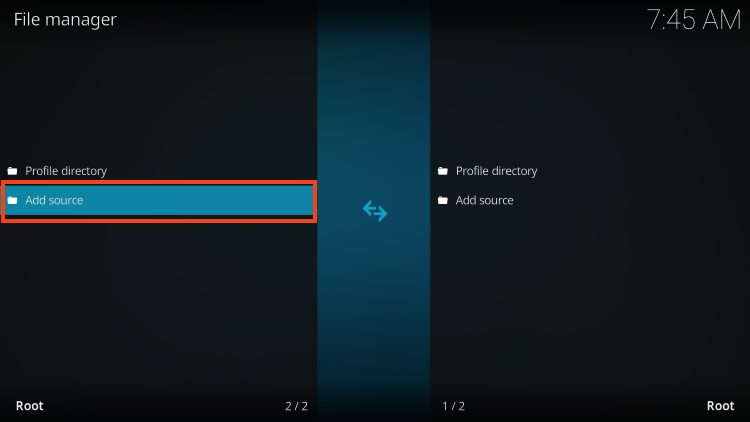
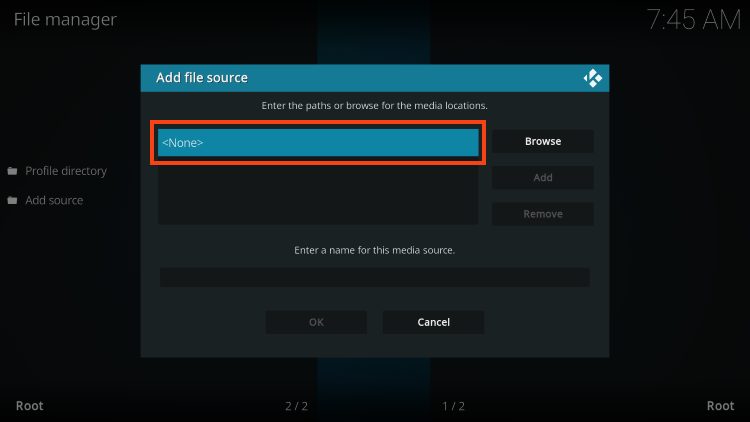
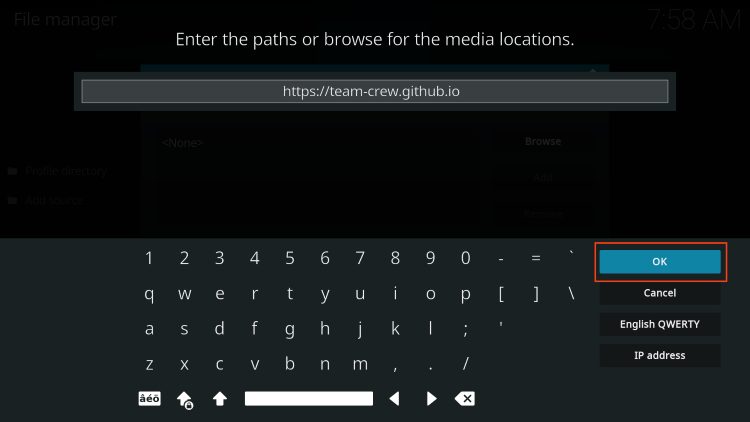
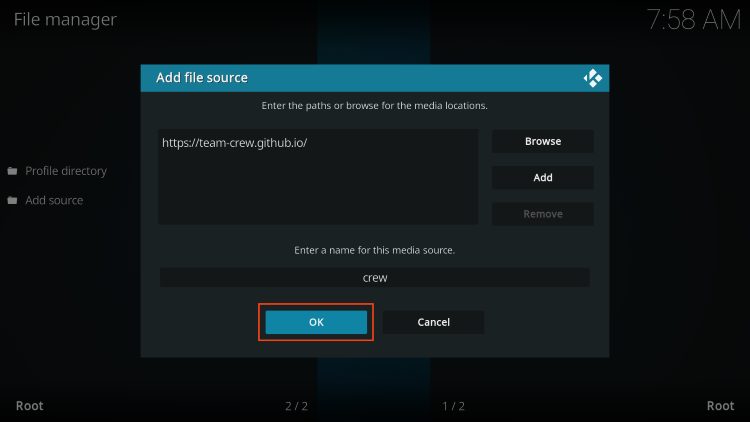
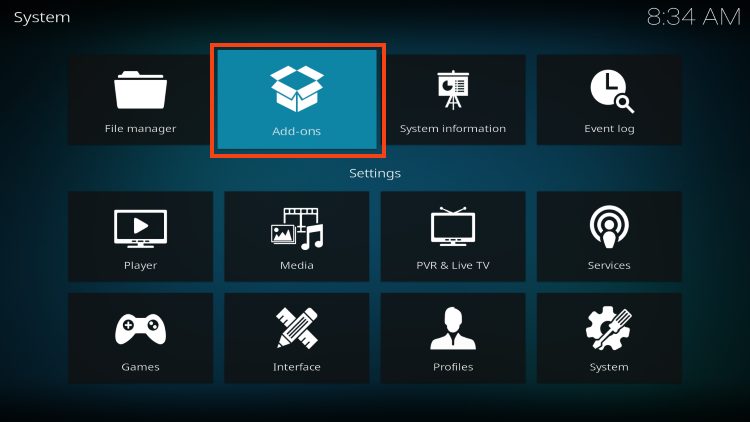
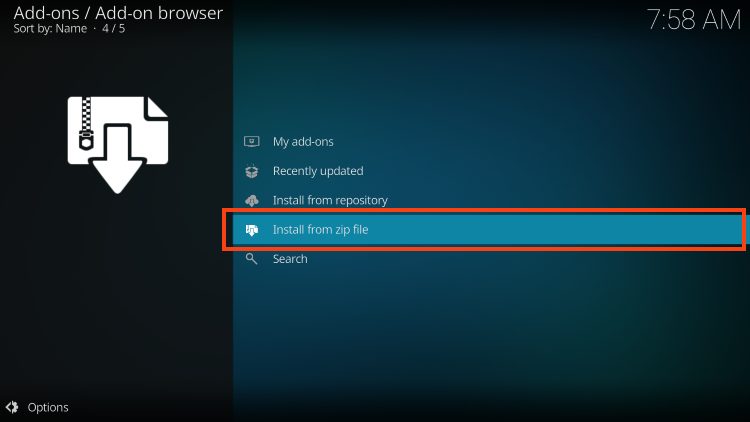
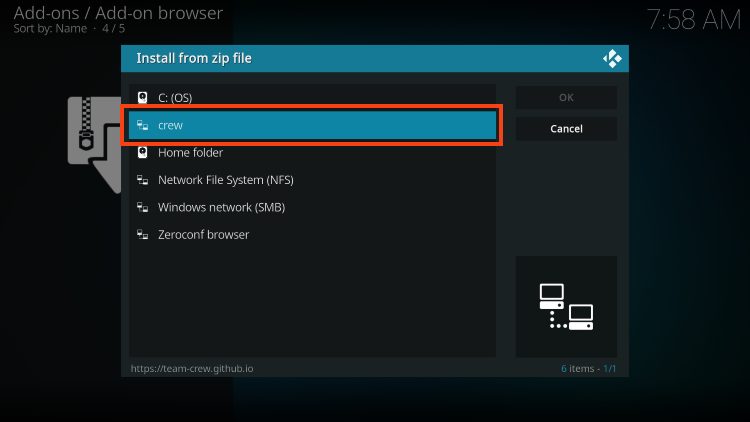
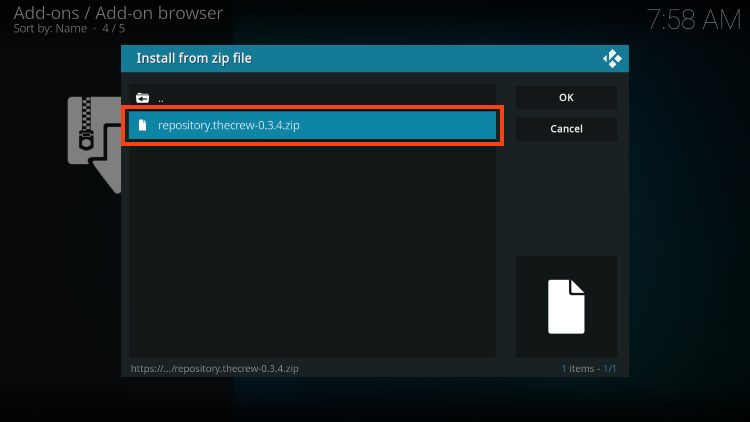
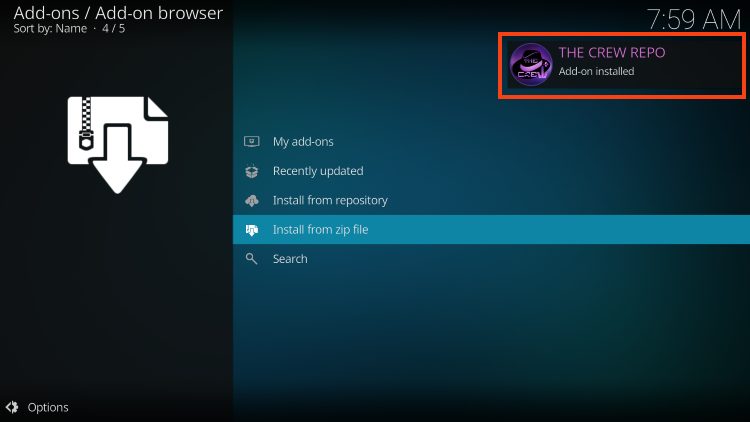
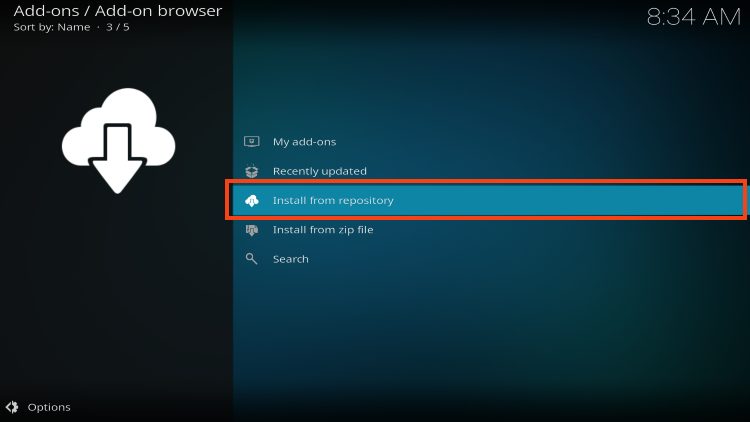
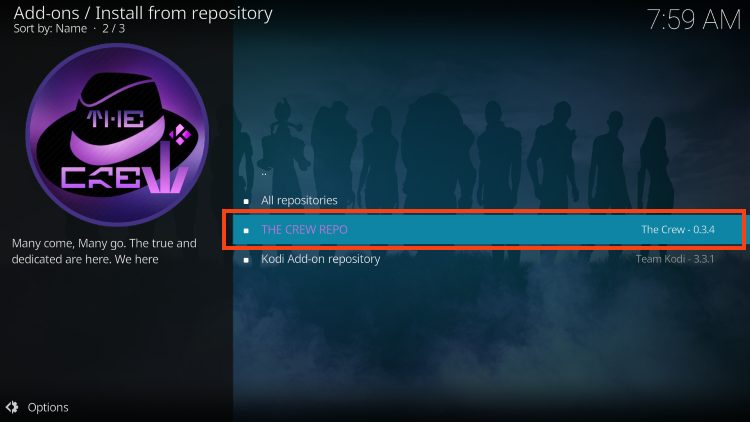
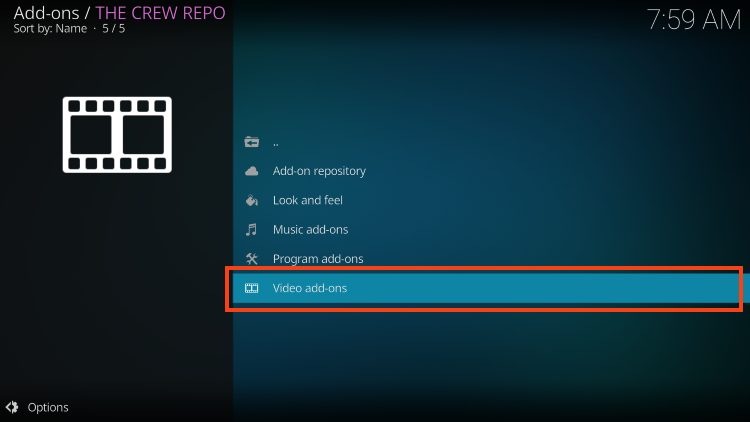
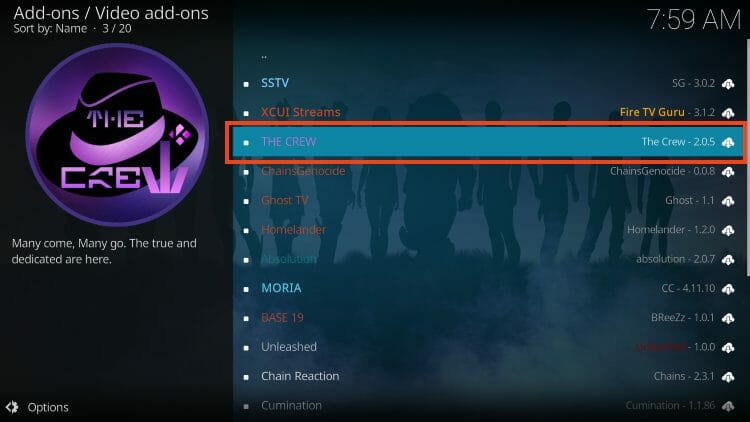
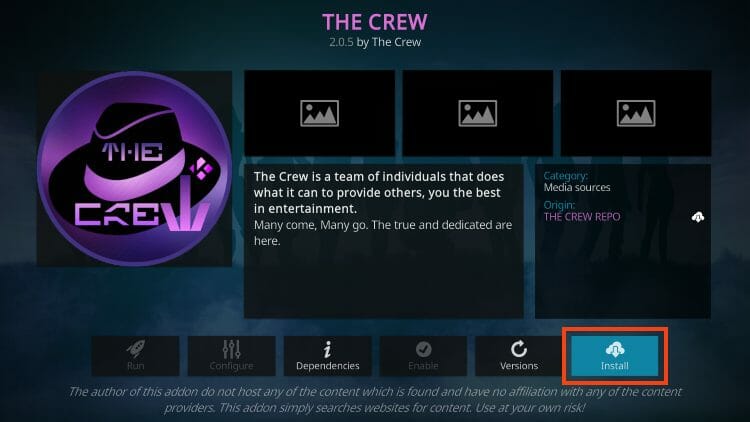
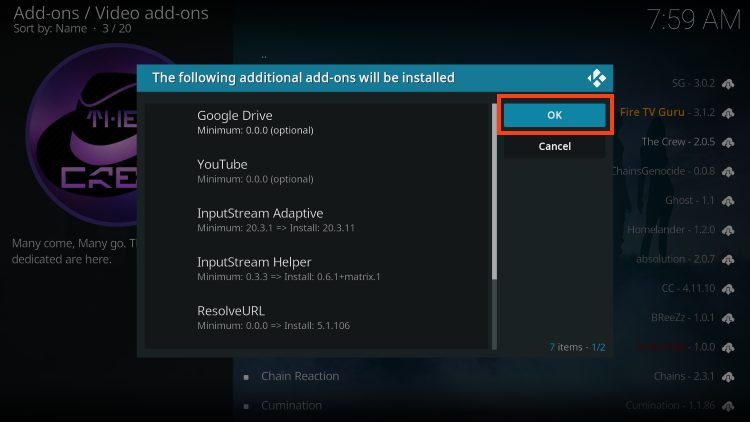
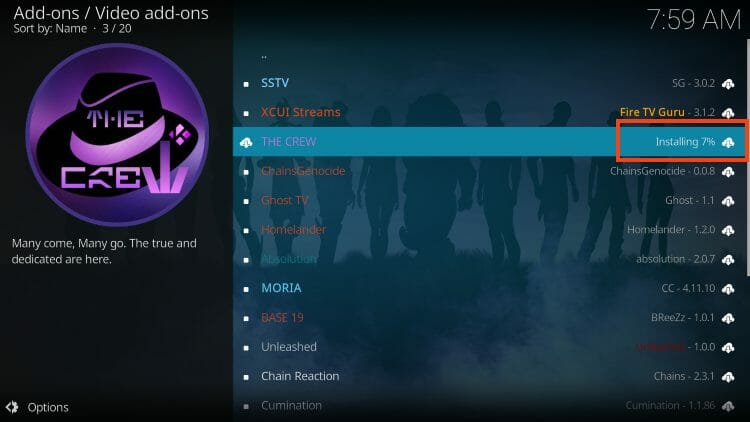
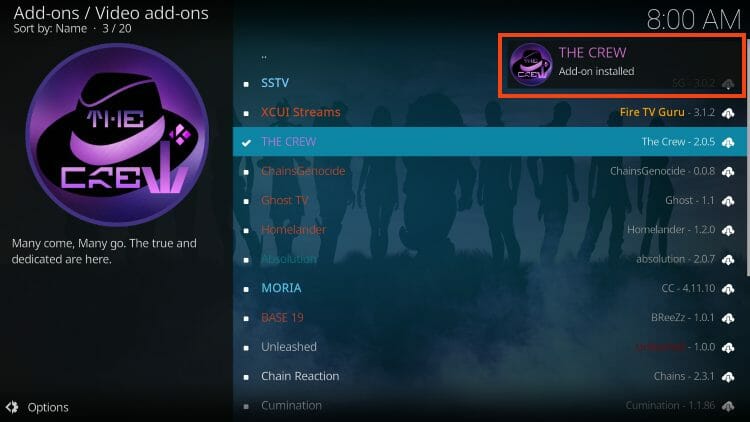
Installation is now complete! Don’t forget to read below for more extensive details that you should know before using this platform.
To have the best streaming experience with The Crew, we suggest integrating premium services like Premiumize, Trakt, and more.
Pairing a premium resolving service such as Real-Debrid or Premiumize will bring the highest quality and we highly recommend doing this to ensure The Crew runs at peak performance.
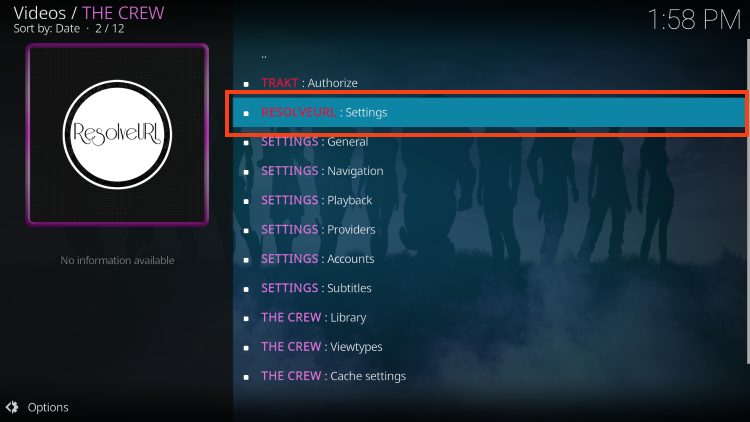
1. Launch the Crew and choose Settings.
2. Select ResolveURL: Settings.
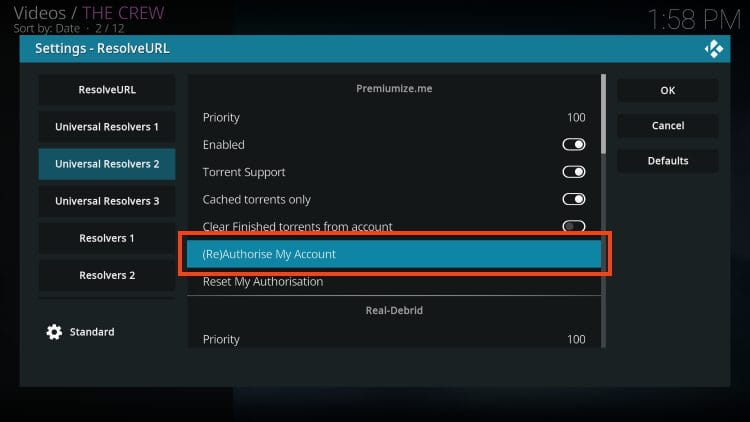
3. Within the Universal Resolvers 2 menu on the left, scroll down and select (Re)Authorise My Account under Premiumize.
4. Make note of the authorization code you are presented with.
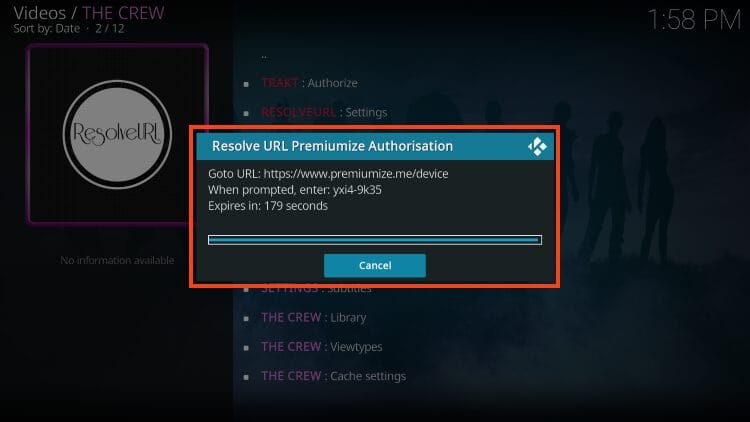
5. Open an Internet browser on another device and go to the following page – premiumize.me/device and enter the code from the previous step.
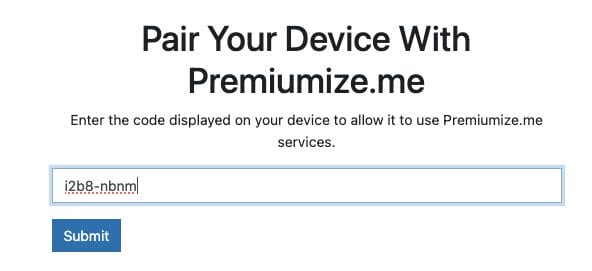
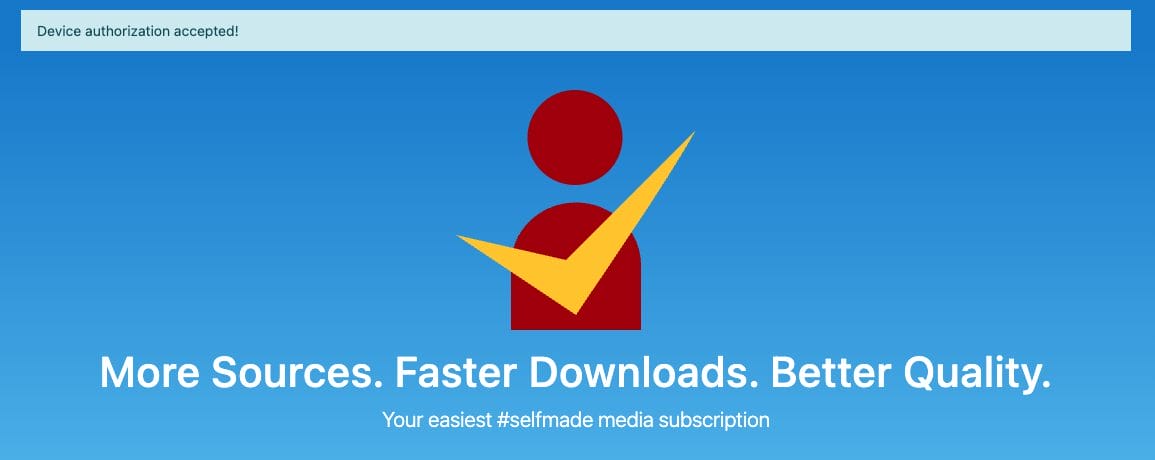
6. If done correctly you should see a “device authorization accepted” screen.
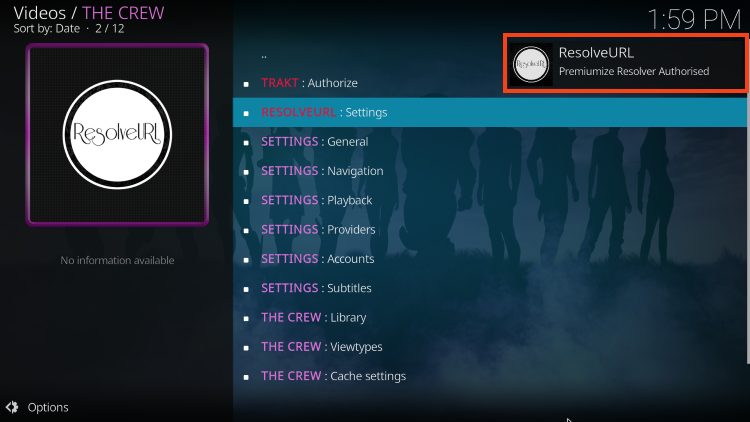
7. Return back to The Crew and you will encounter the authorization success message.
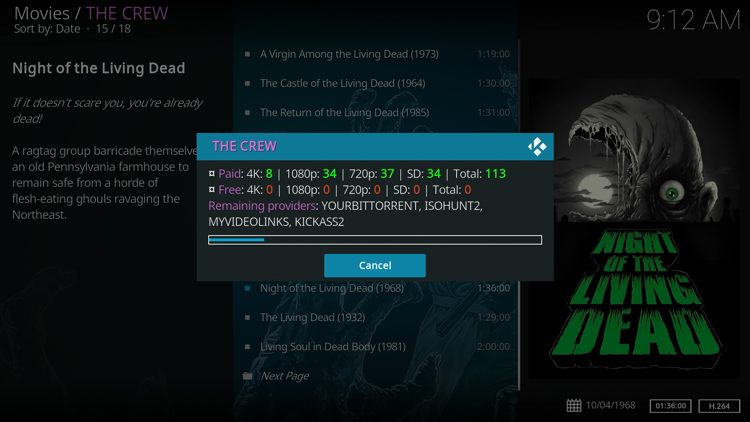
8. After selecting a movie or TV show you should now be seeing ‘paid’ streaming links.
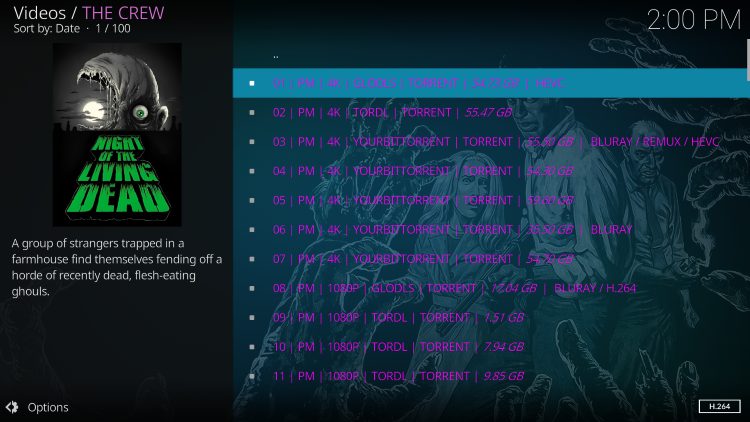
9. These premium streaming links will be presented in purple as shown below. Enjoy!
If you are a user of Trakt.tv, The Crew is a great place to integrate your account. This popular service helps users sync and scrobble all their media content across numerous devices and platforms.
1. You will first need to create a free Trakt account if you don’t already have one.

2. Launch The Crew Kodi add-on.
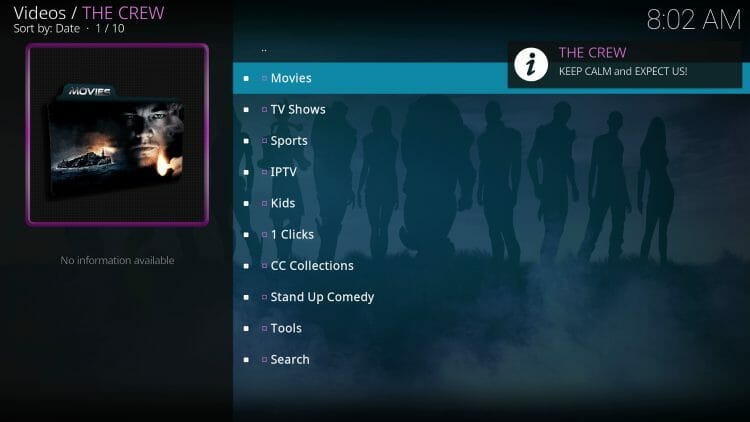
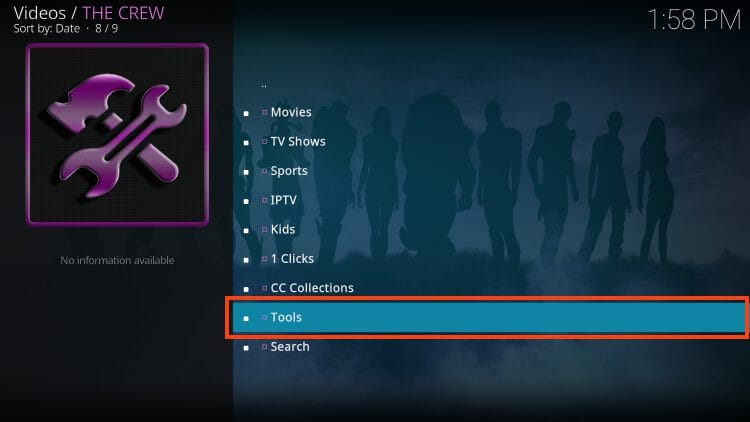
3. Scroll down and click Tools.
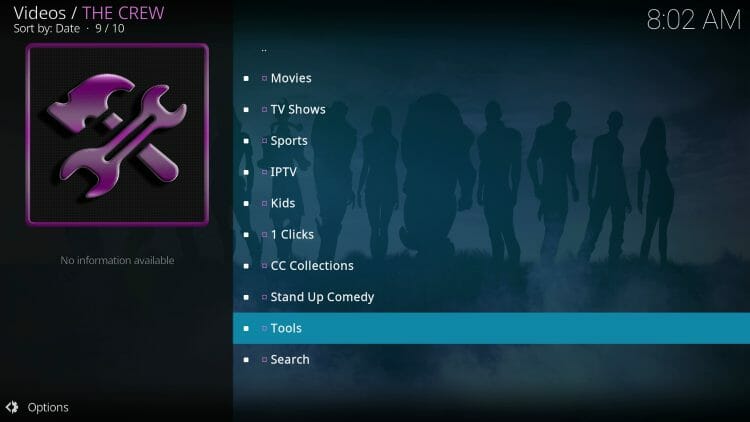
4. Click Trakt Authorize.
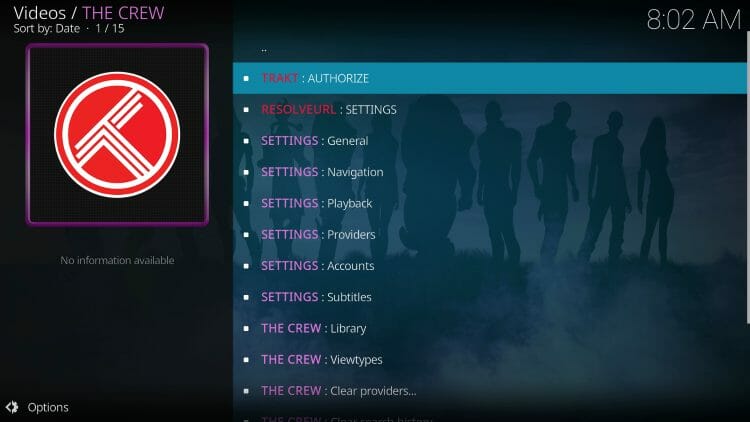
5. Write down or remember provided code
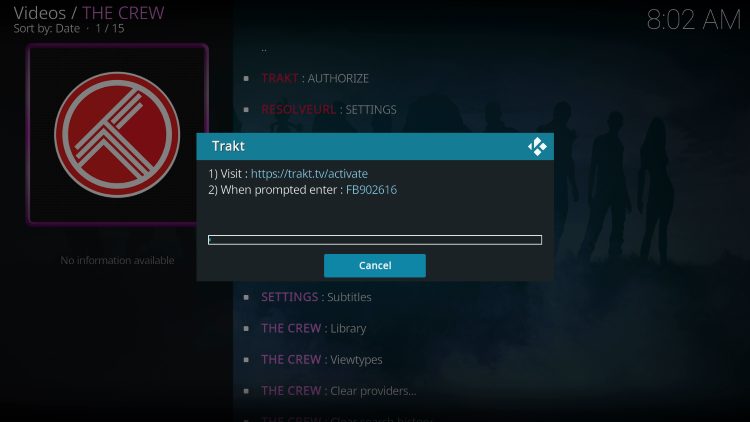
6. Go to trakt.tv/activate on any Browser
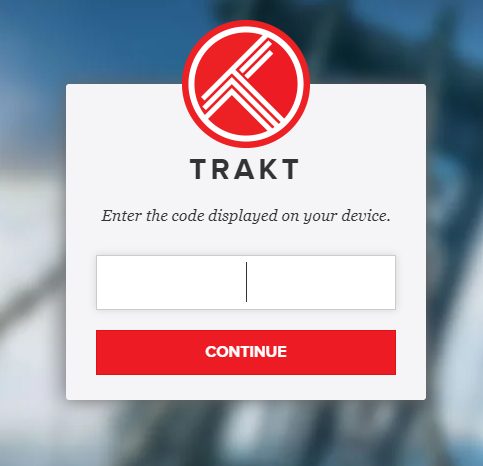
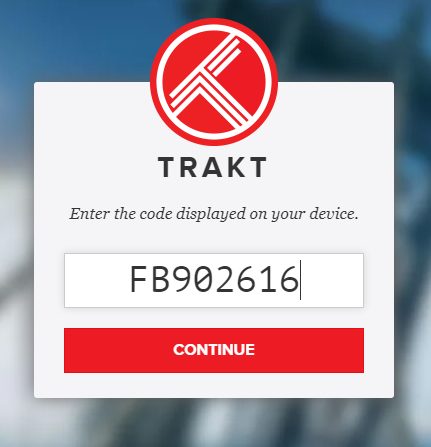
7. Enter the code from the previous step and click Continue.
8. Click Yes.
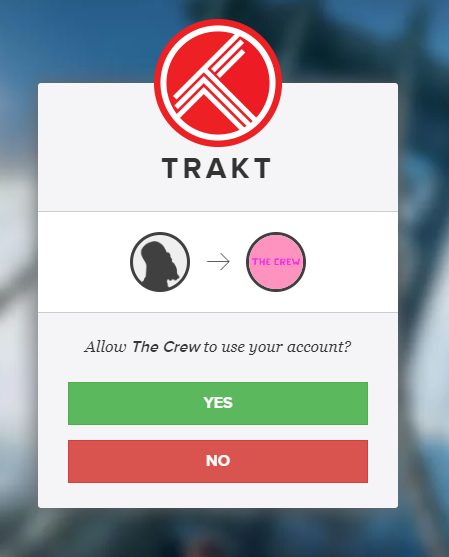
9. An authorization message will appear for Trakt.
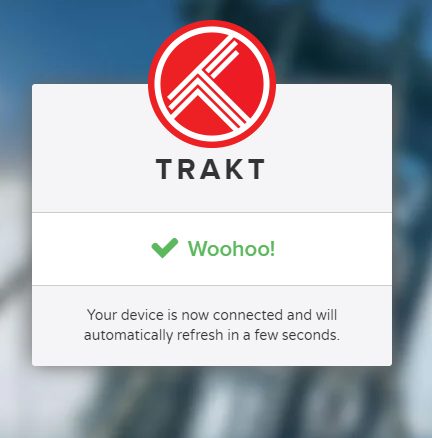
10. Return back to The Crew Kodi add-on and you will find that your Trakt account has been successfully integrated.
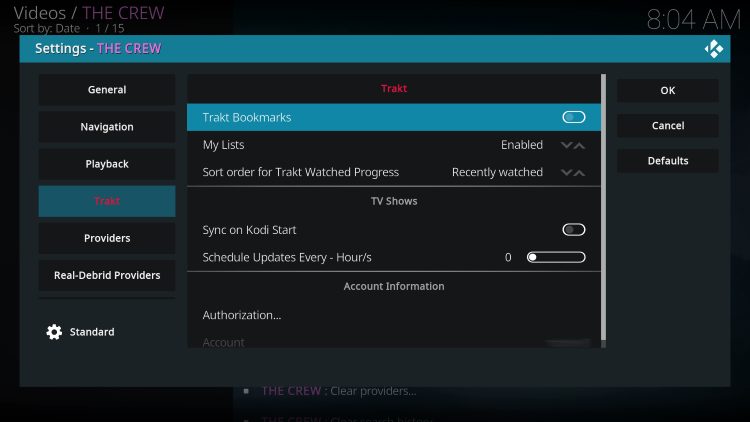
The Crew is a premium Kodi add-on that has an easy-to-use interface and works very well. We breakdown the categories of this add-on and explain the best features for each below.
Movies
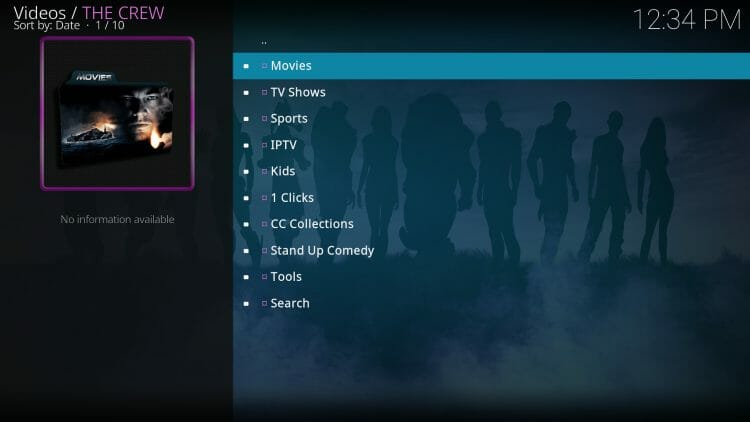
Within the Movies tab are various options including My Movies, Trending, Genres, Year, People, Trakt Lists, and more.
TV Shows
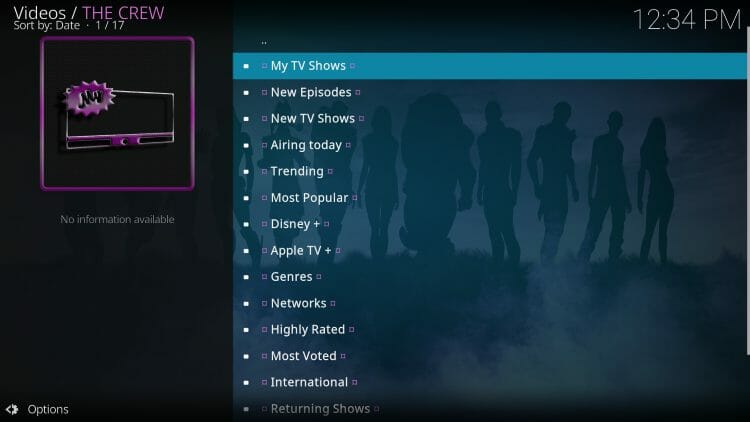
The TV Shows tab also provides similar categories such as Trending, Genres, Most Voted, International, Most Popular, and more.
Sports
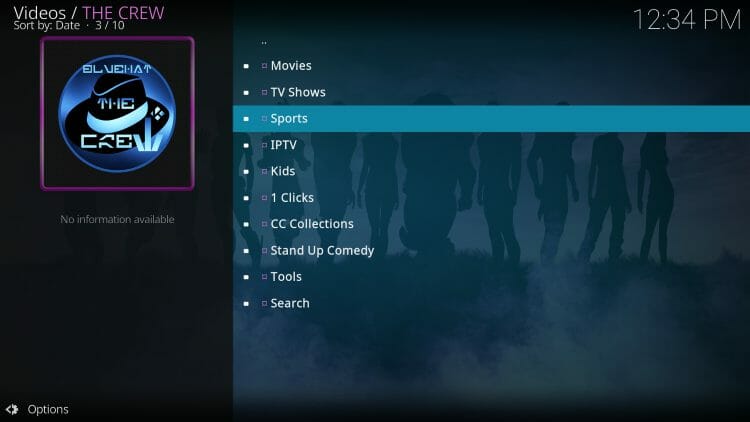
Many stream Sports and replays within the Sports tab.
IPTV
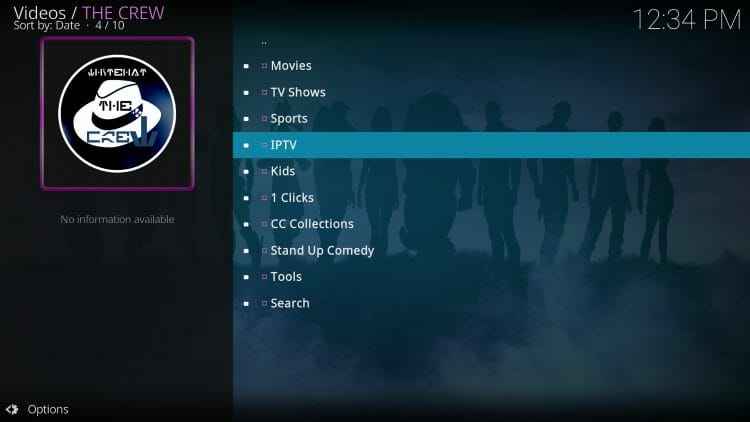
For live streaming options, you can access the IPTV Category which works perfectly on any device.
But like most free live services, streams are not always reliable. We suggest using an IPTV Service for the best live-streaming results.
Kids
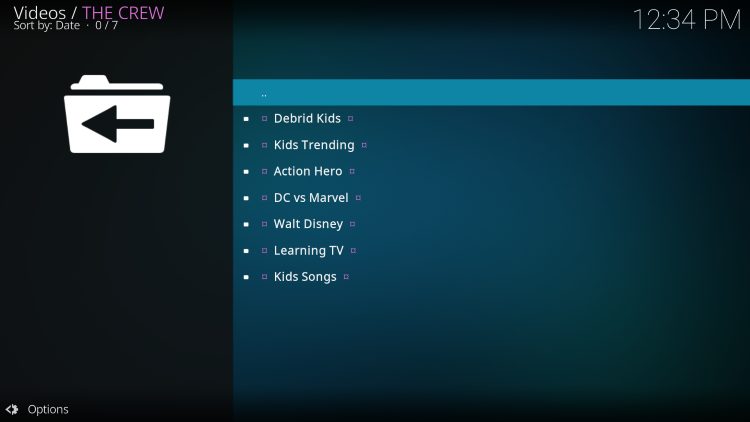
One of the best features of the Crew is that it is perfect for families with a Dedicated Kids section! There are options for Debrid Kids, Action Hero, Learning TV, Kids Songs, and more.
1-Clicks
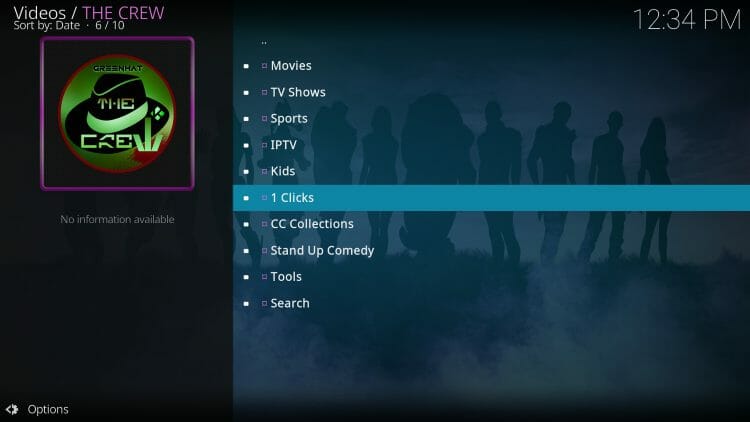
For those who prefer auto-play, The Crew provides a One-Click category for instant streaming of Movies and TV Shows.
CC Collections
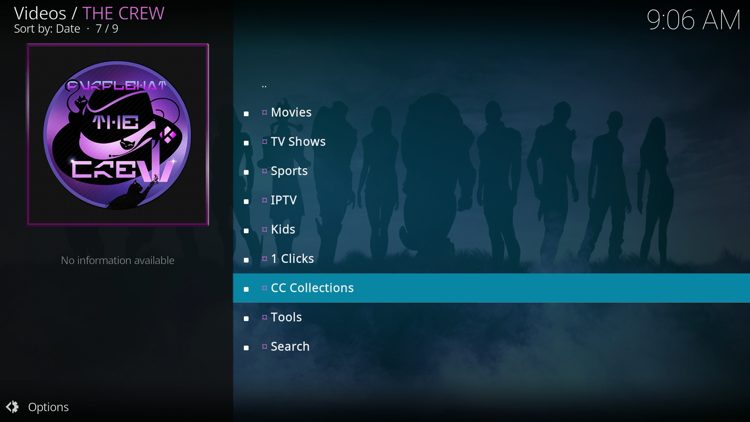
CC Collections is a unique category that offers other on-demand content.
Tools
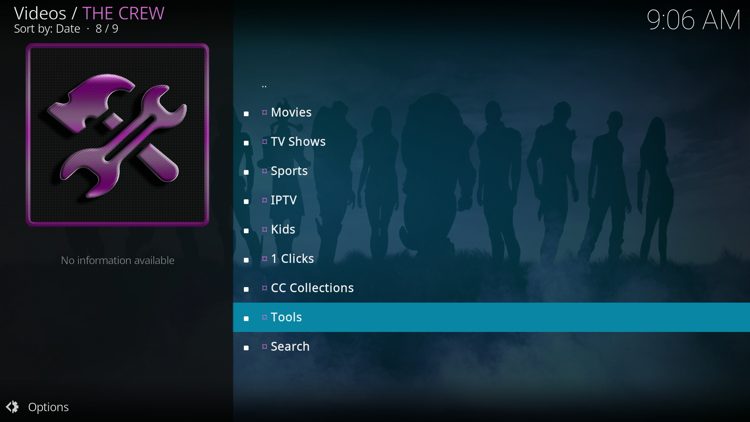
Within the Tools category you can integrate debrid services and access settings.
Search
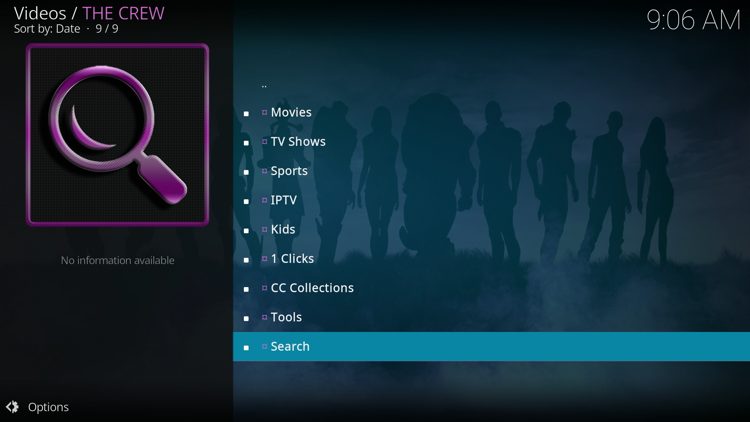
The search category allows you to easily find any content available within The Crew add-on.
Unlike other popular VOD add-ons, The Crew also features a hidden category for watching adult content. Here is how you can access this “secret” category.
1. From the home screen, open the Tools menu.
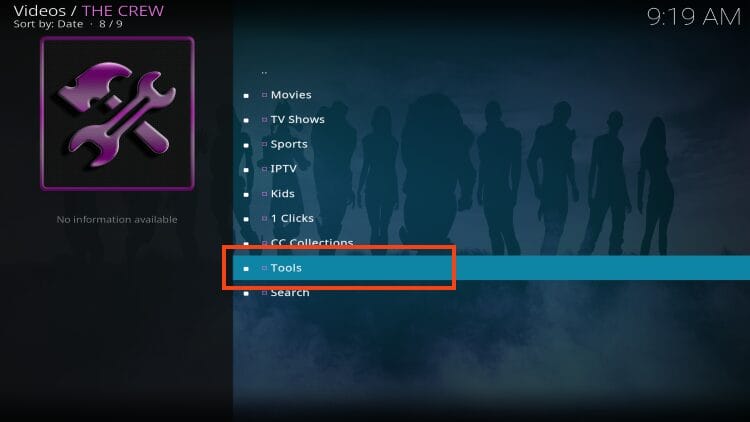
2. Select SETTINGS: Navigation.
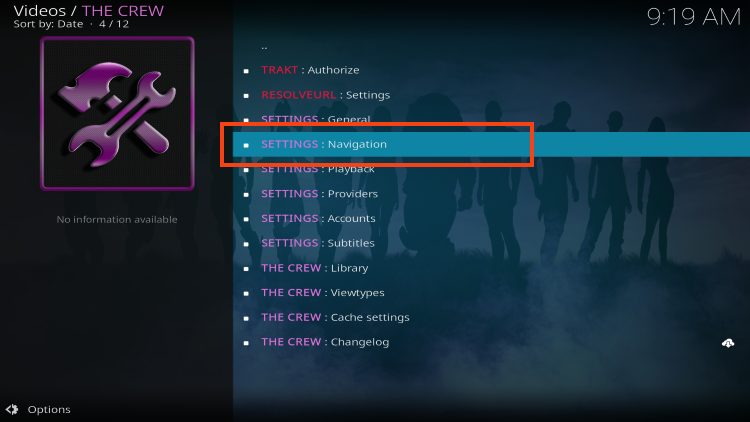
3. Click Adult Play Ground.
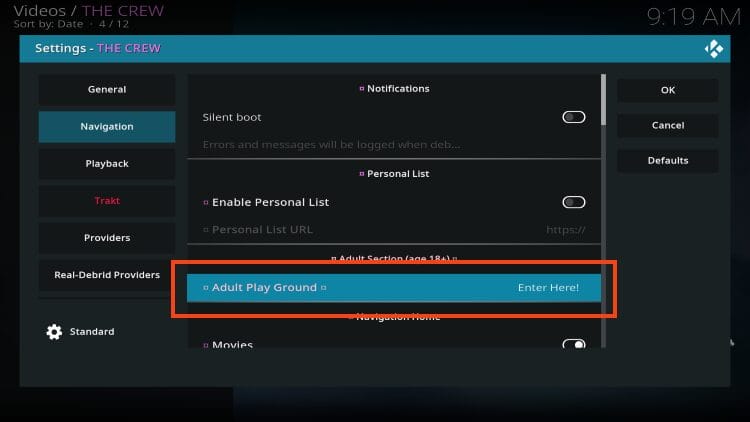
4. Enter lol for the password and click OK.
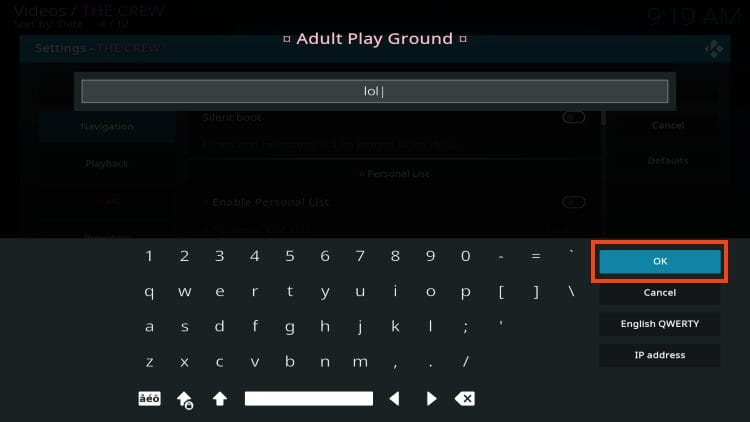
5. Click OK again.
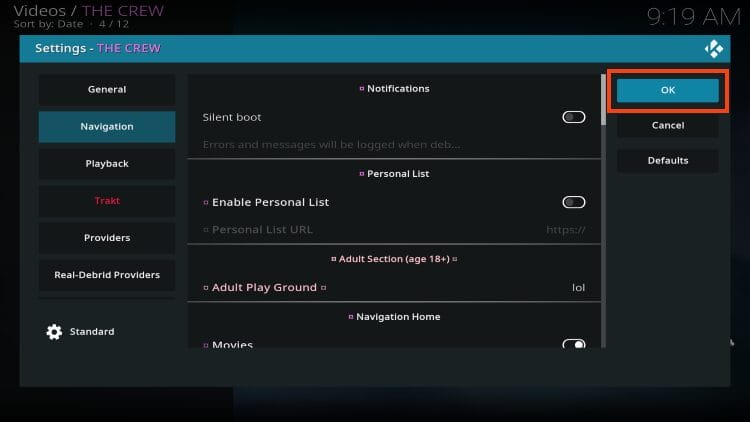
Restart your Kodi device and you can now find adult options within The Crew. Enjoy!
The Crew provides tons of Tools that users can personalize for a fabulous viewing experience.
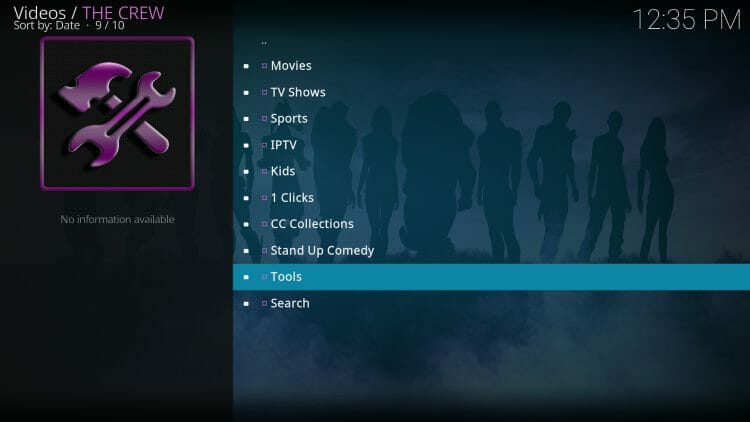
Those of you who prefer subtitles can easily enable this feature within the Tools Category.
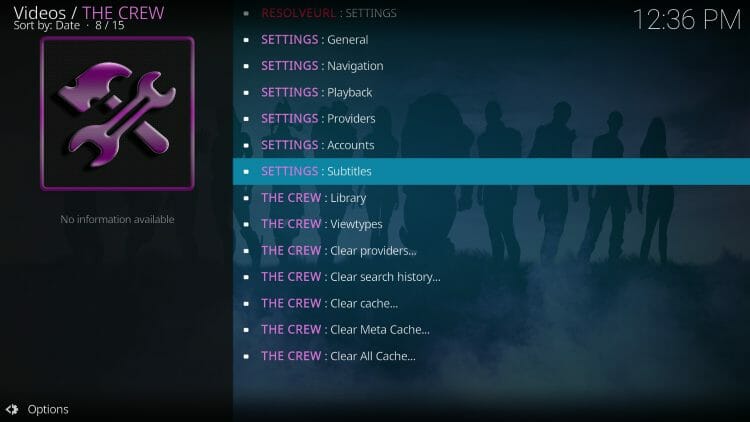
There are also various settings such as Providers, Playback, Viewtypes, and more that gives the end-user full power of this addon.
There is no way for TROYPOINT to determine whether an unverified add-on holds the proper licensing to broadcast content.
If and when an add-on is deemed illegal, we notify our users immediately and update reports on our Website to reflect that information.
At first glance, it would appear that The Crew is distributing copyrighted works without consent.
The end-user is responsible for all content accessed through unverified add-ons. For verified options, see our list of legal streaming apps.
We always use VirusTotal to scan 3rd party add-ons and apps such as this. Pictured below is a screenshot of the Crew Repo URL after scanning with VirusTotal.
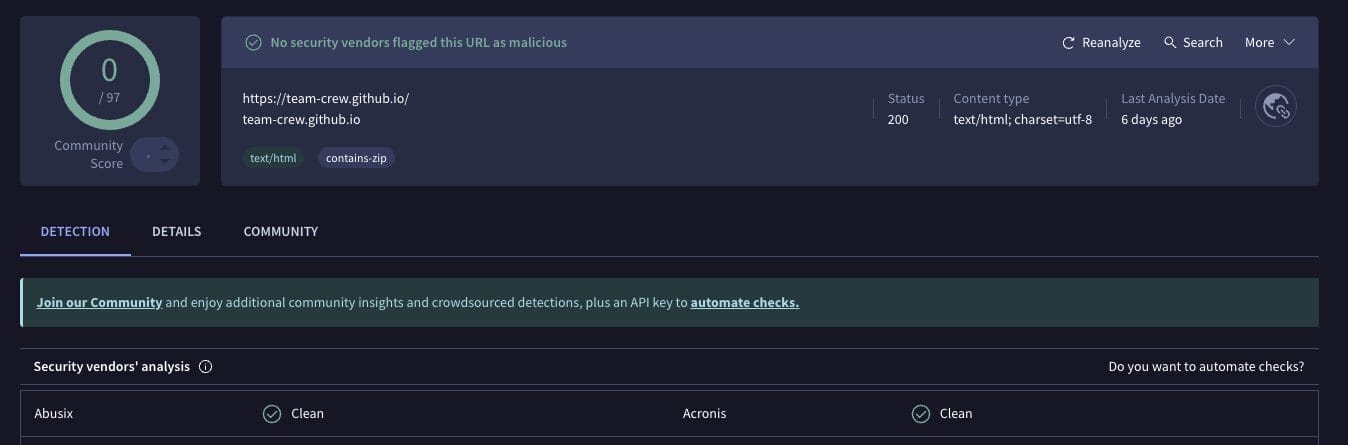
Even though there are no malicious/suspicious files associated with the installation file, we still recommend using a VPN as we are not sure who the developers of this add-on are and what they may be doing with your data.
If you haven’t given The Crew a try, we strongly recommend doing so to find the best media options available on your Kodi device.
Many use it for on-demand options but it is way more than that as users will also find functioning sports links and even live television that have minimal buffering!
Not to mention the ability to add adult options for XXX content that is typically not available within these outlets.
Are you a fan of The Crew Kodi Addon? Let us know your thoughts in the comment section!
This page includes affiliate links where TROYPOINT may receive a commission at no extra cost to you. Many times, visitors will receive a discount due to the special arrangements made for our fans. Learn more on my Affiliate Disclaimer page.




© IPTVSub is Proudly Owned by win-design