


 Written by admin

This tutorial shows how to install XCIPTV Player on Firestick and Android/Google TV devices.
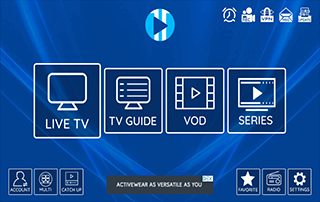
XCIPTV is an IPTV Player built for live streaming your favorite channels in a compact, lightweight application that lets you control your user experience.
Unlike other IPTV Apps that offer premium or paid versions, XCIPTV is completely free which is the main reason it is continuing to gain popularity.
We consider it the best Free IPTV Player and discuss the reasons why in our vide guide below (as well as step by step installation instructions for your preferred device).
Just like other IPTV Players, XCIPTV does not host any content whatsoever. Users must integrate an IPTV service to stream channels within the application.
There are a few methods to do this which include inputting either an Xtream Code API or M3U playlist login methods.
Because XCIPTV is not available in most app stores we must side-load it on various streaming devices. This includes the Firestick, Fire TV, and Android TV/Google TV devices.http://iptvsubscrib.net
Make sure to watch the video and screenshot guides below that cover all aspects of XCIPTV
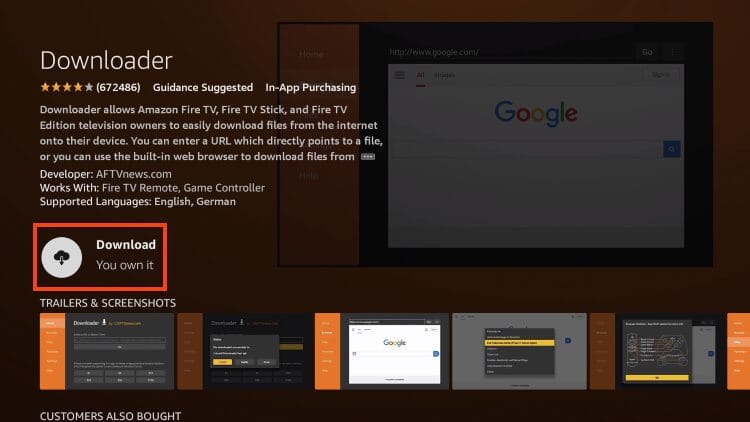
The first thing we must do is prepare our device for installation via the Downloader Application and enable Unknown apps. If you have already done this on this device, you can skip these steps.
1. From the home screen of your device, hover over the search bar and select it.
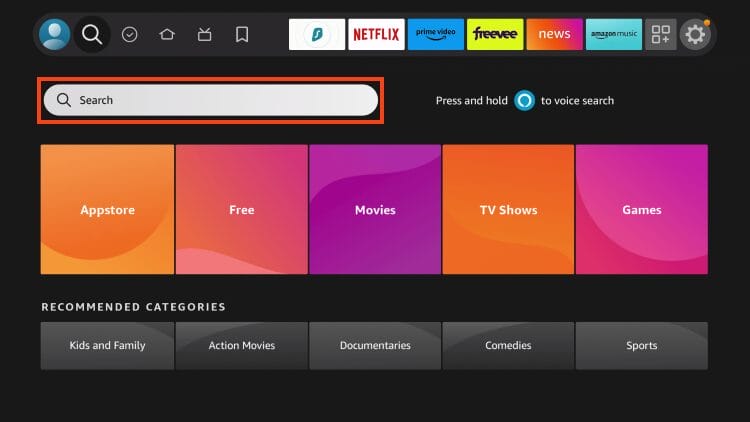
2. Search for the Downloader app.
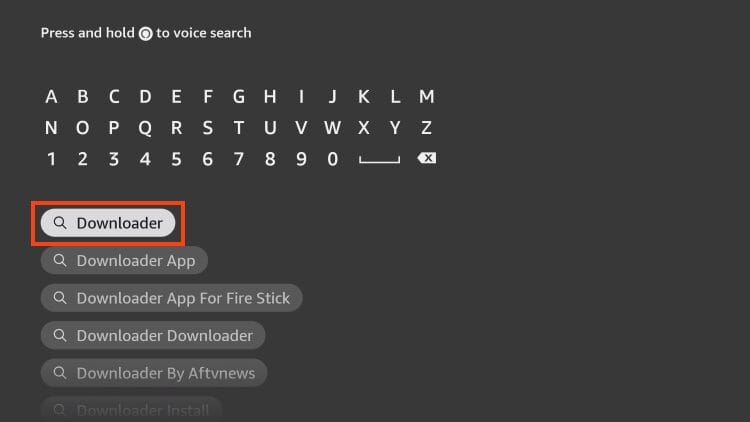
3. Choose Downloader.
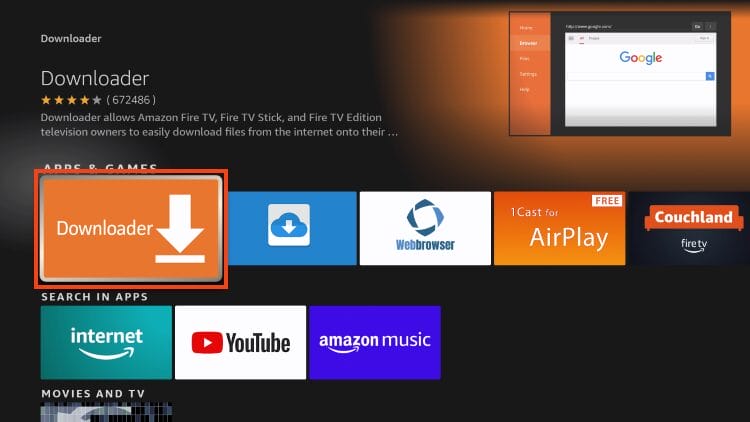
4. Click “Download” or “Get”.
🛑 DON’T SLEEP ON THIS
Surfshark VPN Exclusive DiscountYour online activity is monitored by your ISP, app/addon/IPTV devs, government, and all websites.
🔒 Become anonymous while streaming & downloading with Surfshark VPN
Save 87% with 24-Month Plan + Get 3 FREE Months
Use on Unlimited Devices & Share 1 Account with Entire Family
CLAIM DEAL HERE
5. Wait for Downloader to install.
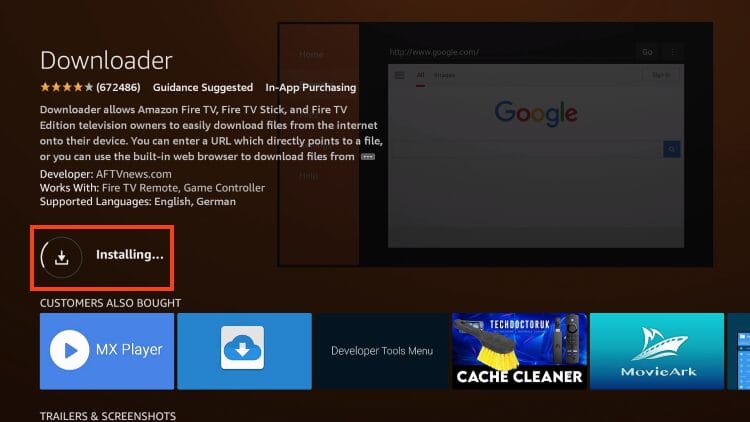
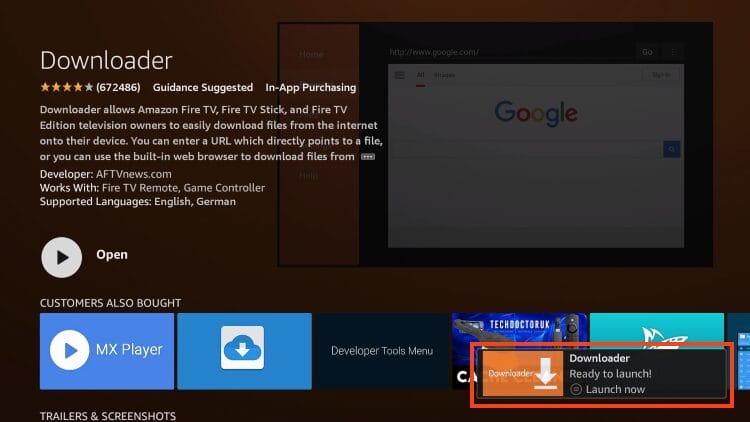
6. You are then met with the Downloader install complete message.
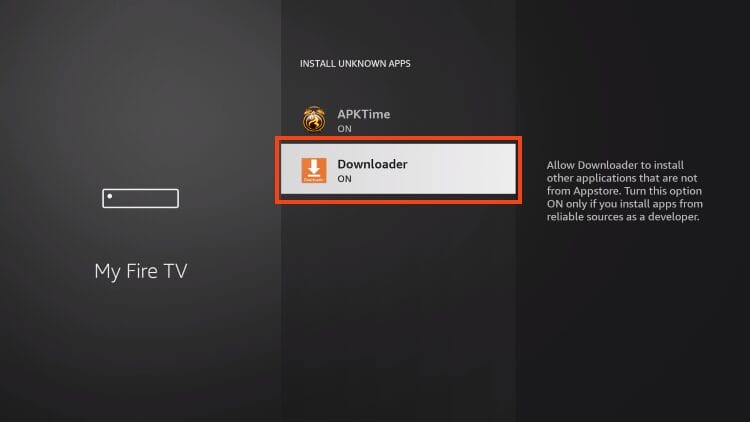
7. Open Settings and enable Unknown Apps for Downloader (if you haven’t already).
8. Launch Downloader and click the search box to open it.
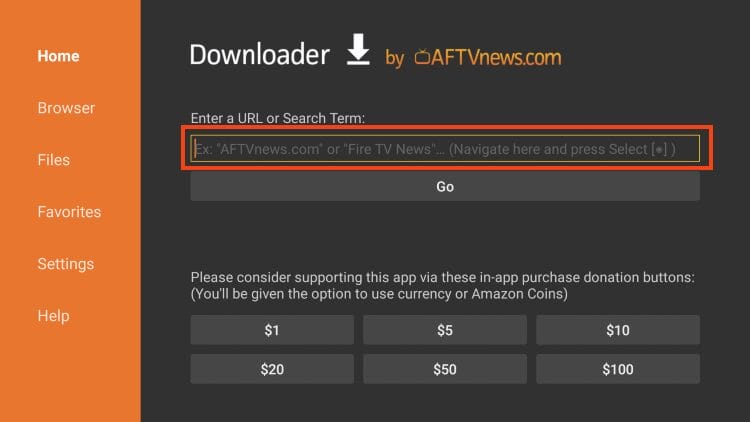
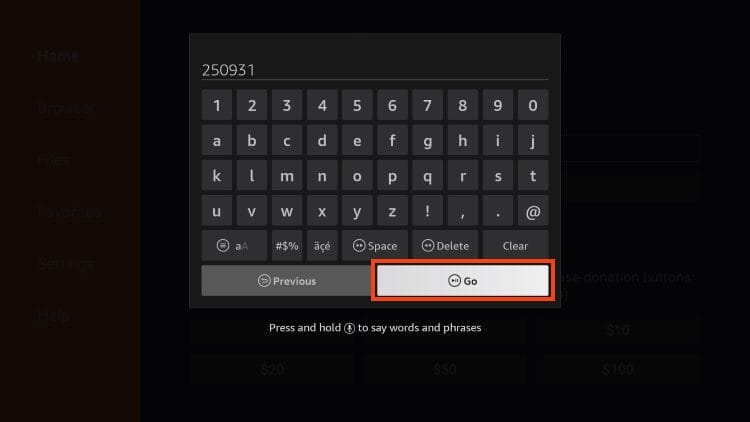
9. Enter 250931 – the DL Code to access the TROYPOINT Toolbox and click Go.
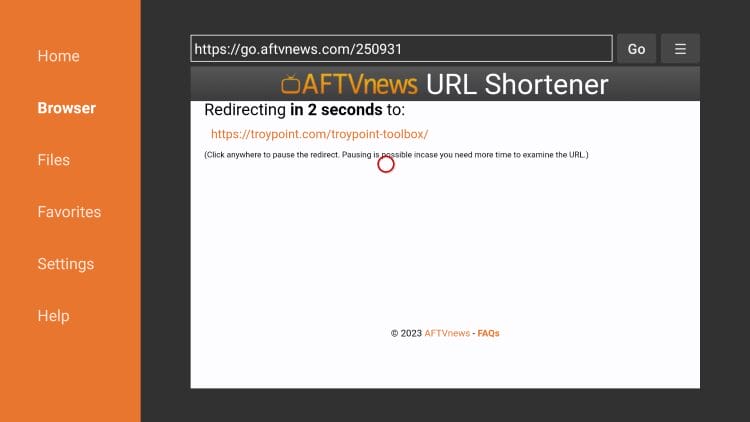
10. The page redirect message will appear.
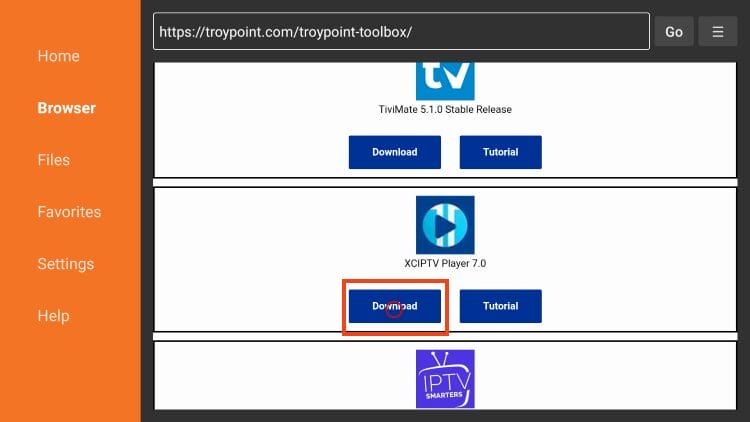
11. Once in the TP Toolbox, scroll down to locate XCIPTV Player and click Download.
12. Click Install.
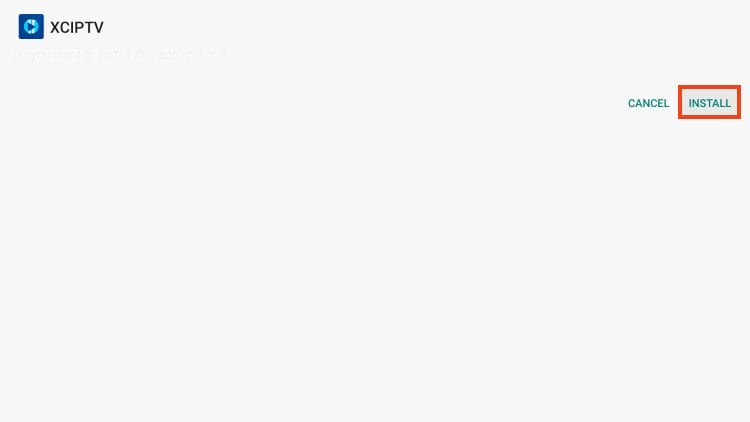
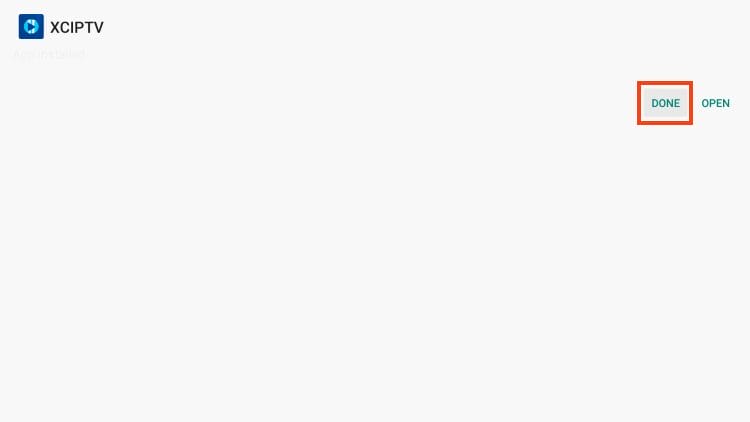
13. Click Done.
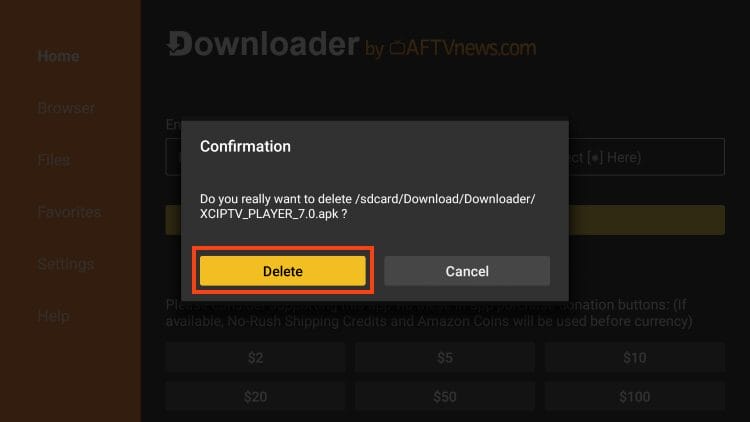
14. Delete the installation file for XCIPTV and your download is complete!

We are not done yet, however, as you must input your service provider to stream live channels.
After you have finished installing the app, you can launch it for set up and integrate your preferred IPTV Service or stream. This is a simple process which we outline below.
1. Open XCIPTV and use the sign in option to add your IPTV Service. This can be done via M3U URL, Xtream Code, Fastocloud, and other options.
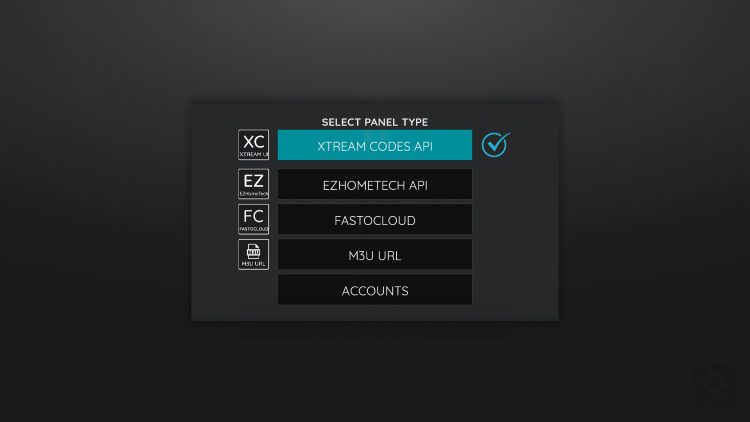
2. Make sure to enter your credentials properly and don’t miss any letters, numbers, symbols so your service integrates properly.
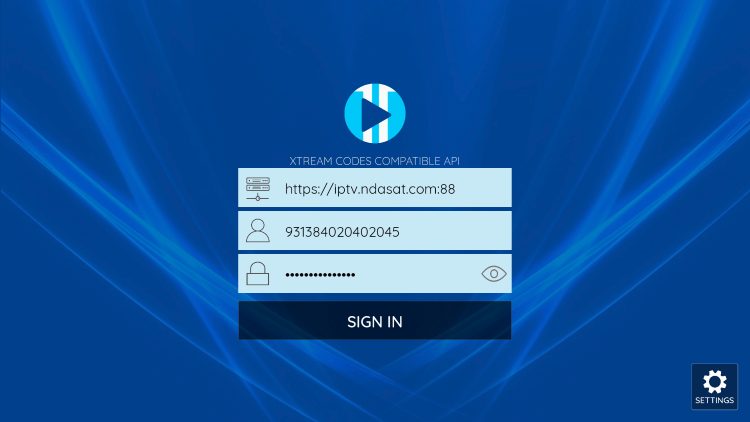
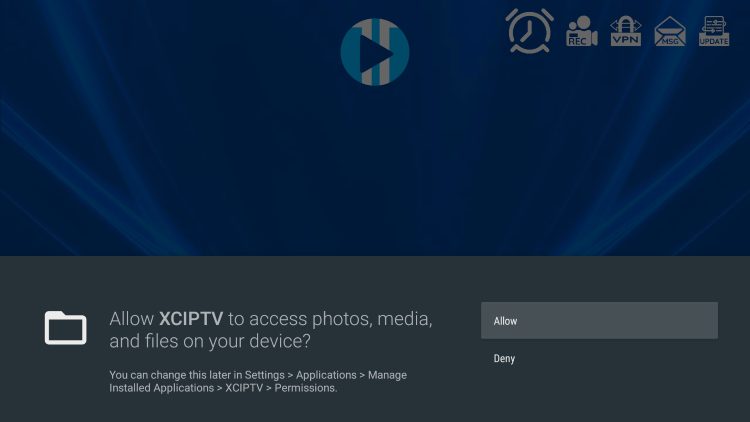
3. If prompted, click Allow.
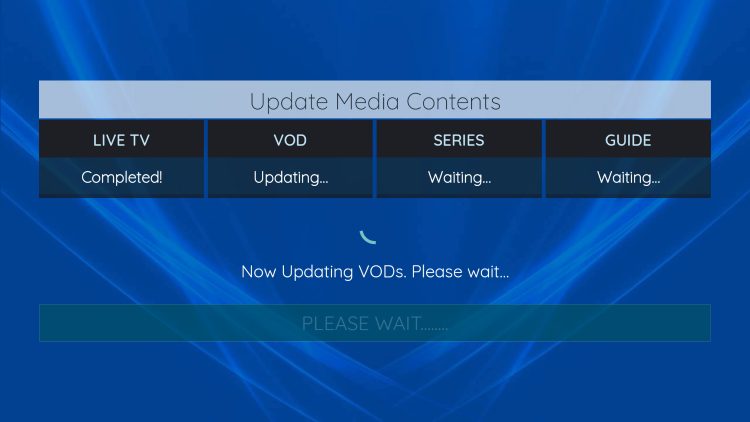
4. Wait a minute or two for the media contents to load.
5. You have successfully set up XCIPTV with your preferred live TV service.
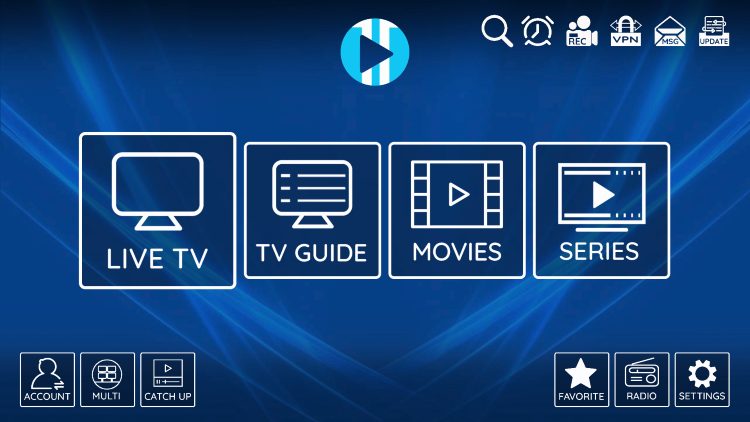
1.3XCIPTV Settings & FeaturesXCIPTV is one of the most popular applications among those using Firestick/Fire TV, Android TV/Google TV, and other streaming devices.
This player offers some great features for being 100% free to use! These features include a favorites manager, external video player integration, picture settings, multi-screen, recording, and more.
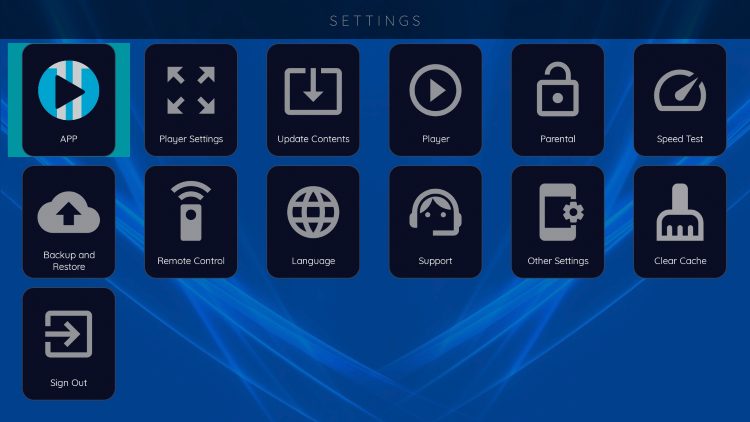
Users can browse channels easily by category and with the built-in EPG.
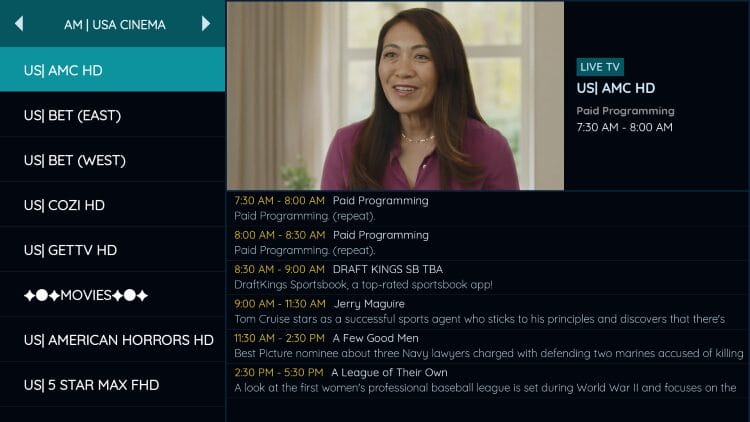
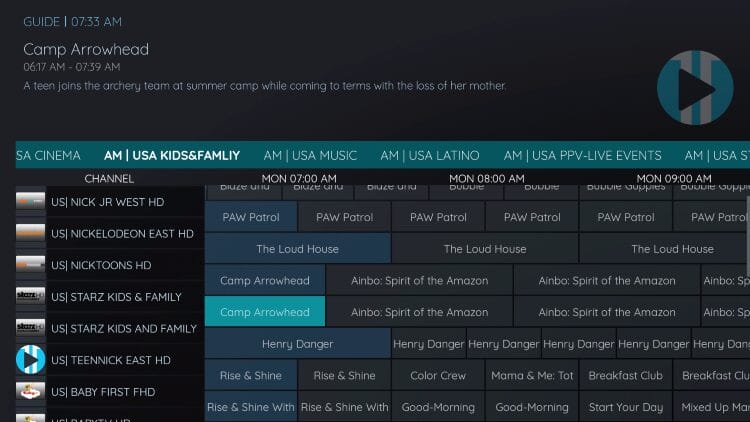
One of the best features available is the built-in EPG (Electronic Program Guide) for browsing all channels and shows.
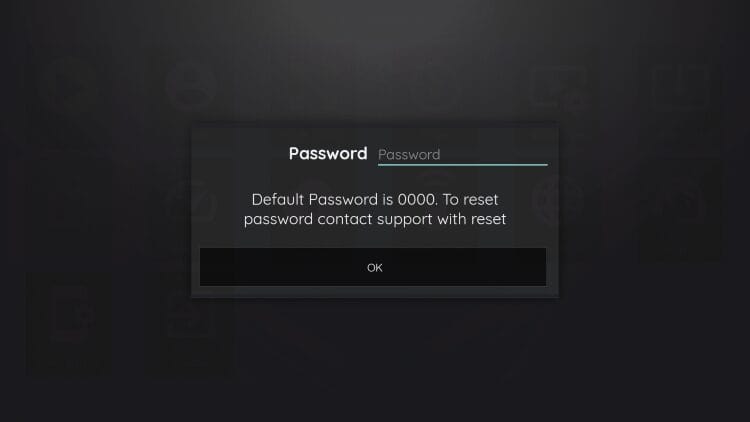
Users can also generate a Password for Parental Controls to lock preferred content.
Those who have multiple connections with their service can use the Multi-screen for watching numerous channels at once.

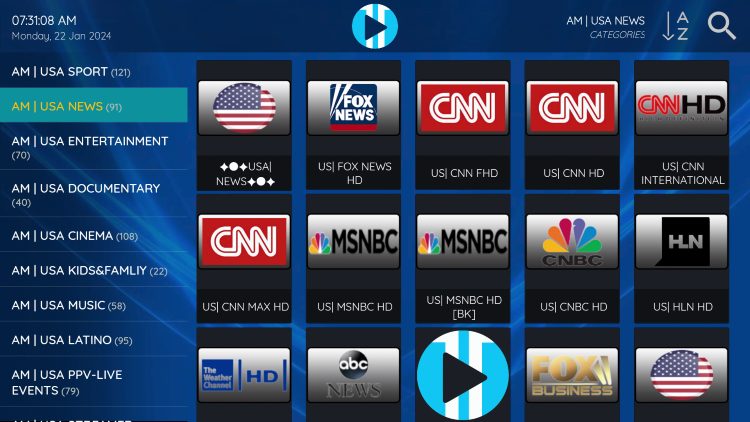
XCIPTV sorts the content into categories for easy browsing of your IPTV Provider.
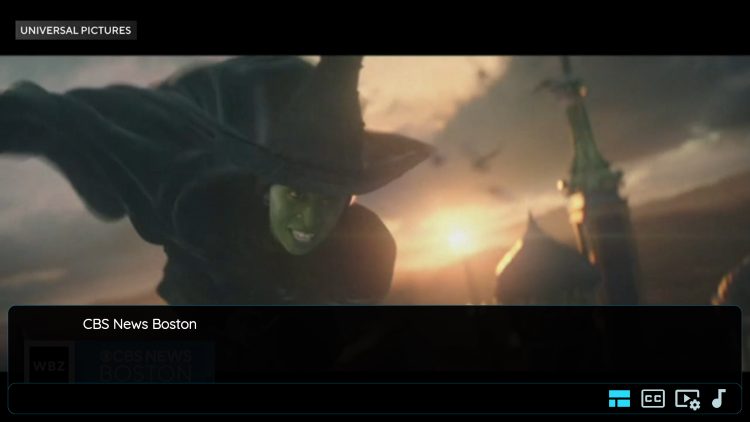
Those interested can find subtitles in the bottom right hand corner of a channel offering.
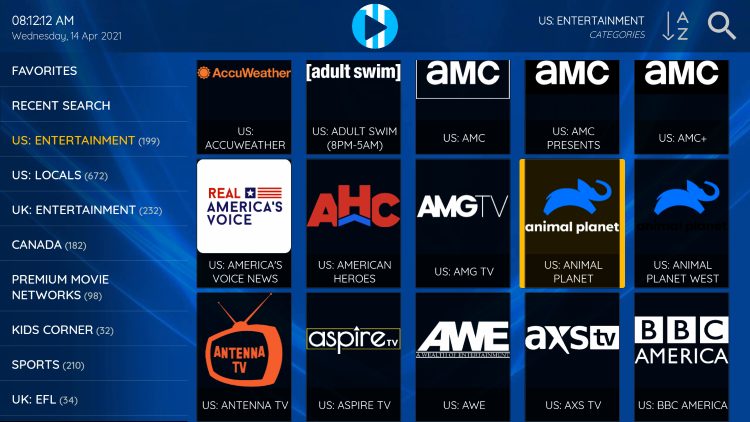
The ability to add channels to favorites is one of the best features within XCIPTV. Follow the short guide below on how to add channels to favorites.
1. Locate any channel your IPTV service offers and hold down the OK button on your remote.
2. You should notice a star icon appear over the selected channel.
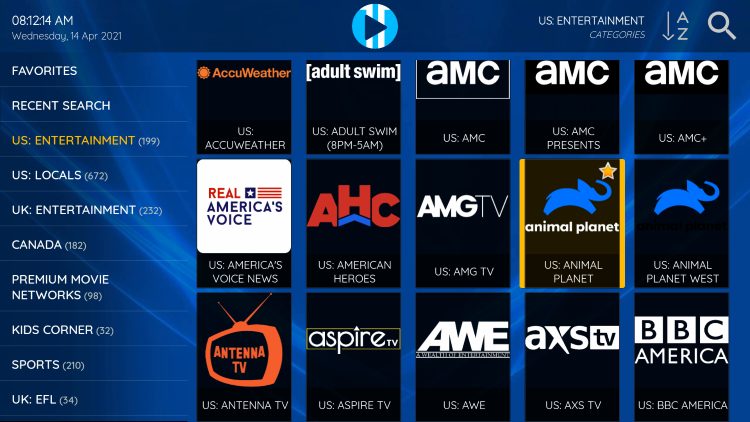
3. Return back to the channel category list and click Favorites.
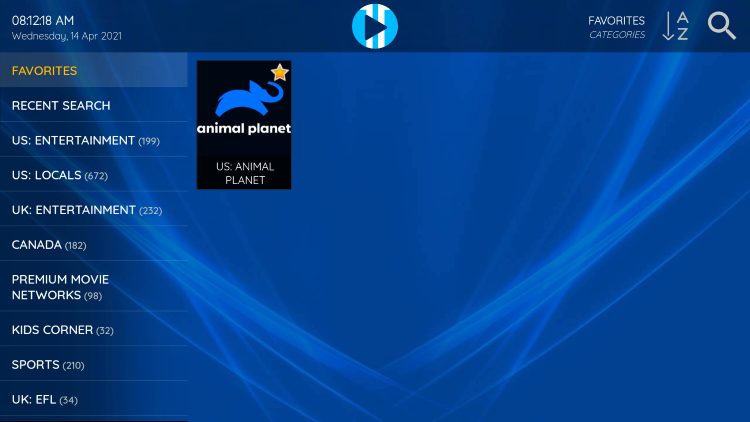
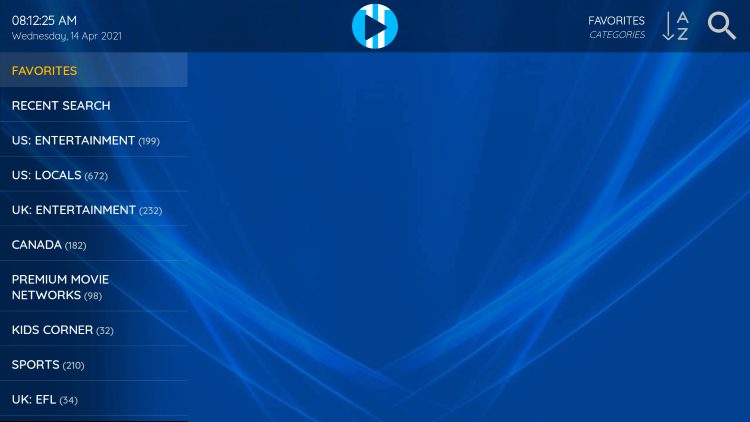
4. Notice your selected channel is now located within your Favorites. To remove a channel hold down the OK button on your remote and the star icon will disappear.
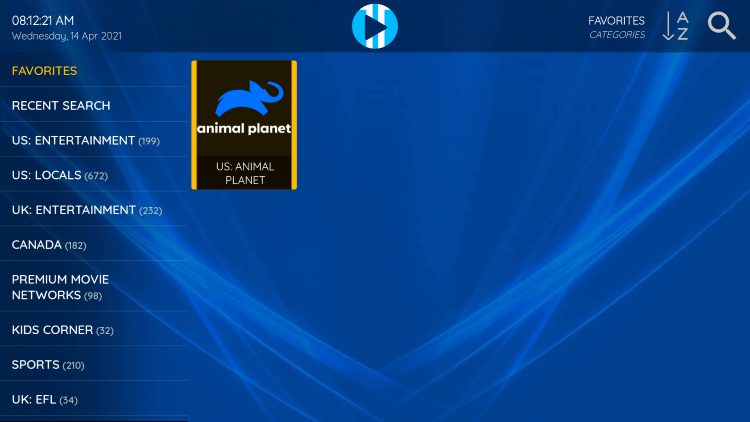
5. You can now add/remove channels from Favorites within this IPTV player.
Another excellent feature of this live TV player is the ability to add external video players.
Currently, the only options available are the built-in Exo Player and VLC Player which is one of the most popular media players available today. You can easily adjust these
1. From the home screen, click Settings on the bottom right.
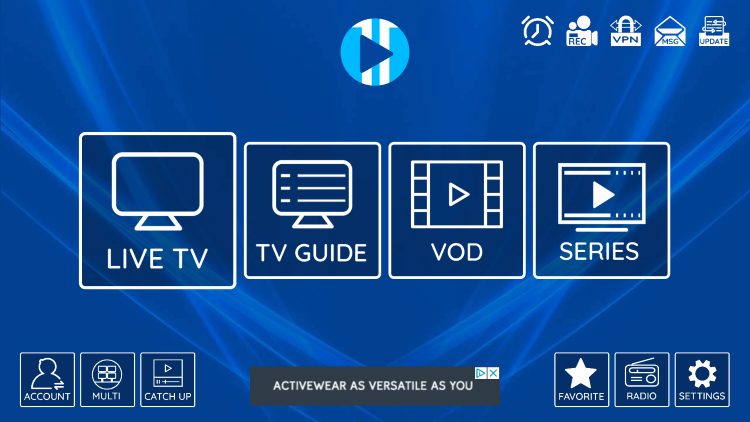
2. Choose Player.
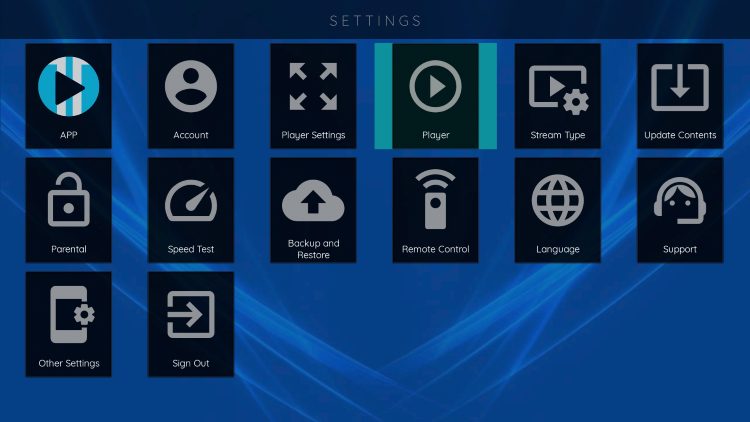
3. You can now select your preferred player option for each category including Live TV, VOD, Series, & Catchup.
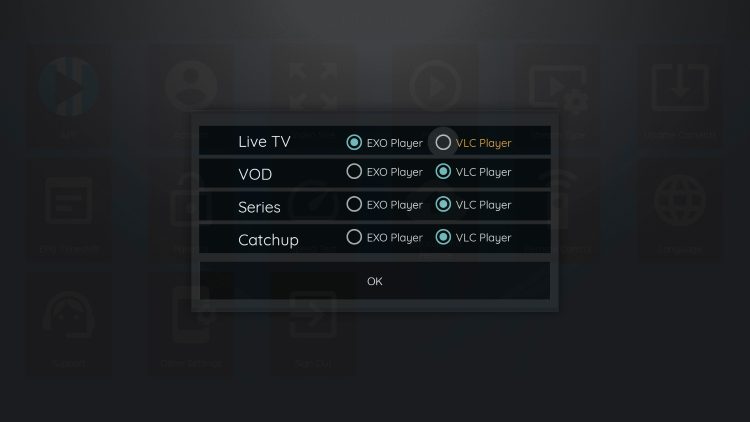
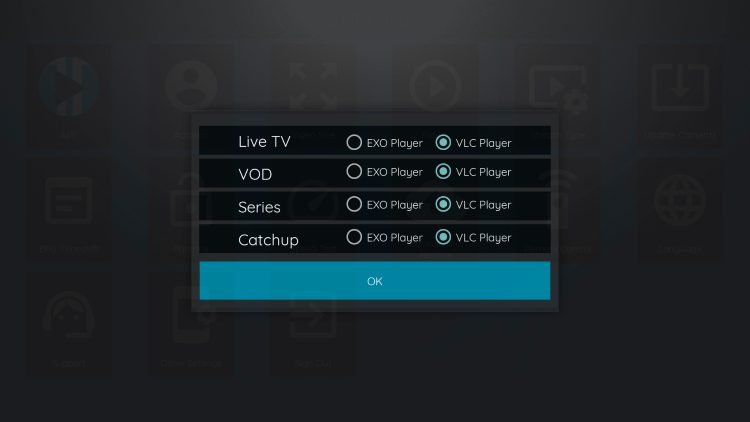
4. Once you have your player settings adjusted to your preference, click OK.
One thing that we always make sure to point out to our followers are the various imposters who use the ‘XCIPTV’ name to try and sell unverified IPTV services.
These are scams and you should make sure to avoid these at all costs. Pictured below is an example of a fraud website.
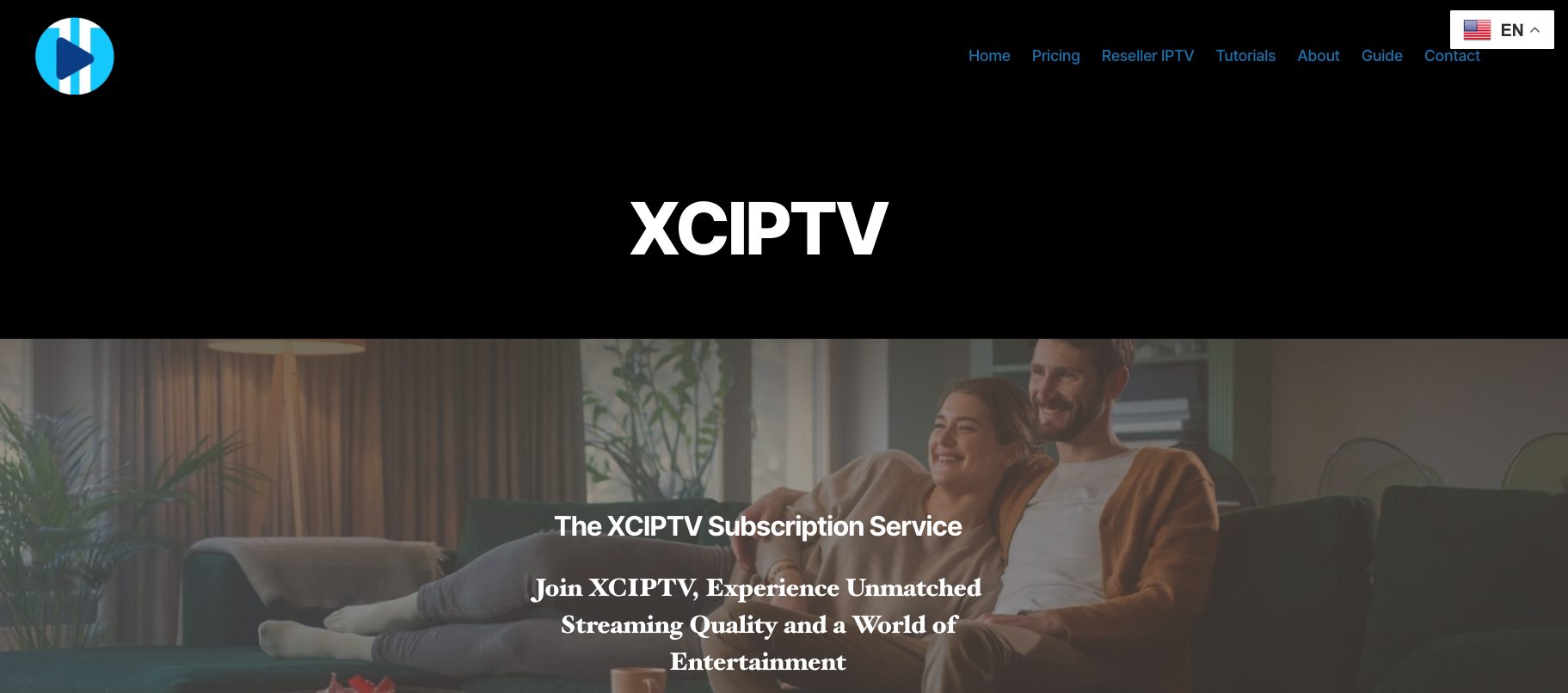
XCIPTV does not host or distribute any channels whatsoever and only functions as a video player so anyone claiming to provide channels for a monthly fee is not the official app. Stay far away from these frauds!
The best way to determine the safety of 3rd party apps is by scanning them with a virus checker such as VirusTotal.
We have VirusTotal installed on our streaming device and scanned apps including XCIPTV to check for malware/spyware.
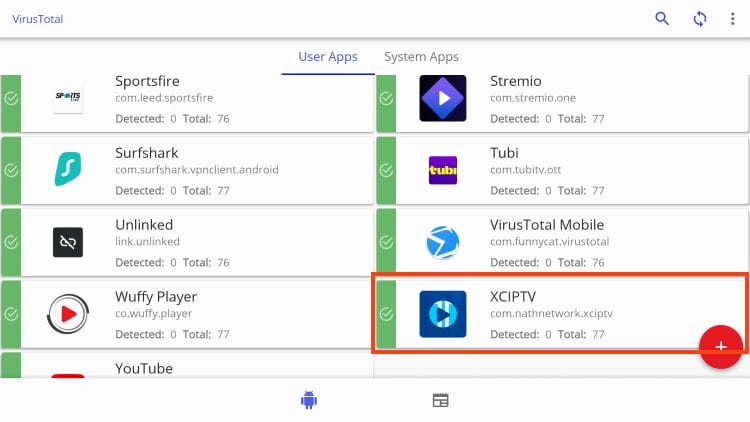
As you can see, the XCIPTV App is clean which is always a plus when using unverified 3rd party apps such as this.
However, users should still proceed with caution using protective measures such as a VPN (Virtual Private Network) which will encrypt your online connection and make you completely anonymous.
Best VPN – Firestick/Google/Android TV
Many are looking for a free platform to add their service provider to and XCIPTV Player is a fabulous choice with tons of high quality features and advancements. Make sure to check it out!
We want to know your overall thoughts of XCIPTV and preferences when using this app.
Is there another IPTV Player you prefer? Let us know in the comments below!
This page includes affiliate links where TROYPOINT may receive a commission at no extra cost to you. Many times, visitors will receive a discount due to the special arrangements made for our fans. Learn more on my Affiliate Disclaimer page.




© IPTVSub is Proudly Owned by win-design