


 Written by admin
This tutorial shows how to install Viva TV on Firestick, Fire TV, Android TV/Google TV, and other devices.
While many apps such as this come and go, Viva TV has stood the test of time and continues to provide users with a well rounded entertainment experience. Recently it has been updated to V1.8.1 with many improvements.
It is considered one of the better streaming APKs due to its awesome interface and compatibility with debrid services such as Real-Debrid, Premiumize, and more.
Viva also uses TPlayer as the built in video player and we show you how to install this quickly so you aren’t left out in the dark.
Since Viva TV is not available in official app stores, it must be side-loaded on Android-powered devices like the Amazon Firestick, Fire TV, and Android TV/Google TV devices.
In this guide, we are installing the Viva TV app on an Amazon Firestick 4K Max, but these instructions also work on Android TV/Google TV devices.
Note: This app does NOT work on the Fire TV Stick Select model. This device does not run on Android OS and instead uses “Vega OS” which is Amazon’s in house platform.
1. You must first install the Downloader app on your device. If you haven’t done this, refer to our Downloader Tutorial. Make sure it is the official Downloader app by AFTVNews.
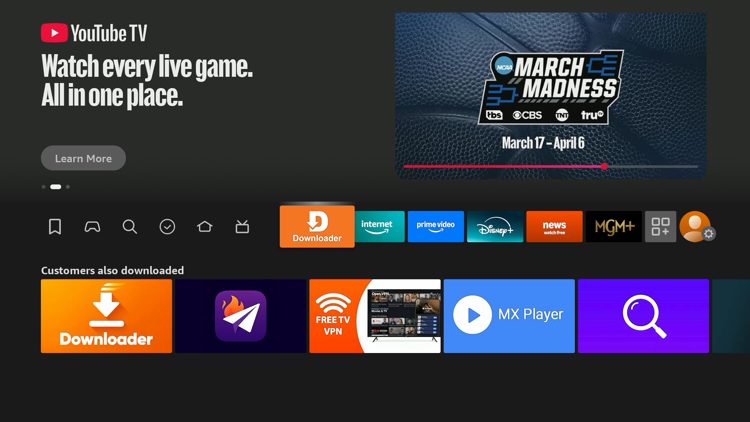
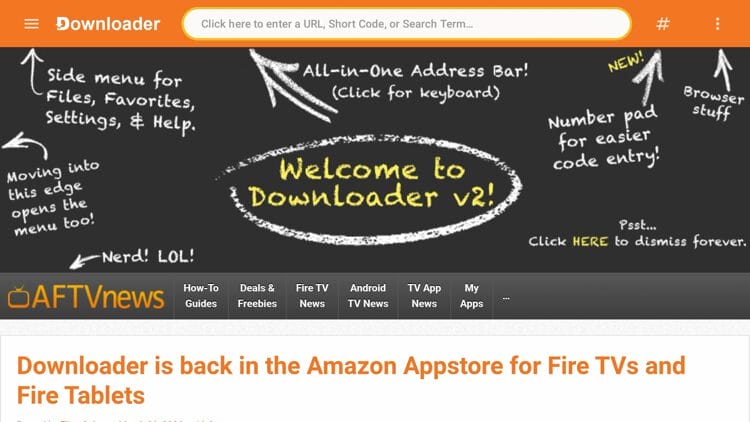
2. Launch Downloader and click the search bar on top.
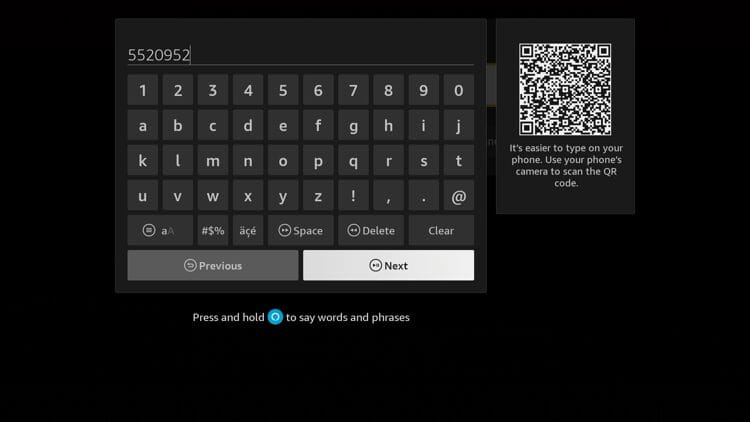
3. Type the following code 5520952 and click Next.
4. Wait a few seconds for the APK file to install.
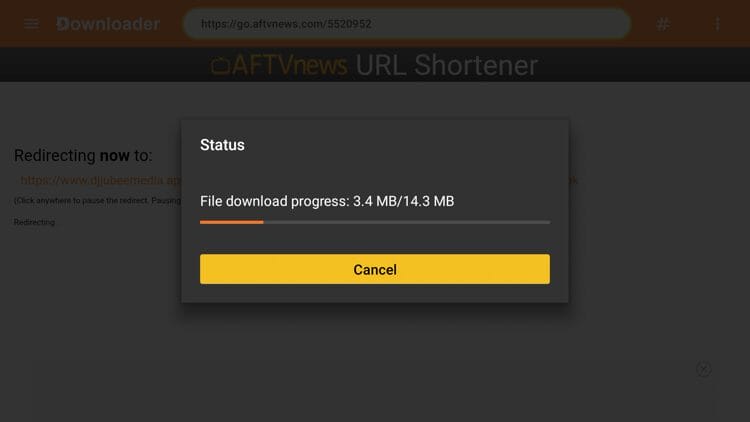
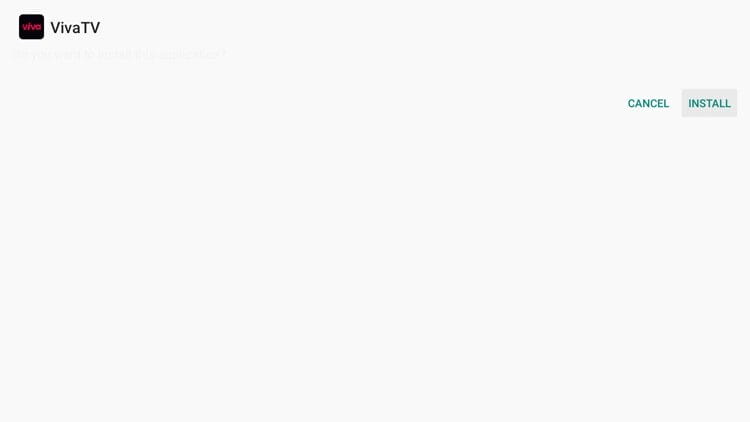
5. Click Install.
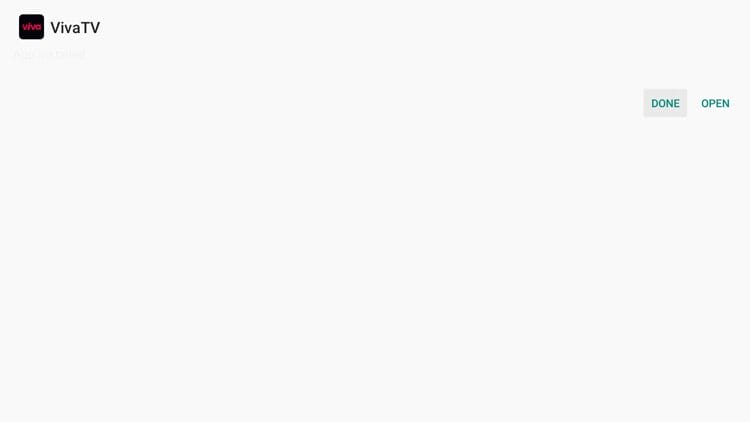
6. Click Done. We must install a video player before we can use Viva TV.
Your online activity is monitored by your ISP, app/addon/IPTV devs, government, and all websites.
🔒 Become anonymous while streaming & downloading with Surfshark VPN
Save 87% with 24-Month Plan + Get 3 FREE Months
Use on Unlimited Devices & Share 1 Account with Entire Family
CLAIM DEAL HERE
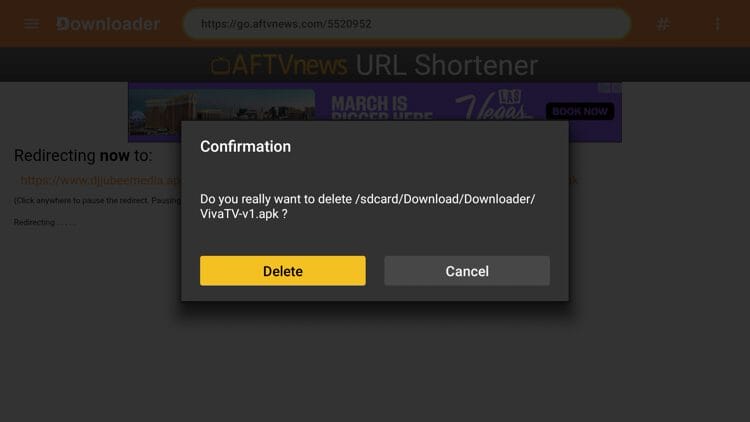
7. Return to Downloader and click Delete.
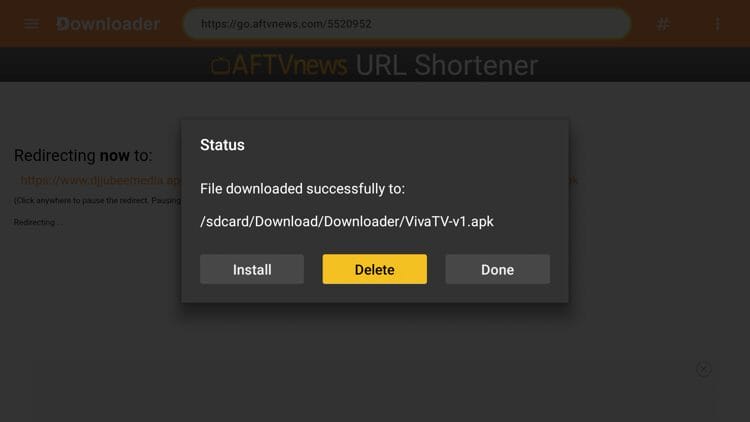
8. Click Delete again. While you have successfully installed Viva TV, we must now install a video player to stream content from this app.
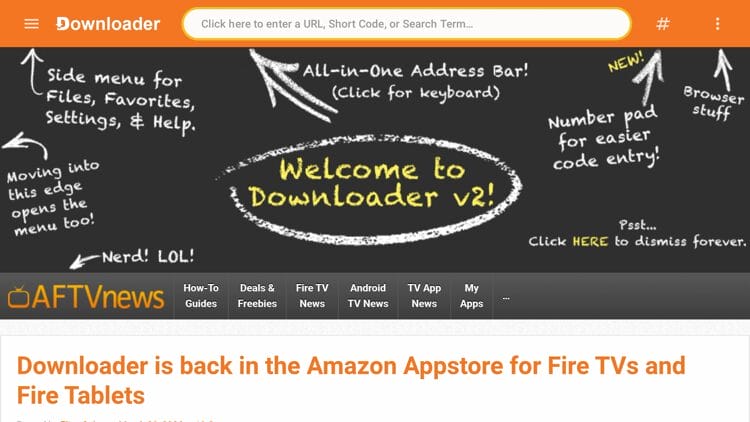
9. Return back to the Downloader home screen and click the search bar on top.
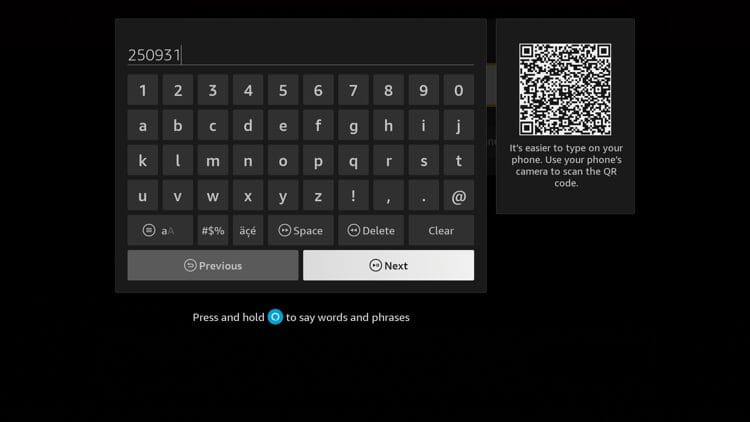
10. Enter the code 250931 and click Next.
11. Wait a few seconds and you are now on the TROYPOINT Toolbox.
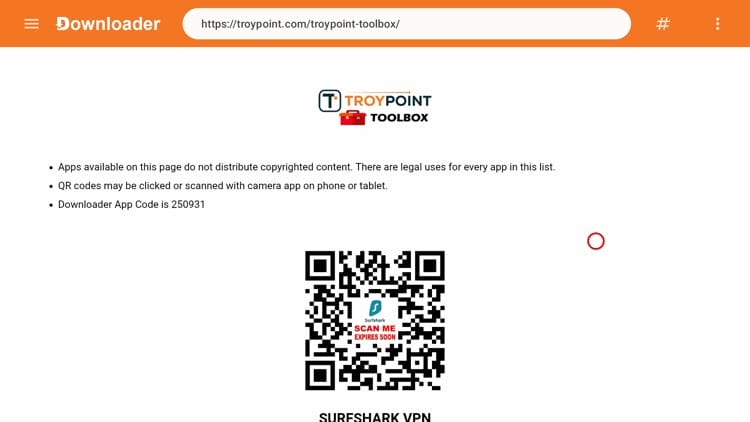
12. Scroll down and find TPlayer and then click Download.
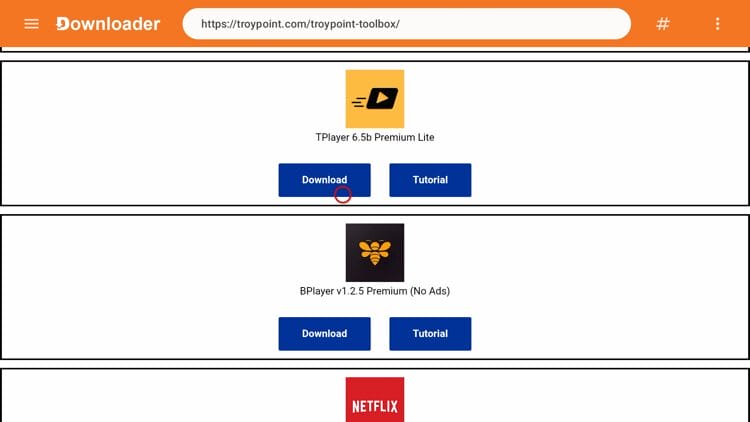
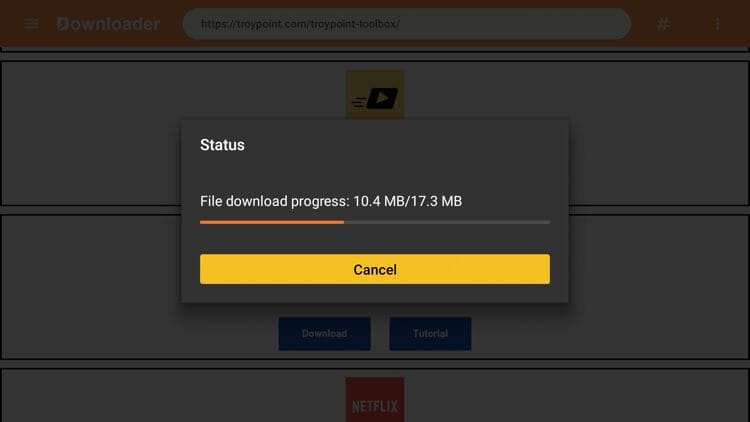
13. Wait a few seconds for the APK file to install.
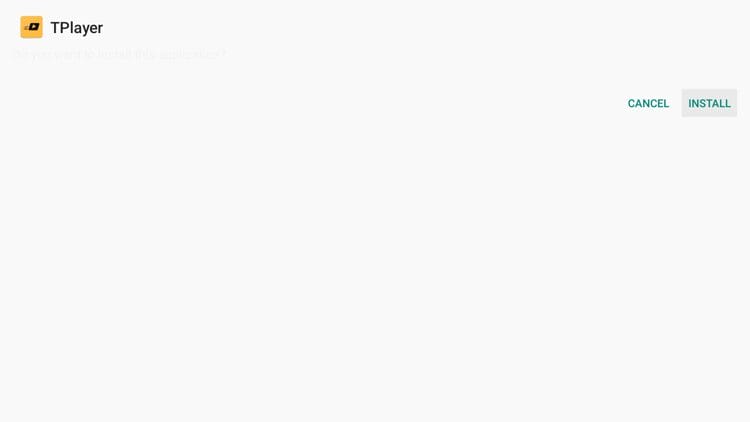
14. Click Install.
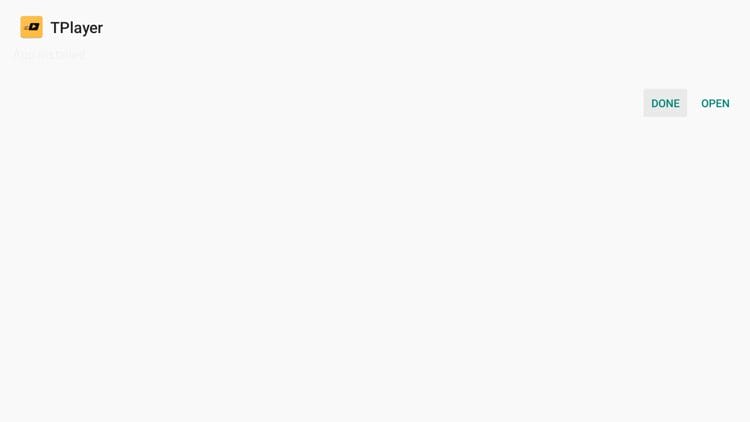
15. Click Done.
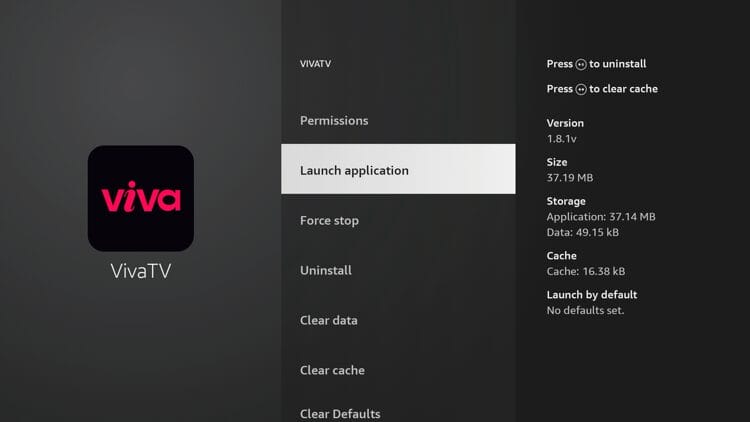
16. Now launch the Viva TV application.
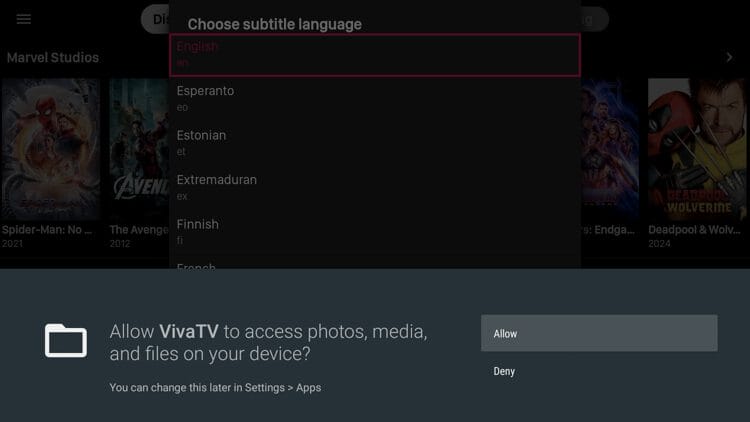
17. Click Allow.
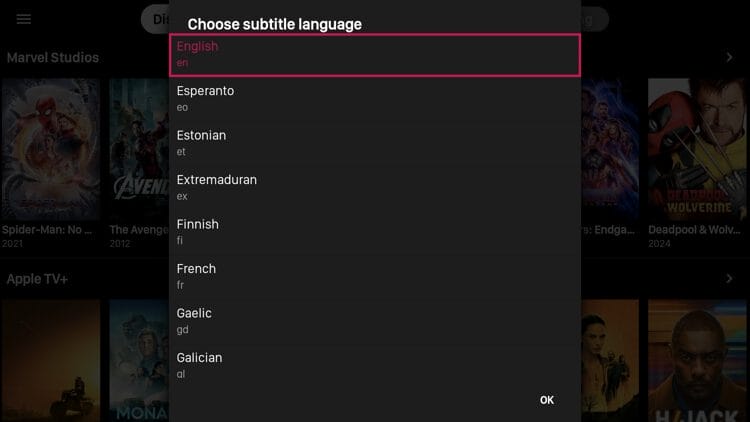
18. Choose your subtitle language.
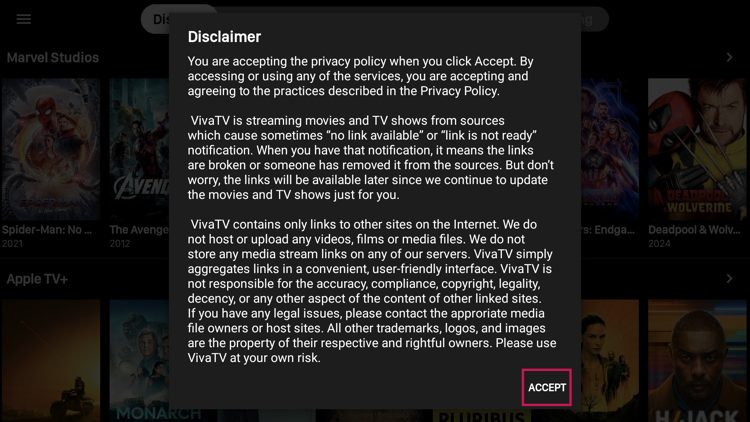
19. Click Accept for this Disclaimer message.
20. You have successfully installed the Viva TV app on your device.
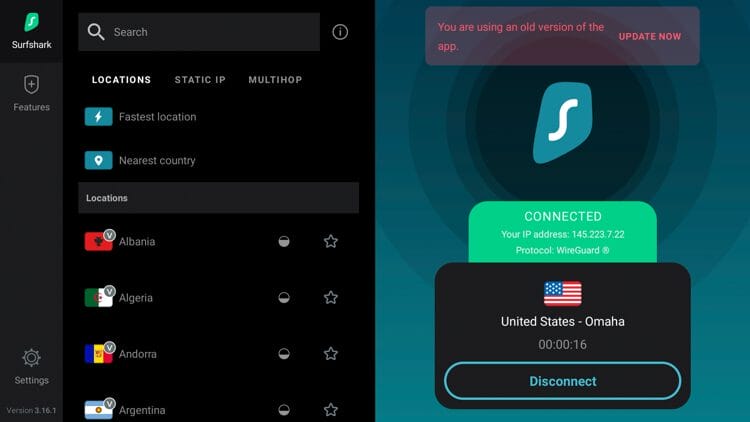
21. The final step before using Viva TV is to protect yourself with a VPN since this is an unverified streaming app. See our VPN on Firestick tutorial for more details.
After installing Viva TV on your Firestick or Android TV device, you can integrate premium services to improve your streaming experience.
As mentioned earlier, Viva TV has the ability to add debrid services like Real-Debrid, Premiumize, or AllDebrid for more streaming links. Real-Debrid is an unrestricted downloader that adds high-quality streaming options.
These new sources should provide better playback with less buffering. The following screenshot tutorial will show you how to set up Real-Debrid within Viva TV.
1. Register for Real-Debrid Account
2. On the main screen of Viva TV click Setting.
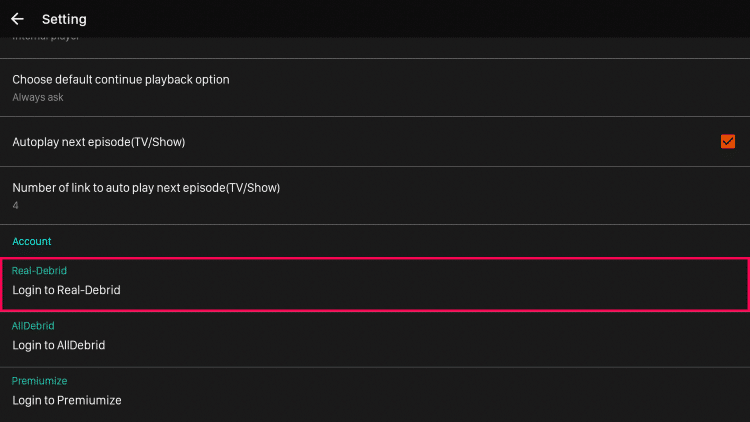
3. Scroll down and click Login to Real-Debrid
4. Write down the code provided on the screen
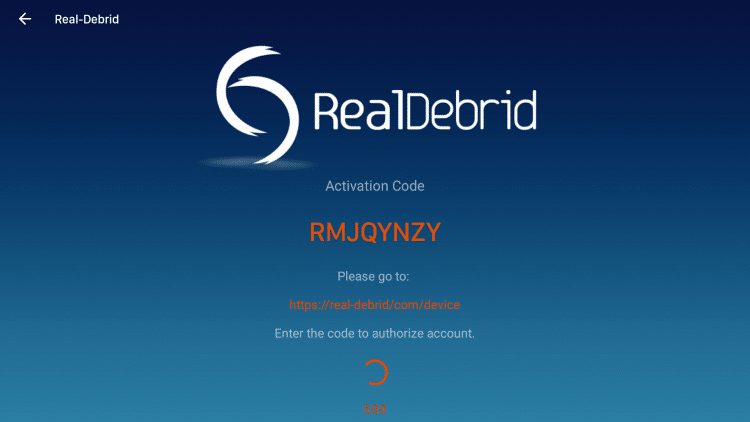
5. Open Internet browser on any device and go to https://real-debrid.com/device
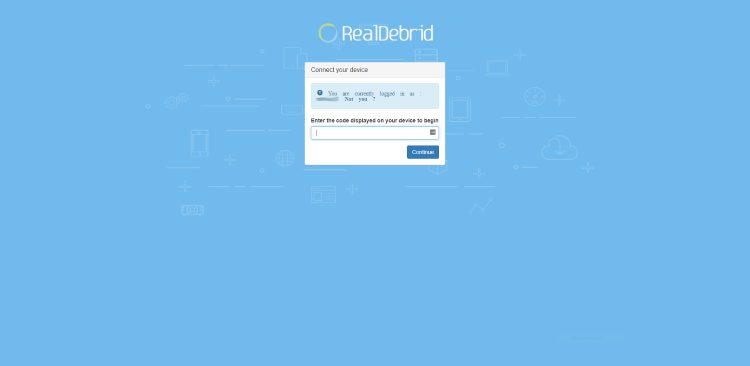
6. Type in code from above and click Continue
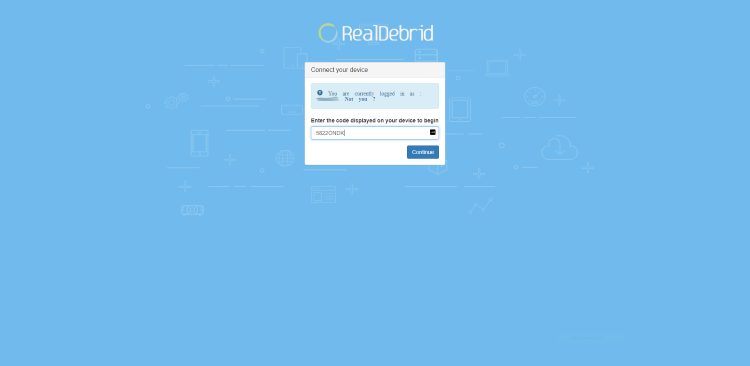
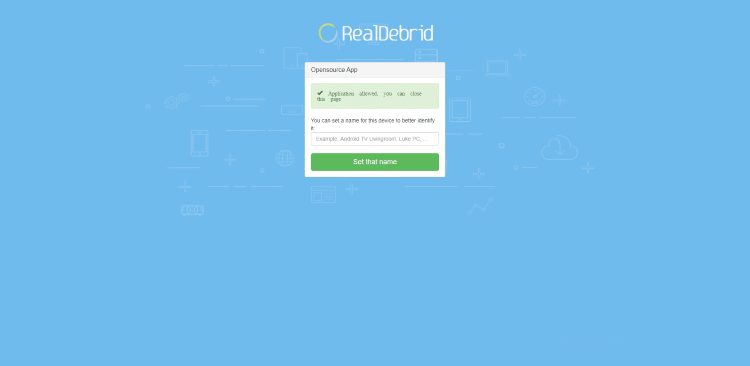
7. Your Real-Debrid application is now approved!
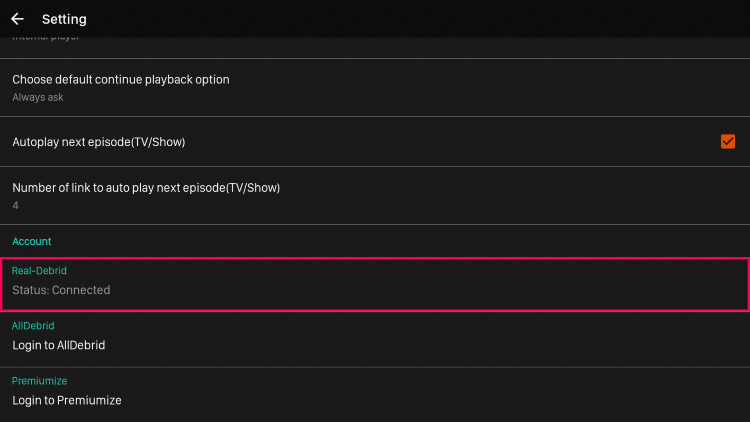
8. You are now successfully logged in to Real-Debrid within Viva TV!
Viva TV also has the option to integrate a trakt.tv account within the app. By using Trakt, you can sync all your favorite shows and films across multiple platforms and devices so you’ll never miss an episode! Follow the instructions below to setup Trakt within Viva TV:
1. Scroll to the right and click Setting
2. Scroll down and click Login to Trakt.tv
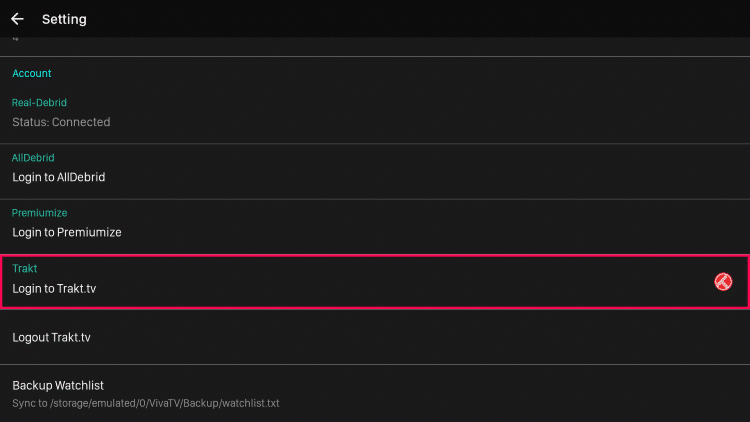
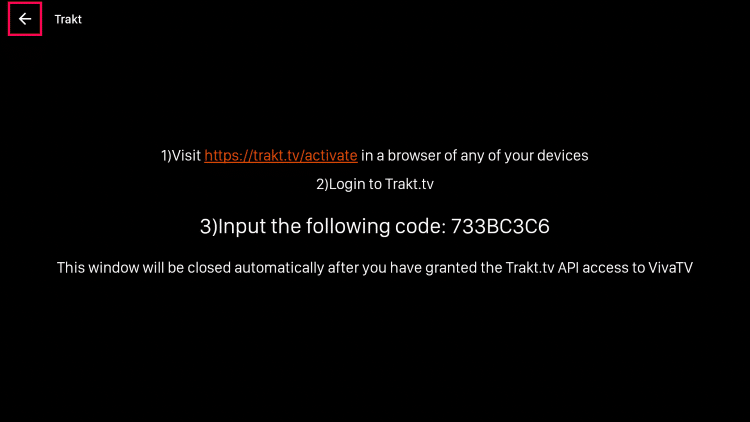
3. Write down the code provided on the screen
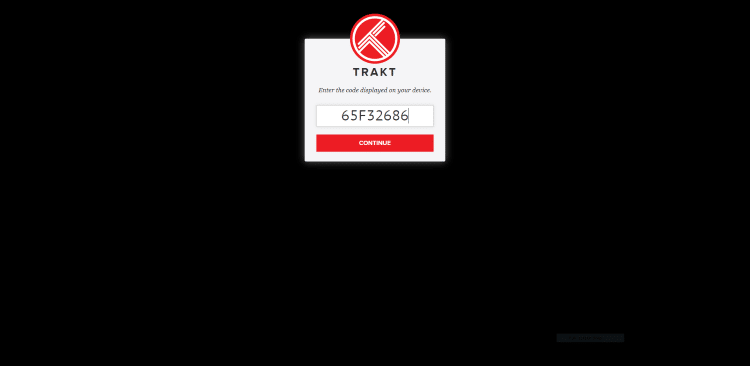
4. Go to trakt.tv/activate and sign in to your account. Enter the provided code and click Continue
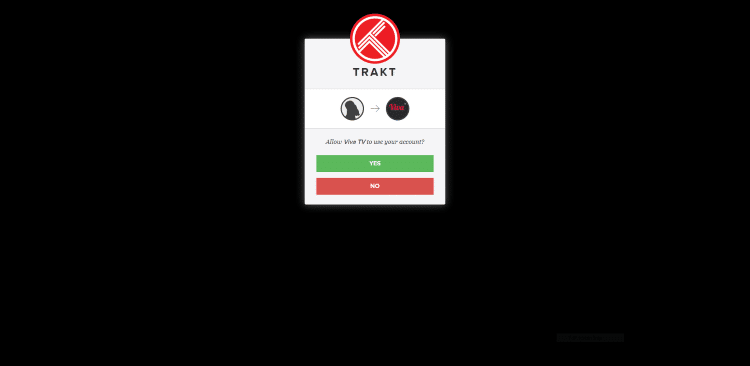
5. Click Yes
6. Trakt integration is now complete!
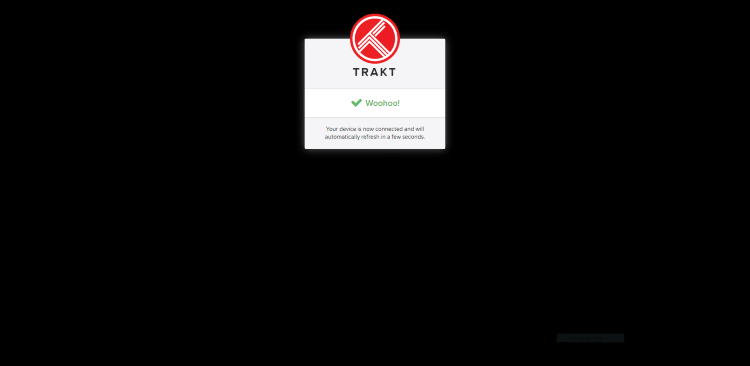
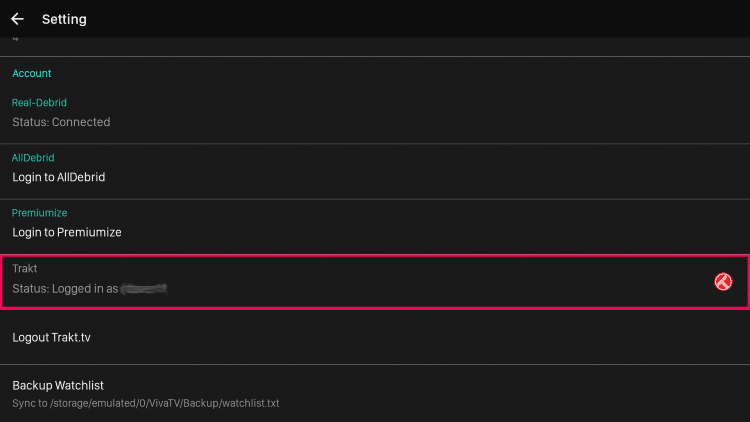
7. Return back to Viva TV and notice you are now logged in.
Users may encounter ads within the Viva TV application. This includes built-in ads on the home screen and also video ads upon exiting playback of a Movie or TV Show.
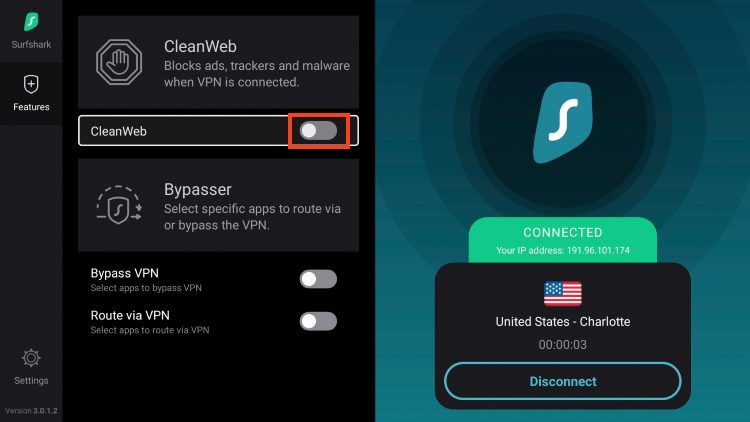
Luckily, we can easily remove these with the CleanWeb feature from Surfshark VPN. Follow the steps below to enable CleanWeb within Surfshark and remove ads.
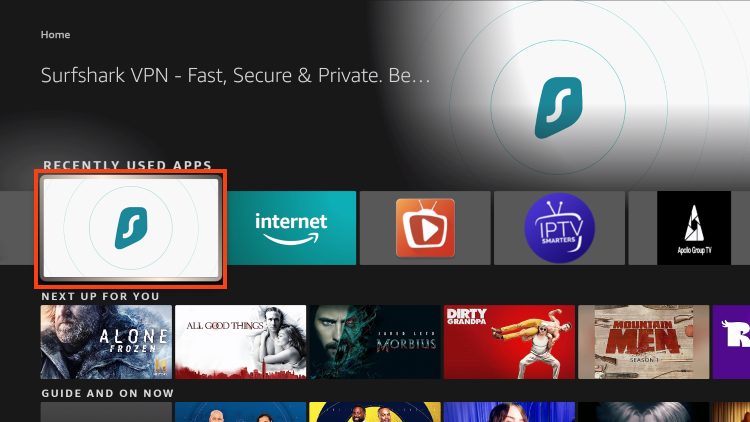
1. Launch Surfshark VPN.
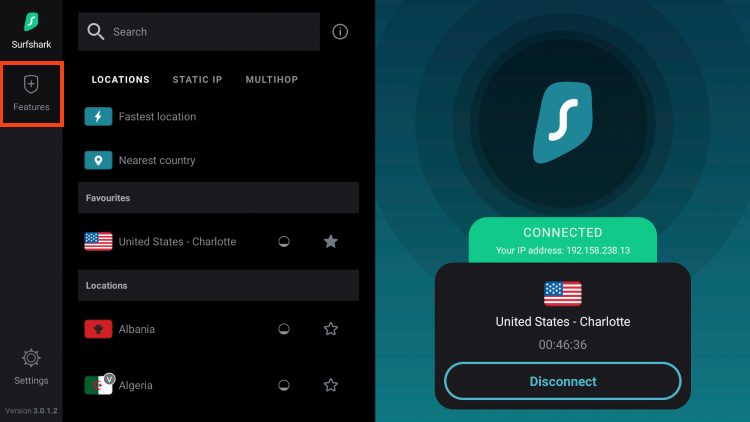
2. Select Features.
3. Click the toggle to enable CleanWeb feature.
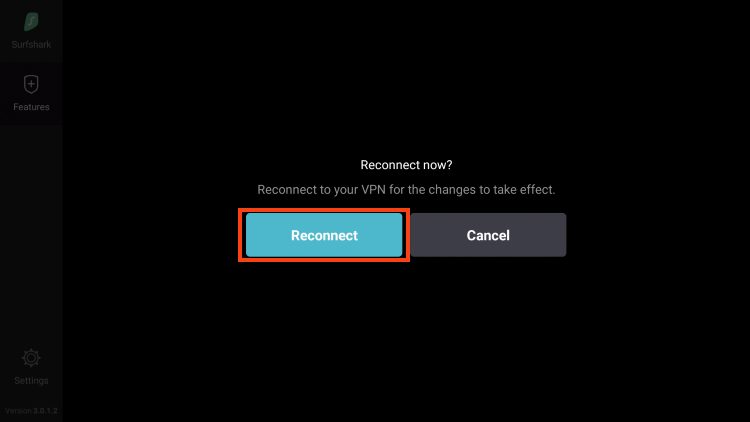
4. Click Reconnect.
5. You will now see CleanWeb is activated to remove ads.
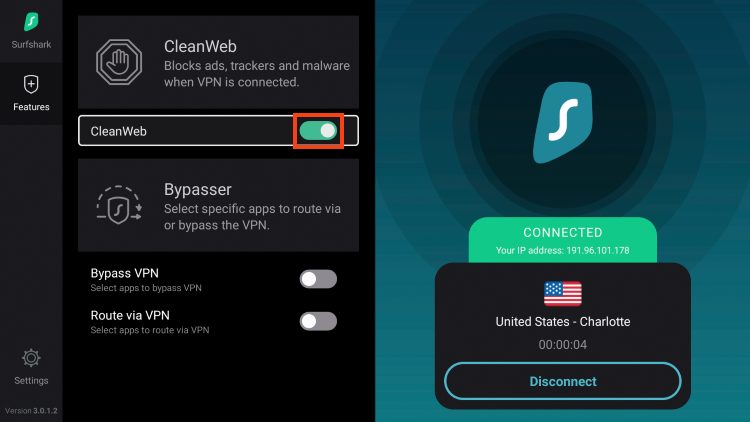
If you re-launch Viva TV, you will see that the on-screen ads have disappeared. Enjoy!
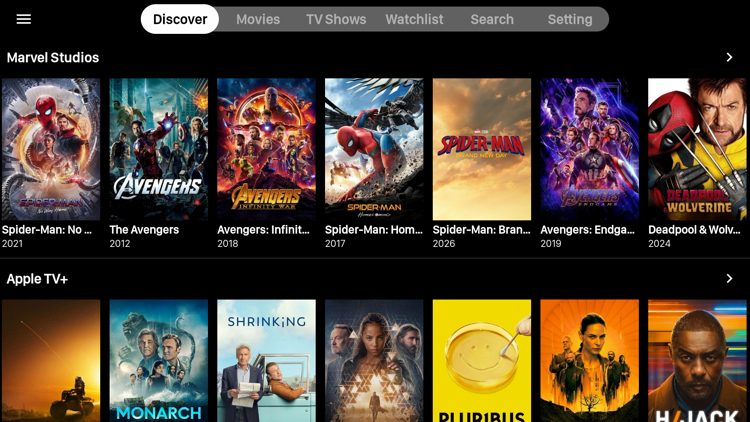
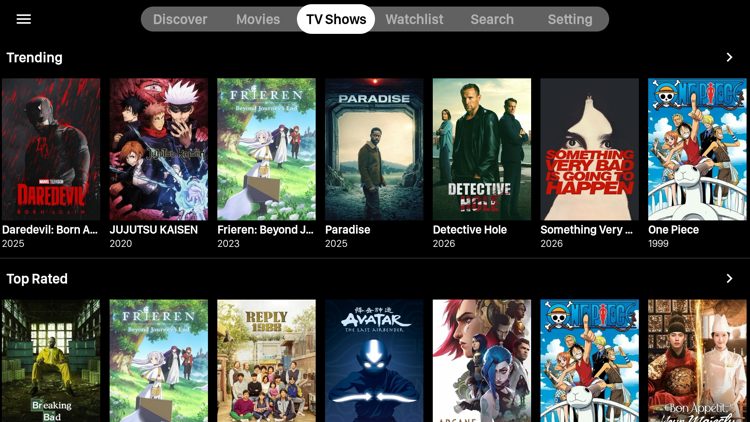
Viva TV offers a unique interface with a few differences from other streaming APKs. Categories include Discover, Movies, TV Shows, Watchlist, Search, and Settings.
Movies can be sorted by Trending, Top Rated, Upcoming, and Now Playing, and more.
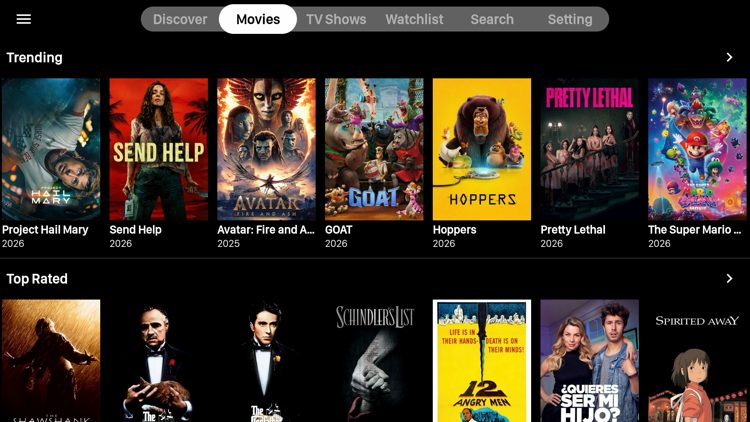
TV Shows can also be sorted by Trending, Top Rated, Popular, and more.
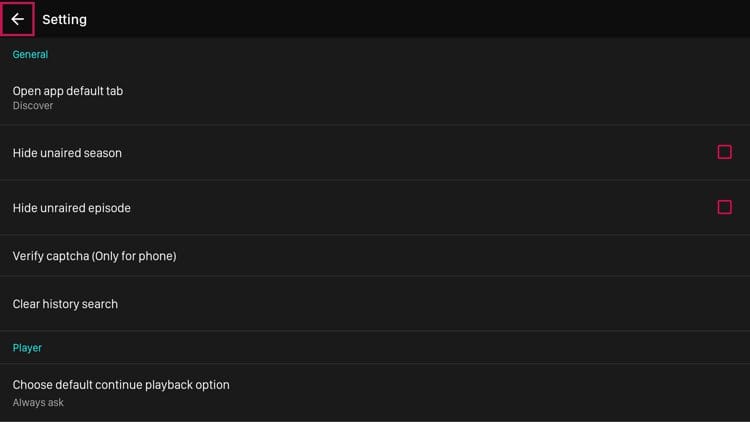
The Settings within Viva TV provide options for subtitles, video player selection, debrid services, watch history, and more.
Viva TV has been around for years and remains a popular option among cord-cutters. Here’s what you should know before installing.
It’s impossible for TROYPOINT to determine whether these unverified apps like ‘Viva TV’ hold the proper licensing.
TROYPOINT recommends only accessing media not protected by copyright such as those that fall under Public Domain status.
The end-user is responsible for all content accessed through unverified apps. For verified options, see our list of legal streaming apps.
It is extremely important to check these “unofficial” applications for malware/viruses before using them and the best way to do this is with VirusTotal.
Pictured below is a screenshot of the APK file from APKTime.
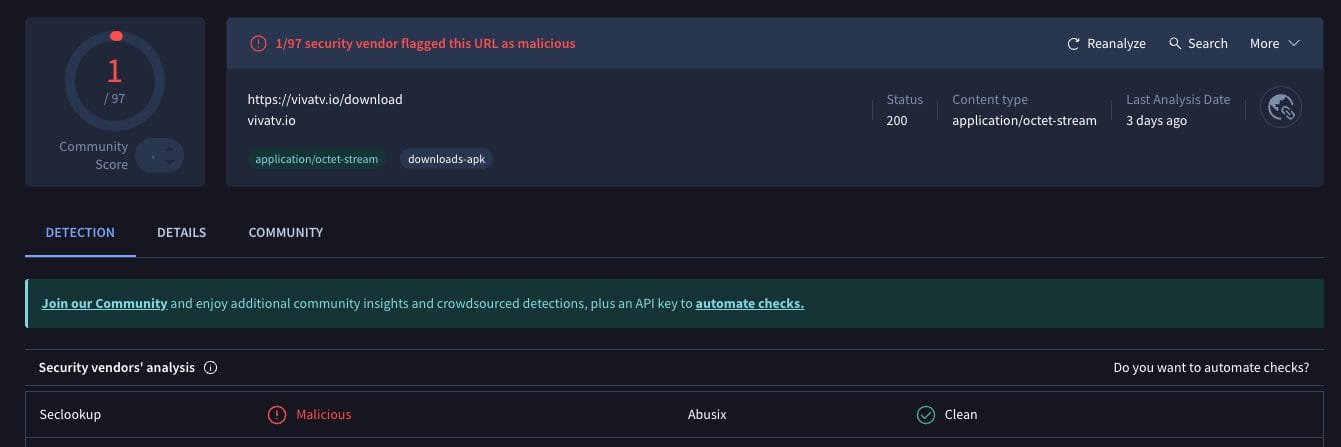
VirusTotal did find one suspicious file with viruses/malware within the Viva TV APK file. We should always protect ourselves with a VPN when streaming content from unverified streaming platforms.
Viva TV is still one of the best options when it comes to streaming free media entertainment. The developers are continually adding updates and improvements which is why it has stayed relevant for so long.
If you are looking for something with a great user interface that still works well, give it a try!
Have you tried installing Viva TV? Let us know what you think in the comment section!
This page includes affiliate links where TROYPOINT may receive a commission at no extra cost to you. Many times, visitors will receive a discount due to the special arrangements made for our fans. Learn more on my Affiliate Disclaimer page.



© IPTVSub is Proudly Owned by win-design