



 Written by admin
The following guide covers the TeaTV App with details on installation, safety, legality, and other features.
TeaTV is one of the most widely used streaming apps today and continues to be a top-level option for those looking for a free, simple method to watch movies and TV shows.
Even though it has been around for many years, it is still receiving updates and performing at a high level. Recently, it has been updated to V11.1.8 with various improvements.
While this app provides some free streams, TeaTV works best with premium debrid services. They offer integrations for Real-Debrid, Premiumize, TorBox, AllDebrid, and others. We provide more details on debrid service integration following the app installation.
TeaTV works on any Android-powered device including Fire TV, Android TV/Google TV, Android phones, tablets, and more.
In this guide, we are installing the TeaTV app on an Amazon Firestick 4K Max, but these instructions also work on Android TV/Google TV devices.
Note: This app does NOT work on the Fire TV Stick Select model. This device does not run on Android OS and instead uses “Vega OS” which is Amazon’s in house platform.
1. You must first install the Downloader app on your device. If you haven’t done this, refer to our Downloader Tutorial. Make sure it is the official Downloader app by AFTVNews.
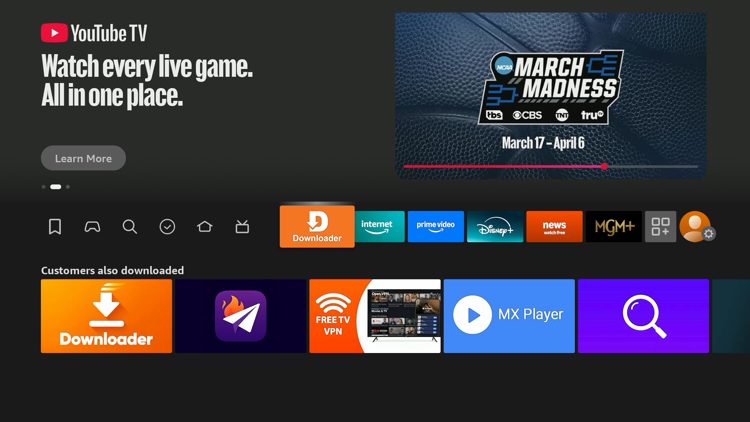
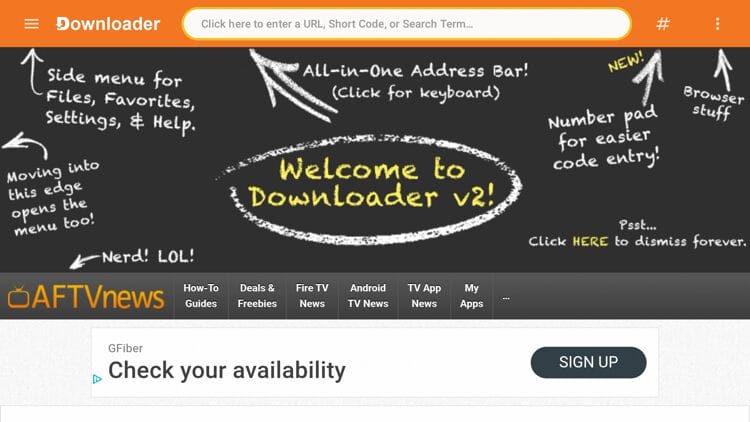
2. Launch Downloader and click the search bar on top.
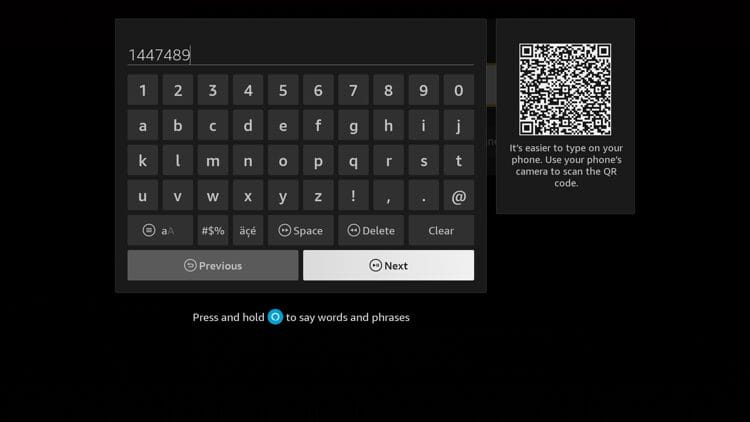
3. Type the following code 1147489 and click Go.
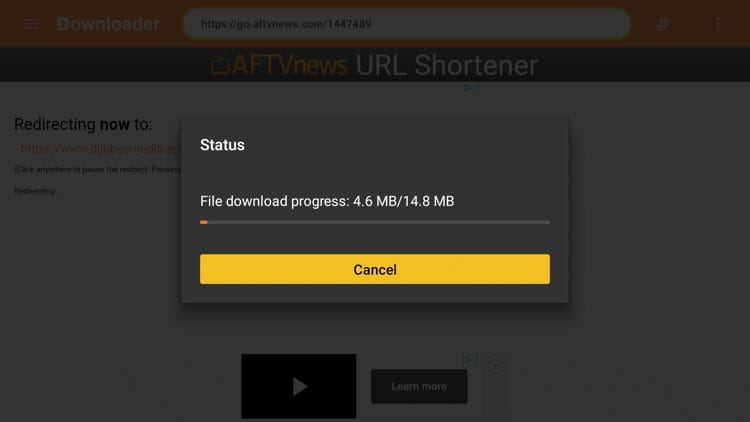
4. Wait a few seconds for the APK file to install.
5. Click Install.
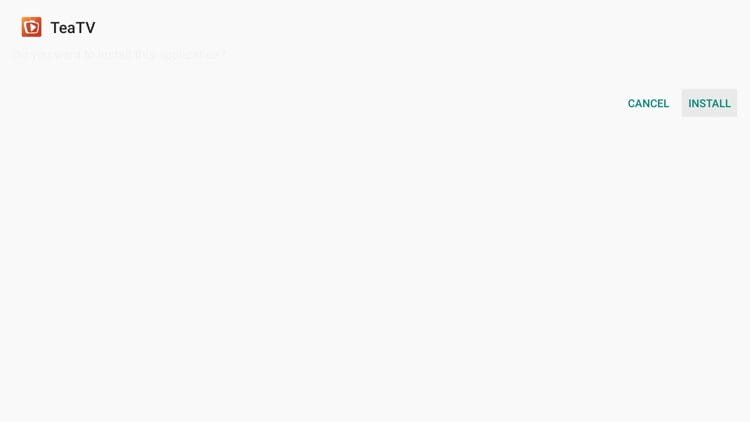
6. Click Done. We must install a video player before we can use TeaTV.
Your online activity is monitored by your ISP, app/addon/IPTV devs, government, and all websites.
🔒 Become anonymous while streaming & downloading with Surfshark VPN
Save 87% with 24-Month Plan + Get 3 FREE Months
Use on Unlimited Devices & Share 1 Account with Entire Family
CLAIM DEAL HERE
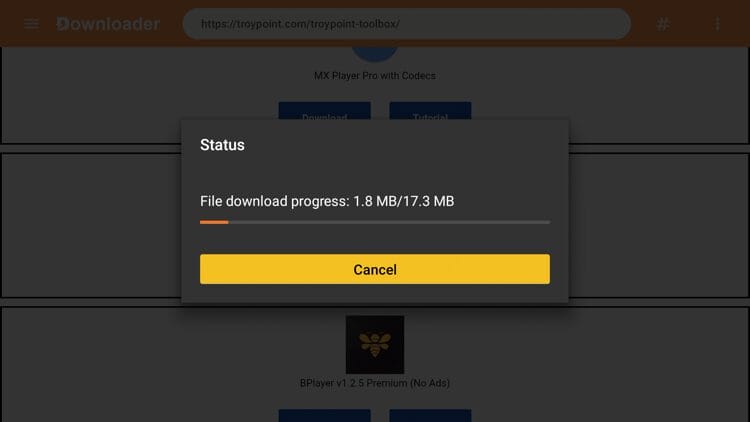
7. Return to Downloader and click Delete.
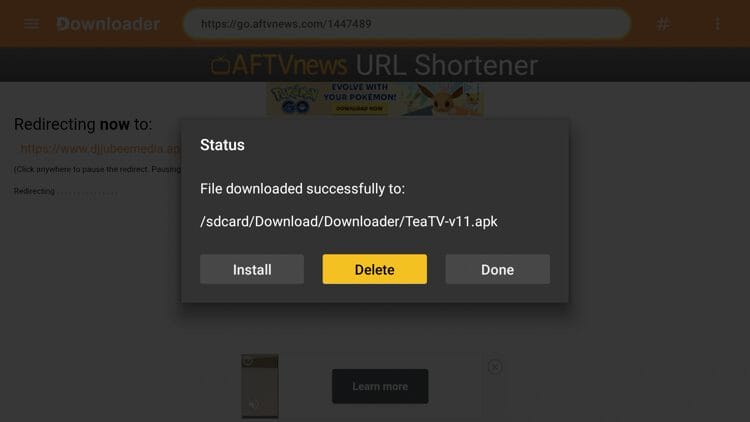
8. Click Delete again. While you have successfully installed TeaTV, we must now install a video player to stream content from this app.
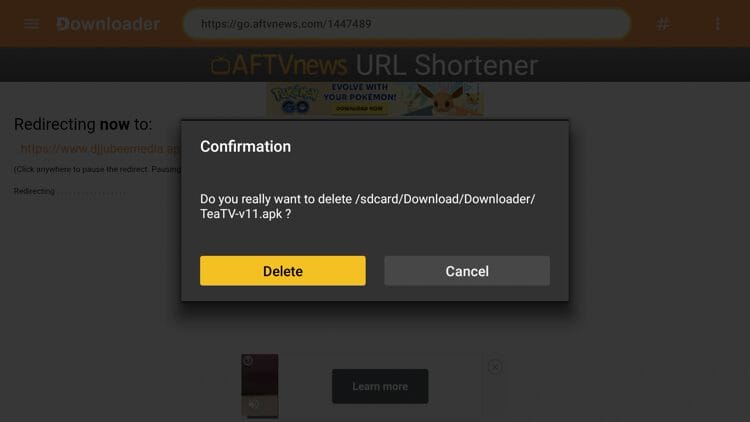
9. Return back to the Downloader home screen and click the search bar on top.
10. Enter the code 250931 and click Next.
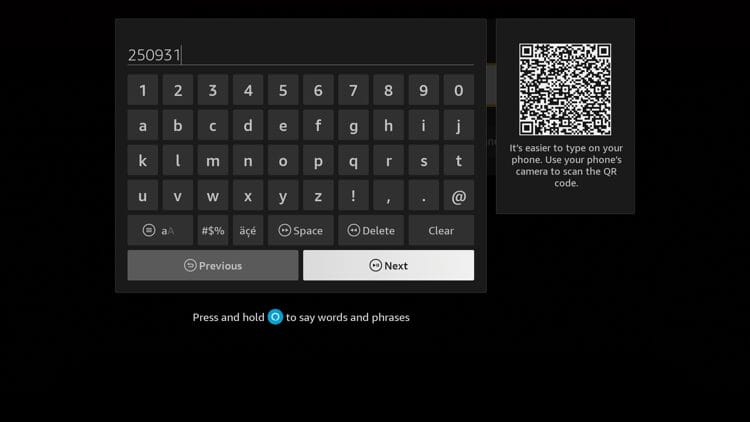
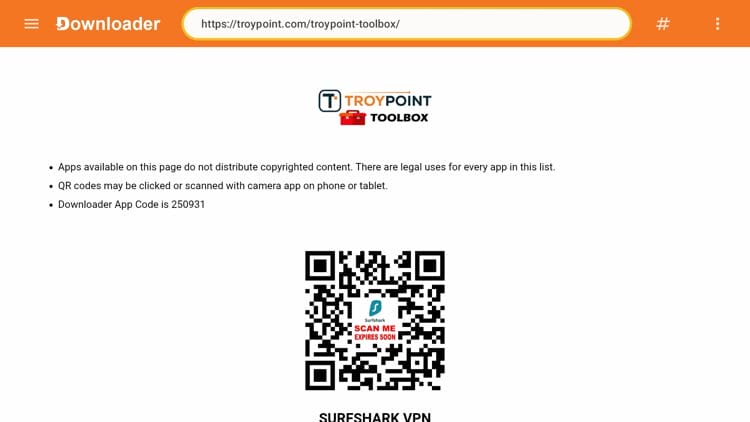
11. Wait a few seconds and you are now on the TROYPOINT Toolbox.
12. Scroll down and find TPlayer and then click Download.
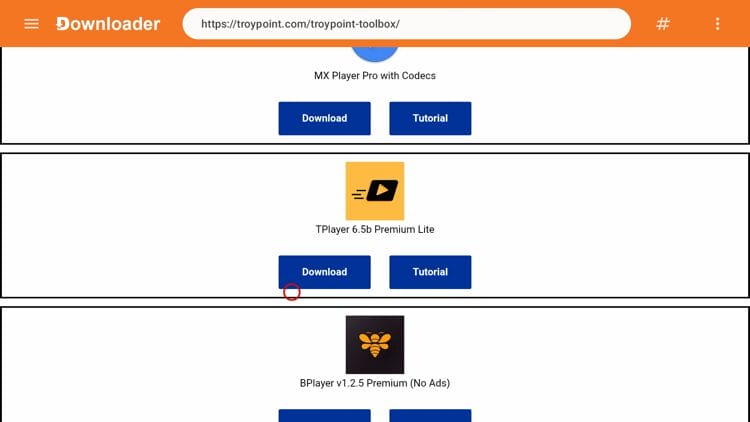
13. Wait a few seconds for the APK file to install.
14. Click Install.
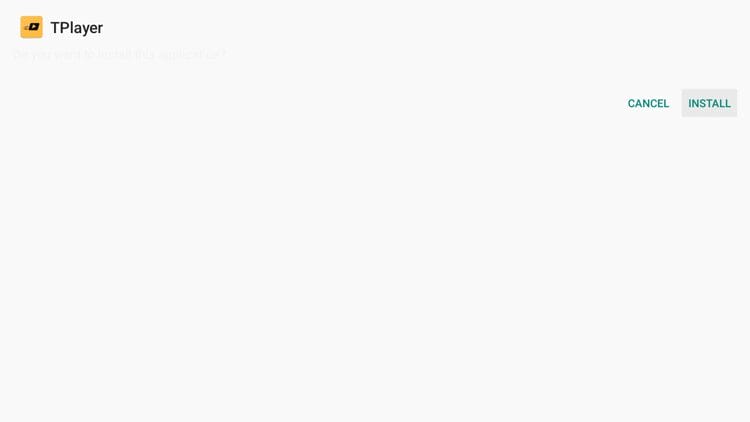
15. Click Done.
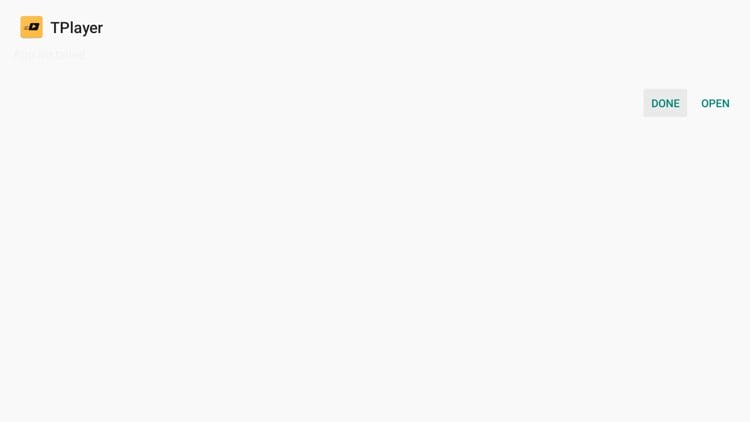
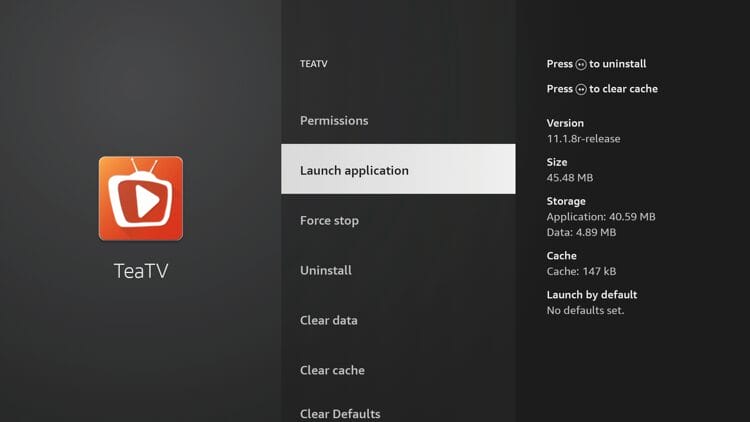
16. Now launch the TeaTV application.
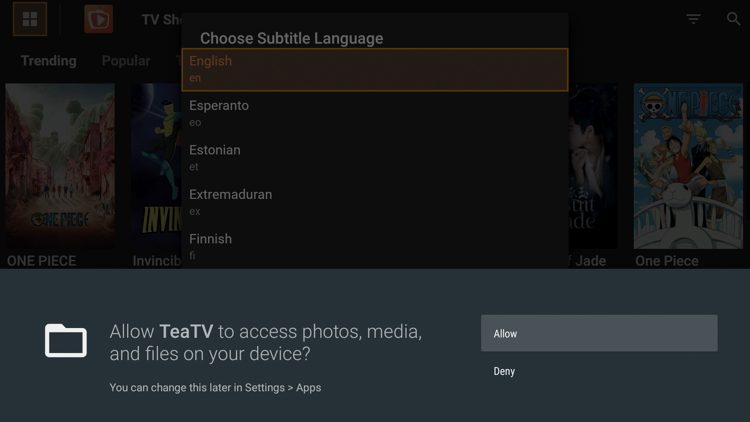
17. Click Allow.
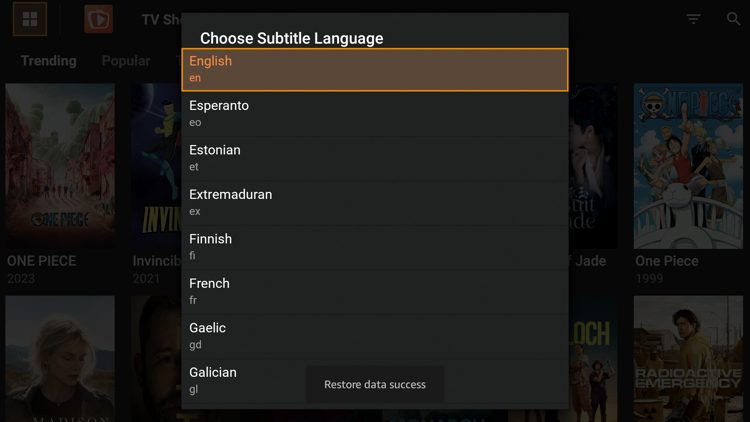
18. Choose your subtitle language.
19. Click Accept for this Disclaimer message.
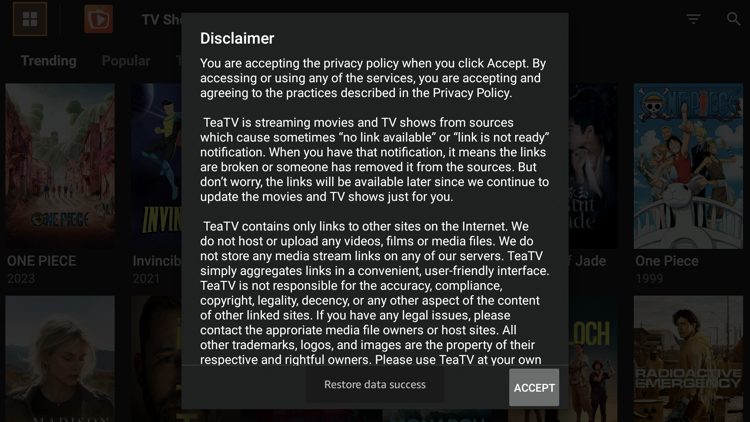
20. You have successfully installed the TeaTV app on your device.
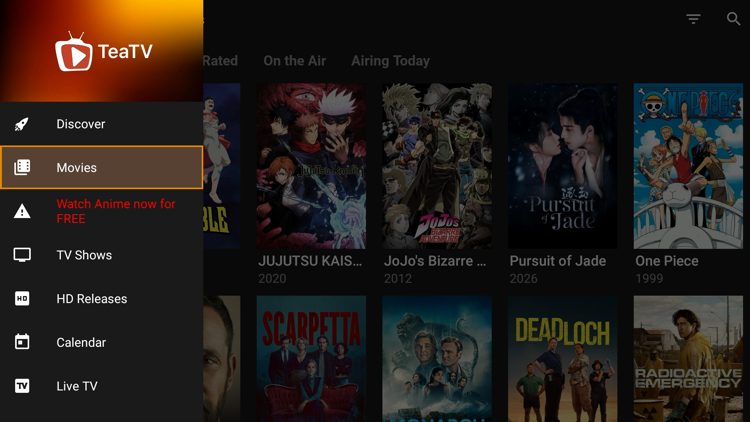
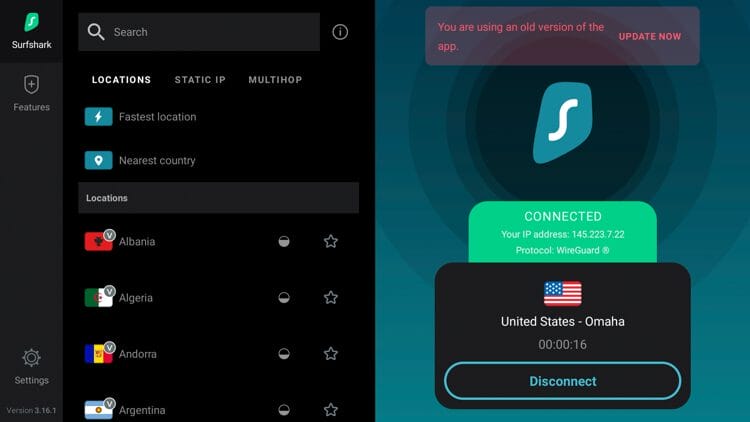
21. The final step before using TeaTV is to protect yourself with a VPN since this is an unverified streaming app. See our VPN on Firestick tutorial for more details.
As mentioned earlier, TeaTV has the ability to add a debrid service for higher quality streaming links.
This app offers integrations for Real-Debrid and Premiumize, but will likely add more debrid services in the future.
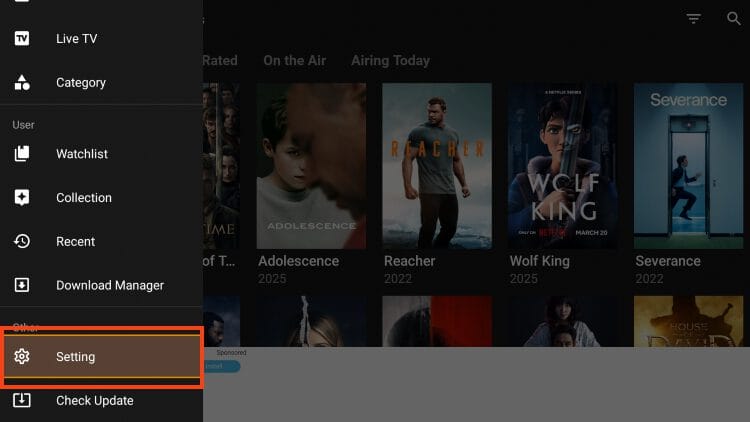
1. Click the Menu bar from the home screen and select Settings.
2. Choose Login to Premiumize.
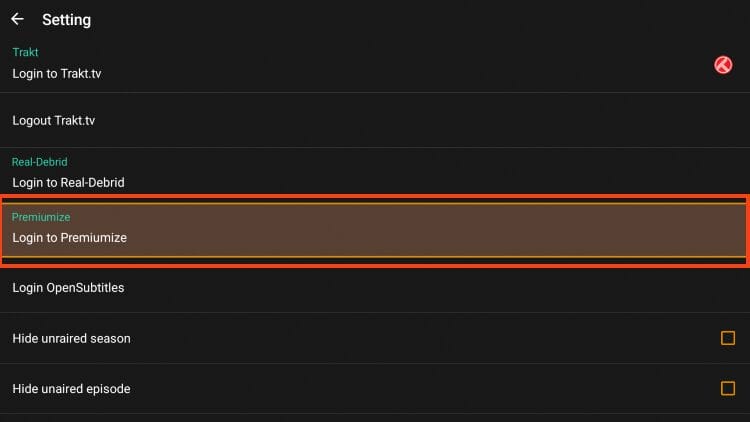
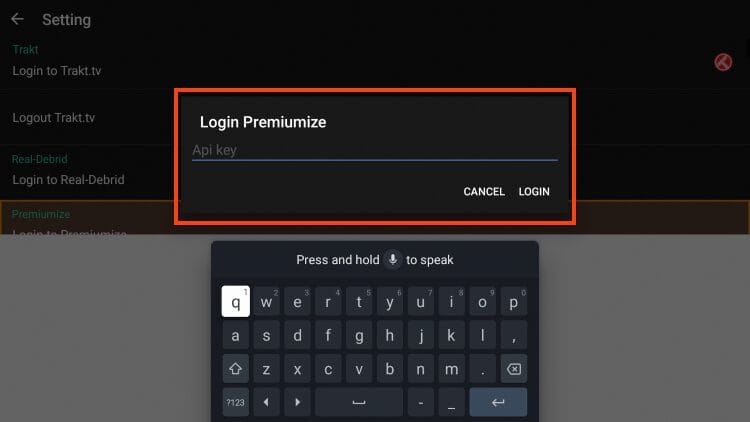
3. You are then prompted to enter your API Key. You can find this in your account on the official Premiumize website.
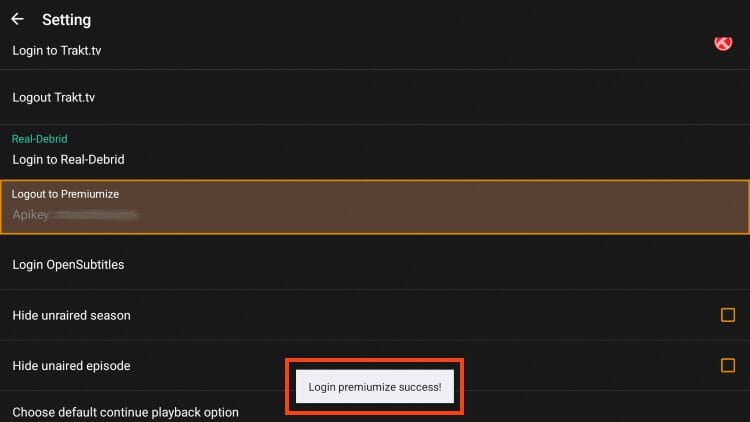
4. Return to TeaTV and you will see the Premiumize login success message. Enjoy buffer-free streaming!
One feature available in TeaTV that we do not see in other APKs is the ability to add live channels. This is done via M3U Playlist within settings of the application.
In the guide below, we are integrating Samsung TV Plus which is a free streaming service with over 100 channels.
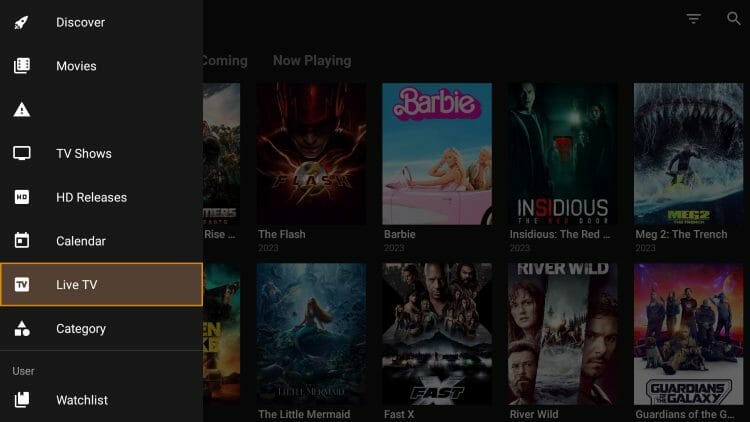
1. From the home screen, click the Menu button in the upper left-hand corner and choose Live TV.
2. Click Cancel.
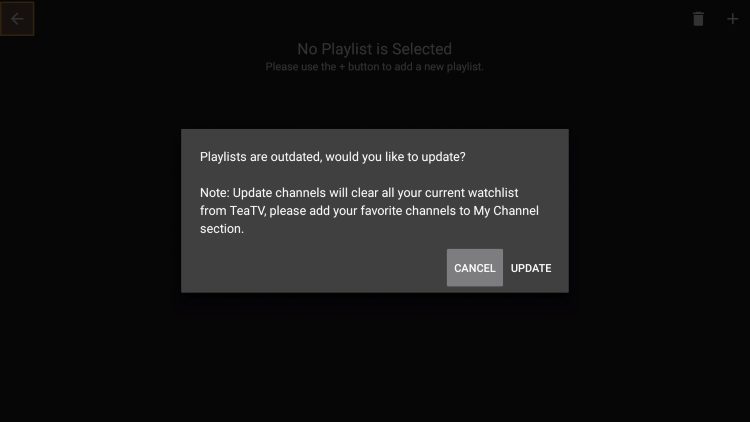
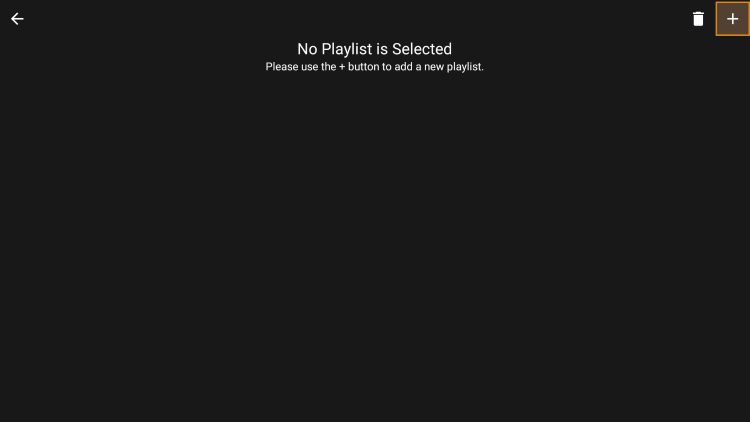
3. Select the plus button in the upper right-hand corner.
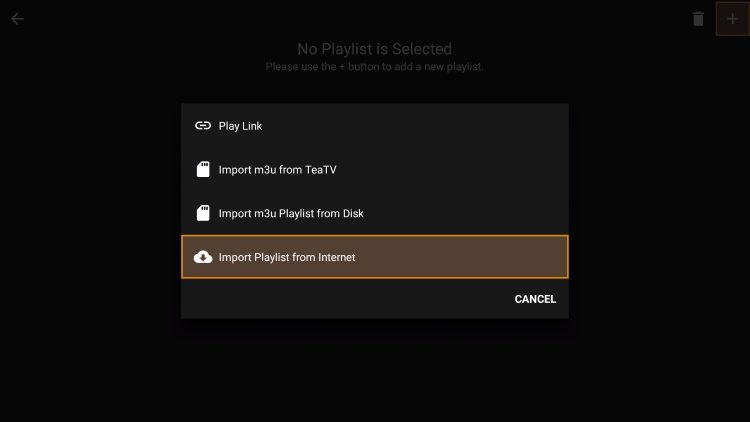
4. Select Import Playlist from Internet.
5. Click Name
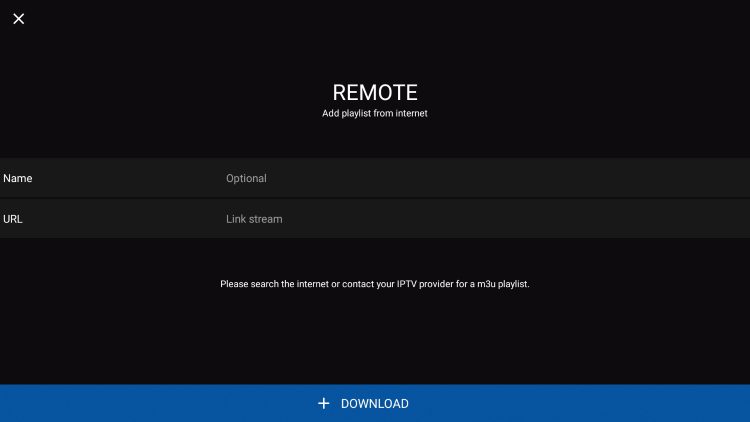
6. Type name of your preferred M3U URL and click Next.
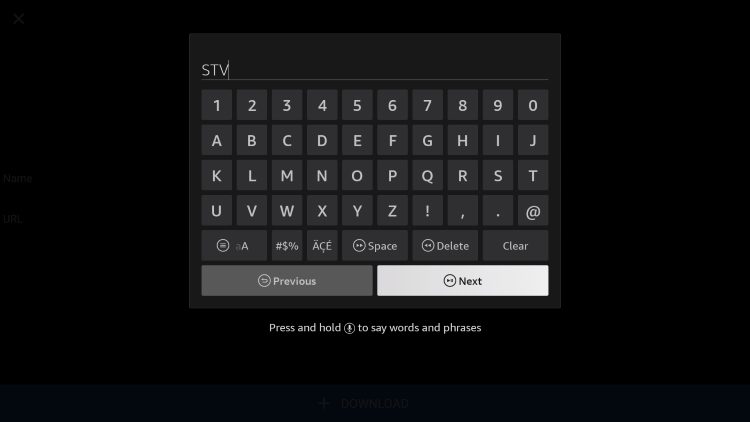
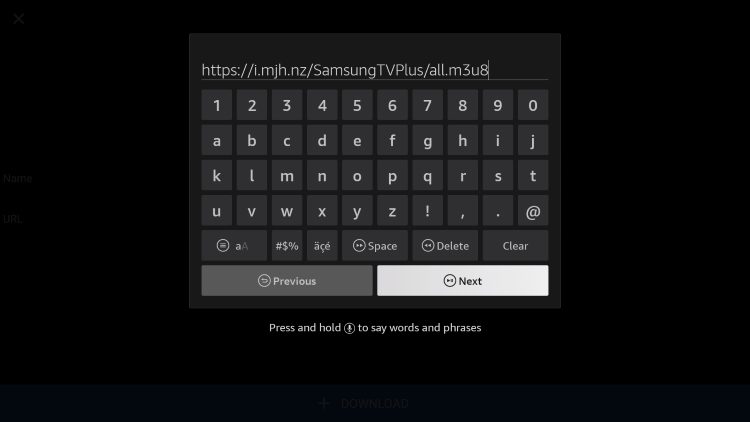
7. Enter your M3U URL and click Next.
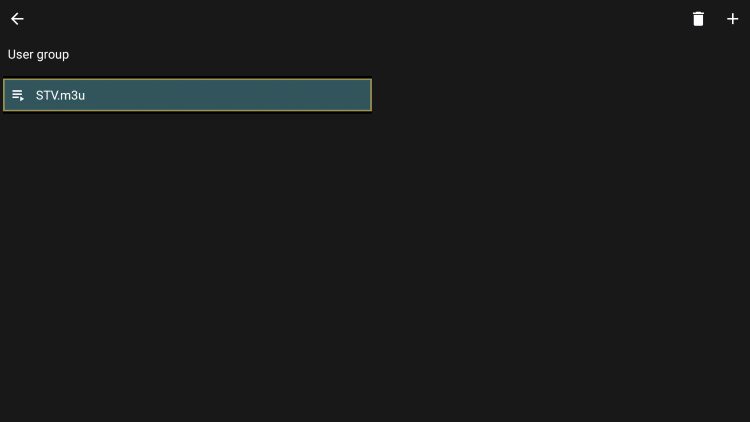
8. Choose your playlist.
9. You can now access live channels.
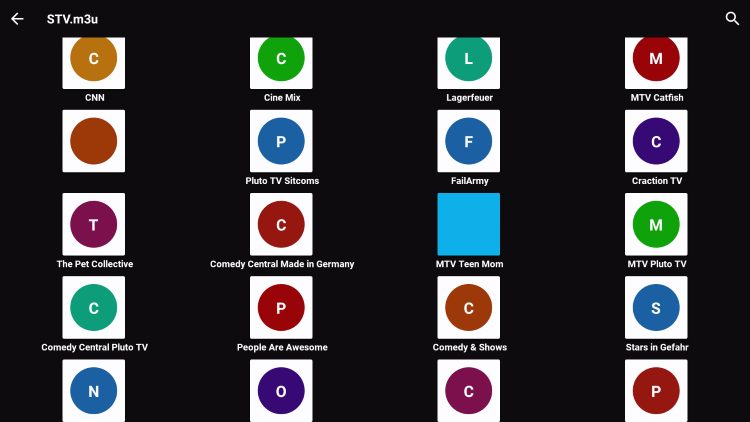
You have now integrated a Live Streaming Service within the app! Continue reading for more features available.
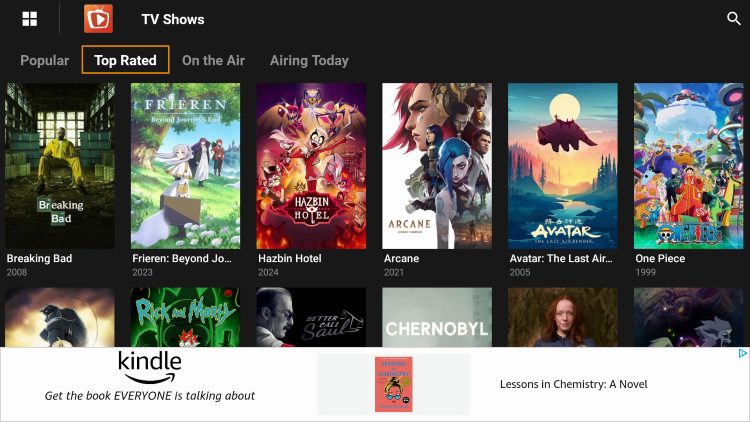
Recently TeaTV has started integrating advertisements within the main interface of the platform which we know can be extremely annoying.
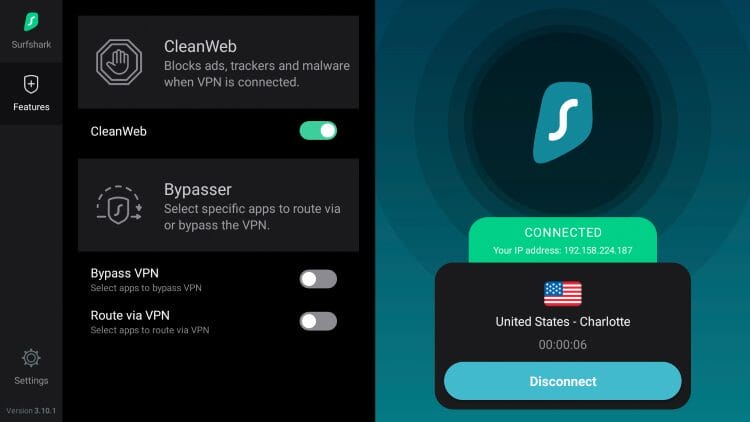
Luckily, the CleanWeb feature from Surfshark VPN eliminates these and we show instructions for doing so below.
Pictured below is a screenshot of the home screen of TeaTV and as you can see, there is a banner ad that takes up a large portion of the screen.
Many also encounter pop-up ads that appear when you exit playback of your Movie or Show. Luckily, you can remove these completely with the CleanWeb feature from Surfshark that can be enabled within Settings.
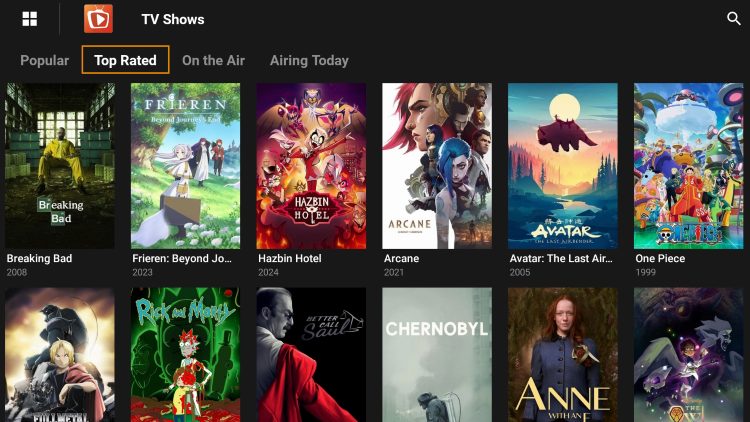
After turning this feature on, you will see that there are no more advertisements within the platform.
If you want to want to use TeaTV but don’t want to see ads, make sure you are using Surfshark VPN!
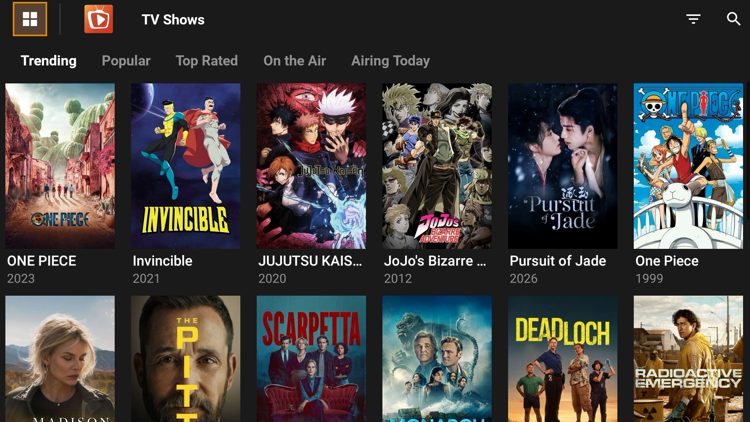
The TeaTV interface uses a clean, dark-themed layout that makes browsing simple. Content is split between Movies and TV Shows on the left-hand menu, with additional sections for Live TV, Favorites, and Downloads.
Movies can be filtered by Trending, Popular, Top Rated, Upcoming, and Now Playing.
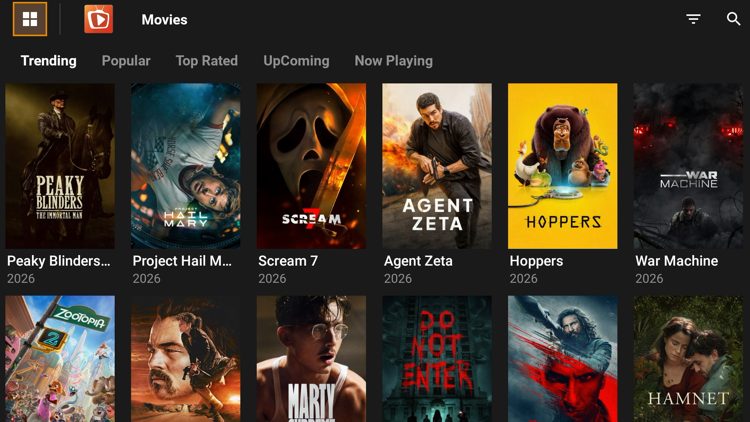
TV Shows can also be categorized by Trending, Popular, Top Rated, On the Air, and Airing Today.
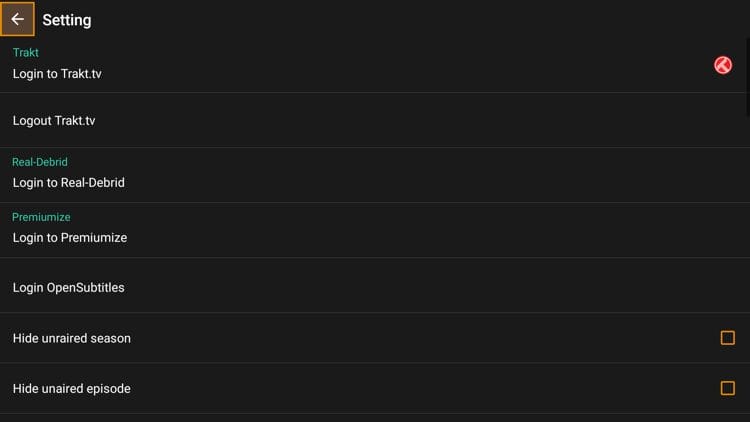
The Settings panel provides options for debrid service login, subtitle preferences, player selection, live TV options, and more.
TeaTV has been around for several years and remains one of the most downloaded streaming apps. Here is what our recent testing revealed:
It’s impossible for TROYPOINT to determine whether these unverified apps hold the proper licensing.
TROYPOINT recommends only accessing media not protected by copyright such as those that fall under Public Domain status.
The end-user is responsible for all content accessed through unverified apps. For verified options, see our list of legal streaming apps.
The best way to determine the safety of websites and applications is by scanning them with a proper virus/malware checker such as VirusTotal.
We scanned the official APK file for TeaTV and here is the screenshot of the scan results:
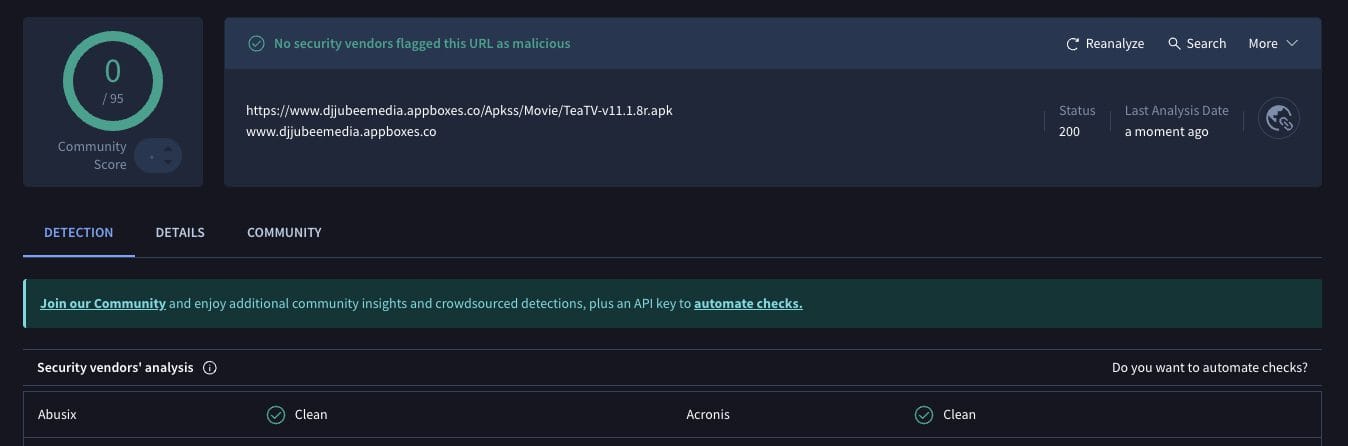
While VirusTotal did not flag any malicious files, we should always protect ourselves when using unverified streaming apps.
The best way to do this is with a secure VPN that will protect your identity and anonymity when using unverified apps such as this.
Many first came into the “streaming” niche by finding TeaTV years ago, and it is still a top choice for watching your favorites! Many enjoy the continued added features and updates that the developer push out and we have to agree.
As always, remain cautious when using unverified streaming apps like this and protect yourself with a VPN.
What do you think of the TeaTV application? Let us know in the comments below!
This page includes affiliate links where TROYPOINT may receive a commission at no extra cost to you. Many times, visitors will receive a discount due to the special arrangements made for our fans. Learn more on my Affiliate Disclaimer page.



© IPTVSub is Proudly Owned by win-design