


 Written by admin
This guide shows how to install the StreamFire App on Firestick, Android/Google TV, or other compatible devices.
StreamFire is a superior free live tv app featuring live channels for entertainment, news, sports, kids, and more. It was created by the developers of the popular APK “SportsFire” and provides a similar layout with various options to choose from.
We first heard about this new app from a Patron on the Insider Forum which is a fabulous resource for cord-cutters to find the latest and greatest news and more in the streaming niche.
StreamFire has been updated to V1.2.2 with small improvements and upgrades. We expect more advancements in the future.
In the guide below, we provide instructions to install StreamFire on an Amazon Firestick by jailbreaking the device. This will also work for Android/Google TV Devices such as NVIDIA SHIELD Chromecast, onn. Google TV Box, and more.
Here’s an installation video for Firestick and Android TV/Google TV showcasing how to install StreamFire and it’s counterpart – SportsFire.
Important: Here are the updated Downloader codes that should be used to install these two apps. Do not use the codes that I used in the video!
SportsFire: 4585605
StreamFire: 2396773
Get Surfshark VPN for $.07/Day with Discount Here
Continue below for a step-by-step tutorial for installing the StreamFire application safely and securely on your device.
In this guide, we are using a Fire TV Stick 4K Max. These instructions will also work for any variation of Firestick along with Android and Google Boxes.
Before installing and using this unverified app, you will want to protect yourself with a trusted VPN that will encrypt your sensitive online information.
By connecting to Surfshark VPN, your connection is completely anonymous which means the developers cannot see your Identifying IP Address which will ensure that your data is safe and secure.
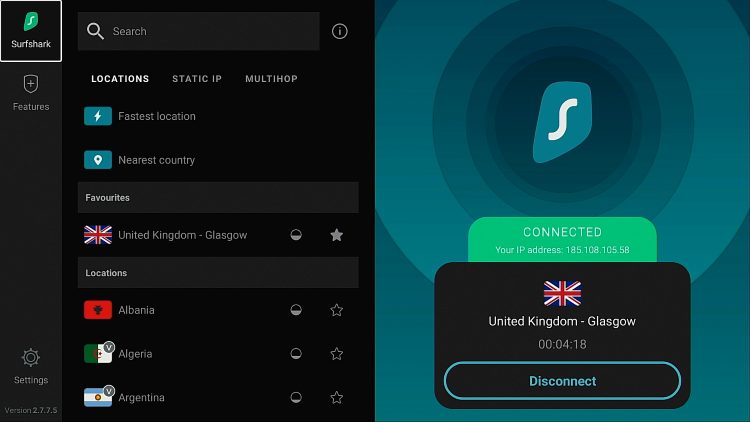
Best of all, Surfshark provides a CleanWeb feature that will block ads and malware on any device.
Install the Best VPN for Complete Anonymity
1. Select the search icon and click the search bar.
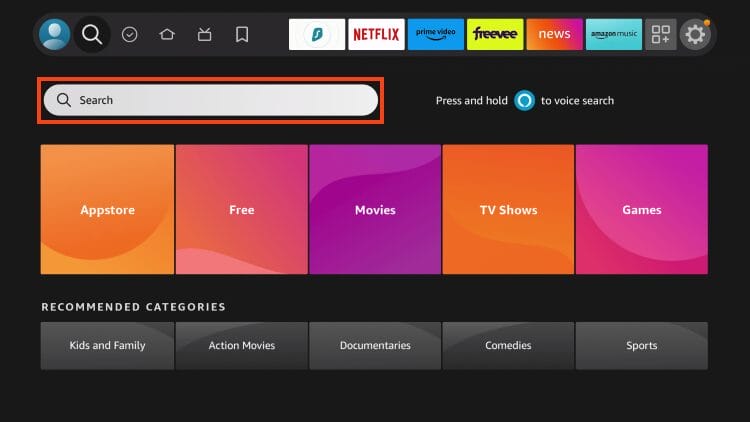
2. Type Downloader.
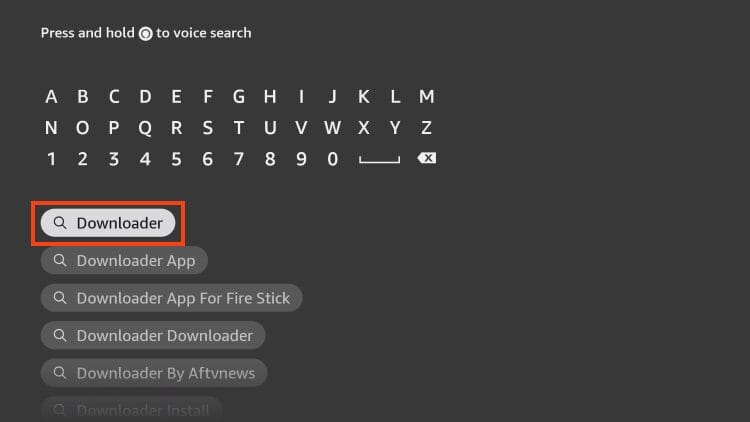
3. Click the Downloader App.
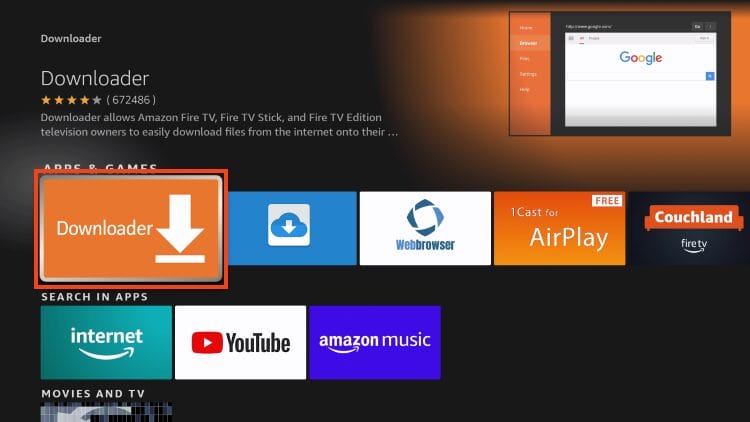
4. Click Get, or Download.
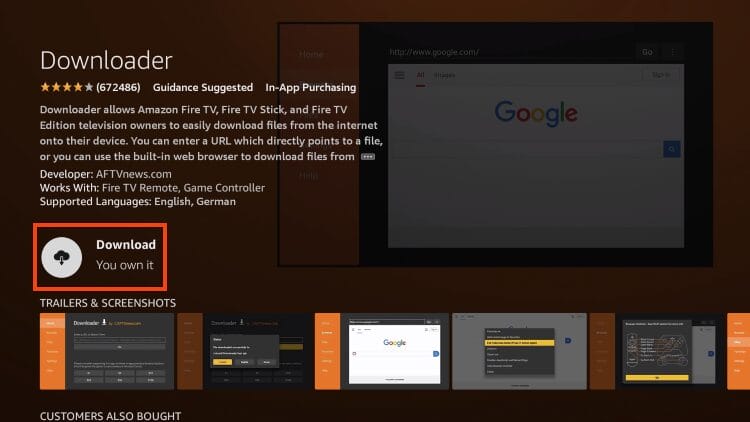
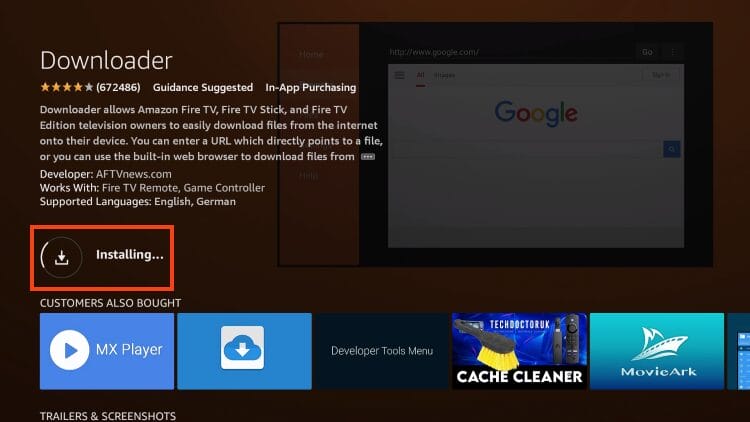
5. Wait for Downloader to install.
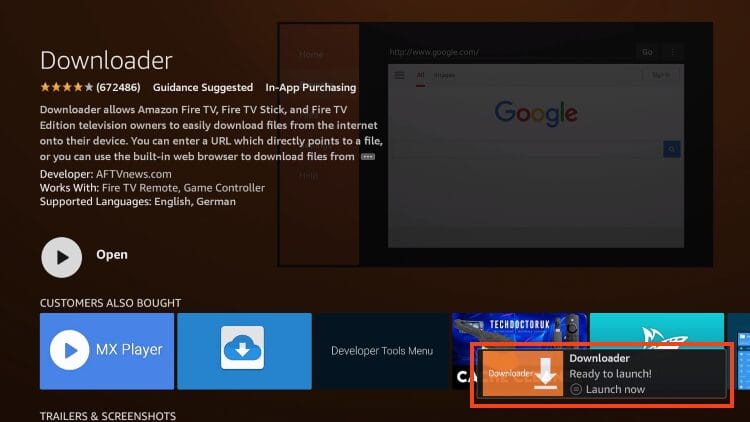
6. You will then see “Ready to launch!” message in the corner of your screen.
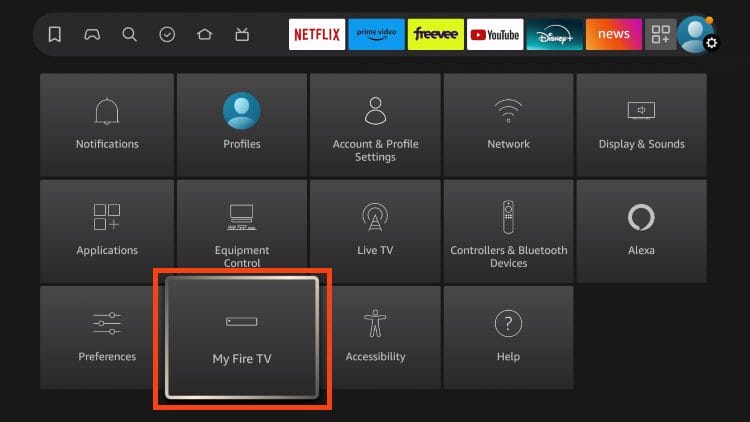
7. Go back to your home screen and open Settings. Click My Fire TV.
8. Select About.
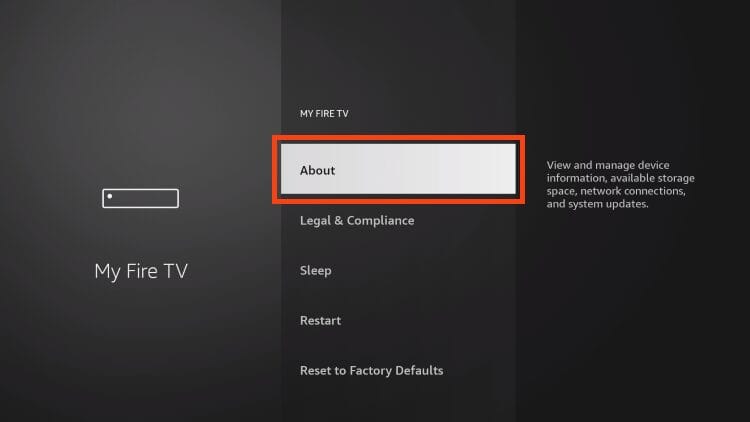
9. Hover over Fire TV Stick (or other device name) and click the select button on your remote 7 times
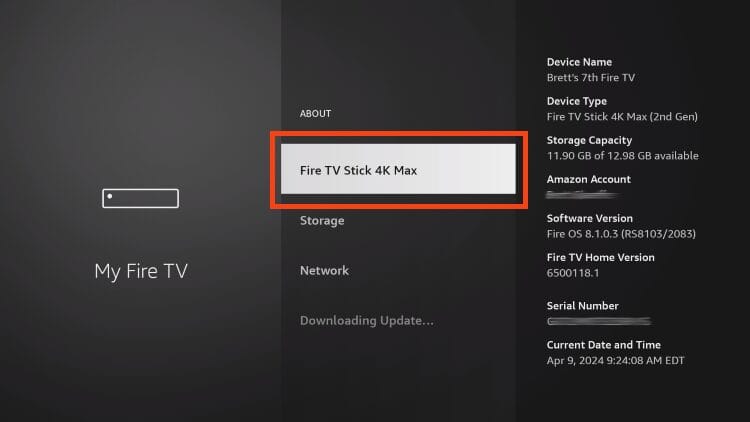
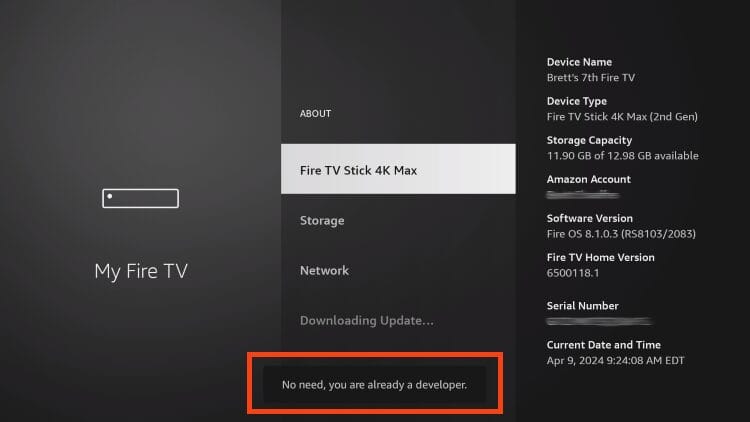
10. You will then see the message “No need, you are already a developer” which means developer options have been enabled.
11. Click back to return to My Fire TV and Developer Options is now available. Select it.
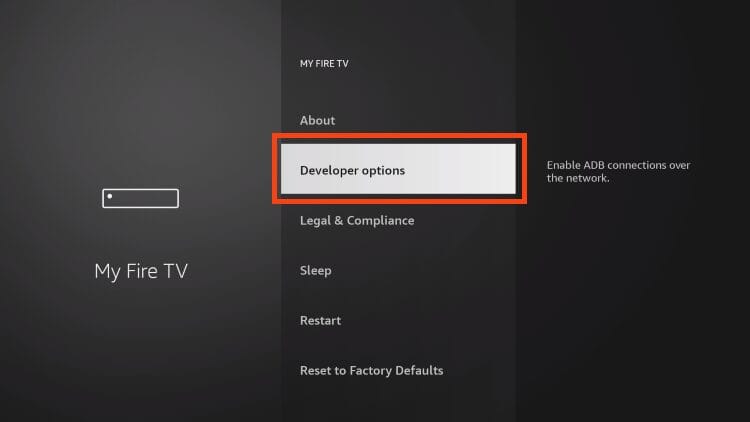
12. Click Install Unknown Apps.
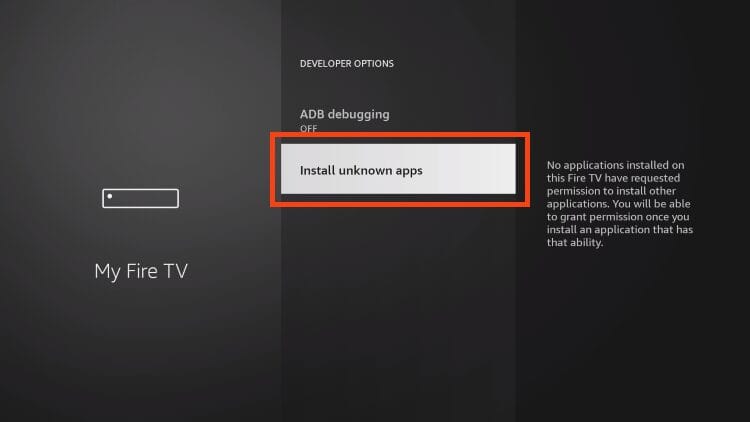
13. Find Downloader and turn Unknown Sources ON.
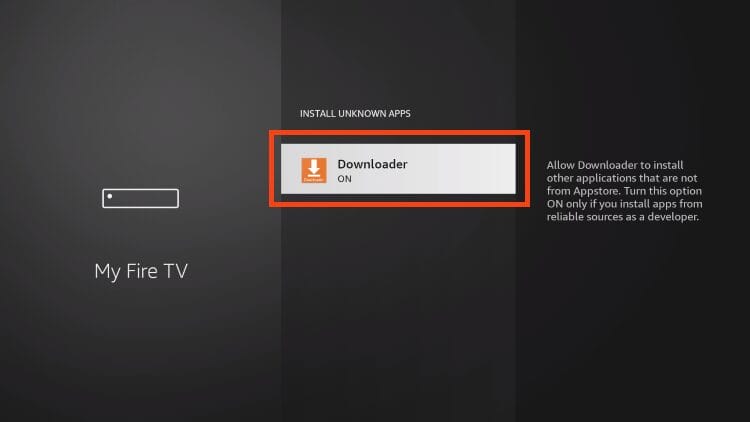
Those with older variations of Fire TV Stick can find Unknown Apps within Settings.
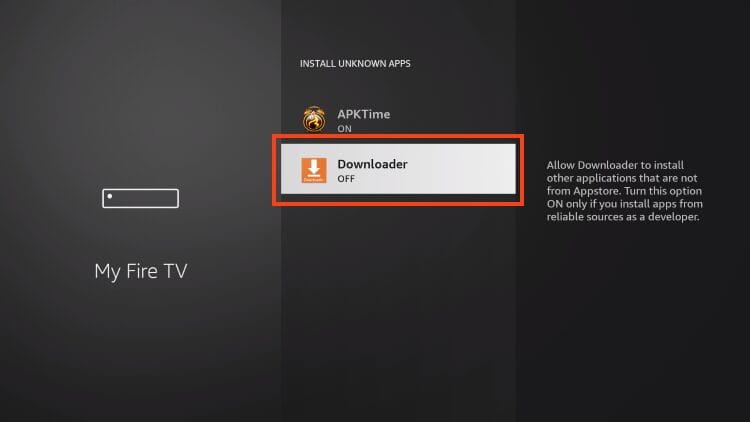
Now that our device is prepared, we can install StreamFire via their official website.
1. Open the Downloader app.
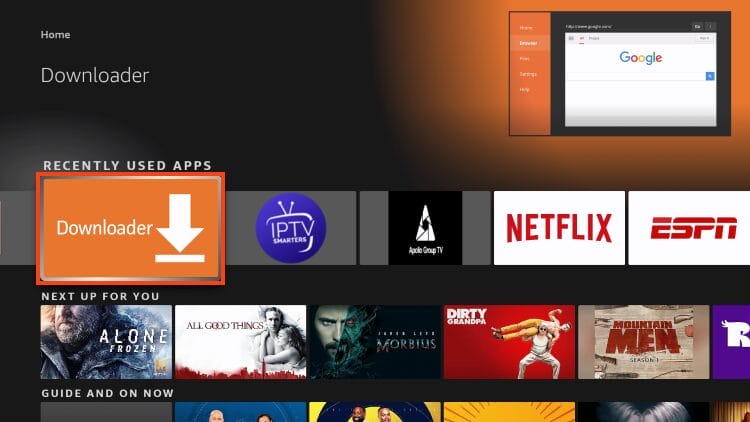
2. Hover over the URL menu bar and click the select button on your remote to launch the keyboard.
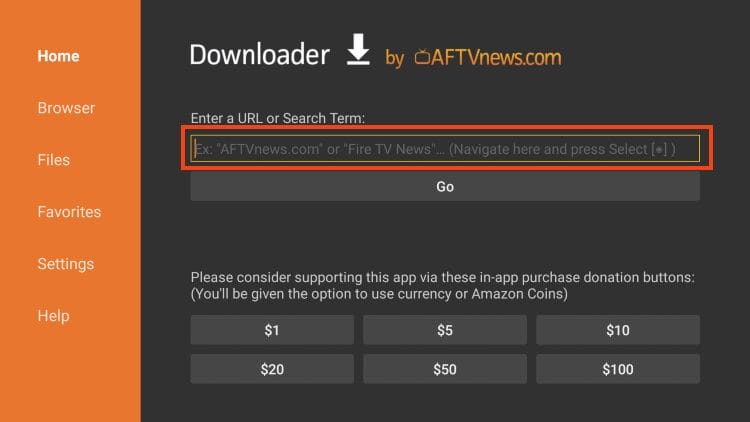
3. Type streamfireapp.tv and click Go. Or, use the Downloader Code – 2396773 for instant download.
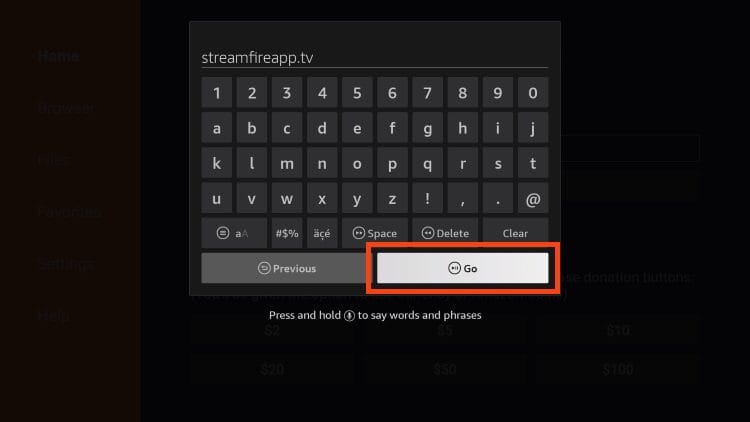
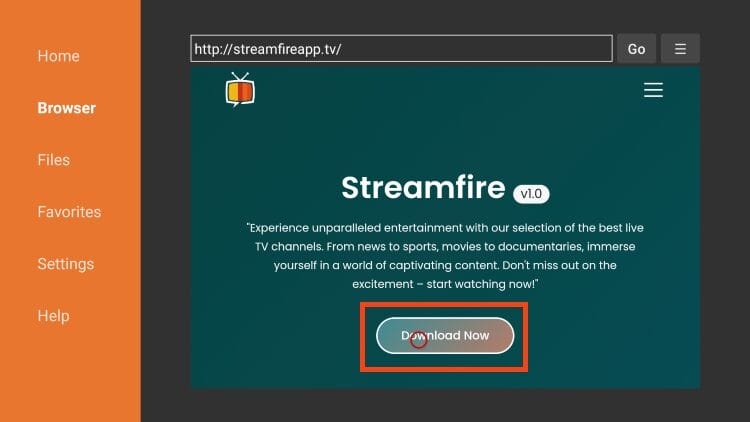
4. Select Download Now.
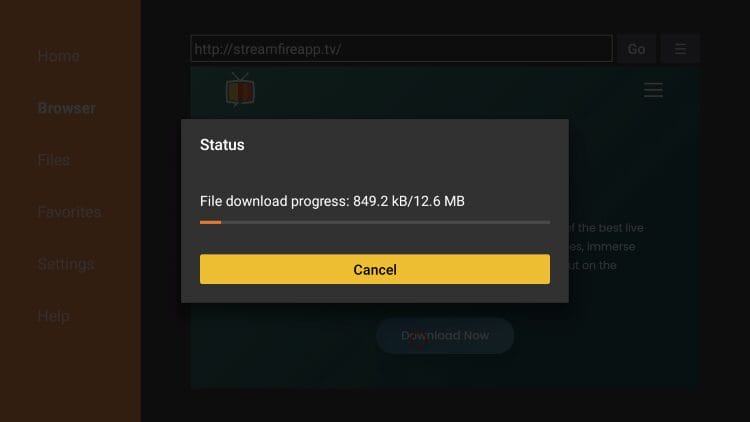
5. Wait for the app to install.
6. Click Install.
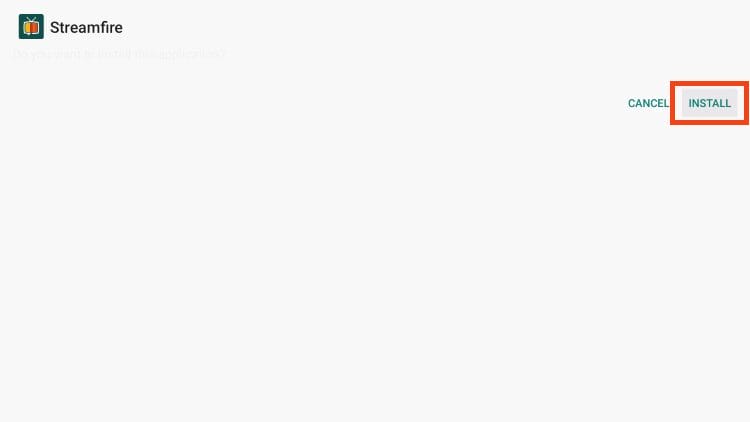
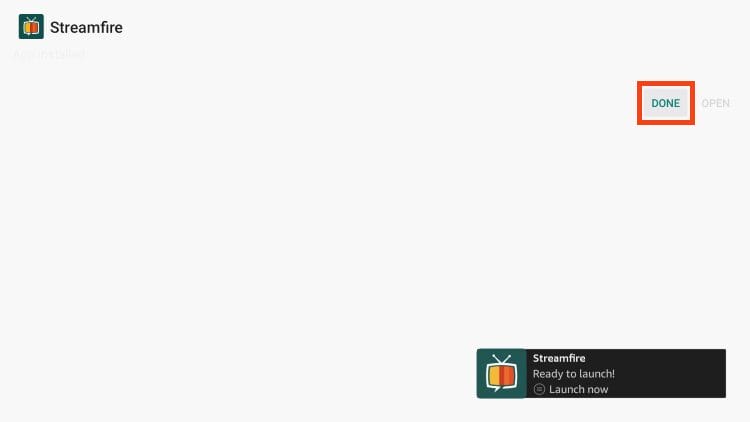
7. Choose Done.
8. Click Delete.
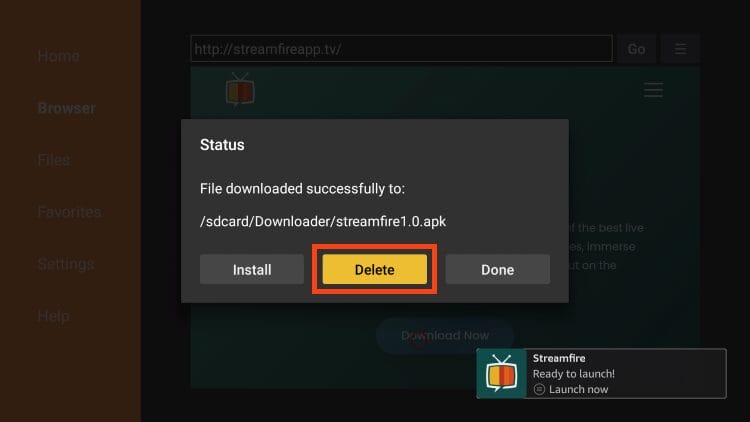
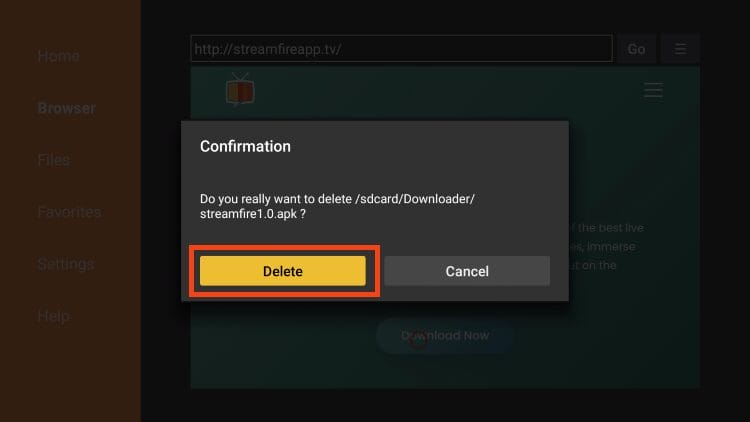
9. Select Delete again to remove the unneeded installation file.
Installation is now complete. However, you will likely want quick access to open StreamFire so we will show you how to add it to your home screen.
These steps are for an Amazon Firestick device, however, those with Android TV/Google TV will likely follow the same instructions to add it to your home screen.
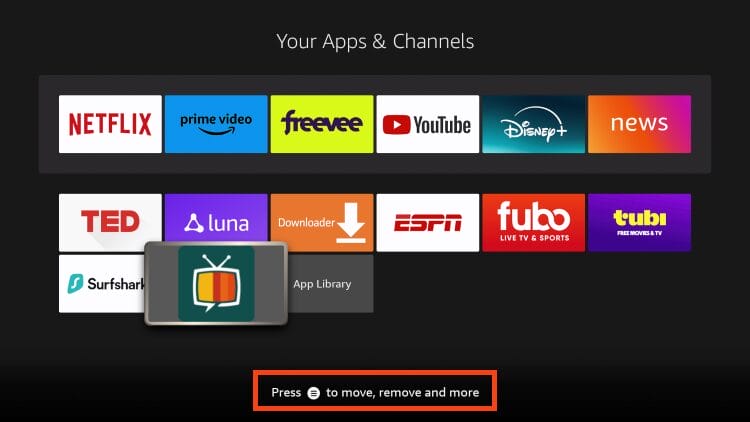
1. Open Your Apps list to find StreamFire and hover over it. Click the Menu button on your remote
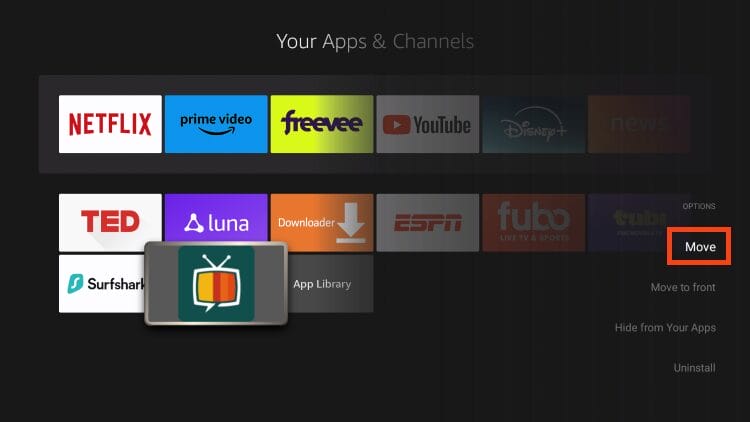
2. Choose Move.
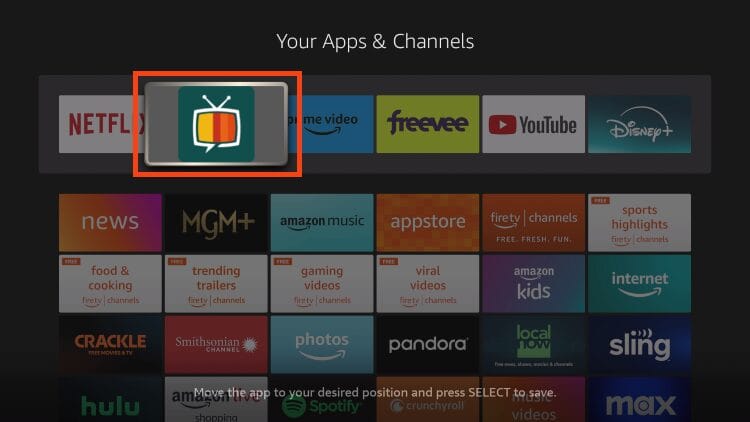
3. Drag StreamFire to the front of your list and drop it.
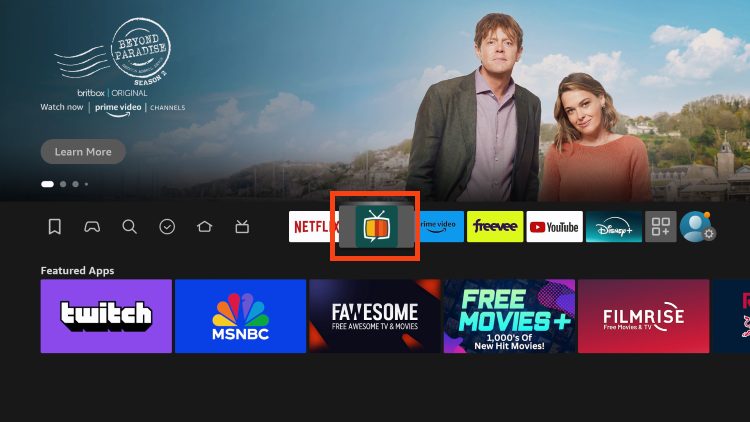
4. You will now be able to access the app from your home screen.
Continue reading for more information including channels provided, features, and more.
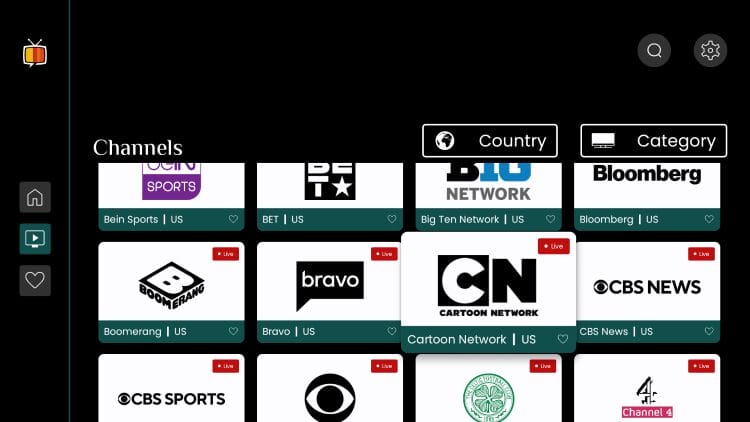
There are currently over 180 channels provided by StreamFire that all play in high definition with little to no buffering whatsoever. As noted above, it is designed exactly like the SportsFire app with basic navigation through the list of options.
Using the application is extremely simple and straightforward with only the various channel options to choose from.
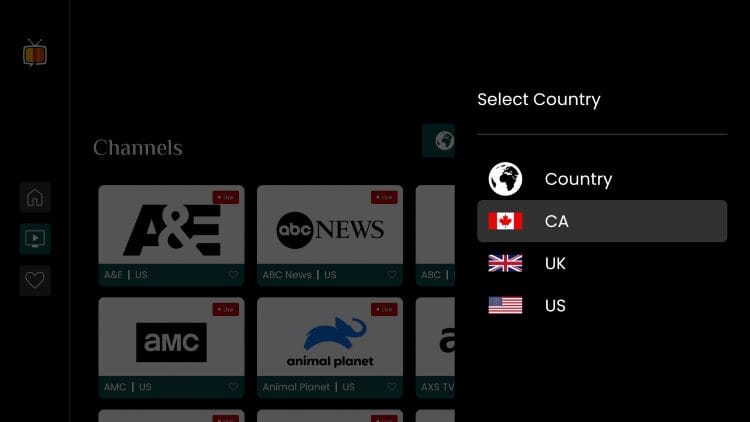
Users can also filter channel options by Country.
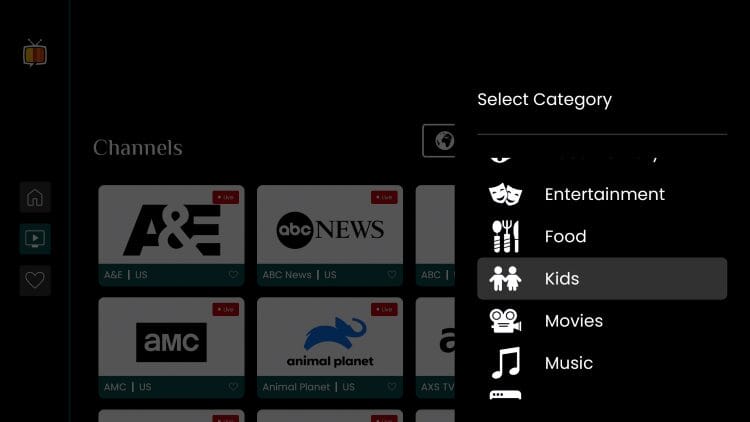
Those who prefer to filter by Category can also do so including News, Food, Movies, Music, Sports, Entertainment, Kids, and more.
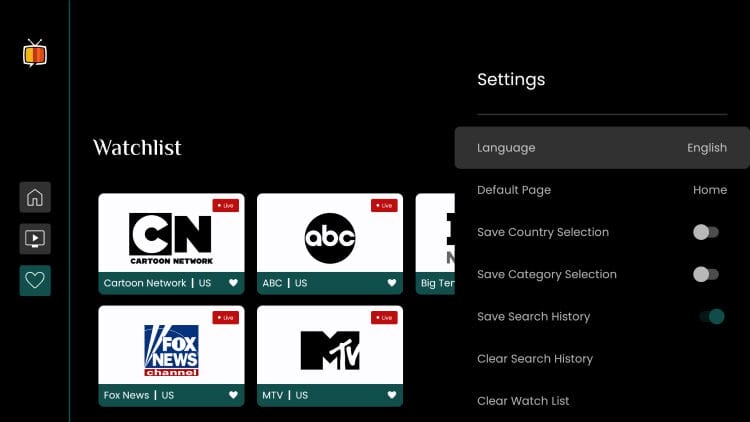
Users can easily add favorites to their “Watchlist” which is accessible in the side menu.
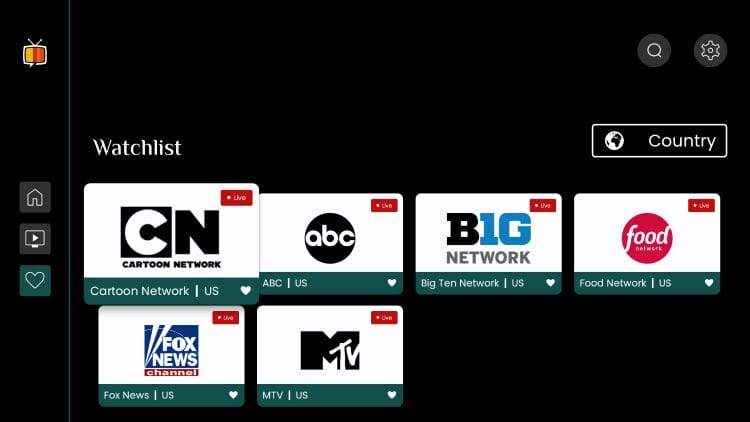
To do so, either long click on your preferred channel in the channel list or select watchlist during playback of your channel.

There are minimal settings options within StreamFire which adds to its simplicity. Shown below are the current settings options which include:
TROYPOINT cannot verify whether unverified apps and services have the proper licensing to broadcast the channels they provide. Ultimately, the end user is responsible for all content accessed on these 3rd party apps including StreamFire. To learn more, you can visit the Official Website.
For a list of legal and verified live-streaming services, use the link below.
Top IPTV Sources
StreamFire is a fabulous platform for live viewing of your favorite channels and its simplicity makes it a must-have for your streaming repertoire.
What do you think of this service? Do you have any questions/comments regarding functionality or navigation? Let us know in the comments below.
This page includes affiliate links where iptvsubscrib may receive a commission at no extra cost to you. Many times, visitors will receive a discount due to the special arrangements made for our fans. Learn more on my Affiliate Disclaimer page.



© IPTVSub is Proudly Owned by win-design