


 Written by admin
This tutorial shows how to install and set up Syncler on Firestick, Fire TV, Android TV/Google TV devices.
Syncler is a popular streaming app that serves up Movies and TV Shows on any device. It has advanced configuration options and HD streaming links for a high-quality viewing experience.
Unlike most applications that have streaming links available with little to no setup required, Syncler must be configured with scraping sources called “Vendors” and only works with a debrid service such as Premiumize.
We cover all of this in our video tutorial below so make sure to watch and follow along step by step so you don’t miss out on any important information!
Syncler can be installed on any device that runs the Android operating system. This includes the Amazon Firestick, Fire TV, and Android TV/Google TV devices.
Syncler is a media application similar to other platforms that doesn’t source or host the links it displays. It works in a similar fashion to Kodi and Stremio which are two of the most popular APKs available today.
Just like Kodi/Stremio which require “addons” to serve up streaming links, Syncler is an open source platform that will only work with 3rd party “Vendors” that scrape the internet for HD content.
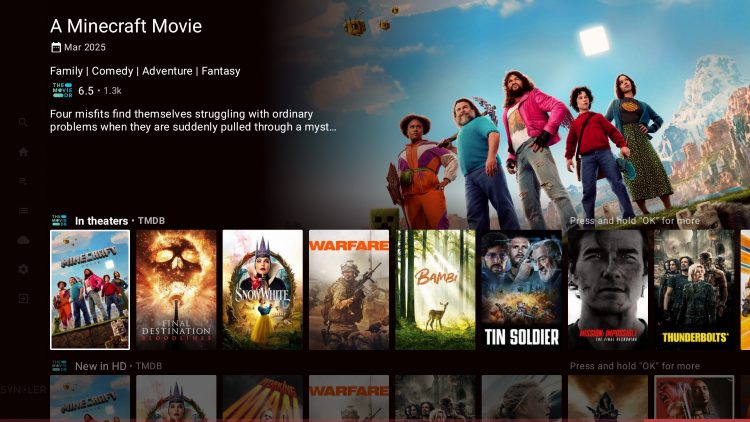
Syncler is a premium app that also requires integration of a debrid service such as Premiumize, AllDebrid, or Real-Debrid as well. This is a simple authorization process that we outline below.
In order to get the best experience, you will also want to sign up for Syncler+ which is a paid membership that costs a few dollars a month. This will make the application 100% Ad-free and improve your overall experience with advanced premium features.
Although the setup process may take longer than most applications, it is fully worth it as Syncler provides a fully immersive viewing experience and works extremely fast to play your content in ultra high definition.
IMPORTANT: It seems that the JakedUp Vendor author changed his script and now you must add a / at the end of the URL. So, it should be https://jakedup.com/syncler/vendor/ instead of https://jakedup.com/syncler/vendor
Install & Set Up Surfshark VPN – Firestick/Android TV
Your online activity is monitored by your ISP, app/addon/IPTV devs, government, and all websites.
🔒 Become anonymous while streaming & downloading with Surfshark VPN
Save 87% with 24-Month Plan + Get 3 FREE Months
Use on Unlimited Devices & Share 1 Account with Entire Family
CLAIM DEAL HERE
Some people will question paying for Syncler+ and Premiumize. You can get Syncler+ free for 1 month by using special code in video. This will provide a great chance of testing the application prior to purchasing Syncler+.
Here’s the breakdown of what I pay to run everything that I mention in the video.
Surfshark VPN – $1.99/month with 2-year plan
Premiumize – $6.57/month with 1-year plan
Syncler+ – $1.25/month with 1-year 5 device plan – Get Syncler+ Free Until June 22nd by watching my video above.
*Total = $9.81/month
*Compare the above price $9.81/month to $24.99/month for most popular streaming service…no-brainer.
Yes, there are free movie & TV show apps out there that don’t require Premiumize, Real-Debrid, etc. but you usually won’t get buffer-free 4K or 1080p playback.
The same free APKs out there are usually riddled with ads and/or malware. Syncler is a clean app with tons of features that can’t be found elsewhere. Plus, the Syncler dev is constantly pushing out feature updates and bug fixes to ensure smooth streaming of your favorite movies and TV shows.
Have fun and enjoy your free month of Syncler+!
The screenshots below were taken using an onn 4K Pro, however, these steps can also be followed on any device including the Amazon Firestick/Fire TV and all Android TV or Google TV Boxes.
1. Install Downloader (if you don’t have it already) on your preferred media device. You can find this in the Amazon App or Google Play Store.
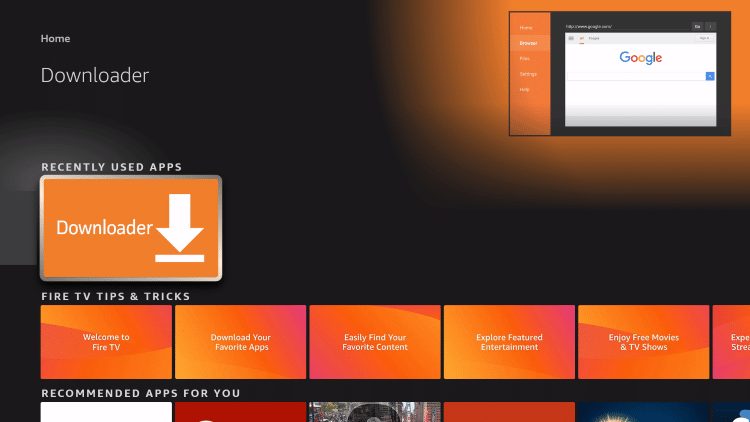
2. Launch Downloader and click the URL bar.
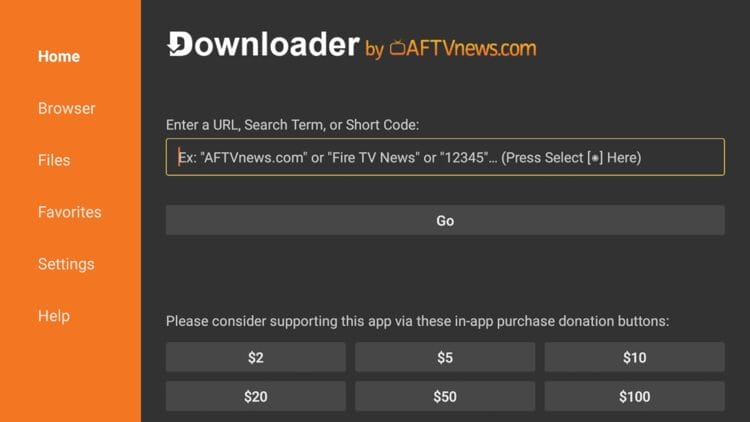
3. Type the code for the TROYPOINT Toolbox which is 250931, and click Go.
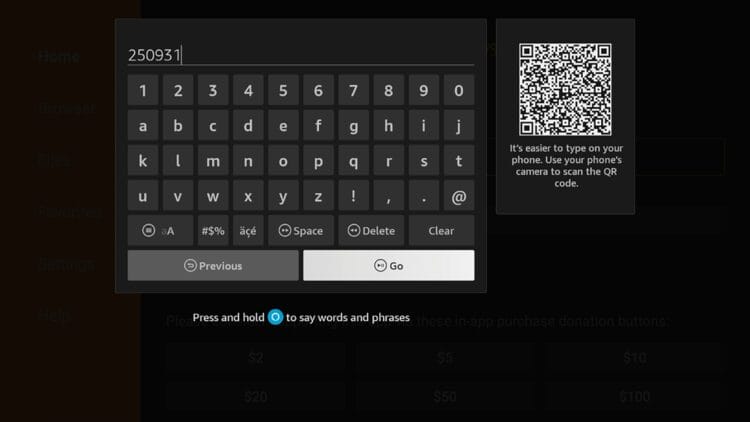
4. You have successfully accessed the TP Toolbox.
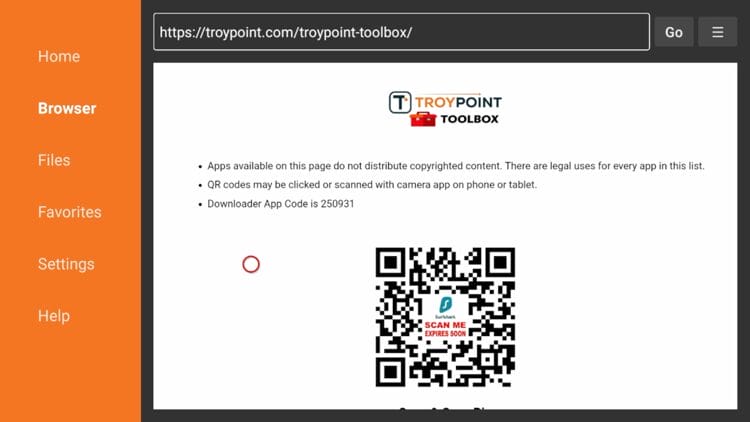
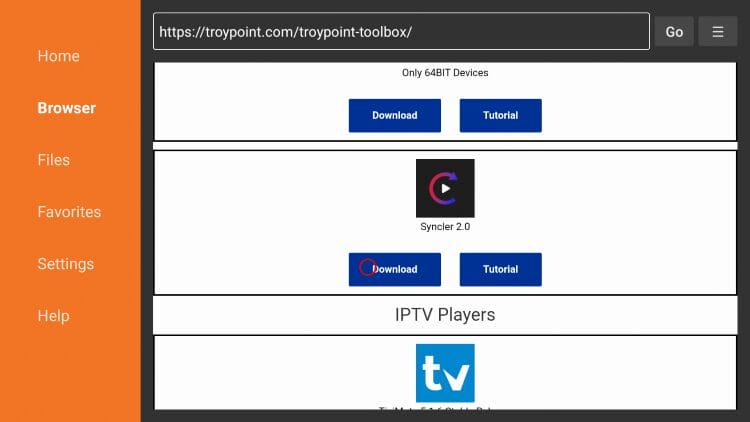
5. Scroll down to locate Syncler 2.0 and click Download.
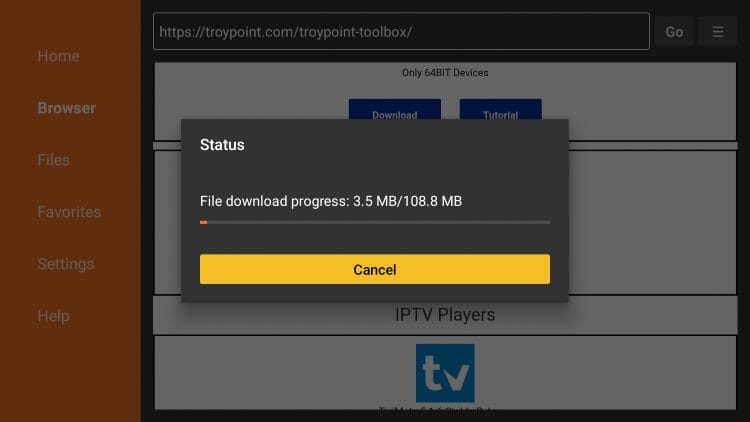
6. Wait for the file to download.
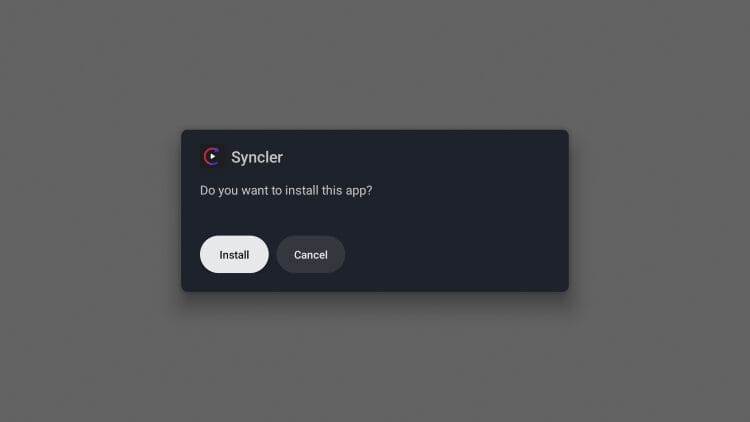
7. Click Install.
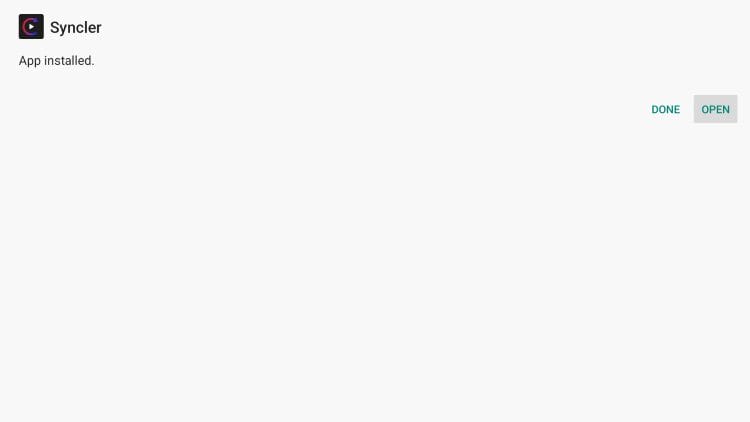
8. Click Open.
Now that you have Syncler installed, you can continue with the setup process.
1. After the app launches, you are presented with the following screen.
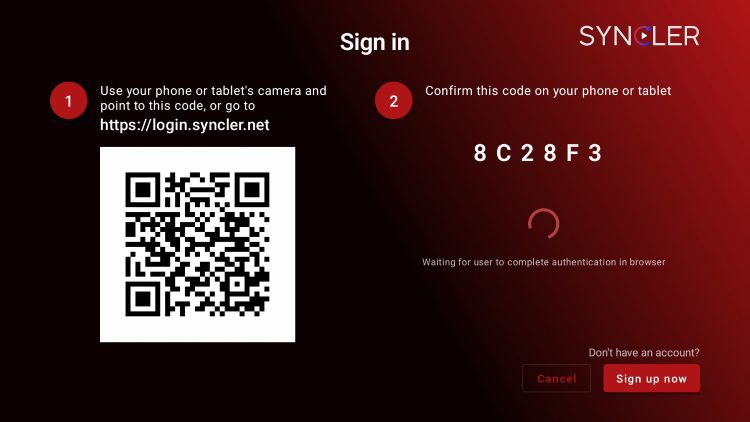
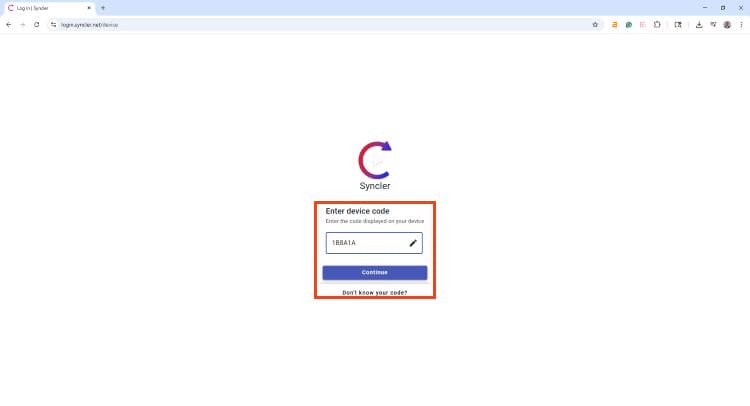
2. Visit login.syncler.net and input the code you are provided with in the Syncler App and click Continue.
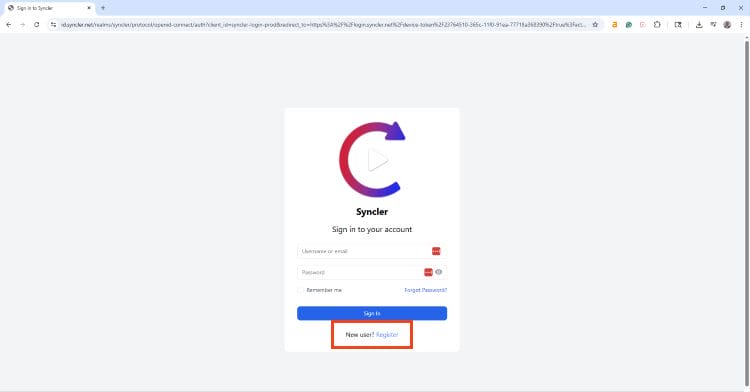
3. If you have a Syncler account, input your username/password. Otherwise, click the Register button.
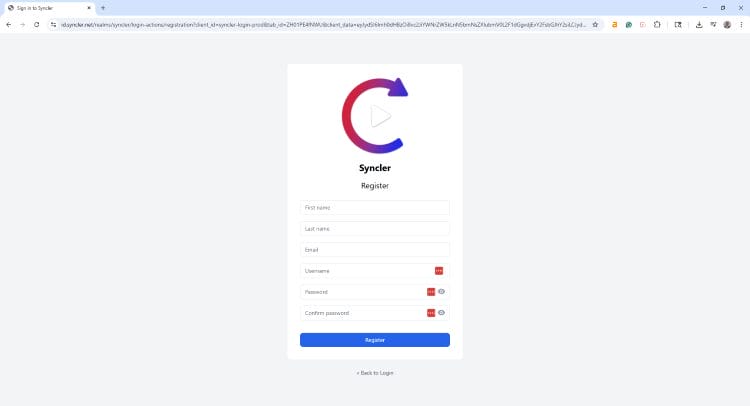
4. Enter account credentials (we suggest using an anonymous email address such as StartMail) and click Register.
In order to get the best experience, we suggest purchasing a Syncler+ Premium account. This will eliminate ads and allow you to use certain vendors/packages that the free version won’t.
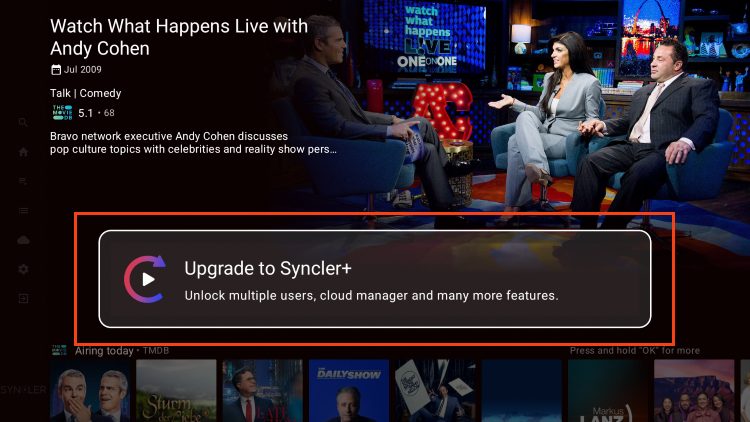
1. From the home screen, select Upgrade to Syncler+.
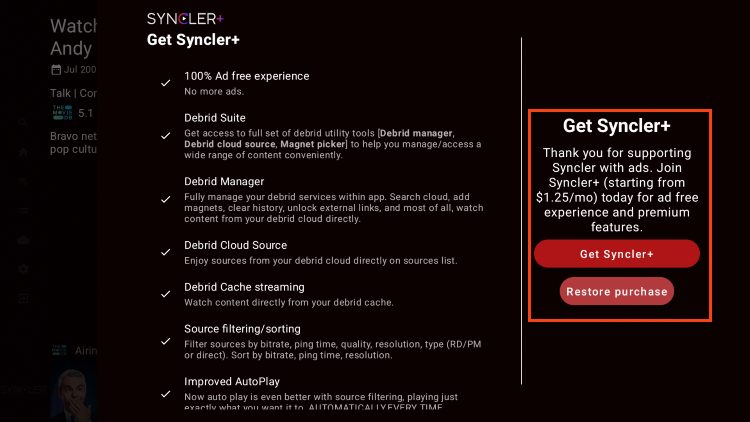
2. Click Get or Restore if you have already purchased this.
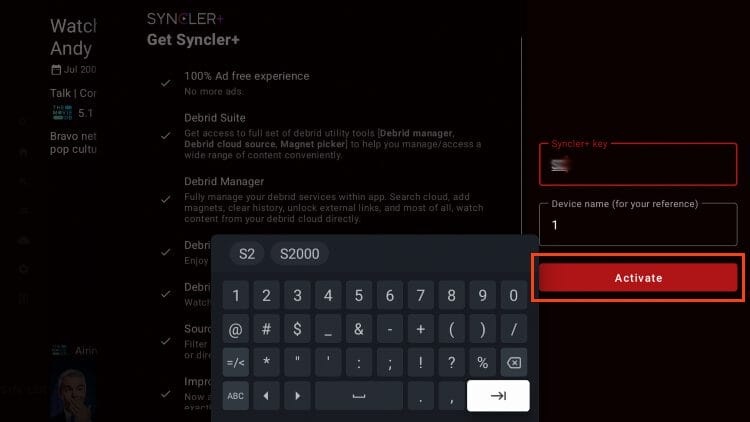
3. Input Syncler+ Key and a device name and select Activate.
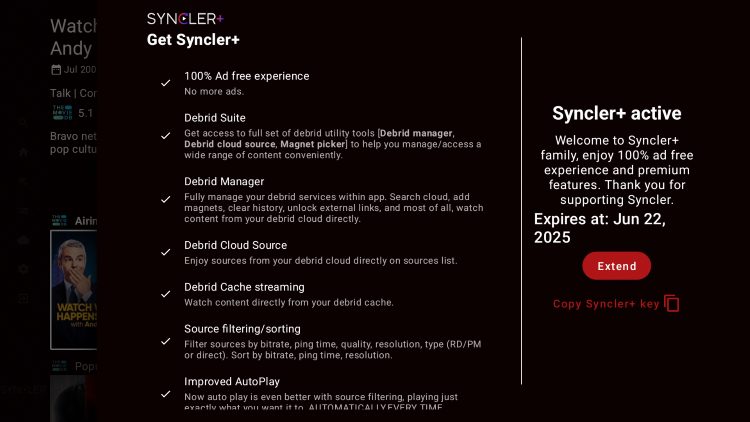
4. You will encounter the Syncler+ active message.
Syncler only works with a cloud/debrid service such as Premiumize. Use the steps below to authorize your service.
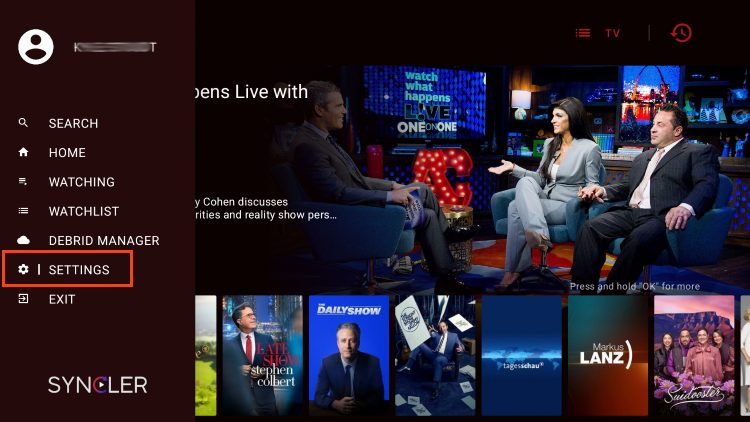
1. From the menu screen, open Settings.
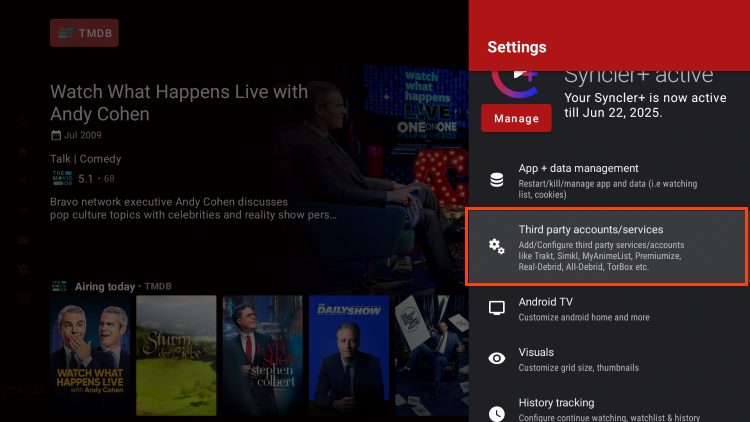
2. Select third-party accounts/services.
3. Click Premiumize or other debrid platform.
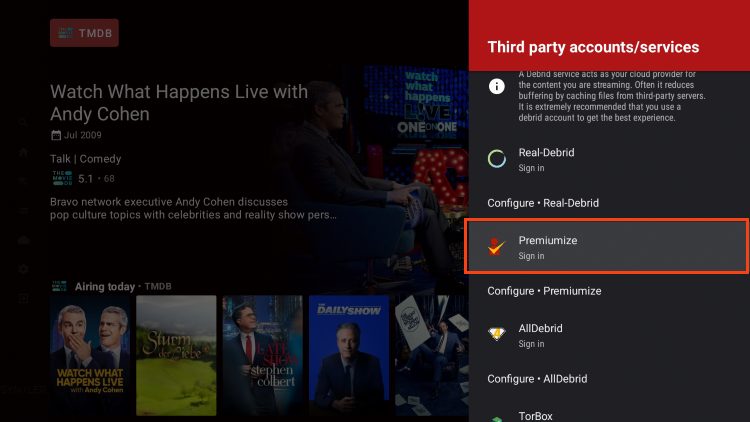
4. Make note of the authorization code you are given.
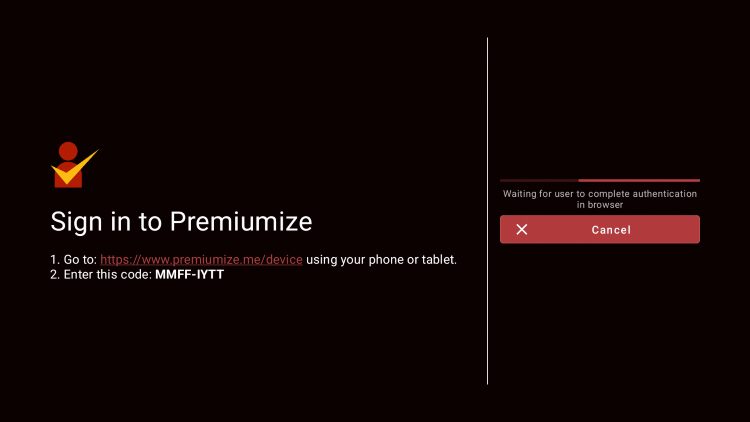
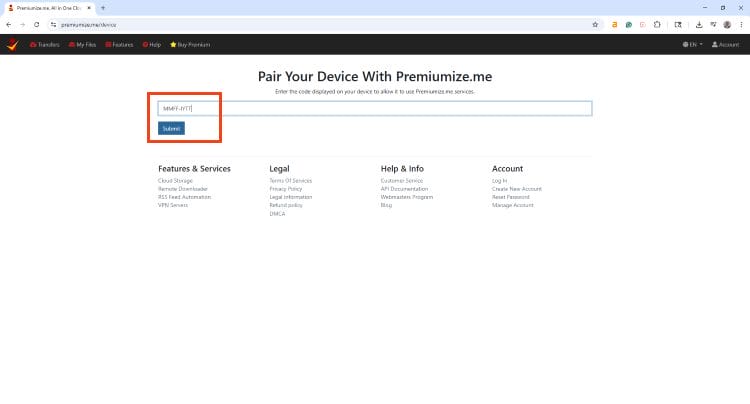
5. Go to premiumize.me/device and enter the code from the previous step. Click Submit.
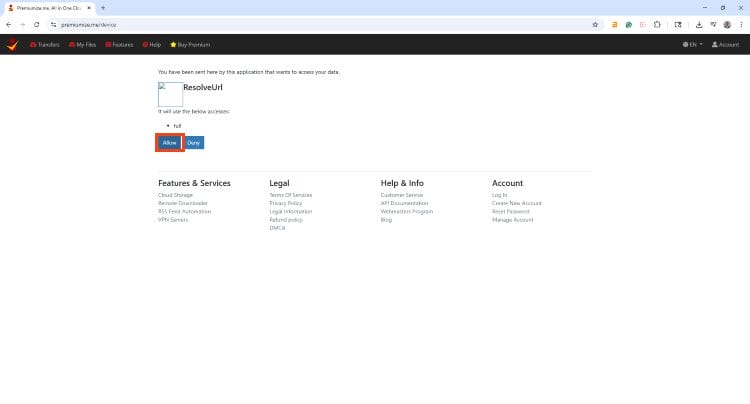
6. Select Allow.
7. Return to the app and you will see your service has been authorized.
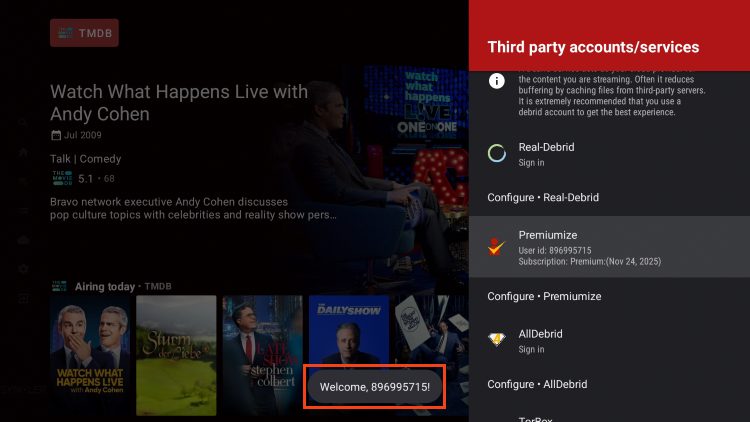
We must also integrate a provider package or “Vendor” that will scrape the internet and provide streaming links.
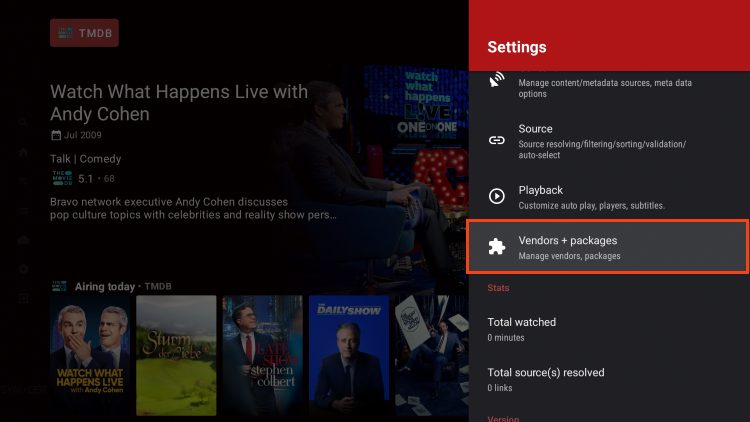
1. Within Settings, open Vendors + packages.
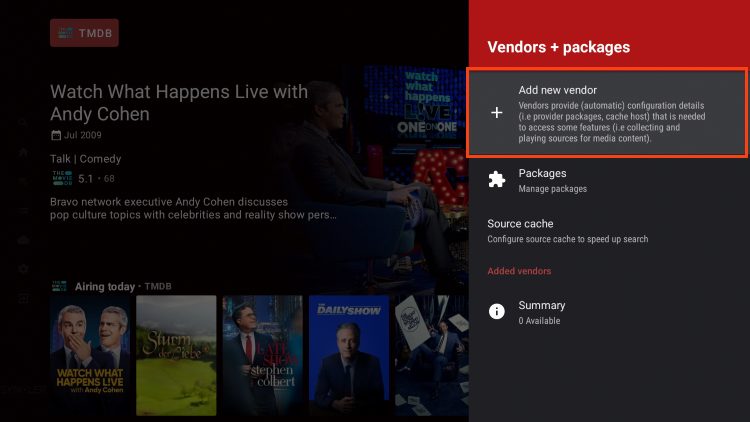
2. Choose Add new vendor.
3. Click the box to input Vendor URL.
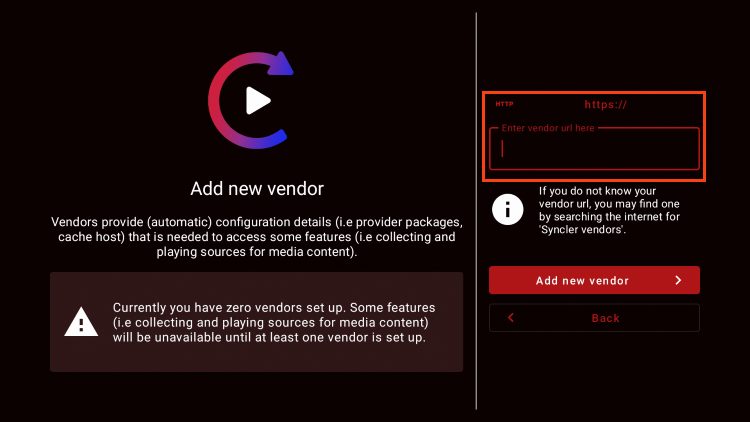
4. Type jakedup.com/syncler/vendor or other URL of your choice. (Make sure https:// is selected.)
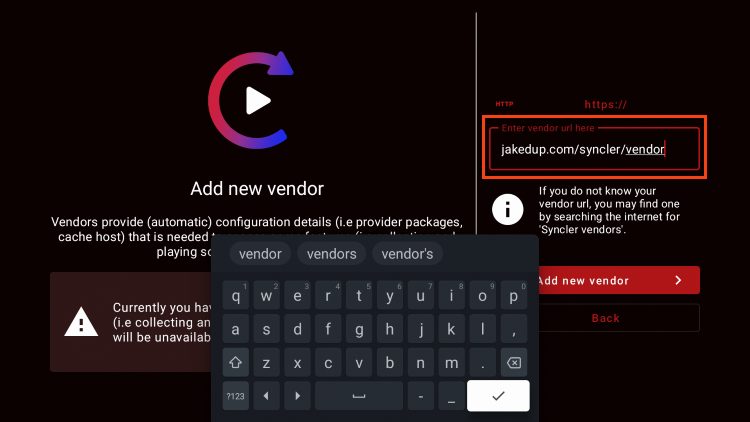
5. Click Add new vendor.
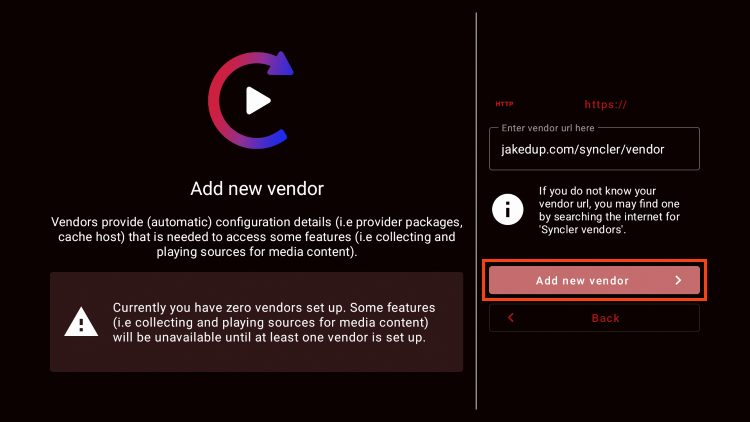
6. Choose Proceed.
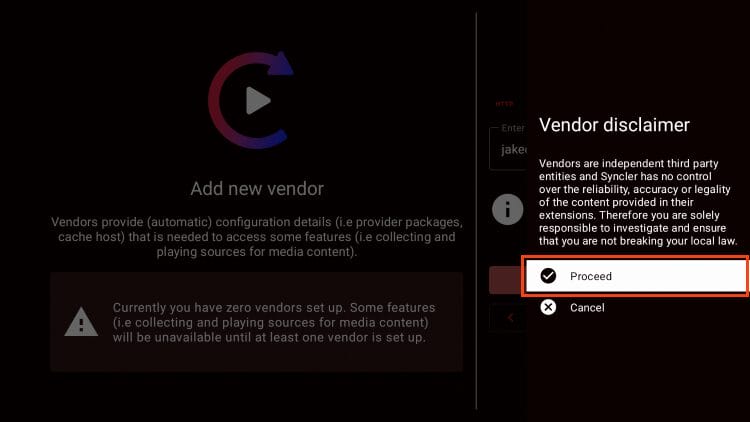
7. Click OK.
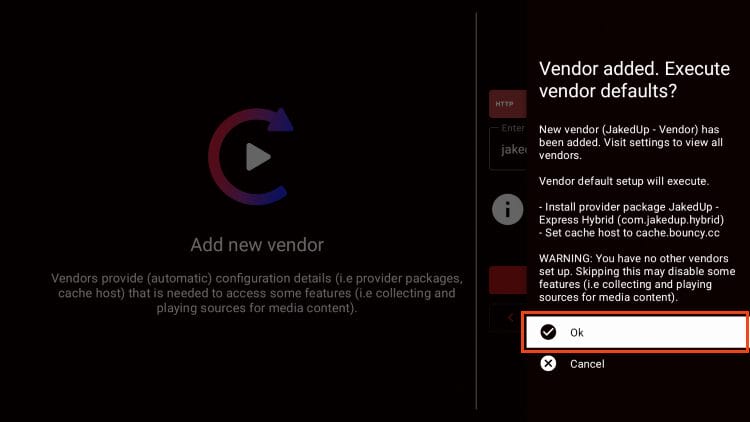
8. You will see package installed message. Click OK.
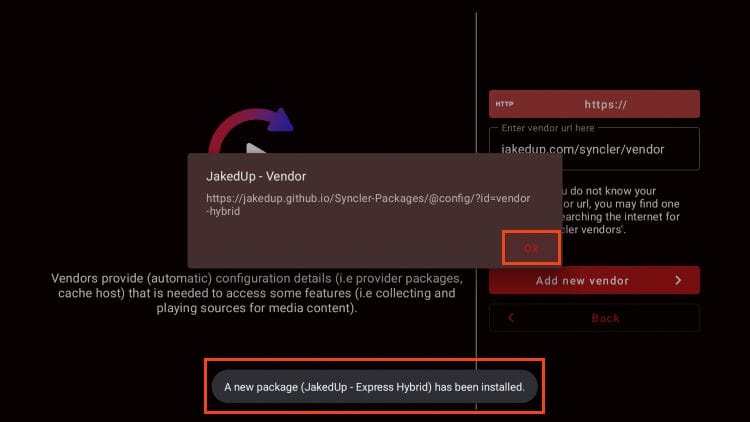
9. Select Back.
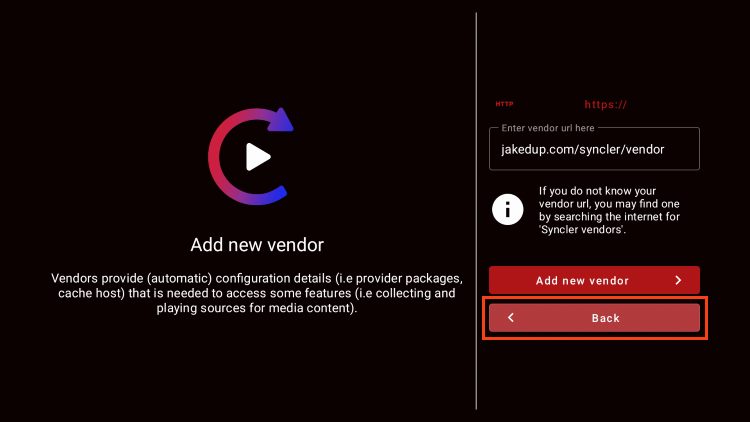
Your Vendor install is now complete and Syncler is officially set up for use. Enjoy!
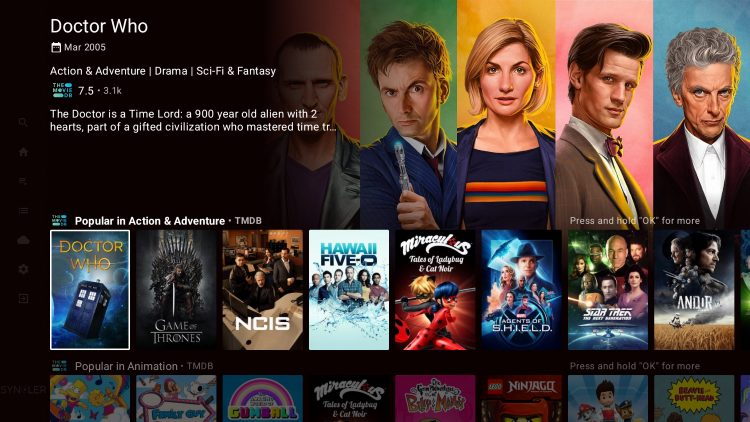
Syncler V2 arrived in May 2025 after nearly two years of development, bringing a complete rewrite with new features and faster performance. Here’s what our testing revealed about this premium streaming application.
There are tons of extra features/personalization options that you can adjust to your preference within the app.
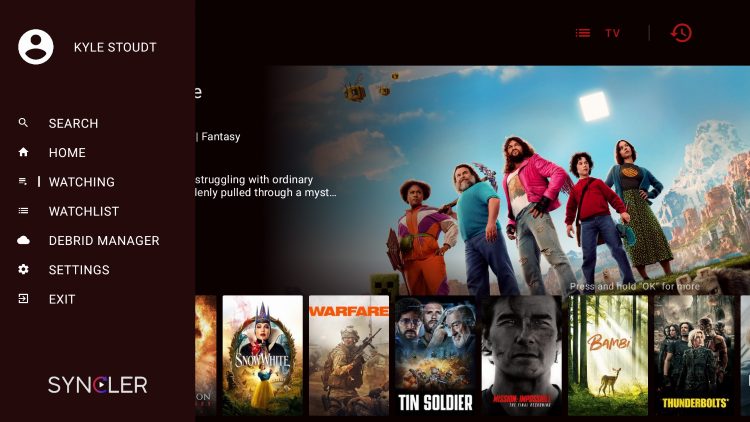
From the home screen, users can toggle between Movies/TV Shows to find the content they are looking for.
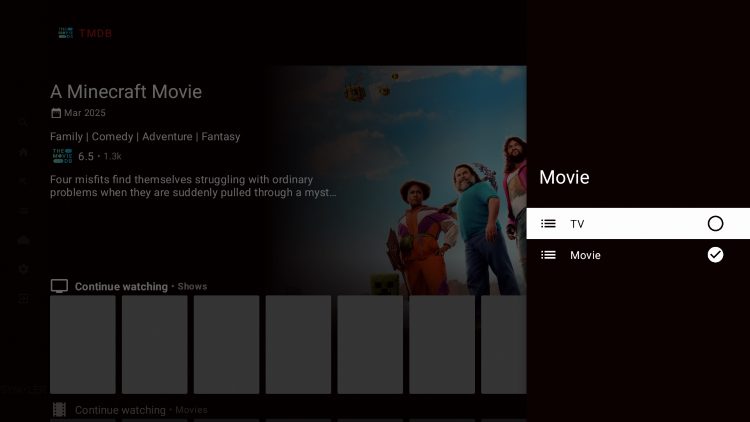
The main menu has options for Watching to continue from where you left off, Watchlist for your Favorites, Debrid Manager, and Settings.
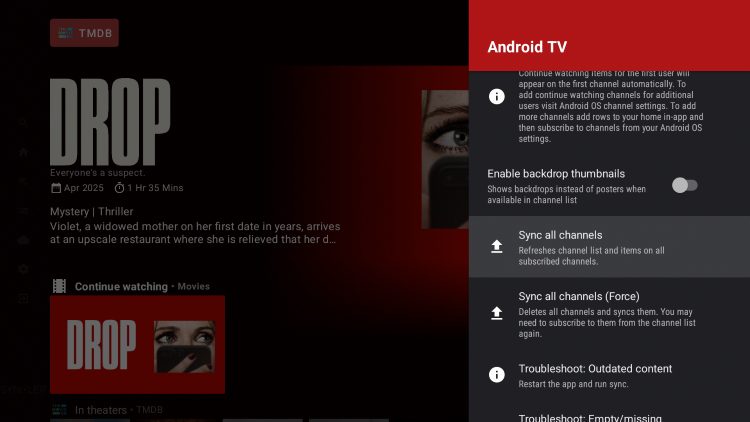
Within Settings are tons of selections including Android TV to Sync Channels, Troubleshoot, etc.
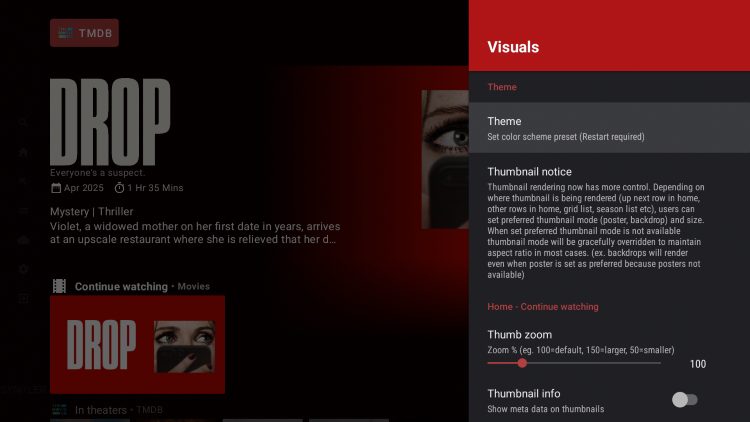
You can adjust Visuals including the color theme, thumbnail info, and more customizations.
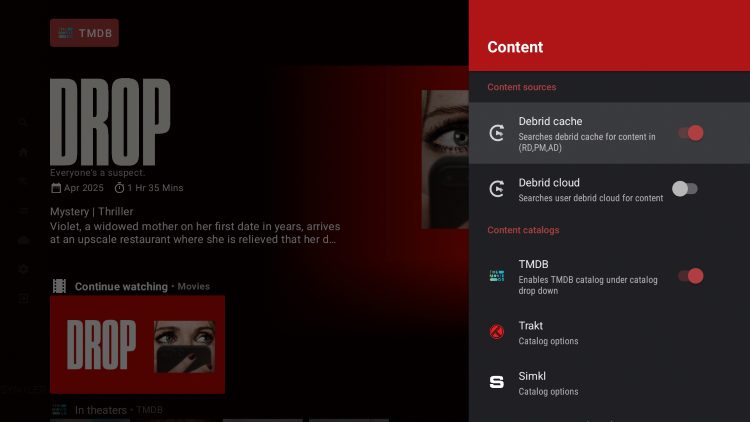
Using the Content menu is a great way to adjust your Debrid cache/cloud and edit your Trakt, Simkl, or TMDb options.
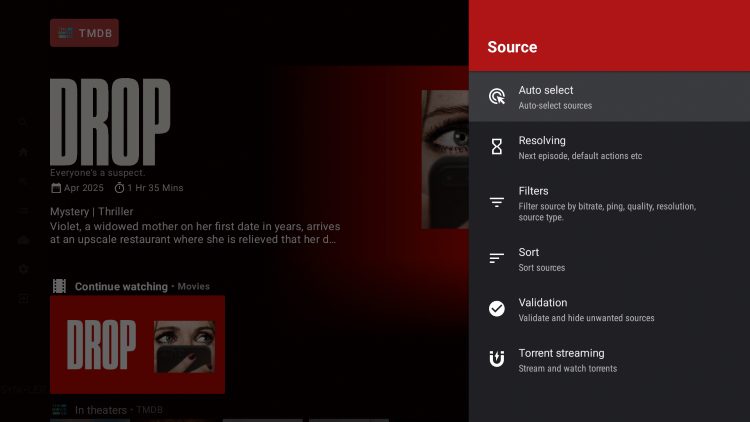
The source tool is a great way to edit playback including torrent streams, filters, and other sorting methods.
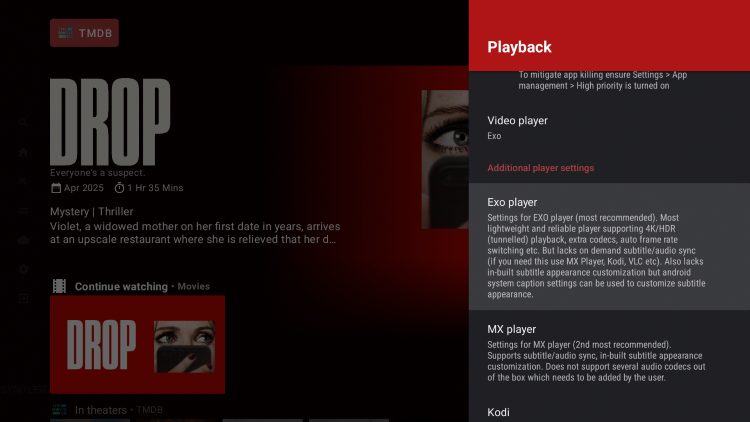
Those who wish to use an External Video Player such as MX, Kodi, etc can enable this and even adjust all settings for your selected option.
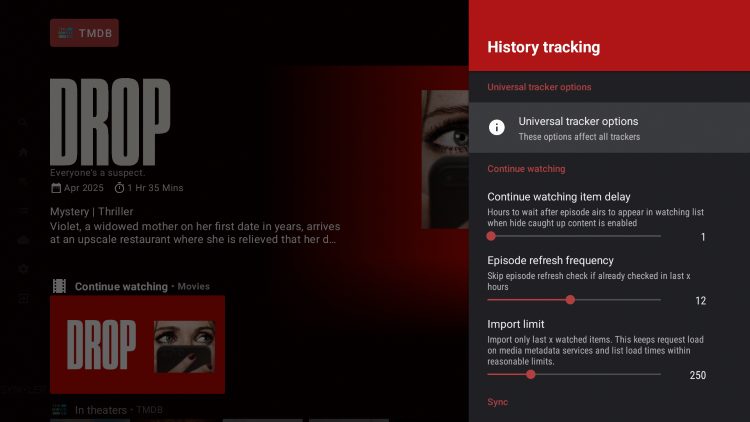
The History Tracking tool will allow you to edit the continue watching delay, episode refresh frequency, and more.
We strongly suggest diving into all the Settings provided in the Syncler menu and personalizing it to your preferred preferences!
Syncler has recently been updated to V2 after nearly two years of development. This is a major update that adds many advanced features, configuration options, and more.
One of the most important new features is the login function. Syncler V2 now requires that you log into the app prior to using it. The great thing about this is once you have the initial setup done on one device, that same setup applies to other devices. You don’t need to go through the entire setup process on each device!
Another change is the addition of Vendor integration vs the original method of adding provider packages. These vendors are bundles of packages so that you get more bang for your buck.
Even the installation process has been simplified. V2 no longer requires the “Syncler Installer” for download and you can easily install the app on Firestick, Google/Android Box, or any other device from the TROYPOINT Toolbox.
Users will also notice an improved user interface that can be customized, faster search/playback speeds, Syncler account authorization, and much more that we cover in our video guide above. Make sure to check it out!
If you are looking for a premium experience within Syncler, you can purchase a Syncler+ subscription. This will eliminate ads and allow you to access the Express package for higher-quality streaming content.
There are 4 package options that you can purchase for the number of devices you prefer.
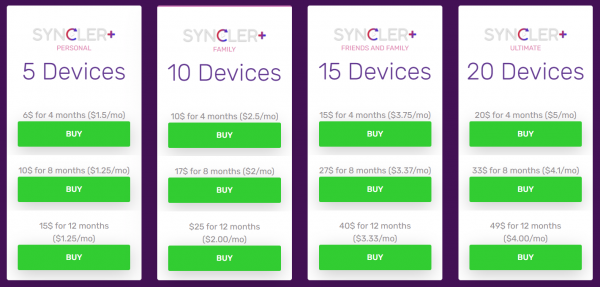
Here are the Premium features included with a subscription:
Before using unverified applications, it is important to scan these APK files with VirusTotal.
Here is the screenshot of what that scan found:
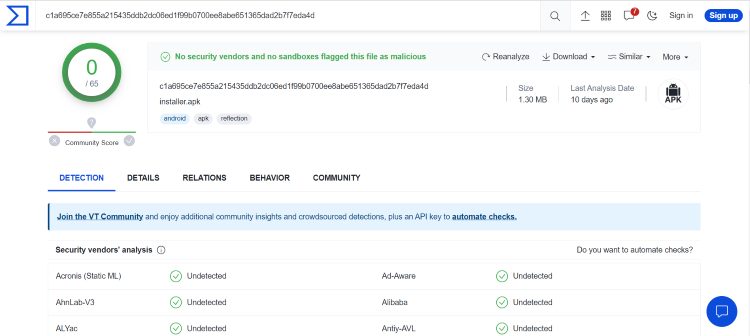
VirusTotal did not find any suspicious files or malware within the Syncler APK file.
However, this does not mean we shouldn’t protect ourselves when streaming content from this unverified app.
The best way to do this is with a VPN that will secure your identity and anonymity when using Syncler or other applications.
Install Best VPN on Firestick/Android
If you have questions about migrating from V1 to V2, or running multiple versions of Syncler on your device, be sure to take a look at their migration guide linked below.
Syncler is one of, if not the best media app available today. With the latest upgrade to V2, it sets itself apart from other popular media apps and is the fastest APK to watch your favorite video-on-demand content.
We want to know what you think of the latest version of Syncler. Is this the best app out there? Let us know in the comments below!
This page includes affiliate links where TROYPOINT may receive a commission at no extra cost to you. Many times, visitors will receive a discount due to the special arrangements made for our fans. Learn more on my Affiliate Disclaimer page.



© IPTVSub is Proudly Owned by win-design