


 Written by admin
The following guide shows you how to install the Dabs Nimbus Build on any Kodi device.
Dabs Nimbus is a lightweight Kodi build from the DaButcher Repository that keeps things fast and clutter-free. The setup runs on the Nimbus skin and is organized into clean sections for Movies, TV Shows, Add-ons, and Favorites.
This option ships with a small but quality lineup of add-ons covering both free and debrid sources. For the best streaming results, we suggest pairing the build with a premium debrid service such as Real-Debrid, Premiumize, or TorBox.
You can install Dabs Nimbus on any device that runs the Kodi software. That includes Amazon Fire TV, Google TV/Android TV boxes, PCs, Macs, tablets, and more.
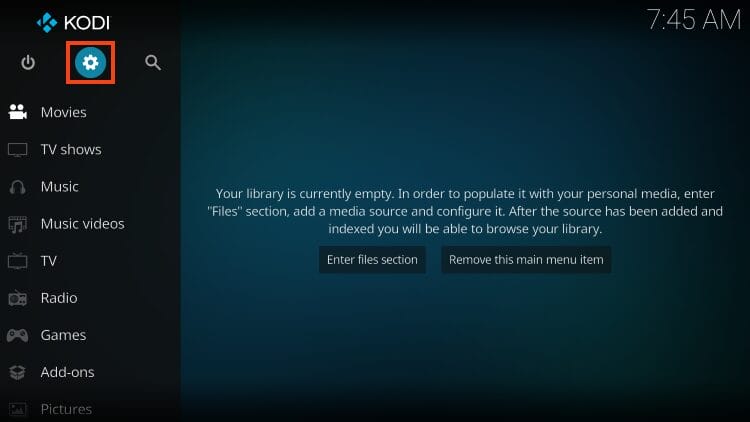
1. Launch Kodi and click the Settings gear.
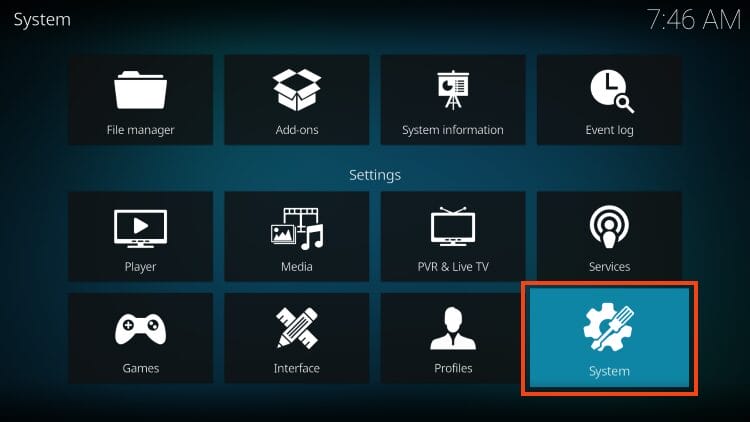
2. Choose System.
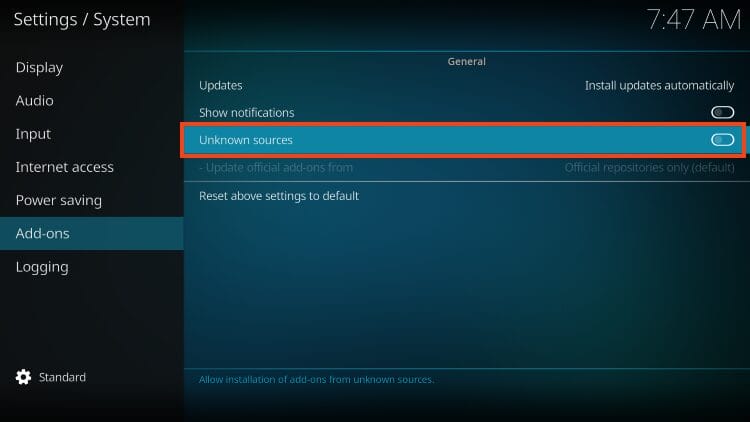
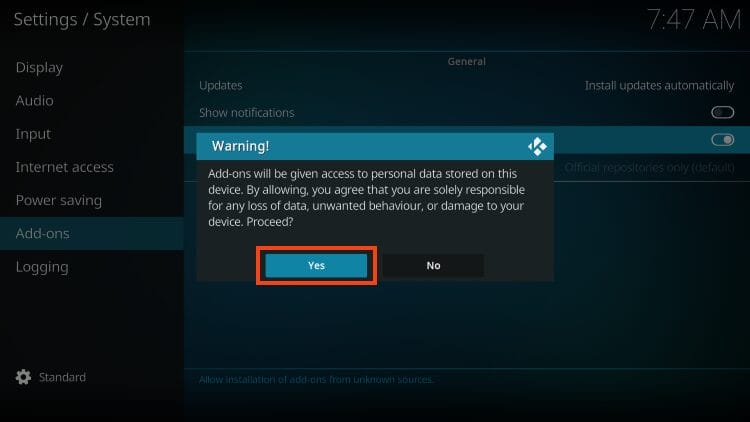
3. Within Add-ons menu, click Unknown sources to turn this feature on.
4. Click Yes. But make sure to read the important warning message that states these 3rd party add-ons will be granted access to your personal data.
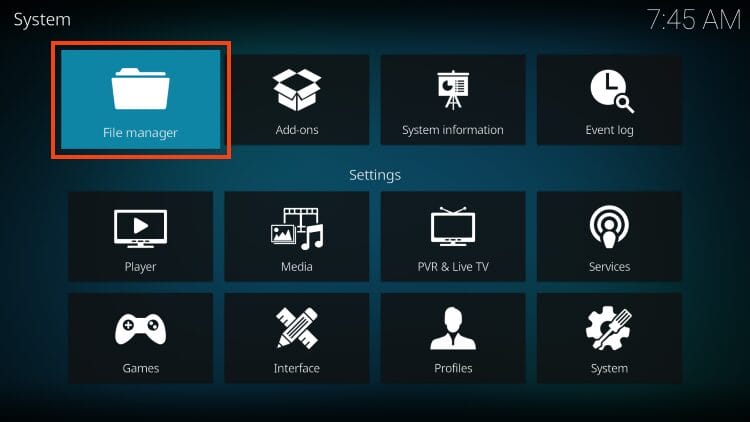
5. Return to settings and open File Manager.
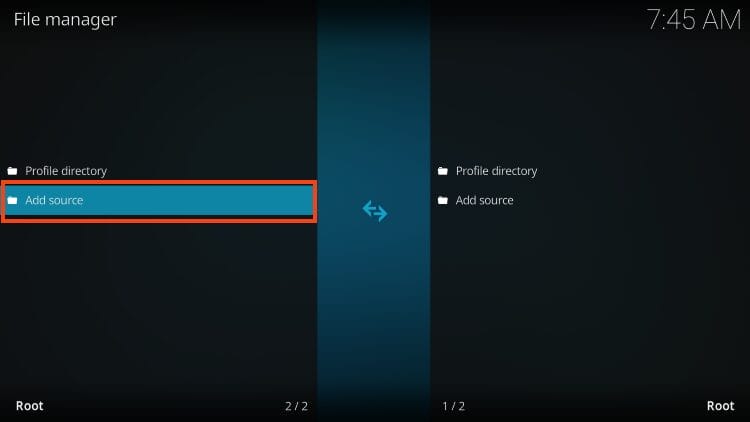
6. Click add source.
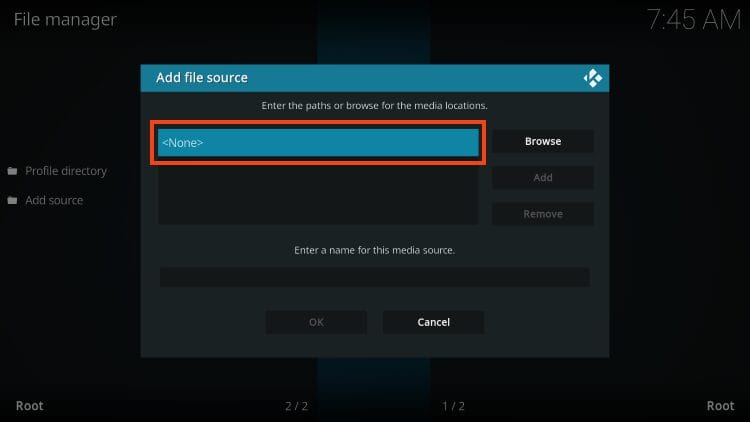
7. Select
Your online activity is monitored by your ISP, app/addon/IPTV devs, government, and all websites.
🔒 Become anonymous while streaming & downloading with Surfshark VPN
Save 87% with 24-Month Plan + Get 3 FREE Months
Use on Unlimited Devices & Share 1 Account with Entire Family
CLAIM DEAL HERE
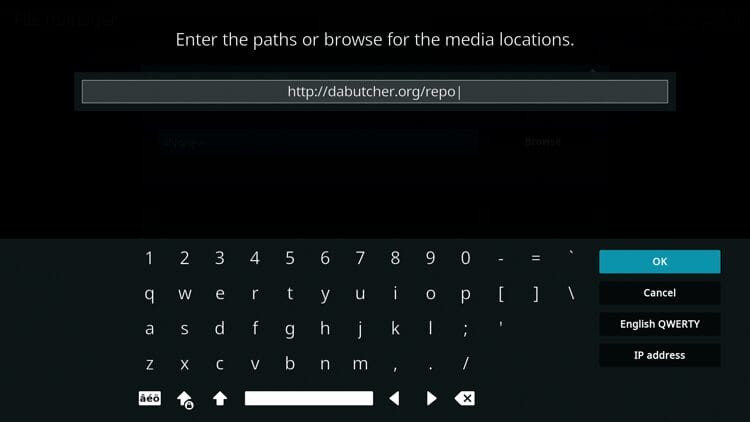
8. Type the following URL – http://dabutcher.org/repo and click OK.
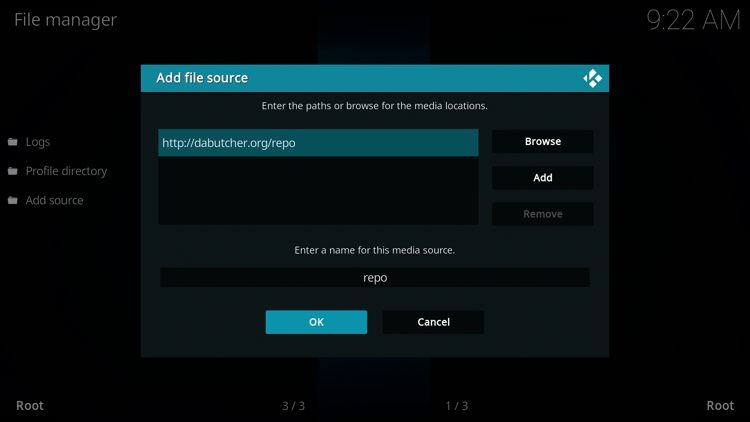
9. Name your media source whatever you prefer and click OK.
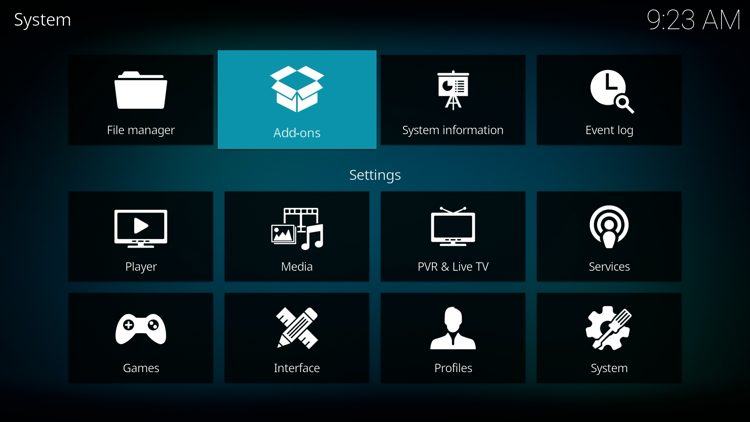
10. Go back to settings and choose Add-ons.
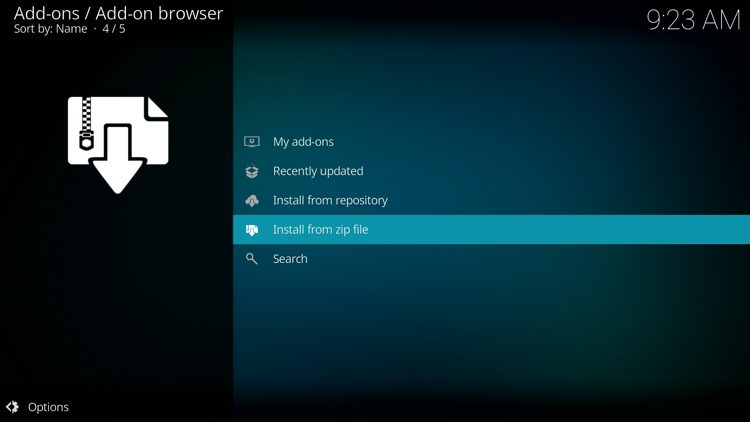
11. Select install from zip file.
12. Click ‘repo’ or whatever you named the media source.
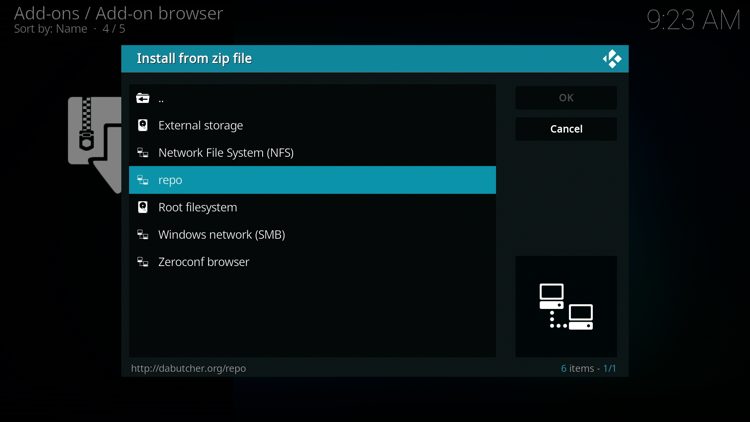
13. Select the zip file URL – repository.dab.zip
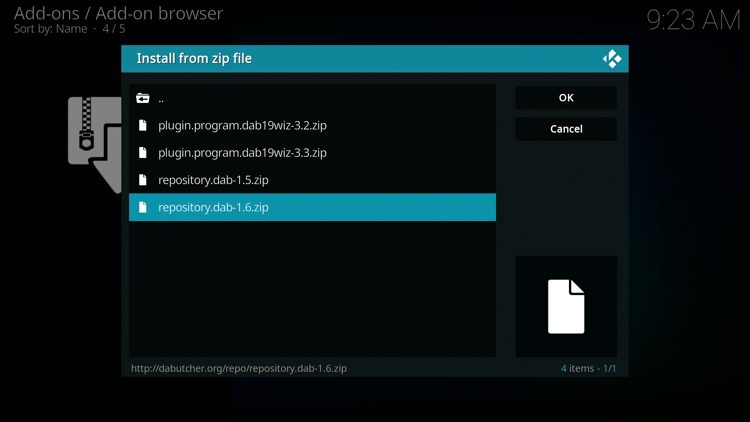
14. The repo installed message will now appear.
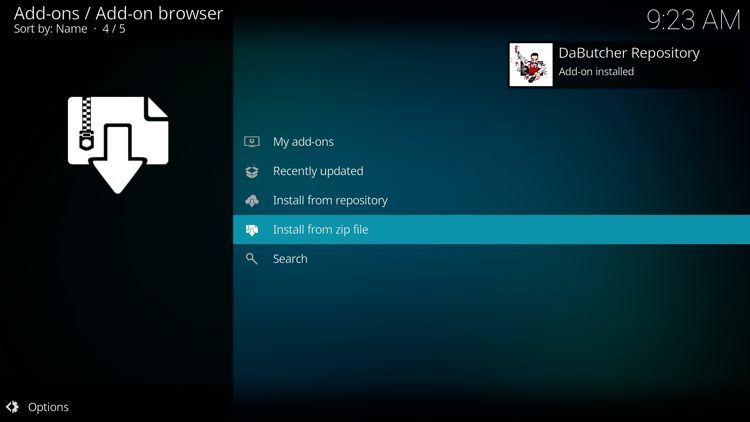
15. Choose install from repository.
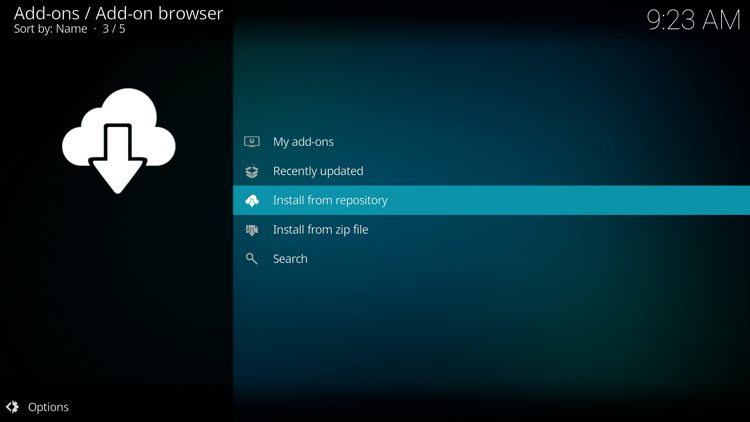
16. Select DaButcher Repository.
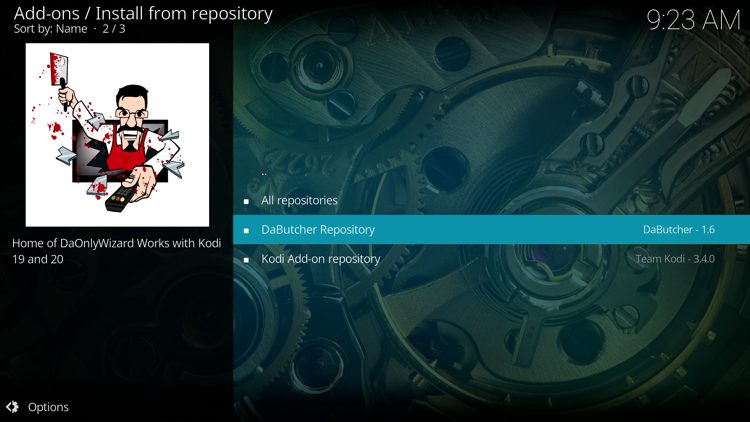
17. Now, click Program add-ons.
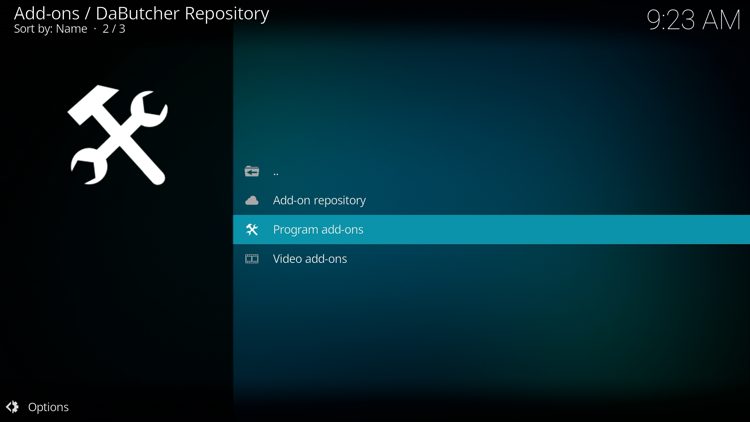
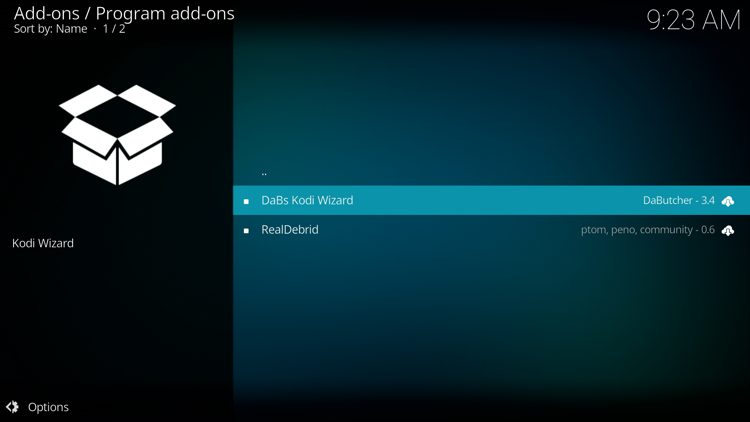
18. Click DaBs Kodi Wizard.
19. Select Install.
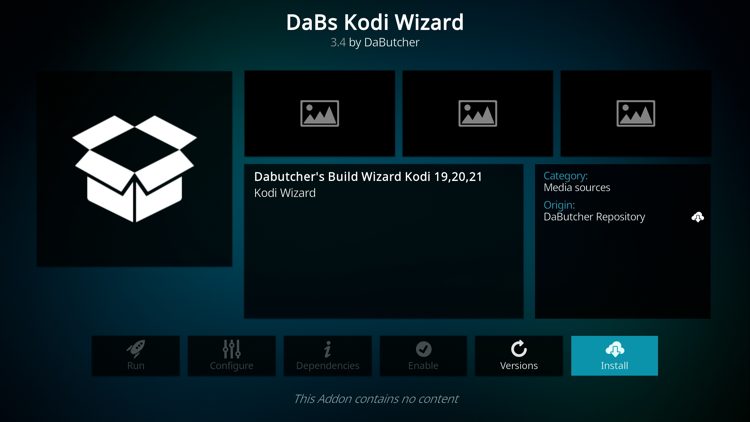
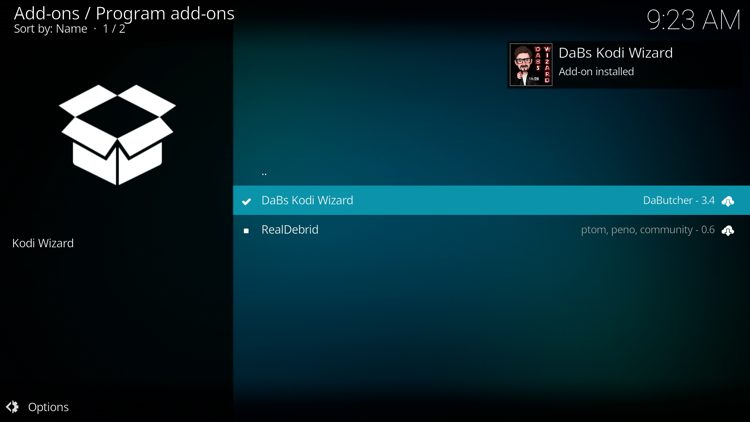
20. The wizard add-on installed message will now display in the upper right-hand corner.
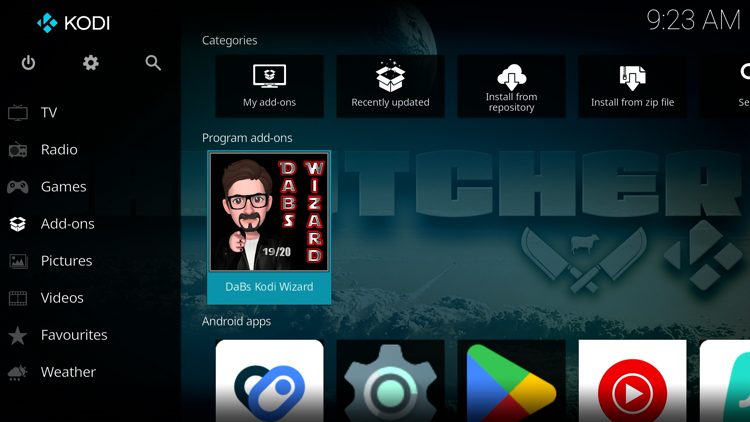
21. Return back to the home screen of Kodi, hover over Add-ons and click DaBs Kodi Wizard under Program add-ons.
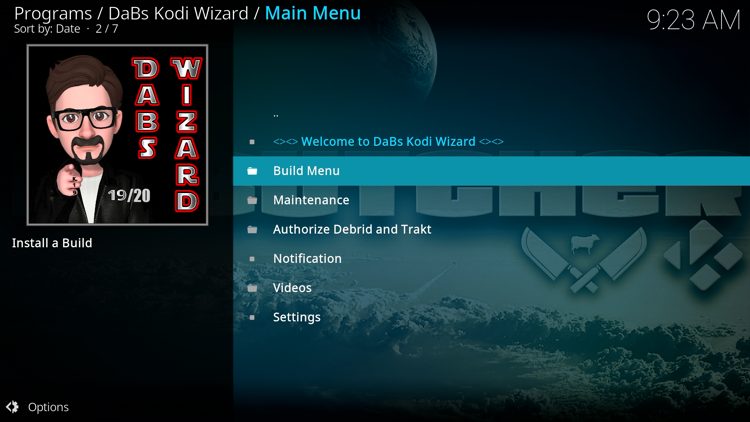
22. Select Build Menu.
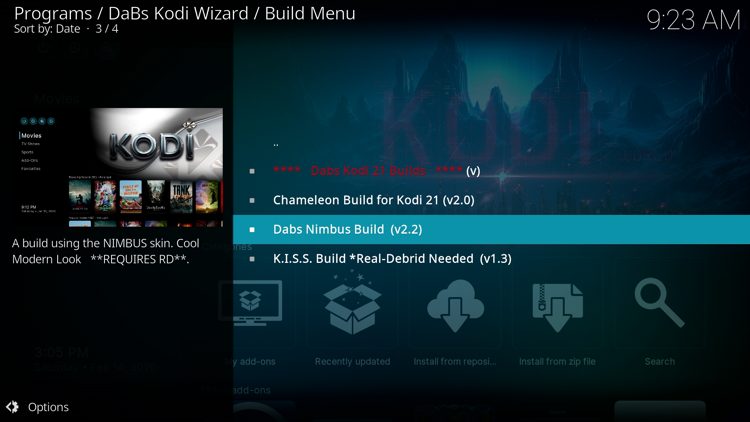
23. Locate Dabs Nimbus Build and click it.
24. Click Continue.
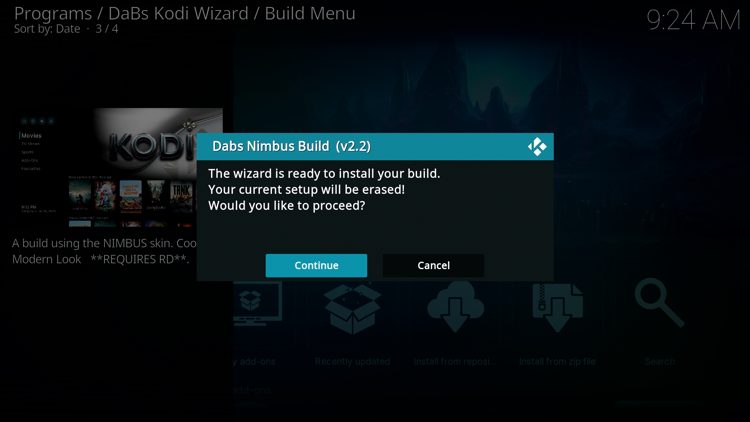
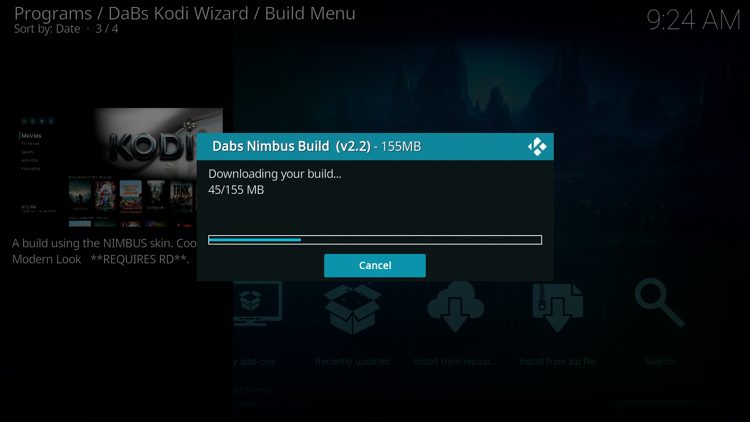
25. Wait for your build to download.
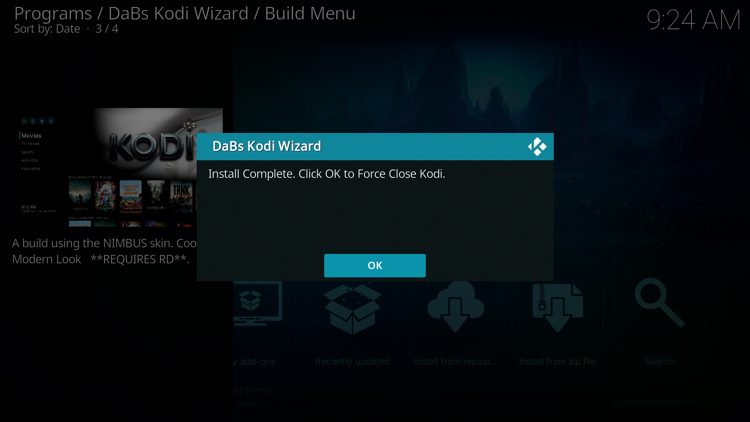
26. Click OK.
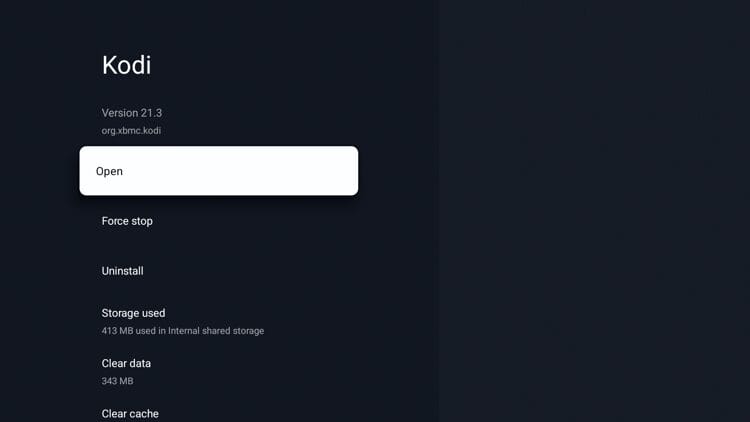
27. Relaunch the Kodi application.
28. You have successfully installed the Dabs Nimbus build! Now wait a few seconds for the build to load.
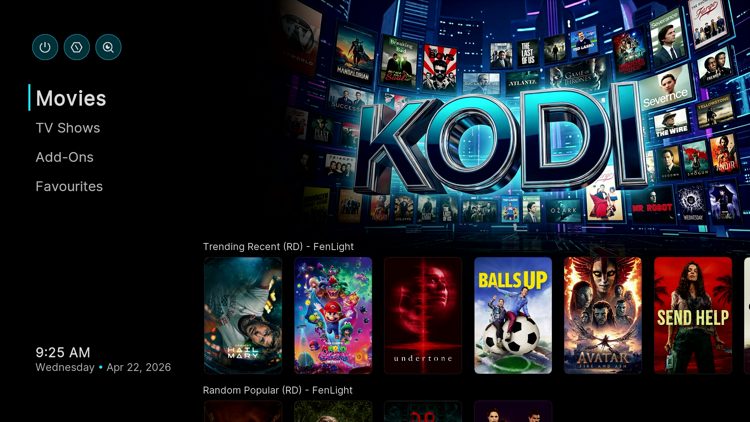
Now continue reading below for integrating a premium debrid service.
Although a premium debrid service is not required to access content from Dabs Nimbus, you will have a much better streaming experience after pairing one of these services.
We provided steps below for integrating Real-Debrid but you can follow the same process for Premiumize, TorBox, and others.
1. From the main menu choose Add-ons.
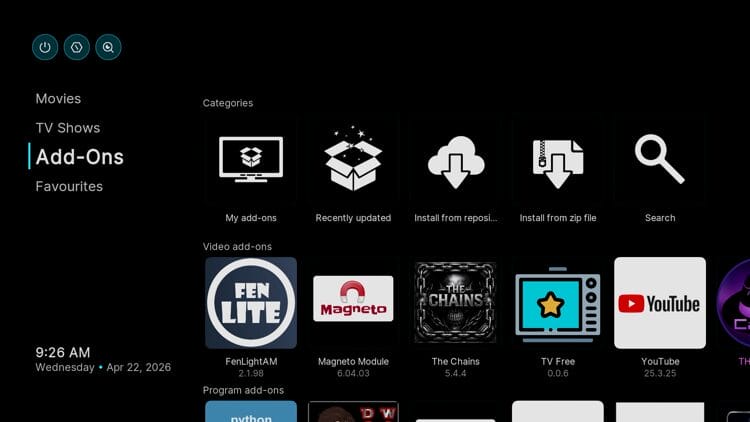
2. Select FEN Light since that is the primary add-on providing content in this build.
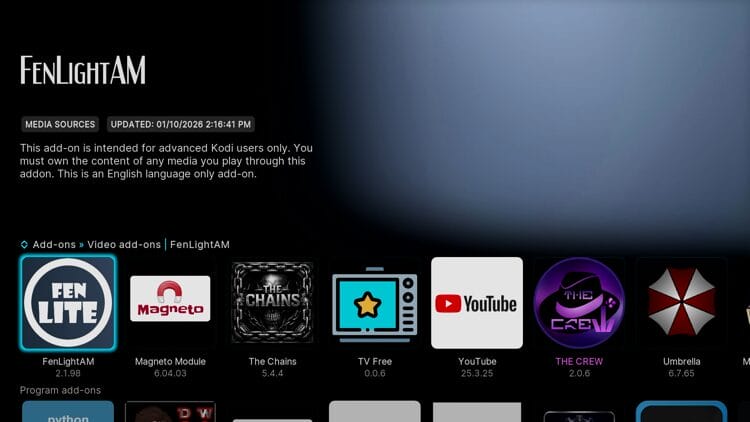
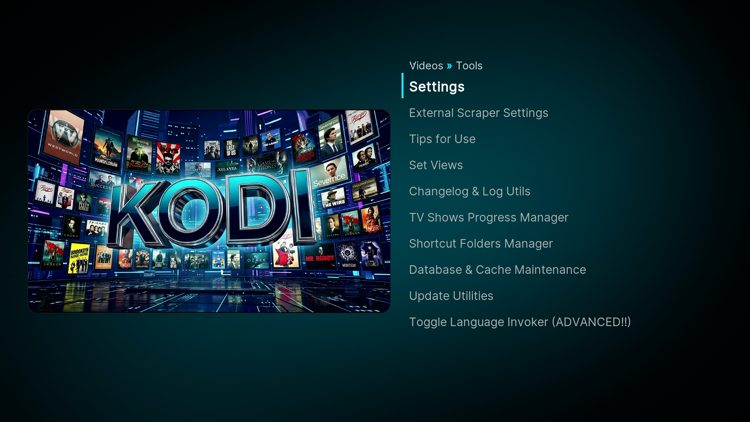
3. Scroll down and choose Tools.
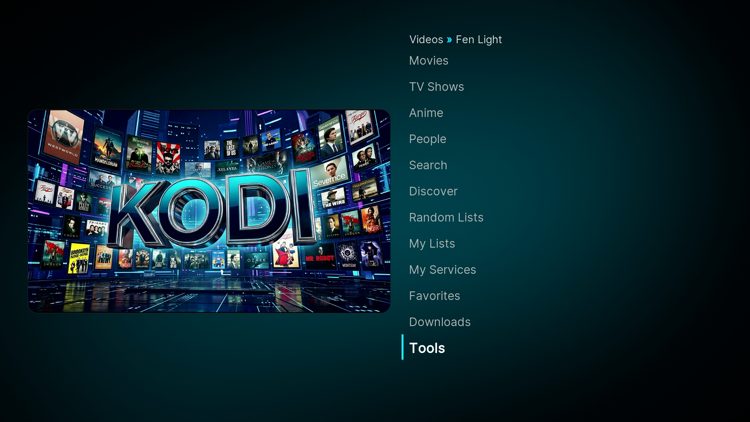
4. Then click Settings.
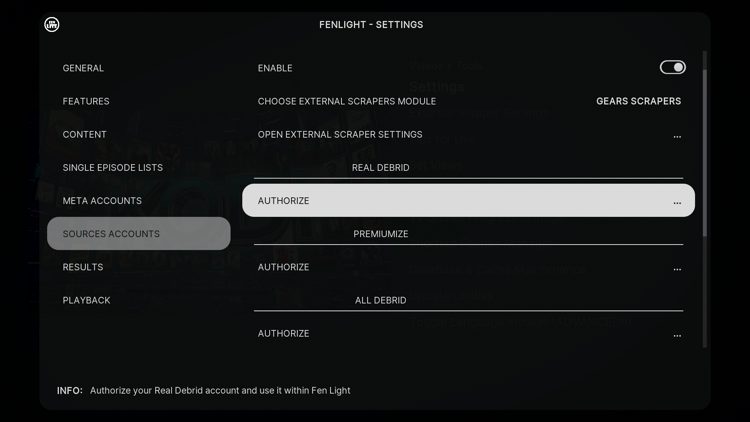
5. Hover over Sources Accounts and select Authorize under Real-Debrid.
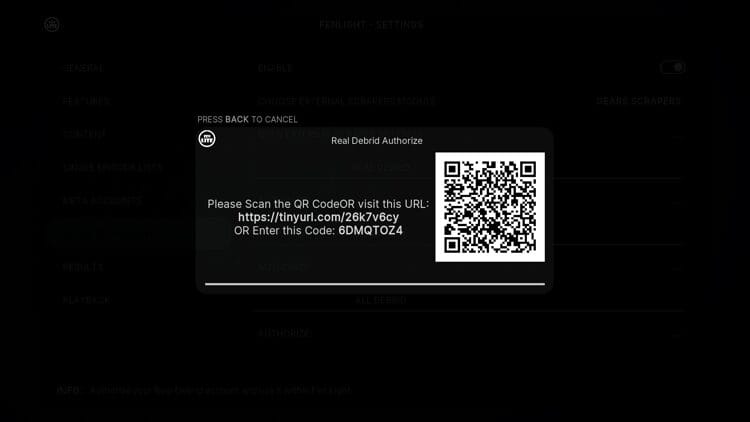
6. You are then provided with a Real-Debrid authorization code.
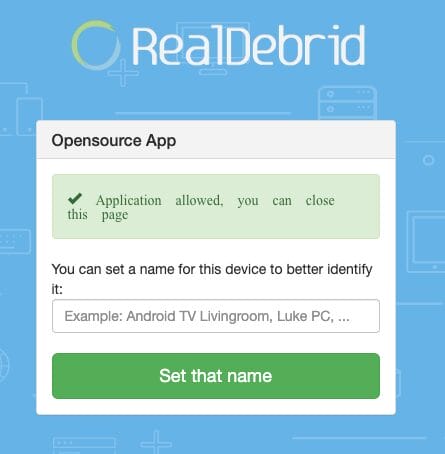
7. Visit real-debrid.com/device and enter the provided code from the previous step. You should then see a success message.
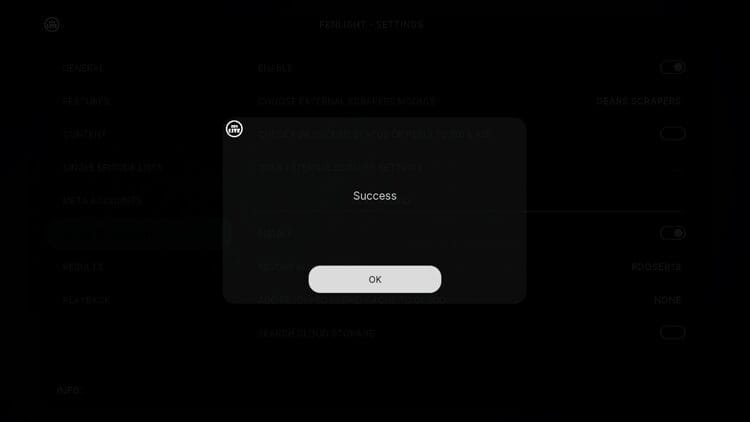
8. Return to the Dabs Nimbus build and you should notice a ‘Success’ message meaning the authorization was successful.
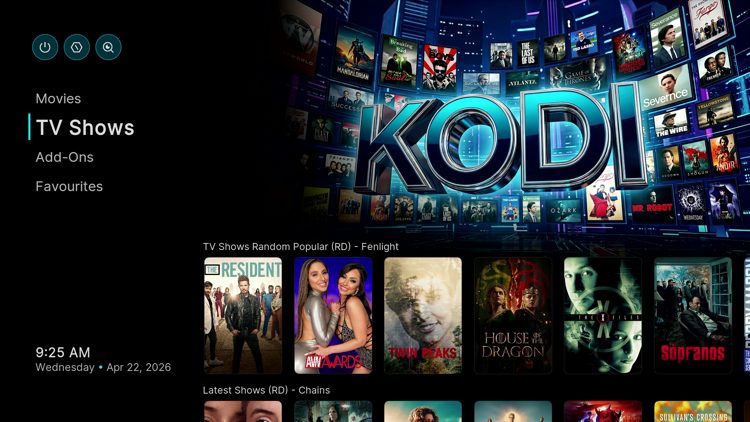
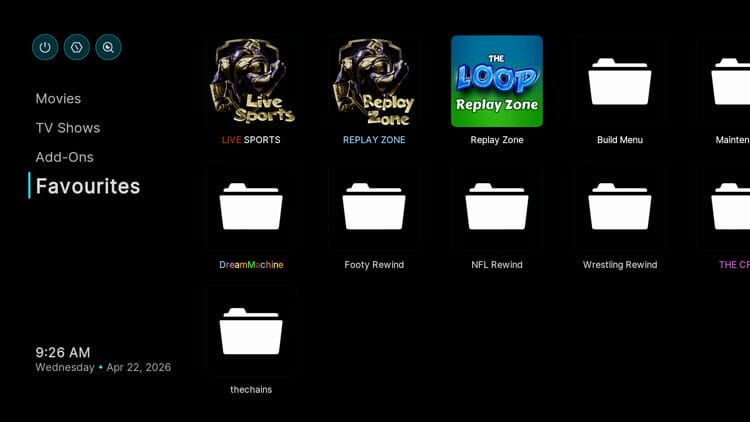
As you will notice after installing, The Dabs Nimbus build offers several categories to choose from. This includes the following:
Movies
TV Shows
Favorites
Add-ons
The video add-ons that come pre-installed with this build include FEN Light, The Crew, The Chains, YouTube, and several others.
Here’s what our testing revealed about this newer build:
It’s impossible for TROYPOINT to determine whether these unverified builds carry the proper licensing.
At first glance, it would appear that “Dabs Nimbus” is providing copyrighted content without consent.
Users can always access titles that are available for free in the public domain. Works such as this are not protected by copyright laws and may be downloaded and streamed without any legal issues.
In conclusion, the end-user is responsible for all content accessed through unverified builds or add-ons and should always choose legal streaming options.
Let us know what you think of the Dabs Nimbus build in the comments below!
This page includes affiliate links where TROYPOINT may receive a commission at no extra cost to you. Many times, visitors will receive a discount due to the special arrangements made for our fans. Learn more on my Affiliate Disclaimer page.



© IPTVSub is Proudly Owned by win-design