



 Written by admin
Learn How to configure and install the Sootio Stremio Addon on any device with our instructional guide below.
Sootio is a VOD or Video on Demand addon that functions as a “multi-source” streaming engine to provide HD media links for your Stremio setup.
It works in conjunction with your preferred Debrid Provider(s), torrent sources, and direct http streams to serve links for Films and Series.
Curerntly, Sootio supports 7 different Debrid Services which include:
Users can easily select various torrent scrapers if they prefer and we show how to enable these in the guide below. (Make sure you are using a VPN if you opt for Torrent Sources).
After configuring Sootio to your personal preference, the addon will automatically select the best links for streaming based on various criteria.
Sootio uses an “intelligent prioritization system” to deliver higher-quality streams first while filtering out unwanted results. It organizes sources by a tiered quality structure with the highest quality displaying first.
It also includes advanced filtering and performance features such as early-exit searching once a desired quality is found, configurable limits, and automatic removal of junk releases.
Sootio has continued to gain popularity among Stremio users which is why we have included it in our list of Best Stremio Addons.
Continue reading to learn how to configure and install Sootio on your preferred device.
Prior to installing the Sootio addon, make sure you have Stremio App Set Up & Installed on your streaming device(s).
As with other Stremio Addon choices, we will first configure Sootio on a PC and then sync to a Google TV/Android Box or Firestick/Fire TV.
However, you can also follow along with the installation using another compatible device such as Android mobile phone/tablet etc.
1. Visit the official Sootio Configuration Website – sooti.info/configure.

2. Scroll down and choose your Debrid Provider(s). Input API Keys for each. (We selected Real Debrid & TorBox.)
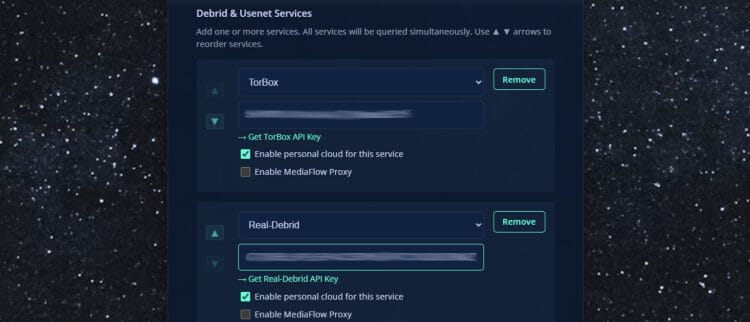
3. Enable/Disable any Torrent Scrapers and Indexer Scrapers you would like. (Optional)
Your online activity is monitored by your ISP, app/addon/IPTV devs, government, and all websites.
🔒 Become anonymous while streaming & downloading with Surfshark VPN
Save 87% with 24-Month Plan + Get 3 FREE Months
Use on Unlimited Devices & Share 1 Account with Entire Family
CLAIM DEAL HERE

4. Filter Languages you want to display and Resolution Qaulities. Adjust File Size minimum and maximum depending on your preference.
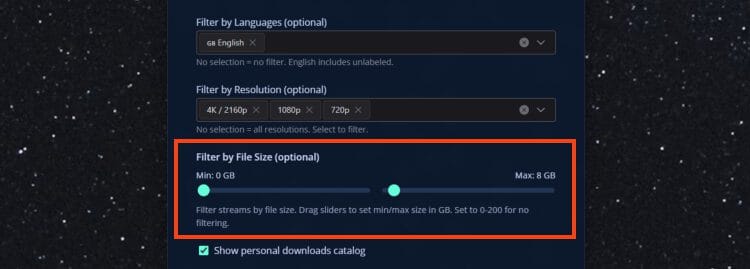
5. Scroll down and click Install Addon.

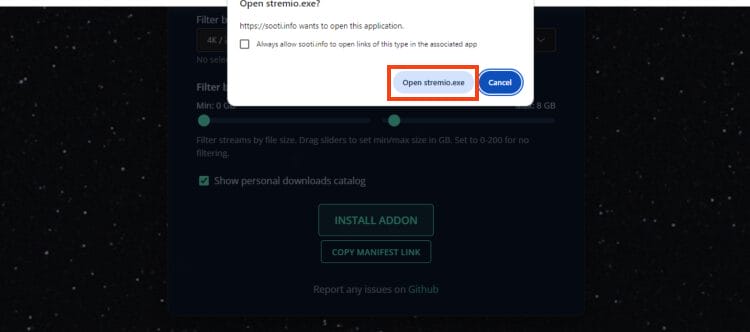
6. Click Open Stremio.exe.
7. This will launch the Stremio App. Click Install.
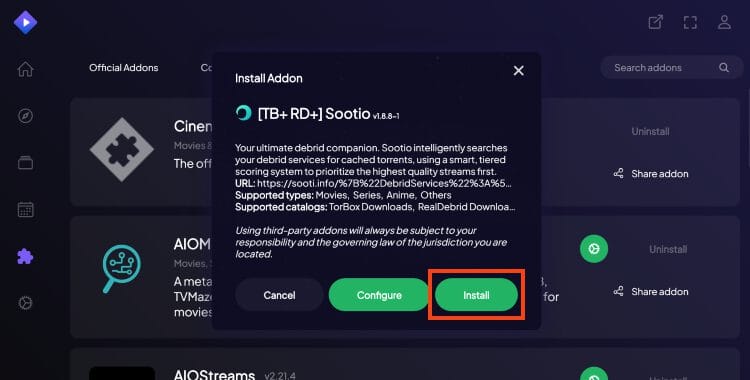
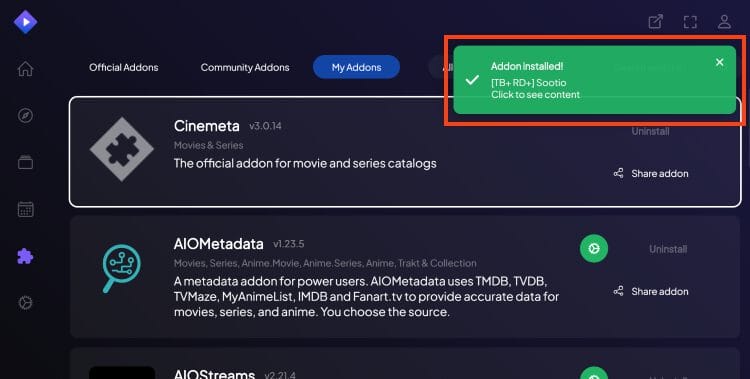
8. You will then encounter the Sootio addon installed message.
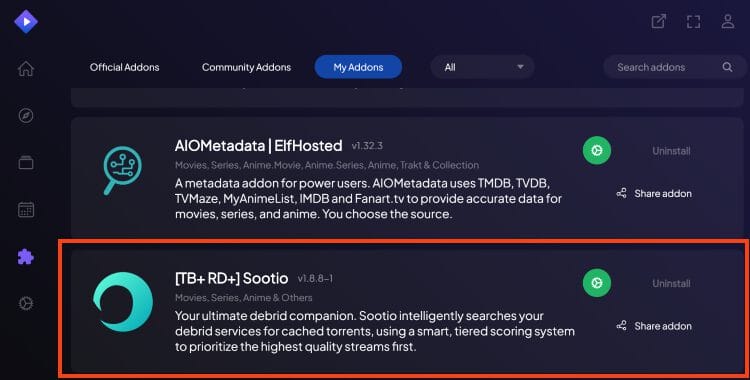
9. Visit your Addons List and you will see Sootio is listed.
Enjoy!
As referenced above, Sootio is perfect for all Stremio users, especially those who subscribe to a premium debrid provider such as Premiumize or Real Debrid.
After making a content selection, results are displayed and organized based on the quality of each link.
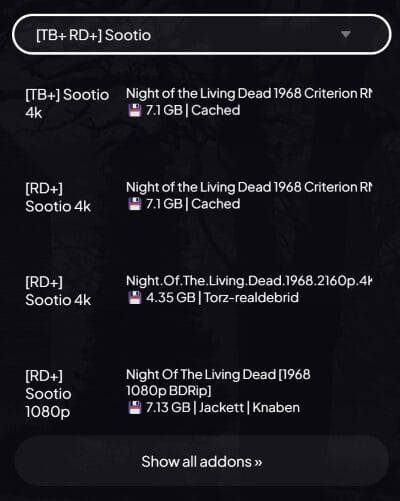
As you can see, Cached links appear first so if you choose to play these make sure you have your VPN enabled.
Overall, Sootio is a great addition to your Stremio Addon library and we suggest giving it a try!
There are both pros and cons to the Sootio addon but overall it is likely worth checking out.
It’s impossible for TROYPOINT to determine whether these unverified add-ons/apps hold the proper licensing.
TROYPOINT recommends only accessing media not protected by copyright such as those that fall under Public Domain status.
The end-user is responsible for all content accessed through unverified add-ons. For verified options, see our list of legal streaming apps.
If you install Sootio on your Stremio device, let us know what you think of it in the comments below!
This page includes affiliate links where TROYPOINT may receive a commission at no extra cost to you. Many times, visitors will receive a discount due to the special arrangements made for our fans. Learn more on my Affiliate Disclaimer page.



© IPTVSub is Proudly Owned by win-design