



 Written by admin
If you are looking for an all-in-one addon to watch content within the Stremio application, look no further than MediaFusion from ElfHosted.
MediaFusion is one of the most well-known Stremio Addons available today. It uses high-level providers and advanced scrapers to serve up VOD, Live TV, and even live sports which we don’t usually see with these platforms.
In this guide, we will show you how to install MediaFusion with a step-by-step guide that walks you through all configuration options.
NOTE: As typical with most popular addon selections, this source uses torrent sites to find the streaming links that are generated for playback.
This means that your personal IP Address will be visible to the public and this could lead to problems including hackers who seek to steal your data. We always recommend using a top VPN Provider in conjunction with these to ensure your privacy/safety.
The best way to install MediaFusion is by first downloading it onto a PC, Android mobile device, or iPhone/iPad, and then syncing this to your respective applications on other popular devices such as the Amazon Firestick, Fire TV, or Google/Android Box.
Before installing MediaFusion, make sure you already have the application installed on your device(s) and your Stremio account created and authorized for use. We walk you through this in our tutorial linked below.
How to Install & Set Up Stremio
Those interested in a premium version of MediaFusion can purchase it from the official ElfHosted website. Currently, it is available for $9/month with a 7-day free trial ($1 sign-up fee).
ElfHosted Store for MediaFusion
Make sure to follow along with each step so you don’t miss anything important!
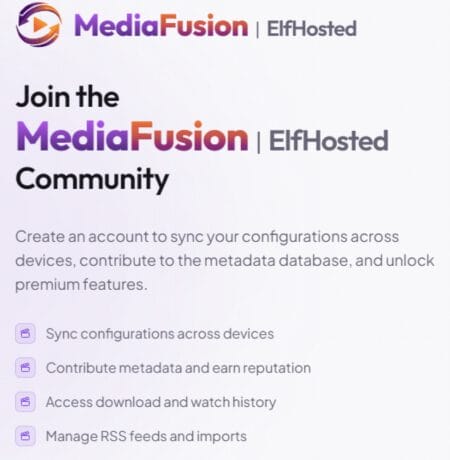
If you want a more advanced setup process, you can create a MediaFusion Account for additional features.
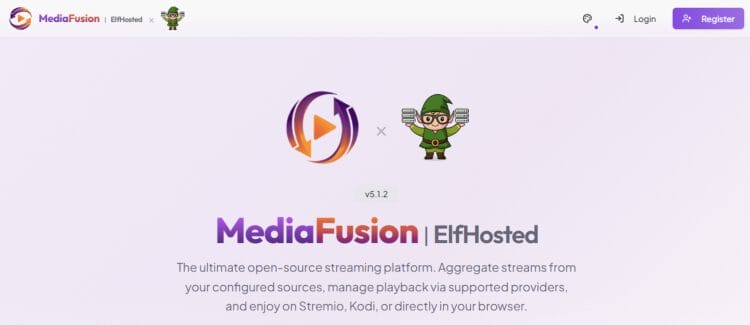
The first thing we must do to set up MediaFusion is configure it on the official website. You can do so on a PC, Android phone/tablet or iOS.
1. On your browser, go to mediafusion.elfhosted.com which is the official website for the MediaFusion Addon.
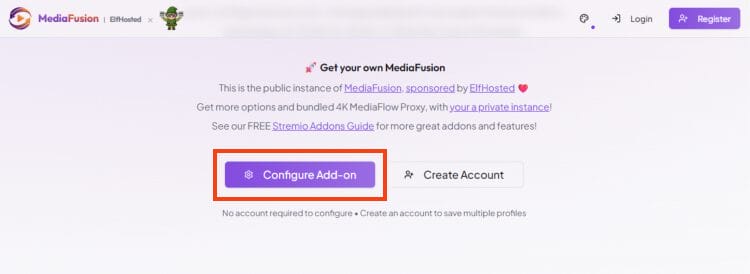
2. Click Configure Add-on.
Your online activity is monitored by your ISP, app/addon/IPTV devs, government, and all websites.
🔒 Become anonymous while streaming & downloading with Surfshark VPN
Save 87% with 24-Month Plan + Get 3 FREE Months
Use on Unlimited Devices & Share 1 Account with Entire Family
CLAIM DEAL HERE
3. Choose Add Streaming Provider.

4. Select your Provider or Debrid Service(s) and input API Token(s). We have selected TorBox.
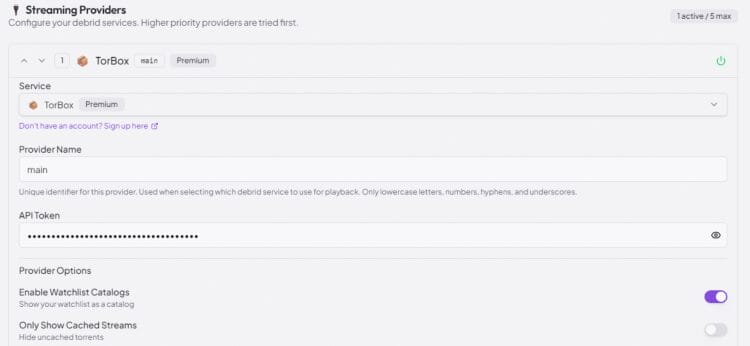
5. We will now Configure Catalogs for a personalized experience.

6. Enable your preferred Catalogs.
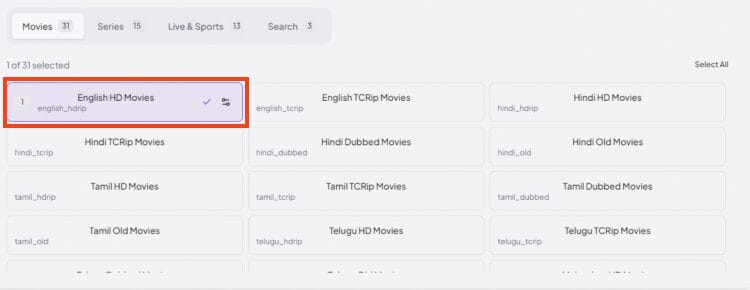
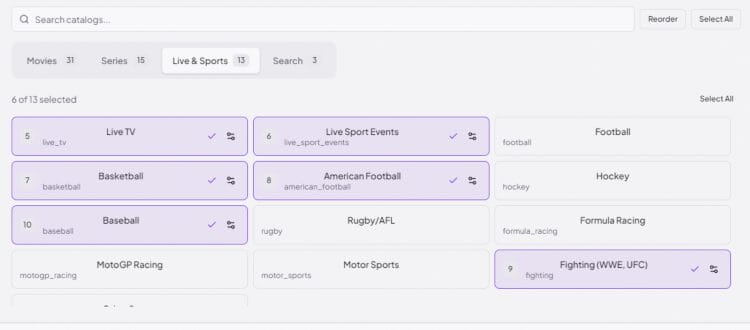
7. Make your selections for Movies, Series and Live Streams.
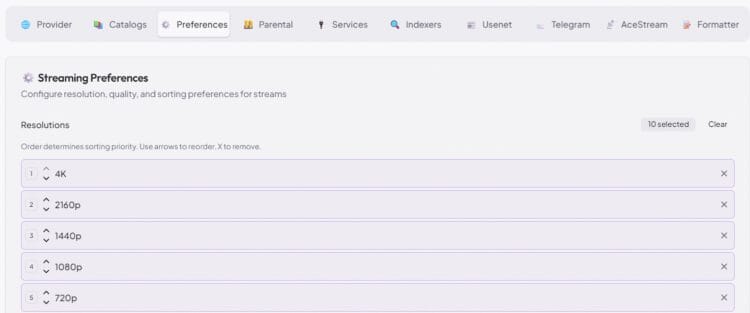
8. Click the Preferences tab and adjust your resolutions priority.
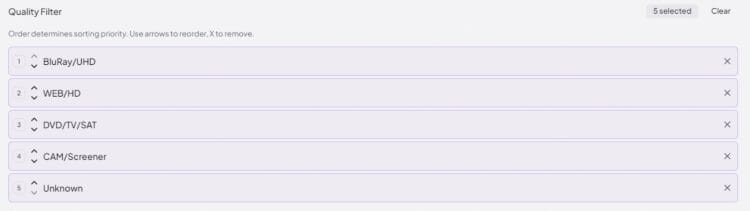
9. Manage Quality Filters.
10. Set your Minimum and Maximum File Size Filters and adjust your Max Streams per Resolution.
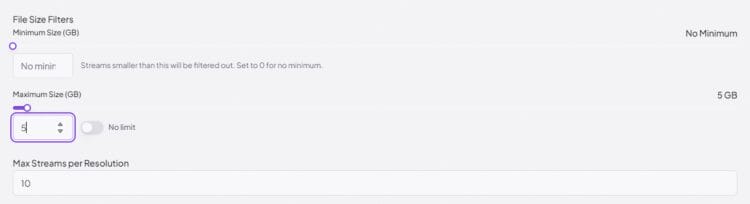
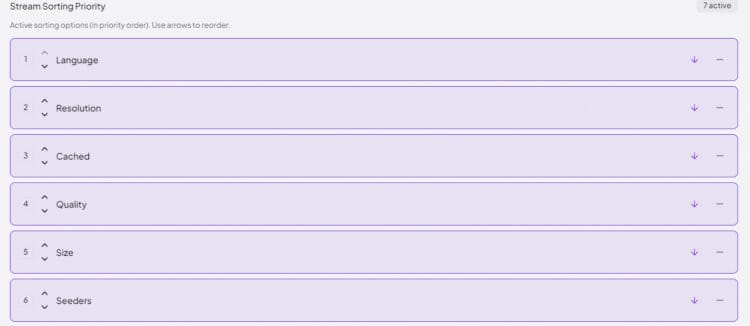
11. Adjust your Sorting Priority.
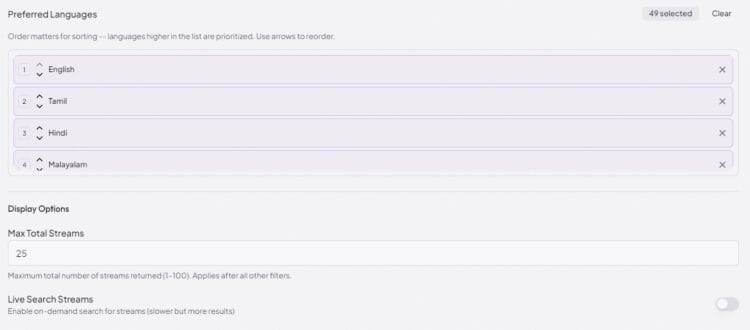
12. Set your Preferred Languages and Max Total Streams displayed.
13. Manage your Stream Type Display.

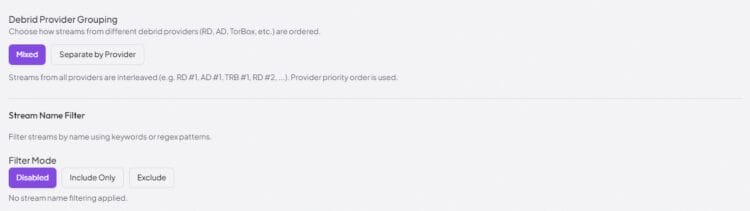
14. Choose Debrid Provider Grouping and Filter Mode if you prefer.
15. Hover over the Parental Tab and Set Parental Guides.
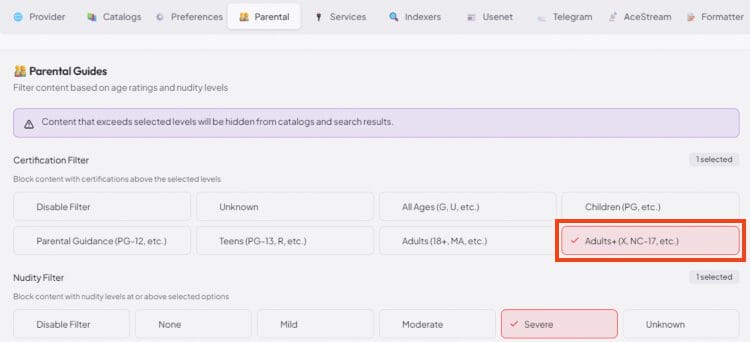
16. Enable Advanced Settings (Services, Indexers, Usenet, etc.) if you prefer.
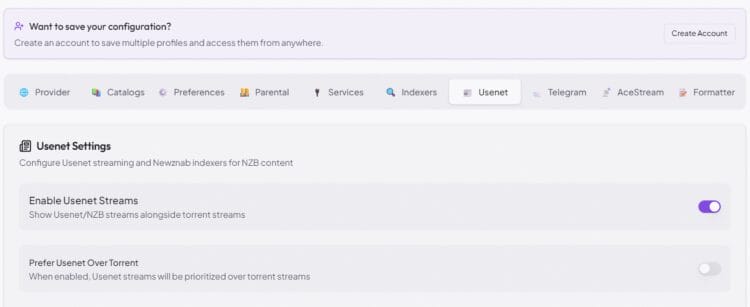
17. Scroll down and click Generate Install URL.
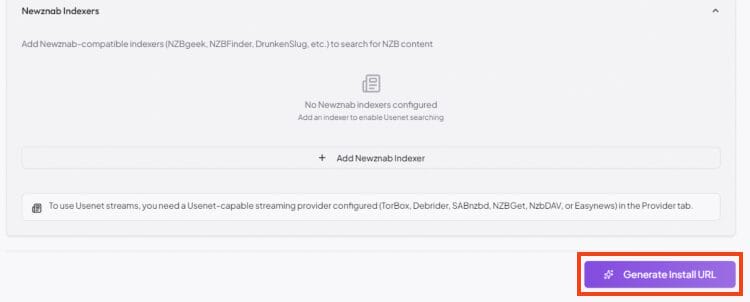
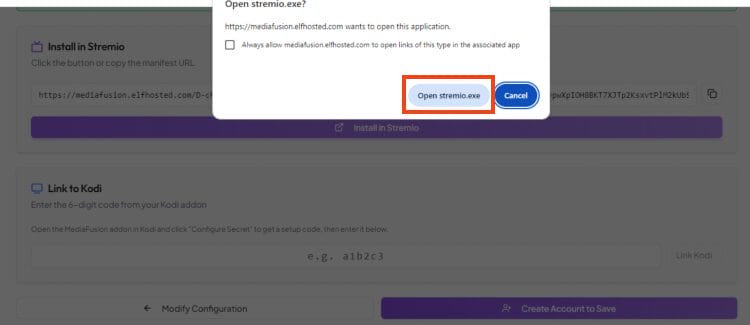
18. Click Install in Stremio.

19. Choose open stremio.exe.
We will now move on to Step 2, where we download the MediaFusion addon on our PC.
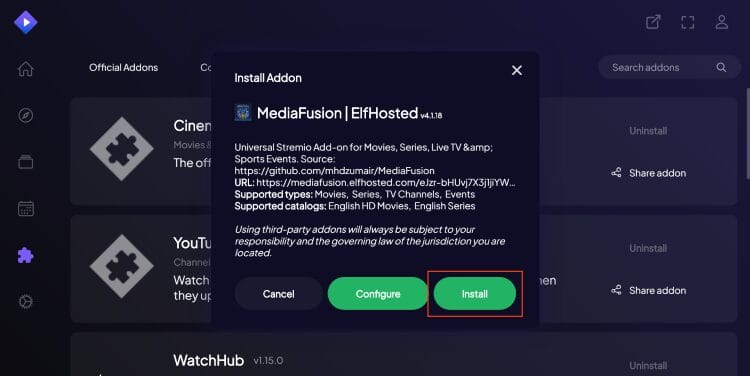
1. Stremio will now launch and the following message will appear. Click Install.
2. You will then encounter Addon Installed! message.

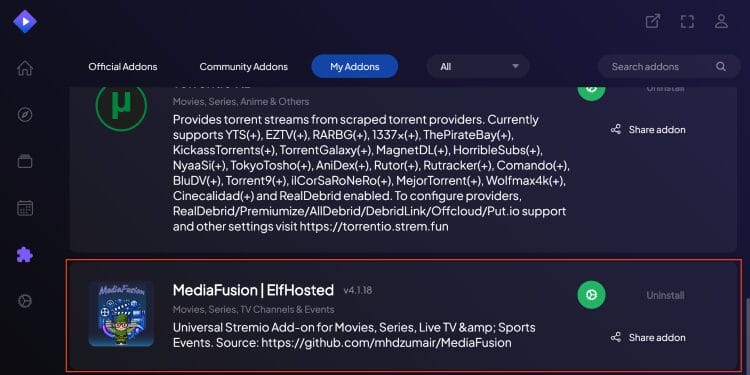
3. Under Your Addons list, you will see MediaFusion.
After successfully installing on your PC, we can now sync the addon to various streaming devices.
Users can sync to numerous devices and this includes the Amazon Fire TV Stick as well as Google/Android TV Boxes such as the onn. 4K Pro and the Google TV Streamer which are extremely popular for their sideloading capabilities.
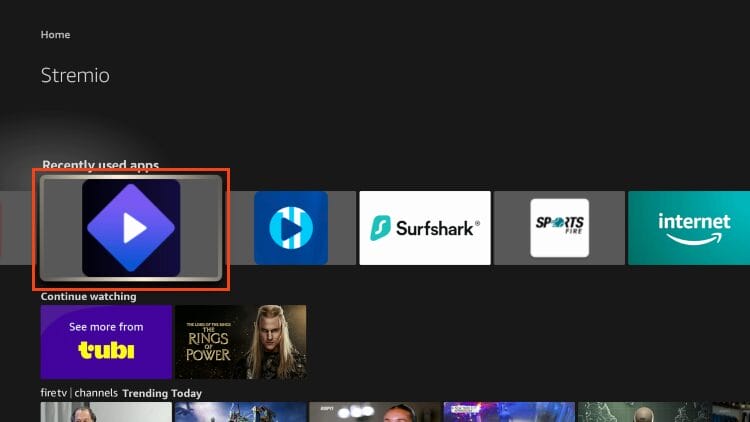
1. Open Stremio.
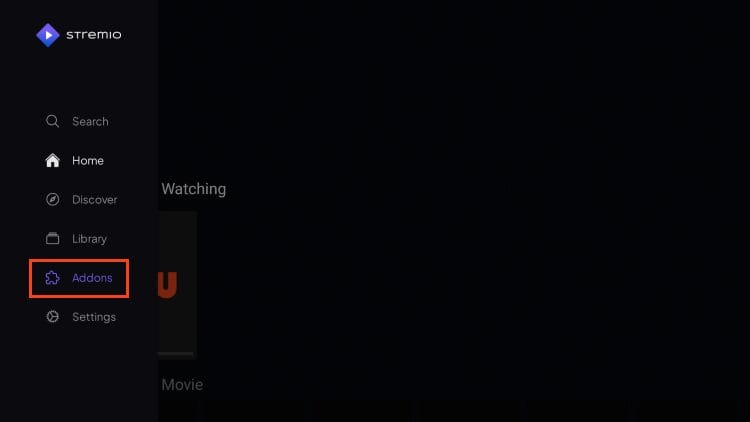
2. Within the side menu, select Addons.
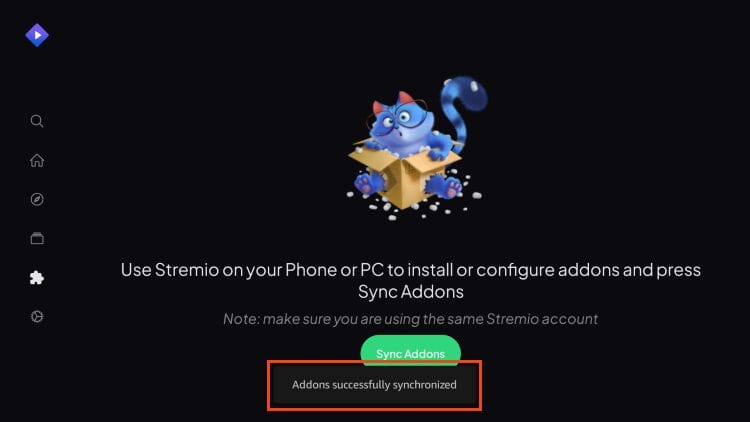
3. Click Sync Addons.

4. You will see “Addons successfully synchronized” message.
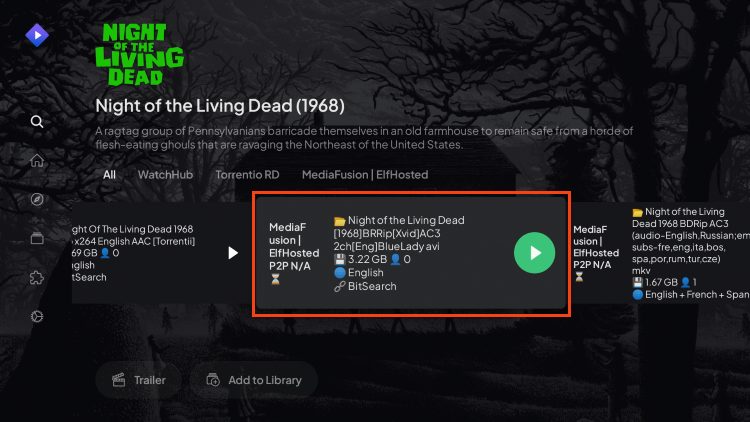
5. When you browse through your Movies and Shows, MediaFusion links will now appear.
Enjoy!
It is worth diving deeper into MediaFusion as there are tons of advanced features that help make it one of the most popular Stremio addons available today.
One of the most important worth noting is the powerful integrations from various torrent sites and premium services that users can authorize and adjust for seamless playback.
This includes “debrid” resolving options such as Premiumize, PikPak, and Torbox. We can’t preach the importance of safety when using these torrent sources, however, so make sure you always have your VPN turned on!
Firestick/Android TV VPN Integration
What sets MediaFusion apart, however, is the advanced scraping abilities to find everything you are looking for and more! Users can view live television and sports from popular sports streaming sites.
It uses powerful scraping sources such as KnighCrawler, Prowlarr, and TamilMV that serve up HD links for video-on-demand and much more.
There are also additional features including the ability to add your IPTV Service with an M3U URL and this is very rare to see. If you want to make Stremio an all-in-one application, this is the best way to do so.
MediaFusion is clearly one of the best options when it comes to finding a Stremio Addon choice. If you are looking for a one-stop shop to stream your favorite content, this is one you have to give a try.
For more information, check out the official GitHub Page.
We want to know your thoughts on the MediaFusion Stremio Addon. Have you tried using it for live TV, sports, or VOD? Let us know in the comments below!
This page includes affiliate links where TROYPOINT may receive a commission at no extra cost to you. Many times, visitors will receive a discount due to the special arrangements made for our fans. Learn more on my Affiliate Disclaimer page.



© IPTVSub is Proudly Owned by win-design