


 Written by admin
This guide will show you how to Fix the 403 Forbidden Error Message within the Downloader App on Android TV/Google TV using two different methods.
If you’re getting this on a Fire TV after blocking updates see my video on our Insider linked below.
Fire TV 403 Forbidden Error in Downloader App – Shot In The Dark
If you frequently use Downloader, there is a chance that you have encountered this error message at one time or another.
We have seen numerous visitors on the who have commented on this problem which typically happens when attempting to access the TROYPOINT Toolbox.
This can be extremely frustrating fore anyone using Downloader to install various 3rd party Apps/APKs that you can’t find in the Google Play Store.
Luckily, there is a simple way to resolve this by adjusting a few items within the settings of your device and this works on both Android TV Boxes as well as those running Google TV.
We provide a video guide as well as a screenshot guide but as always, we recommend watching the video guide to ensure you don’t miss anything.
Our video guide provides instructions for certified Google TV/Android TV as well as devices running the Android Open Source project such as Ugoos SK1 or other “stock” Android Box.
Unfortunatley, I have not been able to replicate this on my device so the screenshots below don’t provide the error message but still show what you should do if you encounter this.
NOTE: Oftentimes, errors within Downloader occur because of a VPN Connection. If you are having problems, first try disconnecting your VPN when using the app and then reconnect when you are finished.
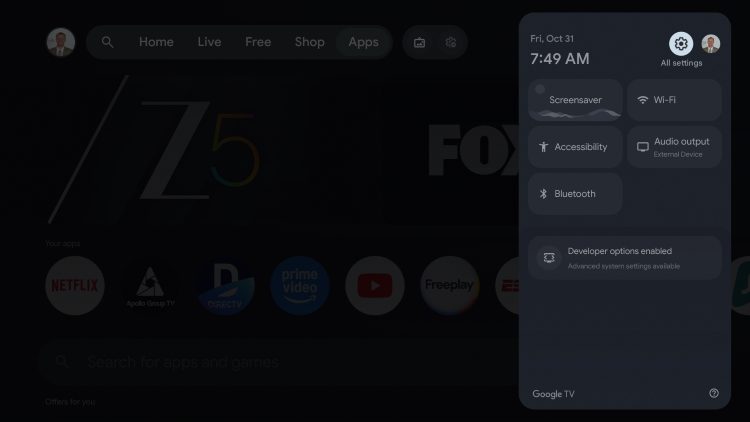
1. From the home screen of your device open Settings.
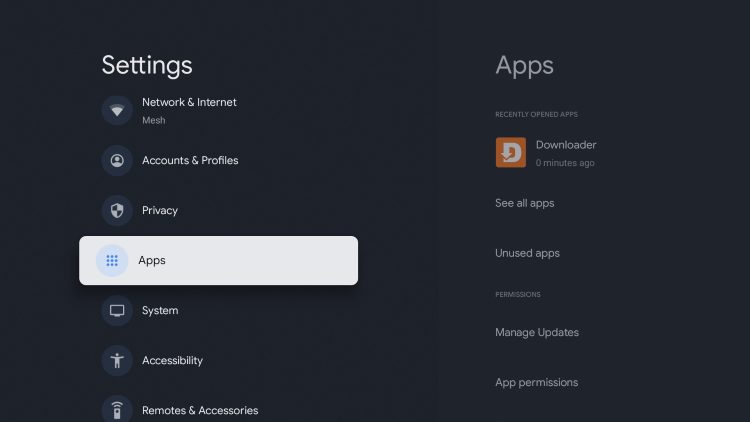
2. Launch Apps.
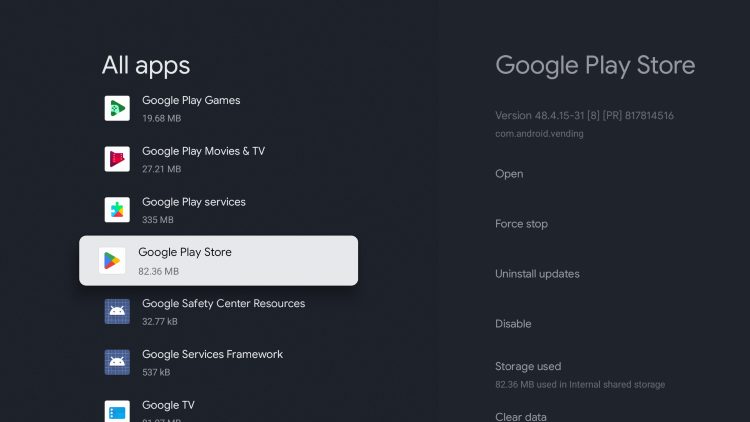
3. Find Google Play Store and select it.
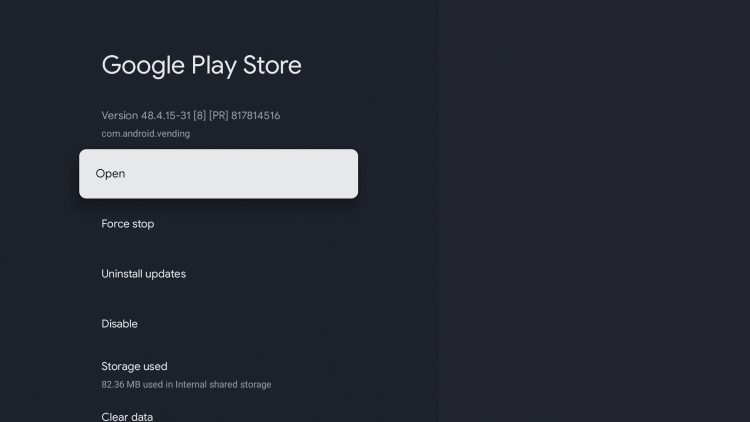
4. Click Open.
5. Scroll over to your Profile icon.
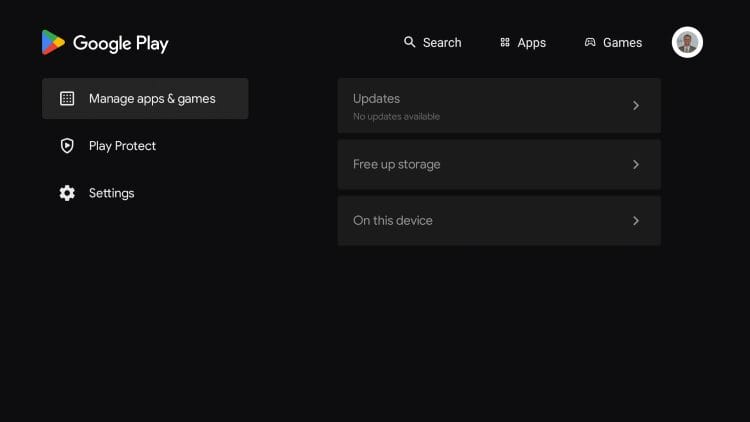
6. Choose Updates.
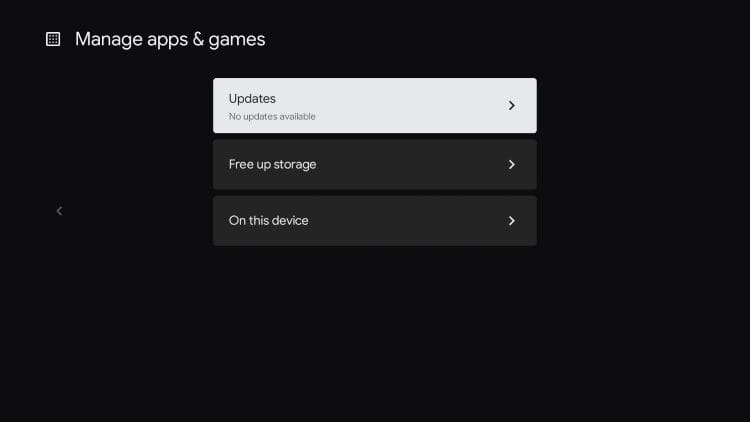
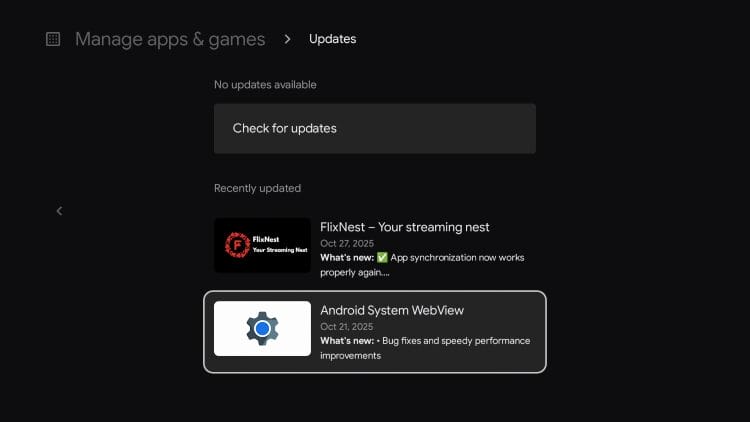
7. You will likely see an update for “Android System WebView”. Click to update. If this doesn’t work, continue to the next step.
8. Return to Settings for Google Play and click Clear Data. Then attempt the updates above.
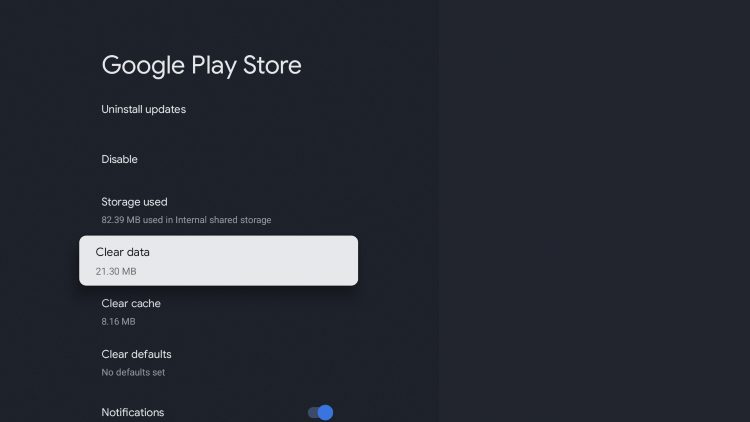
9. If you are still having issues, select Uninstall updates and then update Android System WebView.
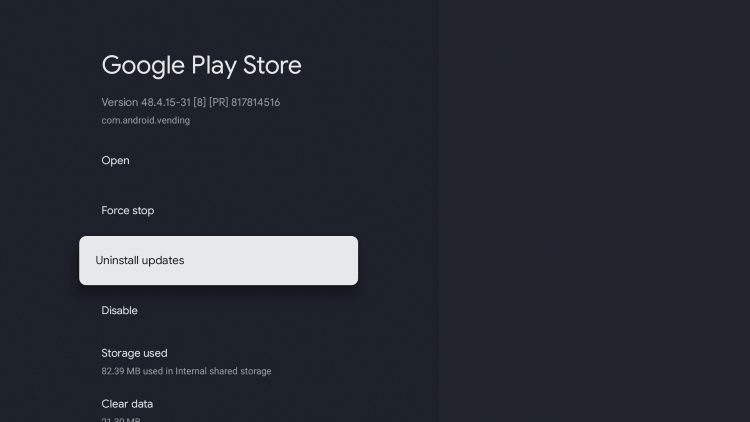
Attempt to use Downloader again and this should resolve the “403 Forbidden Error” message.
If you are using “Open Source Android” on a stock device like Ugoos, Formuler, etc., you can use the following instructions to fix this.
1. Open Settings and launch Apps.
2. Select Google Play Store and Open it.
3. Click your Avatar in the upper right hand corner.
4. Choose Manage apps & device.
5. Where you see Updates available, click See details.
6. Find the WebView App and update this.
7. If issues still occur, try clearing data or uninstalling updates for the Google Play Store.
For more tutorials that will help you get the most out of Downloader and your preferred streaming device (Firestick, Google TV, etc.), check out our guides below.
Let us know if the solutions above fixed your 403 Forbidden Error problem within Downloader!
For the latest news and tutorials in the streaming and tech world, be sure to sign up for the TROYPOINT Advisor with updates weekly.
This Advisor provides all the best tips, reviews, and guides to get the most out of your favorite streaming devices.
This page includes affiliate links where TROYPOINT may receive a commission at no extra cost to you. Many times, visitors will receive a discount due to the special arrangements made for our fans. Learn more on my Affiliate Disclaimer page.



© IPTVSub is Proudly Owned by win-design