


 Written by admin
The following tutorial will show you how to Block Amazon Firestick/Fire TV Updates to prevent automatic updates.
Amazon is actively pushing updates to remove piracy apps and block custom launchers on Fire TV devices. These updates are frustrating several Fire TV users.
The best way to block these Firestick updates is through your router. Router level blocking prevents your Fire TV from reaching Amazon’s update servers entirely.
We suggest viewing our video and screenshot guides below for step-by-step instructions on how to block these Fire TV updates through your router.
Amazon Update URLs to Block in Your Router:
In this example, we are using a Fire TV Cube but this process will work on any Fire TV device.
1. Open a web browser and access your router’s admin panel. Common addresses include:
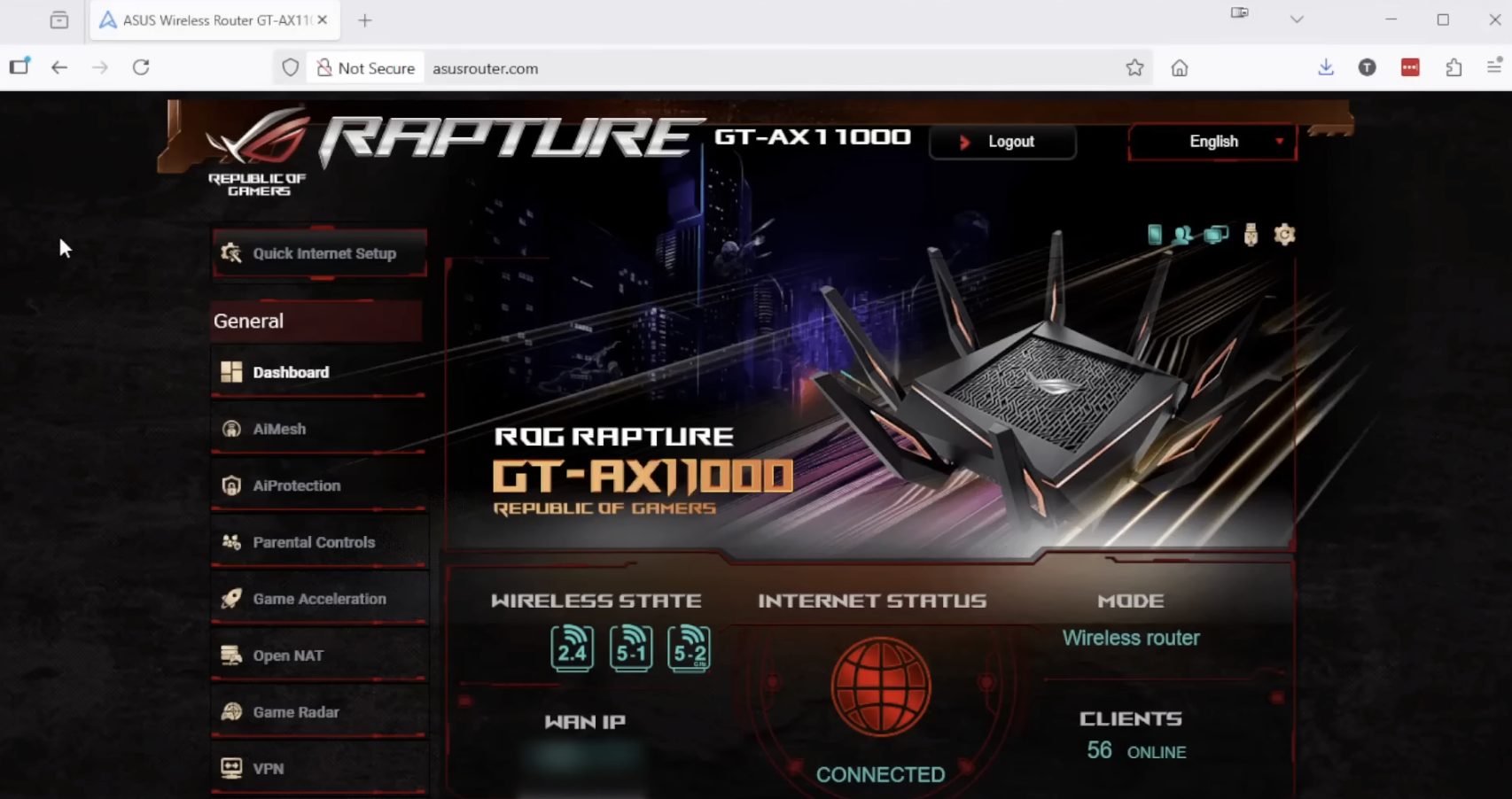
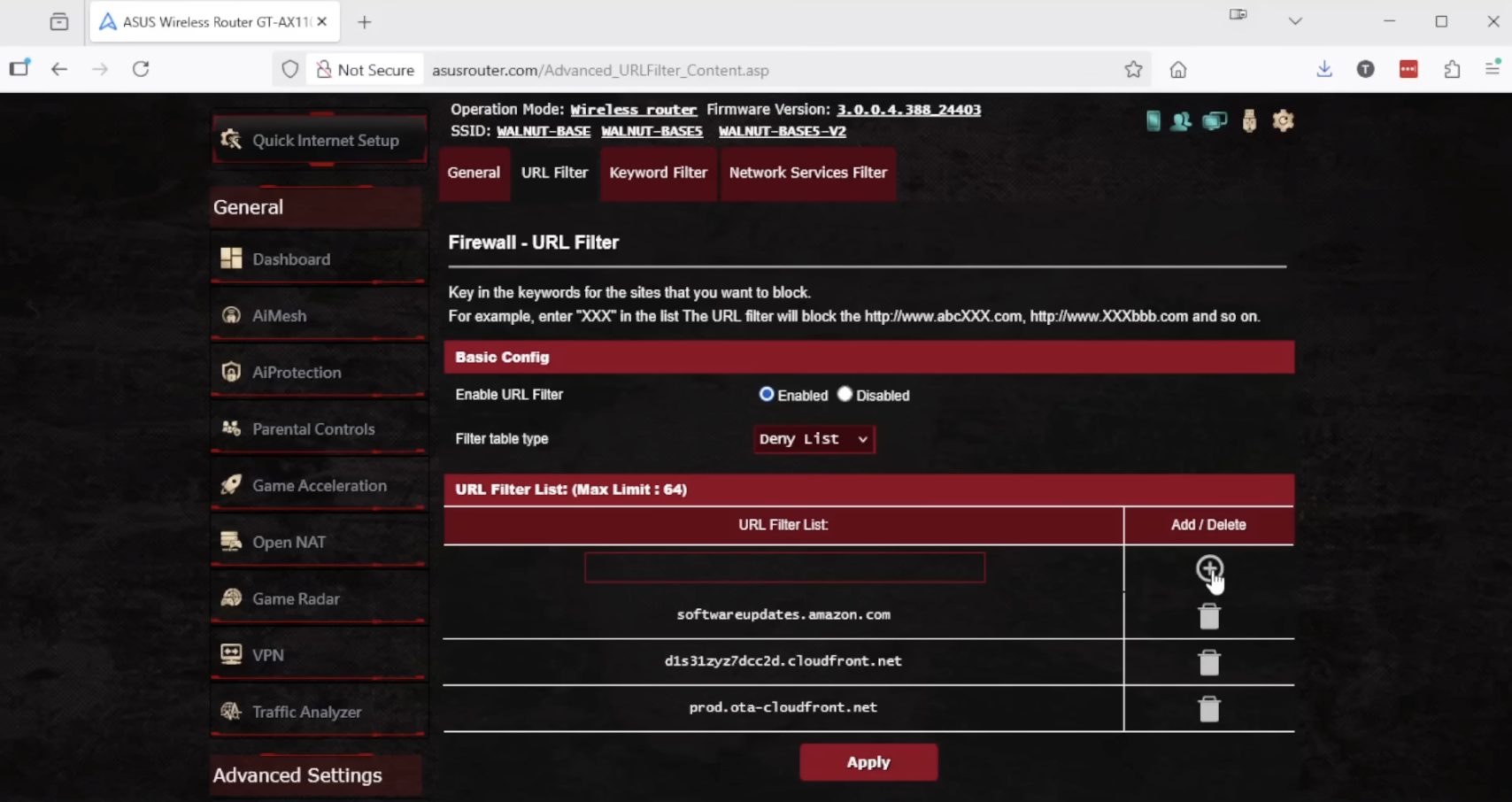
2. Once you are logged in, click Firewall from the left menu, then find the URL Filter option. Keep in mind if you are using a different router these settings may be named differently in your admin panel.
3. First make sure URL Filter is Enabled and the Filter table type is Deny List. Then click Add within the URL Filter List and add the following update URLs:
Then click Apply when you have added these URLs. Amazon may change these URLs so refer to our YouTube video description for the most current list as of October 2025.
4. Ensure router blocking is active and then plug in your Fire TV device.
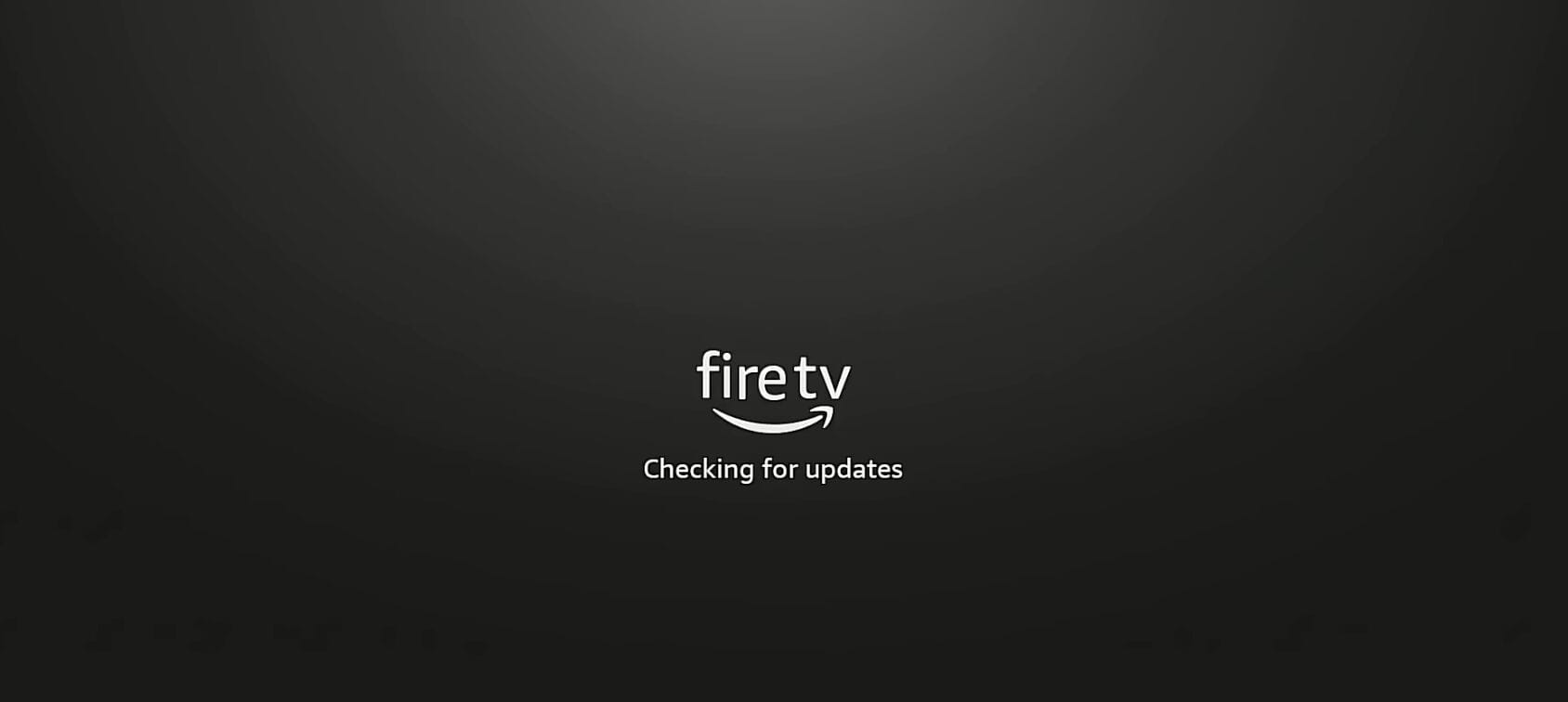
5. When the device attempts to download updates during setup, immediately hold the back button and menu button simultaneously.
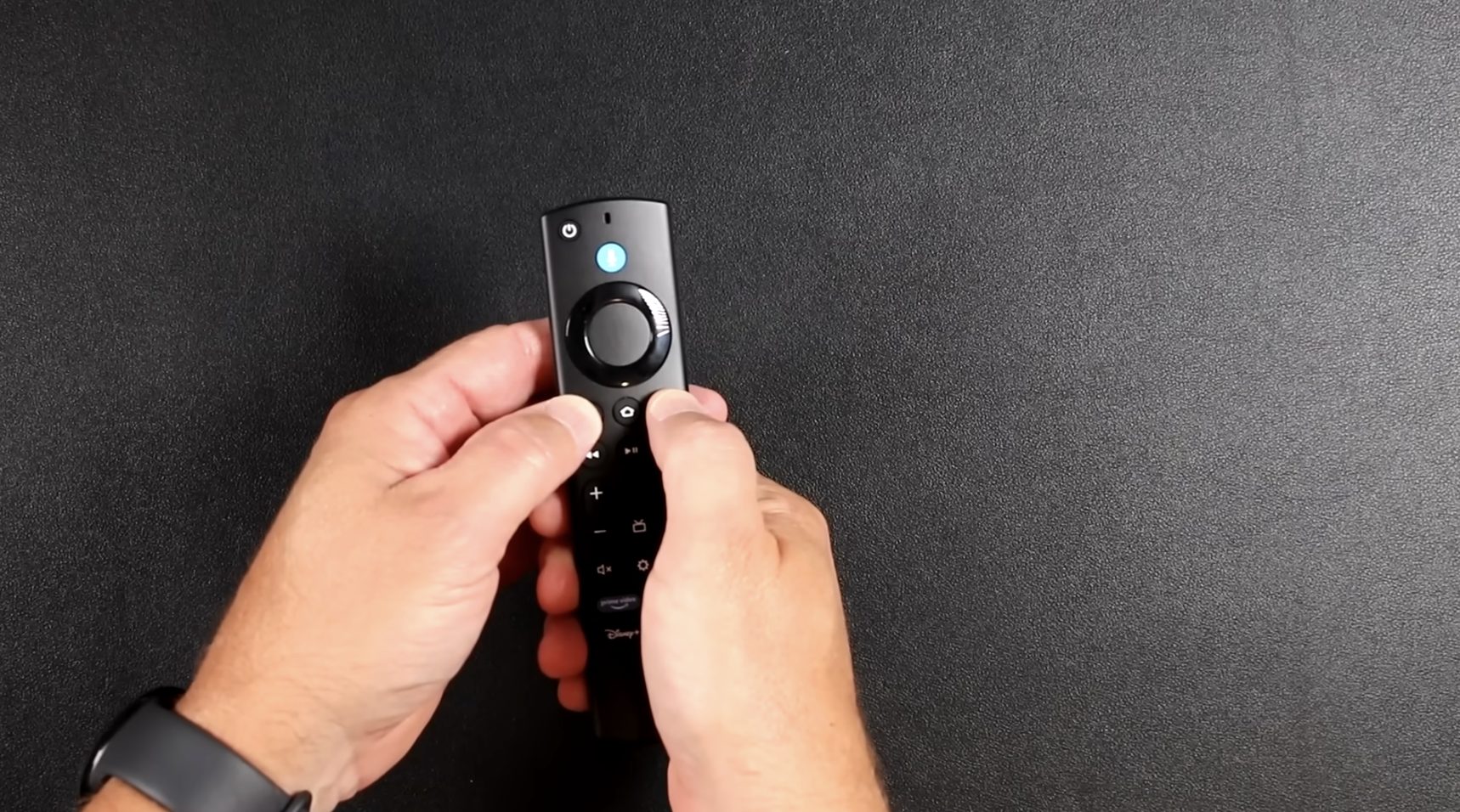
6. Keep holding until the VoiceView accessibility prompt appears. This stops updates.
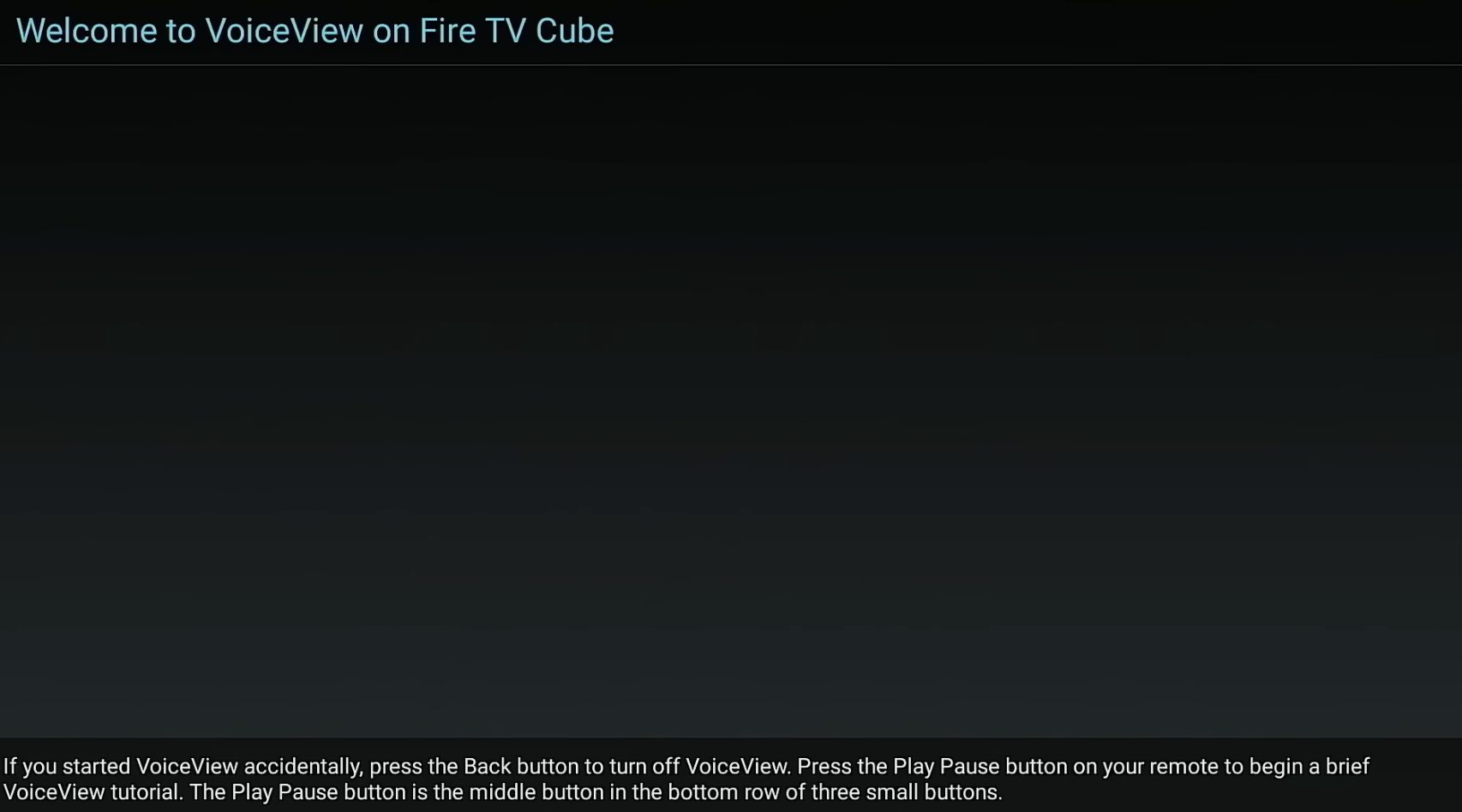
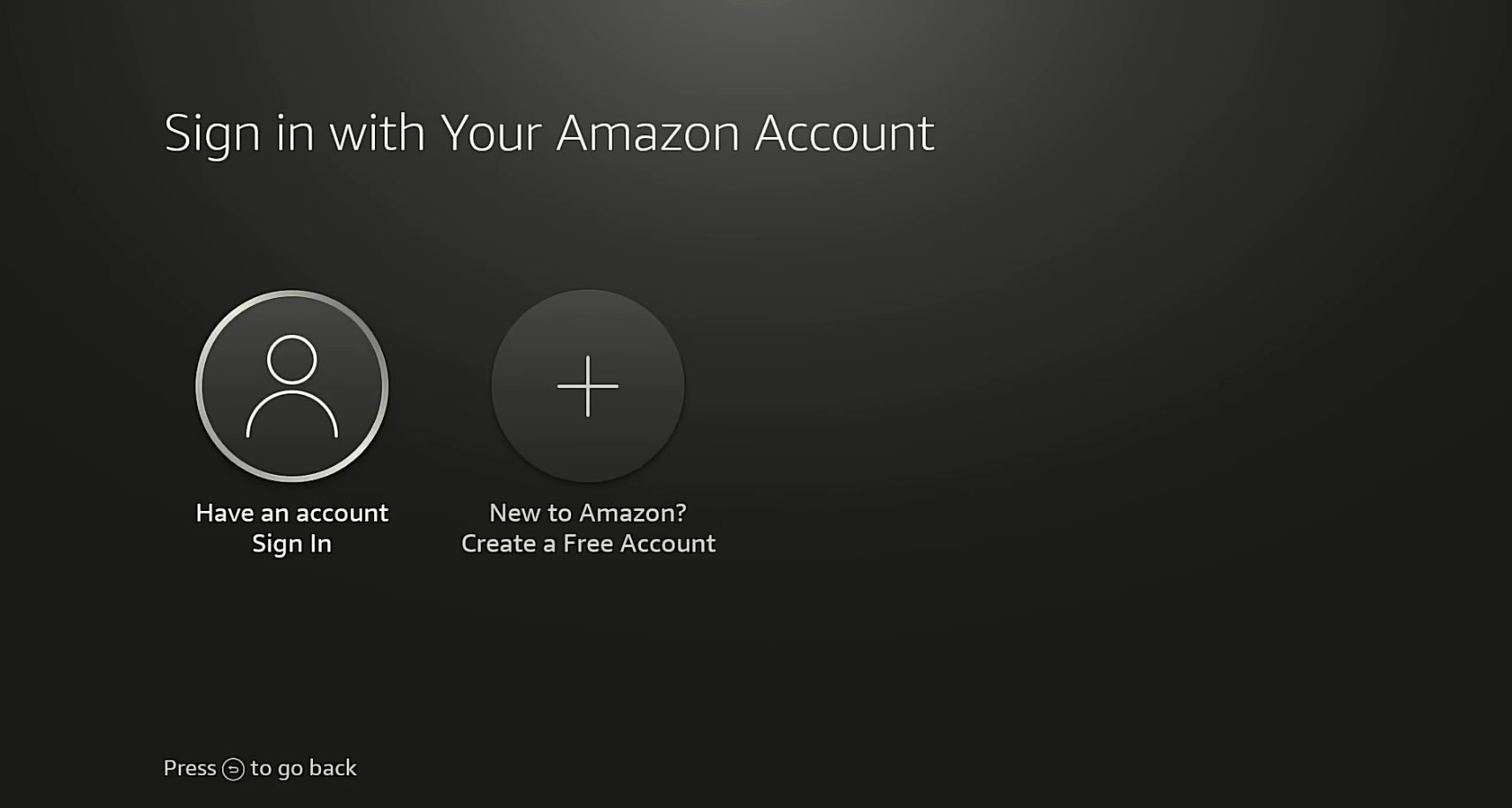
7. Click the back button to exit VoiceView, then continue signing in with your Amazon account.
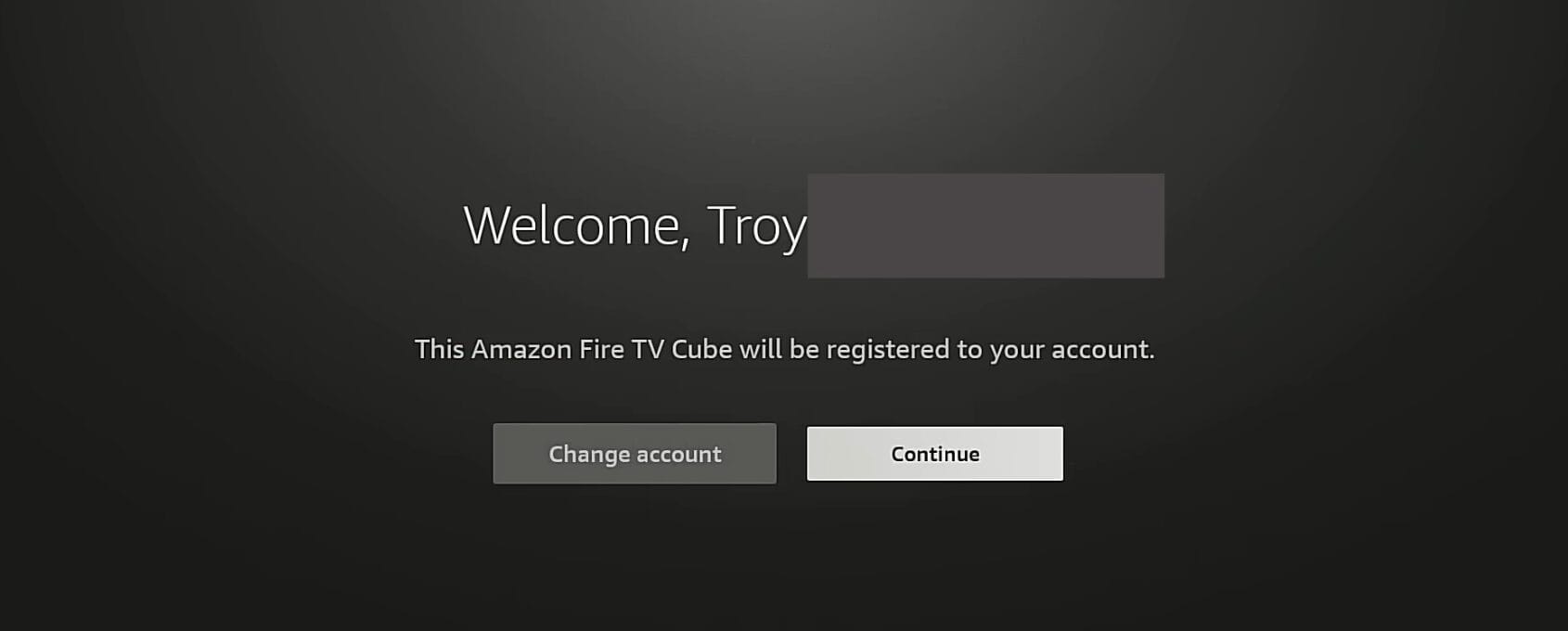
8. Click Continue and go through the Fire TV setup process.
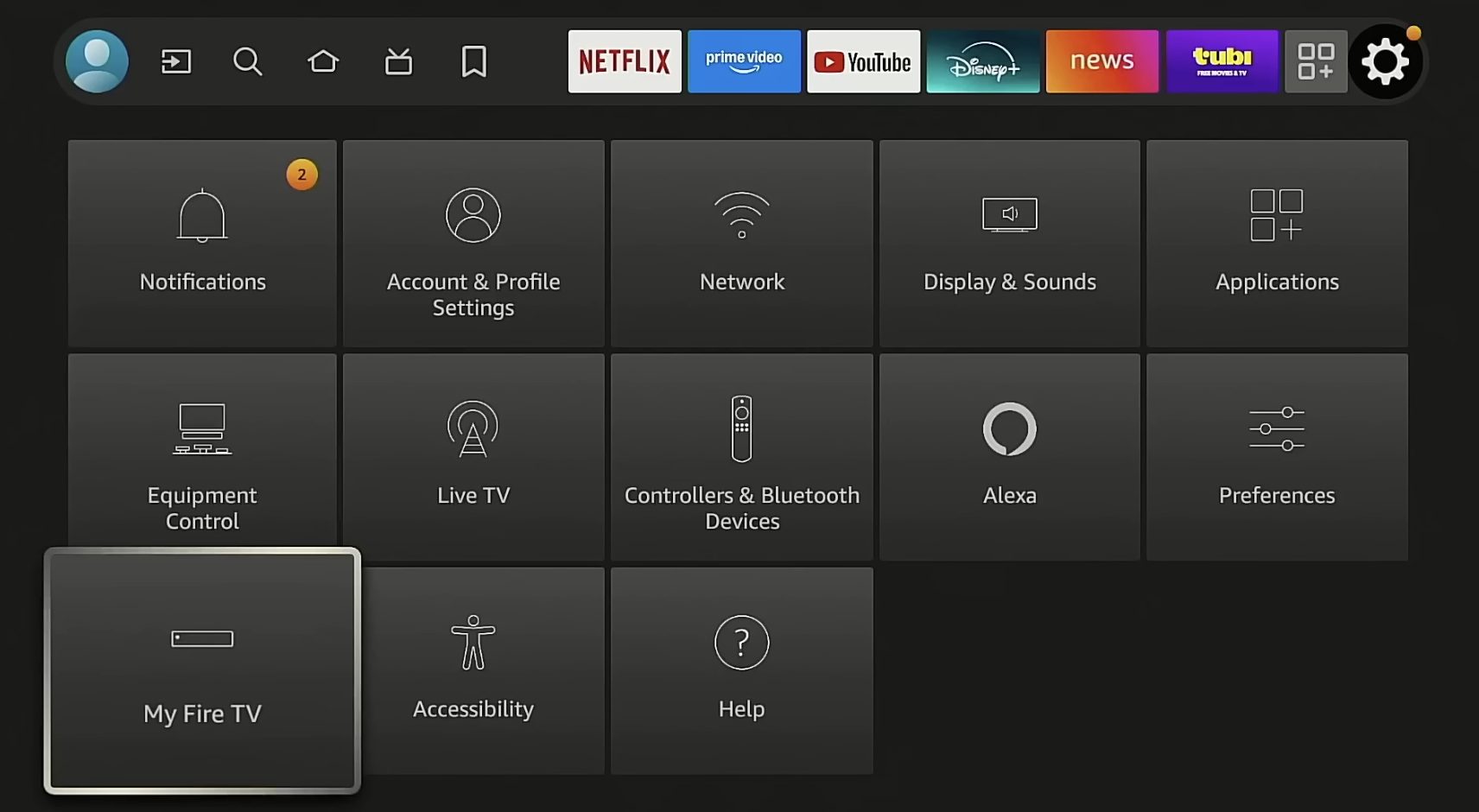
9. Once you are on the home screen, hover over the settings icon and select My Fire TV.
10. Click About.
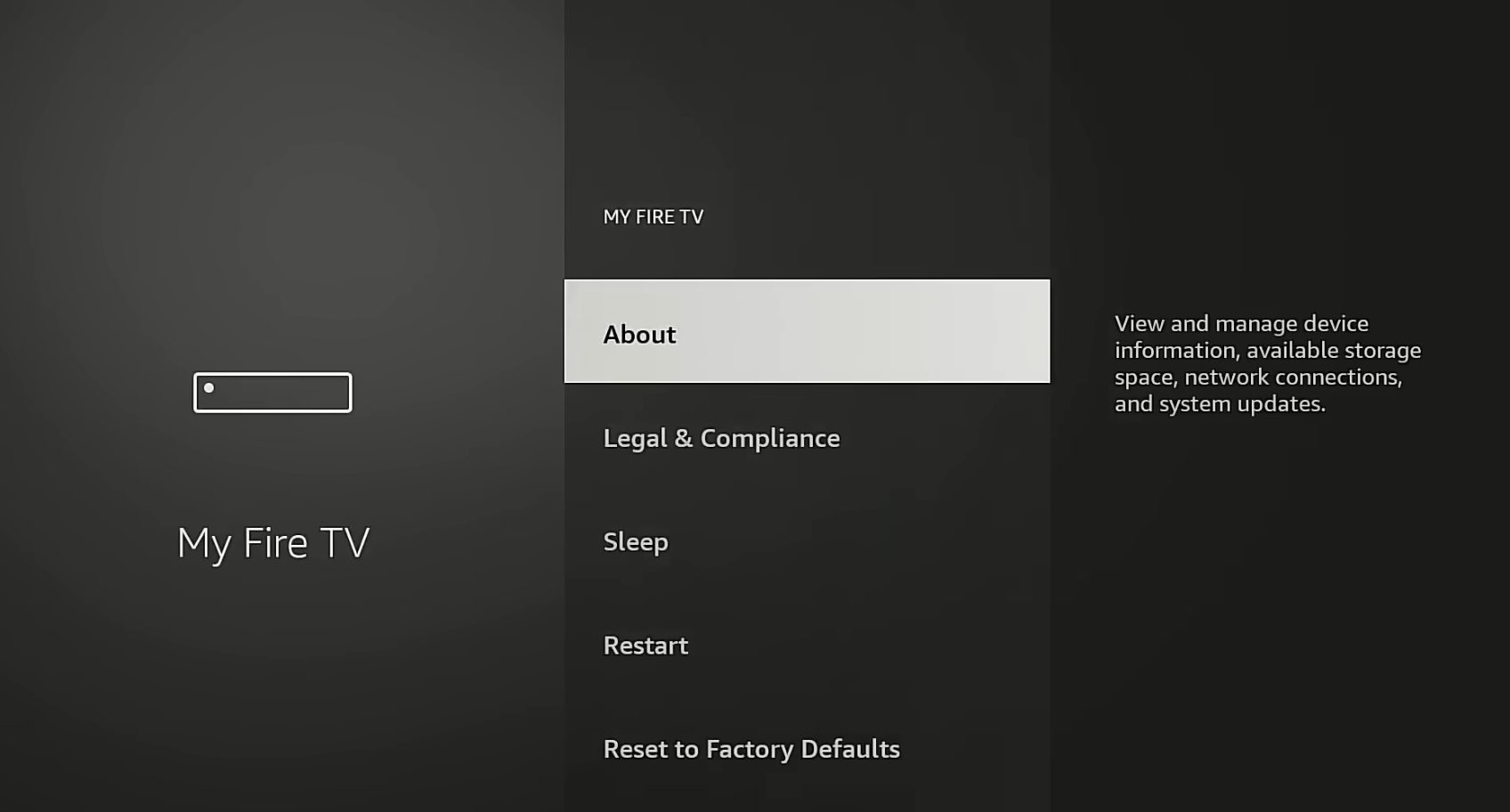
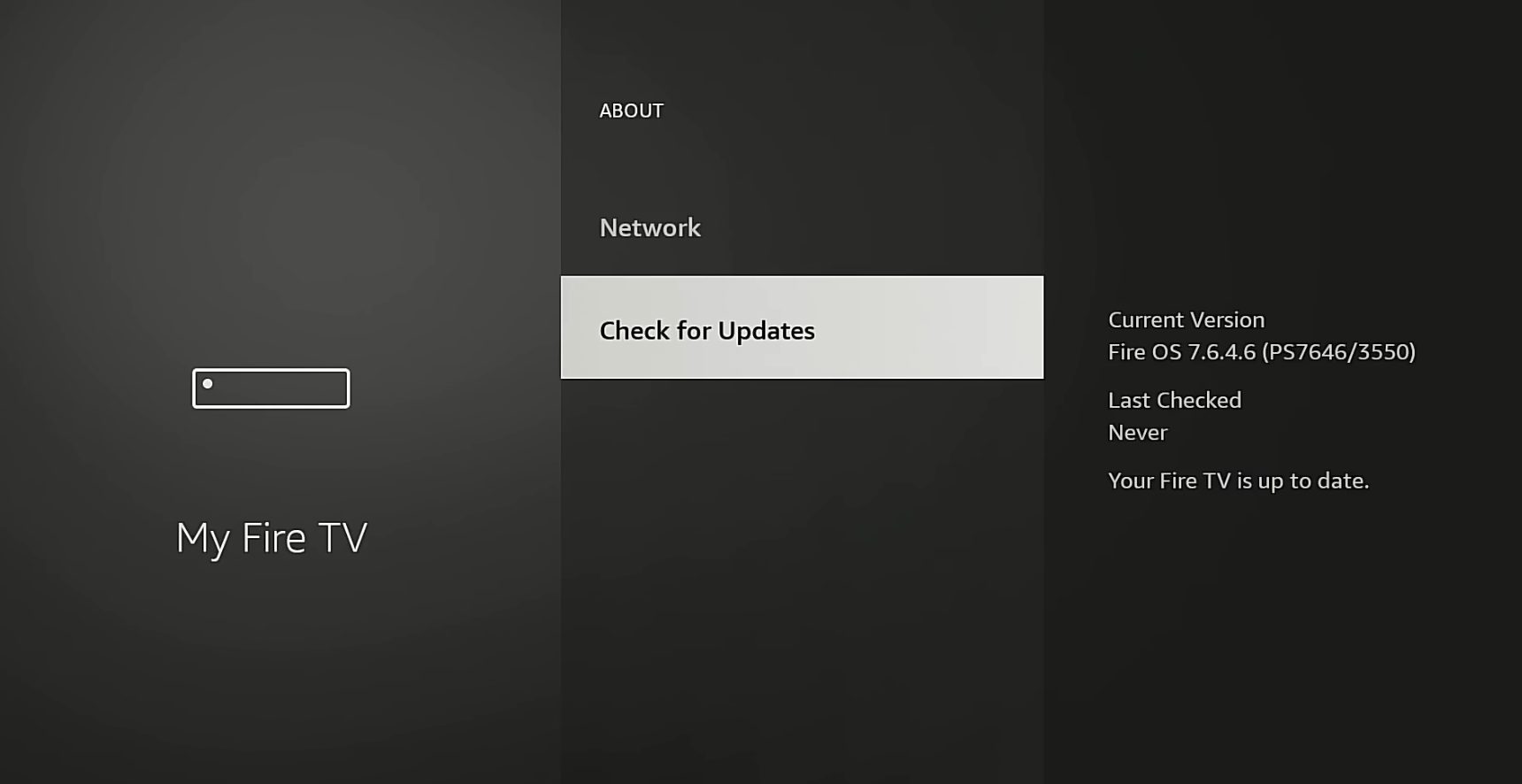
11. Click Check for Updates. After a minute or two, you should see “Last Checked: Never” or an error message.
This confirms our router has successfully blocked Amazon’s update servers.
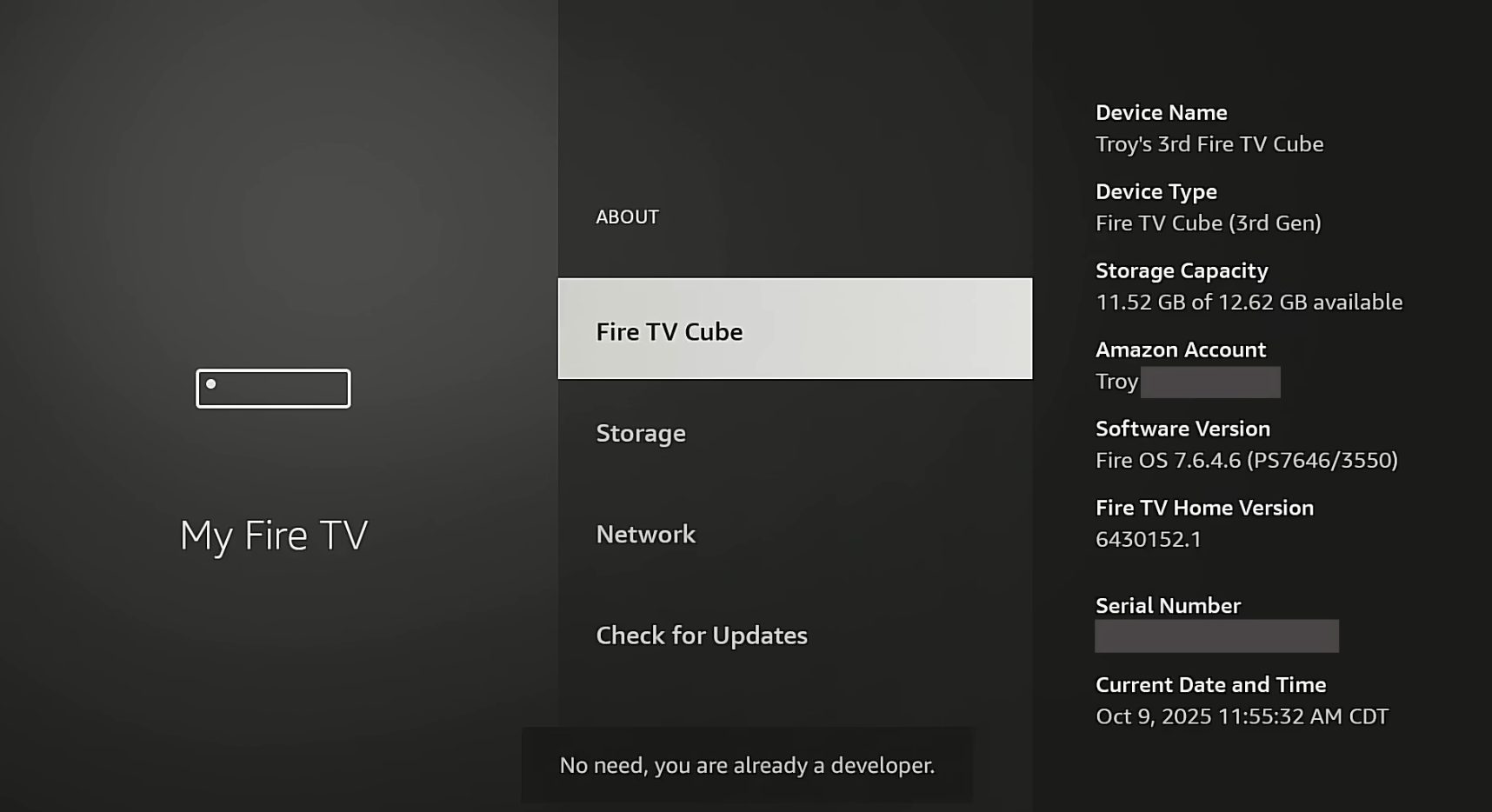
12. Now click the name of your device about seven times to enable developer mode.
13. Click the back button and click Developer options.
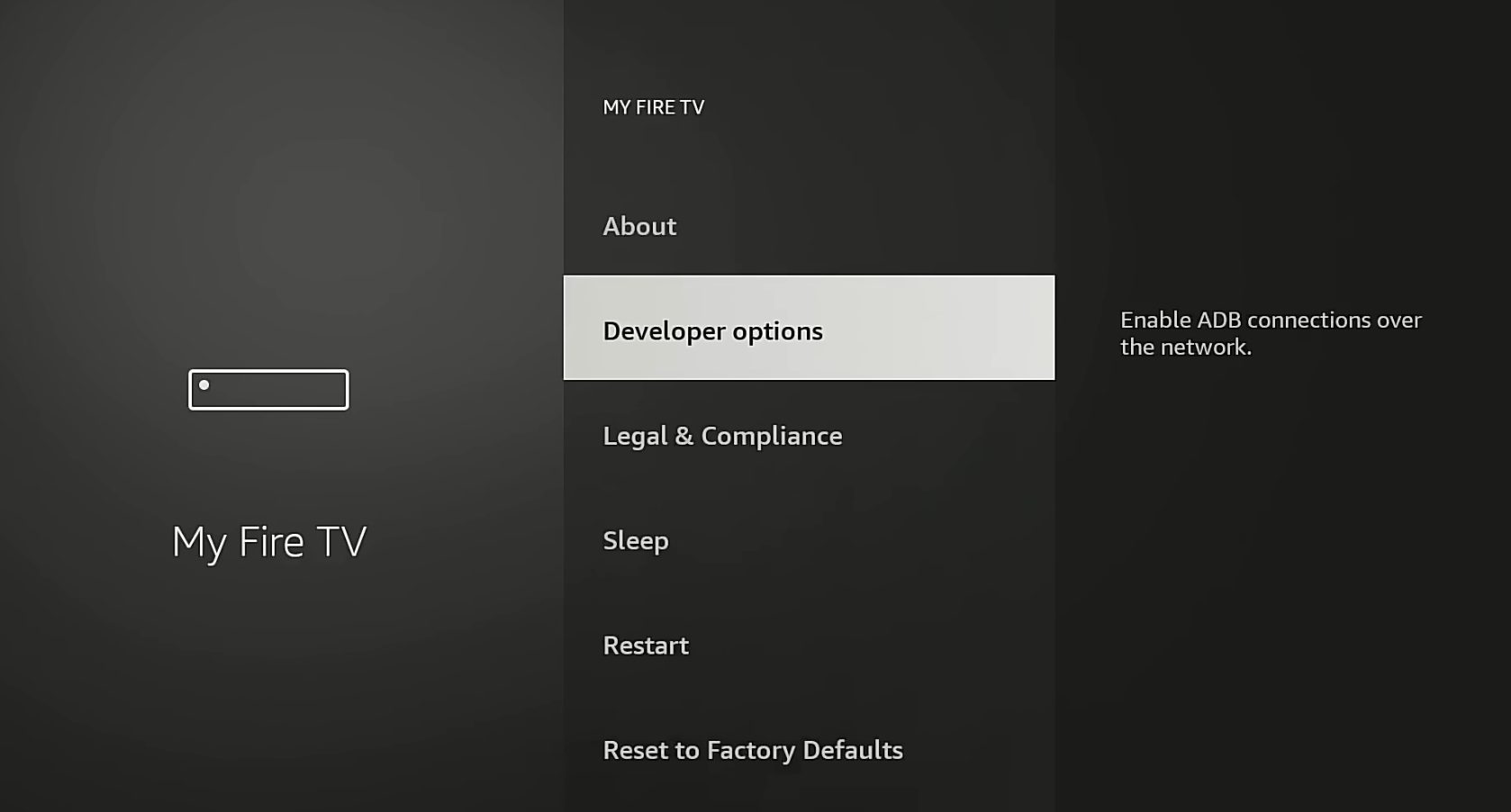
14. Turn on ADB debugging.
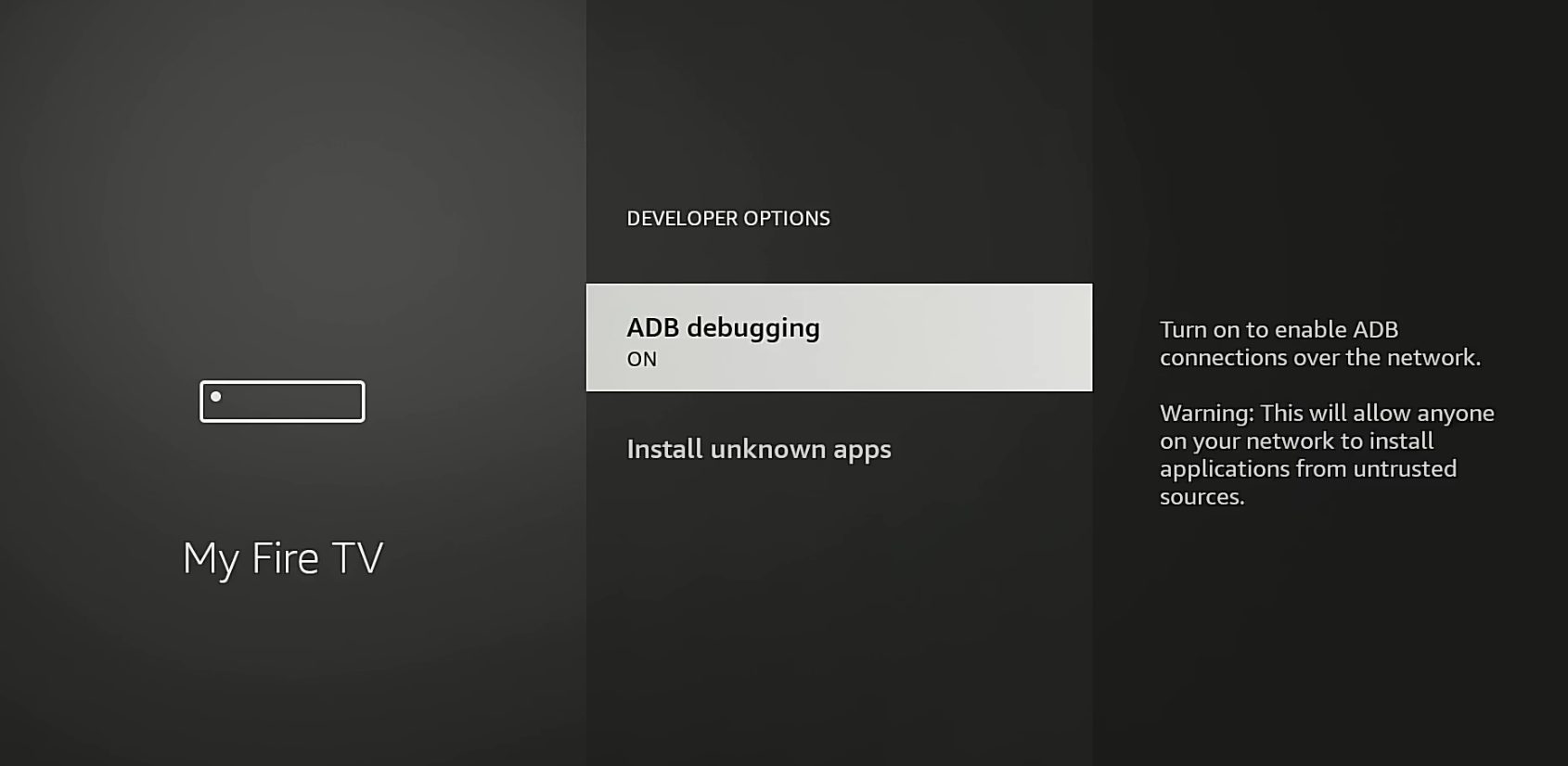
That’s it! Now you can go through the Fire TV ‘exploit hack’ with Launcher Manager and we suggest viewing our video tutorial below for more details.
Even with updates blocked, Amazon’s app blacklisting remains active. This feature lets Amazon remove specific apps from your device remotely, regardless of how you installed them. The blacklist targets apps providing access to copyrighted content without proper licensing.
Blocking updates offers some protection but doesn’t prevent all of Amazon’s restrictions. The company can still block apps remotely without system updates.
TROYPOINT recommends Android TV/Google TV devices as superior alternatives offering more flexibility.
More specifically we recommend using ‘AOSP’ devices (Android Open Source Project) as the best solution for more customization and freedom. Popular models include Ugoos AM9 and the BuzzTV Powerstation 6.
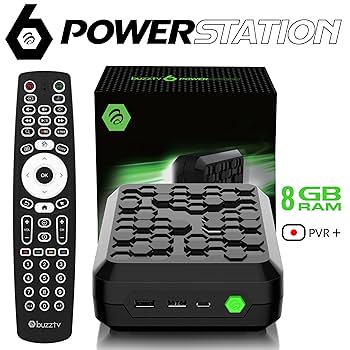
Purchasing ‘certified’ Android devices like the Onn 4K Pro or Google TV Streamer is becoming less useful as more Smart TVs integrate streaming services into their operating system and Google cracks down more on side-loading for these ‘certified’ devices.
Router-level blocking remains the most effective method available today, though Amazon’s app blacklisting limits what this accomplishes.
Amazon’s increasing control raises serious questions about the future of Fire TV devices. Because of Amazon’s continuous restrictions we can no longer recommend Fire TV devices as a good streaming solution.
Users who value freedom and flexibility should consider switching to Android TV boxes or AOSP devices for more control and fewer restrictions.
Have you tried blocking Amazon’s Fire TV updates? Share your experiences in the comments below.
This page includes affiliate links where iptvsubscrib may receive a commission at no extra cost to you. Many times, visitors will receive a discount due to the special arrangements made for our fans. Learn more on my Affiliate Disclaimer page.



© IPTVSub is Proudly Owned by win-design