


 Written by admin
The following article provides a list of all the best Kodi Skins that users can install on any device.
Kodi is an Open Source Media platform that became popular for the 3rd party add-ons and builds that provide content in a sleek user interface.
The user interface within Kodi is referred to as the “skin” and there are tons of options to choose from. By default, the original Kodi interface is using the “Estuary” skin.
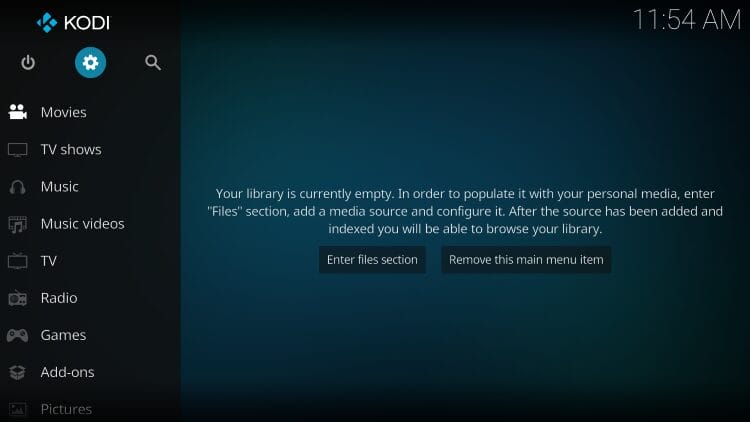
These skins vary in overall layout, size, and much more which will allow you to customize the home screen of your application for a personalized viewing experience.
In fact, installing a new skin on Kodi may allow you to add widgets to create a custom build with all of your preferred content in one location.
The official Kodi Repository has various skins to choose from which are extremely easy to download and install. However, there are also other 3rd party options to install from that developers have created.
Below is our up-to-date list of the best skins based on their appearance, functionality, ease of use, and feedback from forums like the iptv subscrib
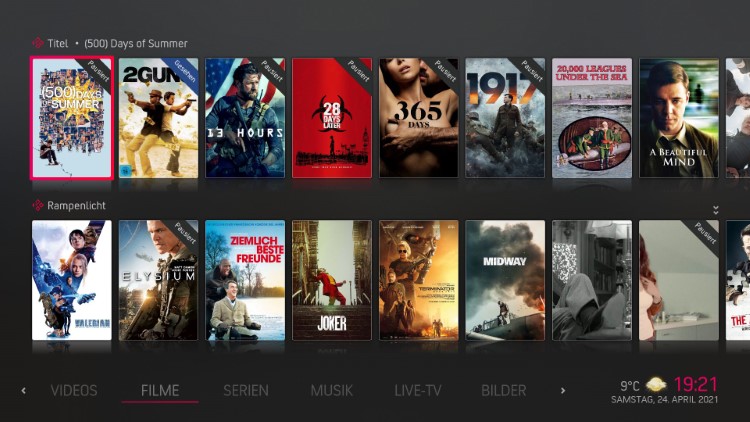
The most popular Kodi Skin is Arctic: Zephyr – Reloaded with its app-like layout and easy-to-use category/widget options. With the scroll bar at the bottom, your content is displayed in clear view with large posters and much more.
It can easily be installed from the official Kodi repository so you don’t have to worry about sideloading Arctic Zephyr and can get to streaming instantly!
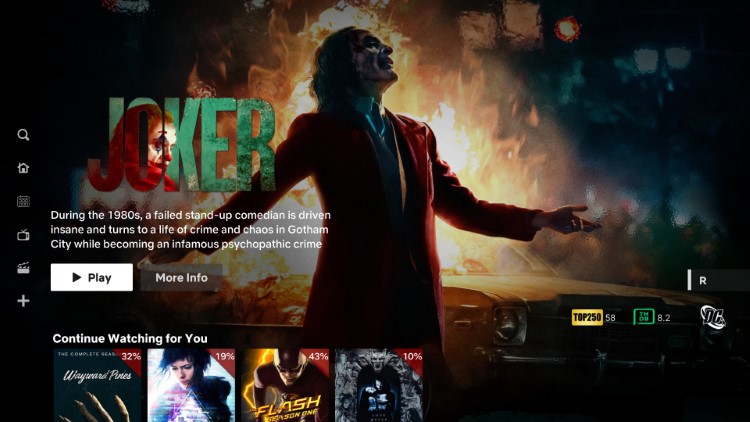
One of the best skins to ever hit the market, Bingie is a high level option for those who want the interface of a popular streaming app or APK that lets you browse available titles.
Those who use a high-powered streaming box, such as a PC or Android/Google TV Box, will enjoy what Bingie offers including Trakt integration and full browsing of your favorite addons.
https://matke-84.github.io/repository.bingie/repository.bingie/
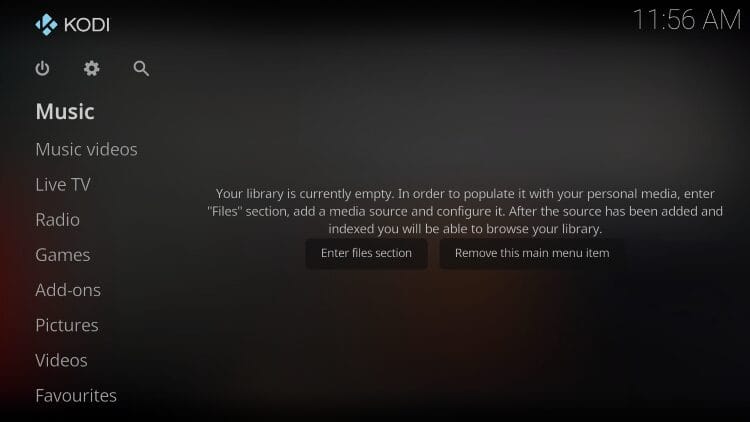
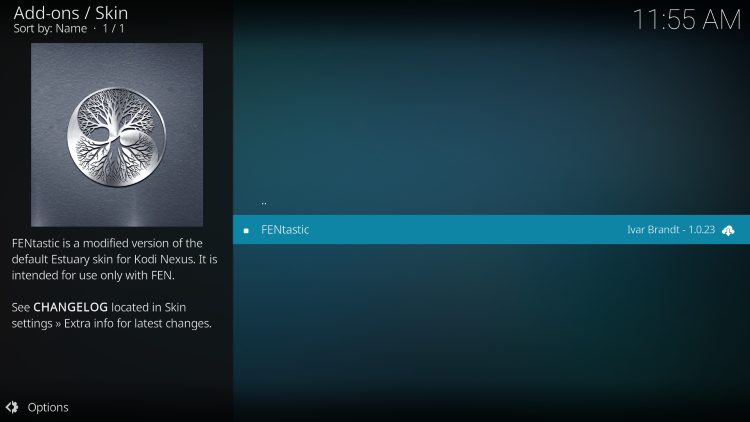
This skin was based around the popular FEN Kodi Addon, however, it works perfectly with nearly any addon choices that you prefer. The design uses the original Estuary layout but with widget capabilities which makes it extremely fast on any device you prefer.
Use the Repository URL below to install Fentastic on your Kodi device.
https://ivarbrandt.github.io/repository.ivarbrandt/
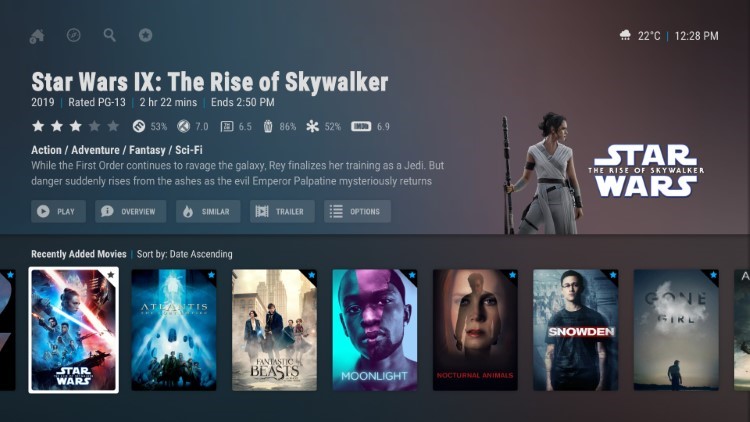
This sleek, futuristic-looking skin packs a punch with information displayed both vertically and horizontally. The developer keeps it updated so that bugs are fixed and repaired which means it is always running at peak performance.
With widget capabilities and extremely fast navigation, Arctic Horizon 2 is one you will want to give a try if you are looking to upgrade your Kodi interface.
https://jurialmunkey.github.io/repository.jurialmunkey/
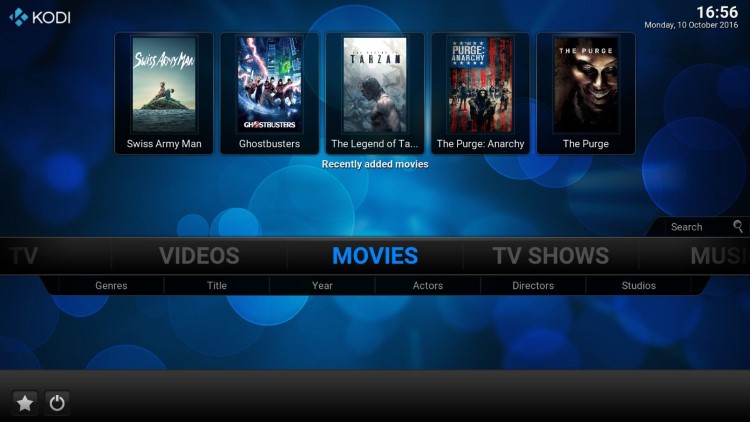
A long withstanding skin, Confluence features an easy-to-use menu bar that is great for those browsing categories. It is used in tons of Kodi Builds due to its simplicity and easy-to-navigate widget options that provide the best content.
Those who want a personalized layout can edit items such as background images and more.
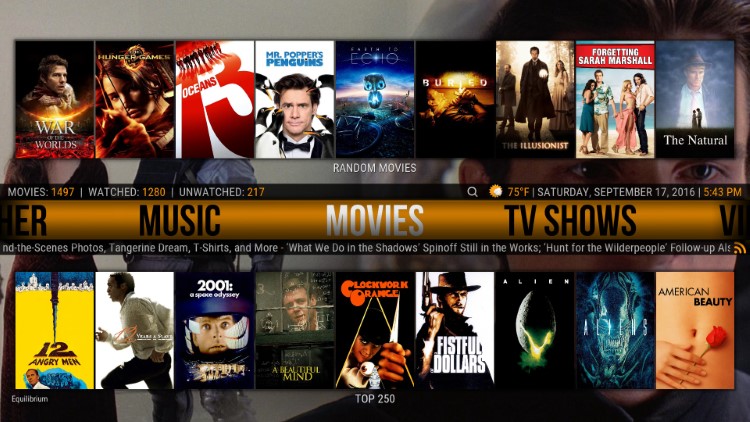
The Aeon Nox Skin is another extremely popular Kodi skin because of its simplicity and futuristic feel. With recent updates, it is now named Aeon Nox: SiLVO.
This skin has been used in plenty of Kodi Builds including the ever-popular No Limits Magic Build which has stood the test of time. If installing the Aeon Nox Skin, make sure to allow enough time for sub-menu items to build as this option is larger than other choices in this list.
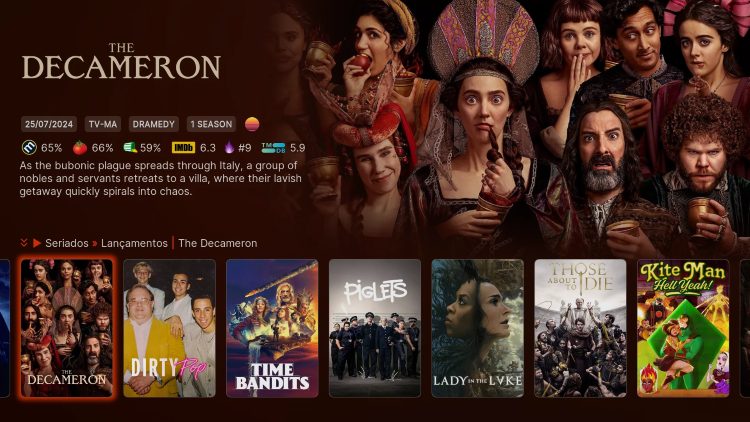
A full-fledged Skin that is extremely fast, Nimbus is making waves among the Kodi community and for good reason.
With a full library of widgets to customize and settings directly from the home screen, Nimbus is sure to turn your Kodi software into a streaming powerhouse.
https://ivarbrandt.github.io/repository.ivarbrandt/
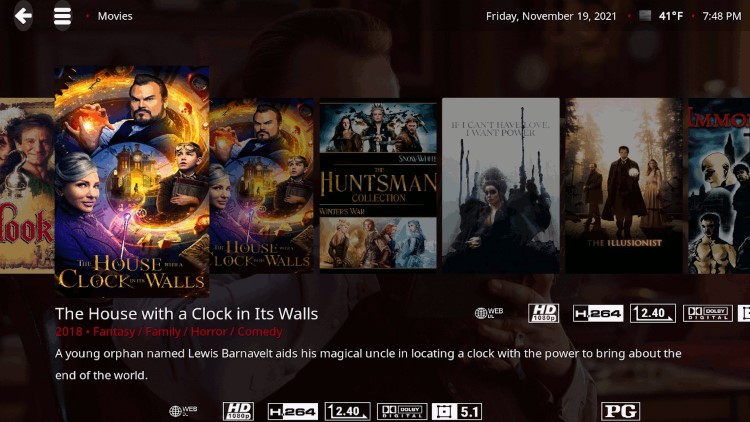
The Amber Skin is great for those who want to customize their home screen with widgets and more.
With Amber, you can change the main menu to show any pictures you want by simply uploading them to your device. Users can also edit the Settings tabs to show horizontally or vertically, along with many other awesome features.
Mimic is a clean-looking Skin that looks similar to the original Estuary Skin with a few added components.
You are able to change the Skin’s fonts, background, and much more. Because it is so light in size, Mimic works great on all streaming devices, especially the Amazon Firestick/Fire TV which are the most popular media players available.
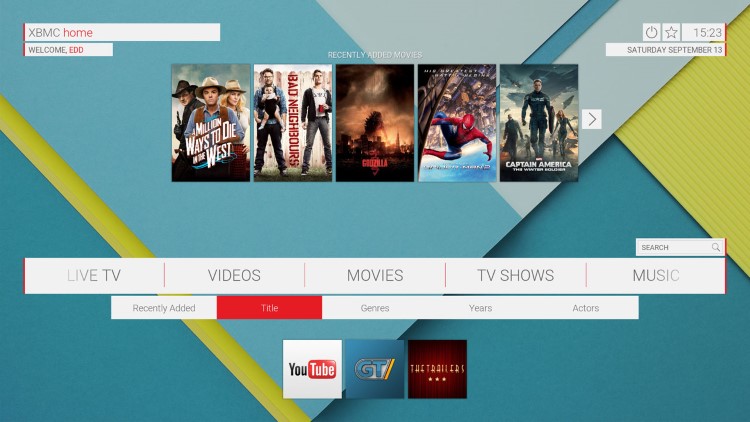
Unity is an easy-to-use option that works fabulously on any Kodi device. It was based on the Confluence Skin but is more catered towards Kids and novice users with a simple layout/design.
Those who use Android TV/Google TV devices will likely notice the similarity it provides to these user-interfaces, however, Unity has tons of Settings and features that we can adjust to display exactly what we are looking for.
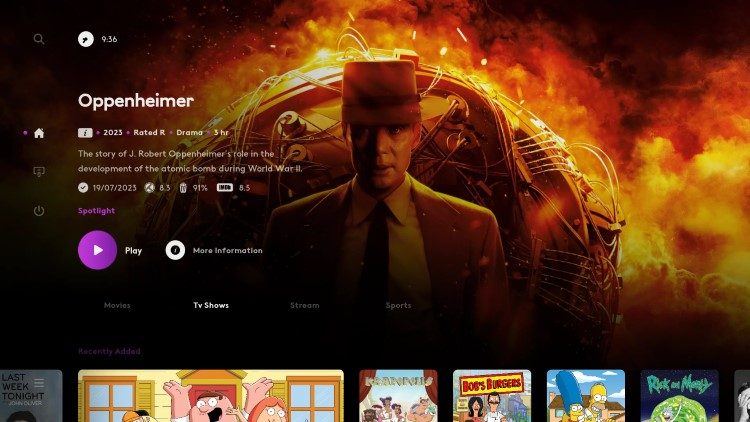
Another high-powered, 3rd party Kodi skin that keeps many Kodi users happy is Arctic Fuse which was created by the same developers as Arctic Horizon. You will notice a similar design, and quick navigation that packs a punch.
Content options are easy to find with the vertical navigation menu which display all of your favorites and can easily be added or adjusted with Widget capabilities. This is one you need to give a try!
https://ivarbrandt.github.io/repository.ivarbrandt/
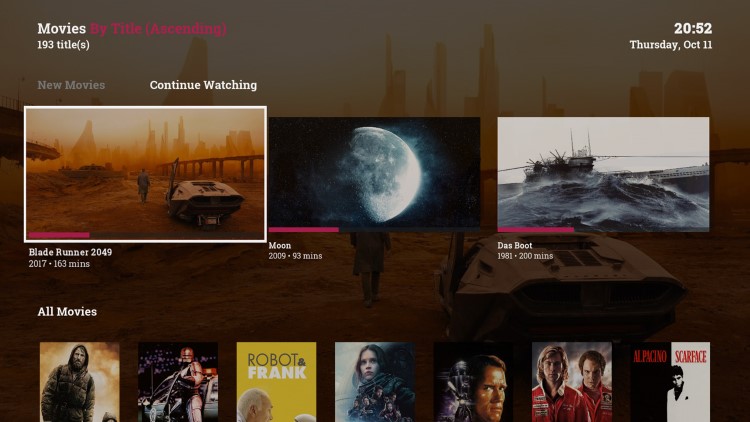
Simplicity is the best way to describe the Pellucid Kodi Skin. An extremely clean interface with a high-quality background is why Pellucid continues to be one of the most used Skins available.
Categories are listed in the middle of the screen with small settings logos on the bottom which make for an extremely efficient layout.
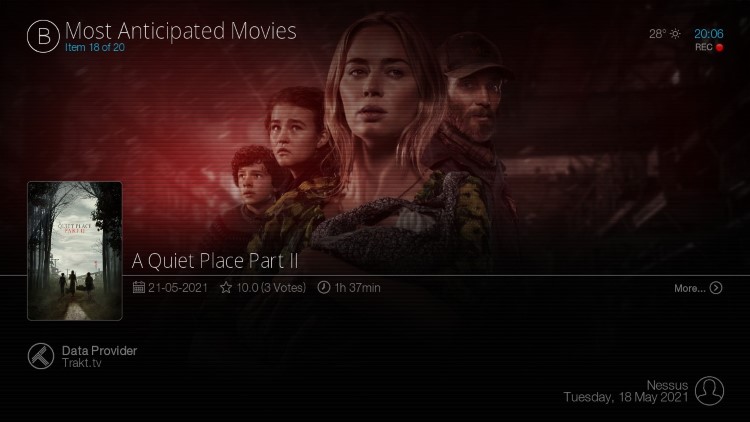
This newest version of Bello Kodi skin is a good example of minimalism and functionality as it has reached “Level 9”.
Users like the colorful interface and the organized add-ons that make it easy to search for movies, music, images and other content. The oversized red cursor and menu icons are also a treat for those who prefer emphasized visuals.
Users can also filter content easily by typing in words related to title and description or they can look into categories such as Most Popular, Latest Movies, and Box Office Films among others.
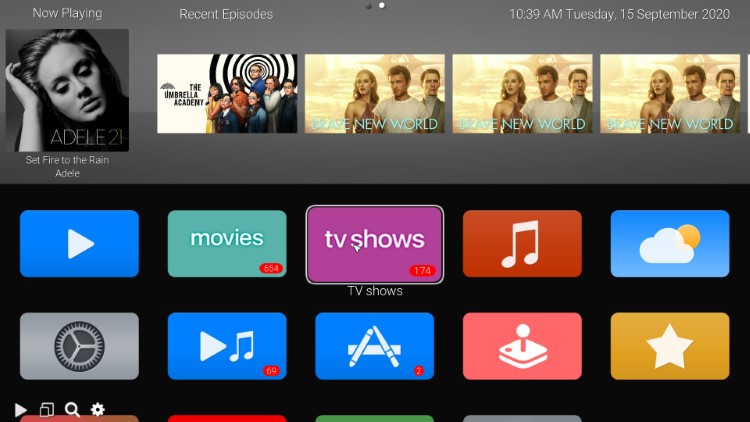
Those who have owned or used an Apple TV device will see exactly why this skin is titled AppTV. The layout is similar and browsing for content is a breeze with simple icon options to choose from such as Movies, TV Shows, Music, Weather, and more.
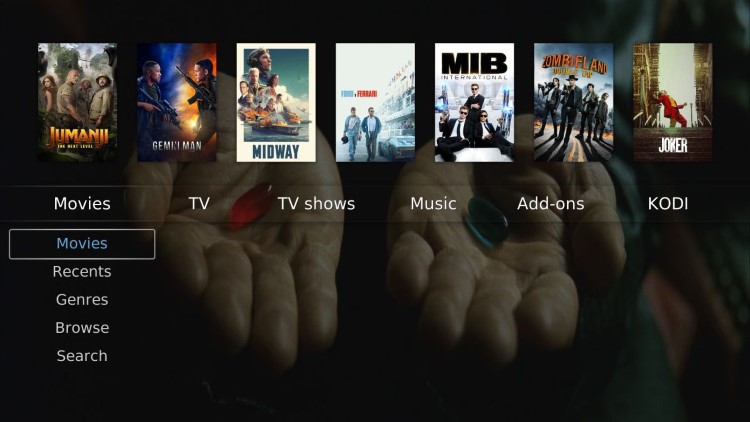
Quartz is a must-have for your Kodi skin library. It’s another fan-art-based Kodi skin design that is highly customizable, with various tab/widget options that cater to the end user.
Its lightweight design and simple menu bar make it enjoyable for all levels of Kodi users from beginners to experts and everyone in between. It works fabulously on any Kodi device including Firestick and Android TV/Google TV Boxes.
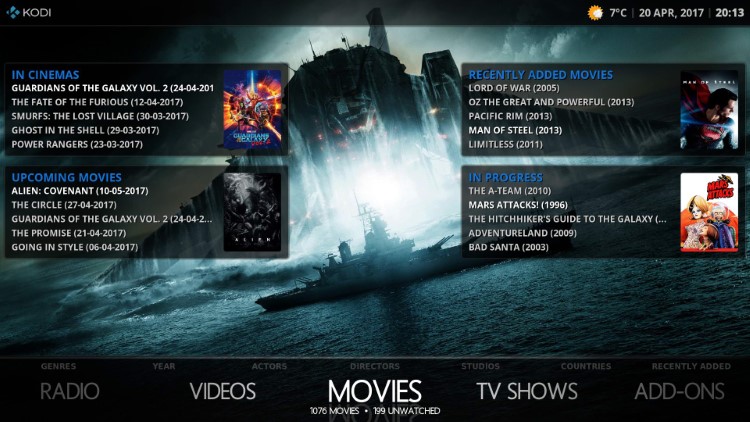
The clean and no-nonsense design best describes Rapier. The neat and elegant interface features customer home items, clear icons, splash screen, audio DSP support, games support, and touch support.
Although the entire look and feel lean towards a classic interface, it also shares similar features found in other skins. For example, when navigating on the interface, additional information is displayed every time a user hovers over an icon.
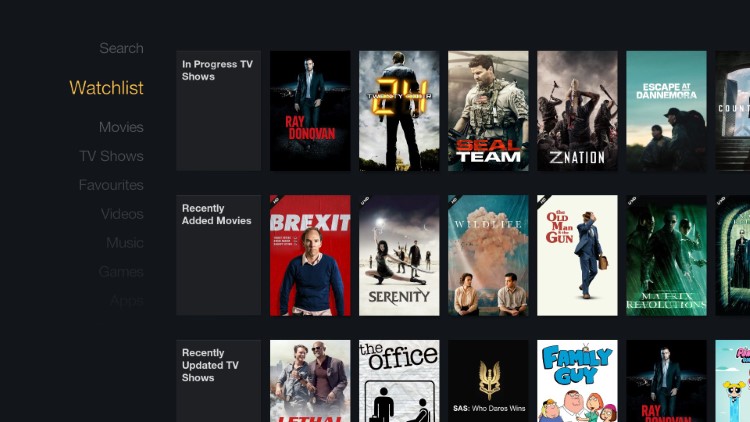
One of the longest active skins on Kodi is fTV by hitcher. Many users enjoy this skin because it’s replicated based on the Firestick/Fire TV interface. If you’re using one of these devices, fTV is the perfect companion. The simple controls allow users to switch access from photos to TV shows instantly.
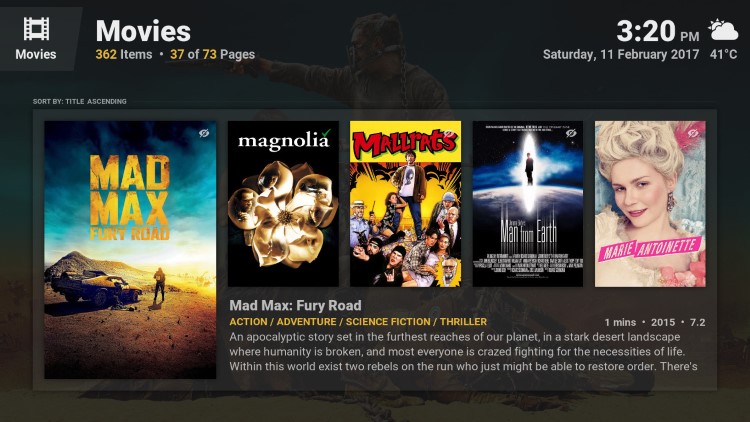
This lightweight skin is extremely easy to use yet has a modern design for users looking for an up-to-date interface.
Those who stream movies and TV shows prefer the practicality of the design since it does not have fancy icons that distract users. The text of movie synopses and related information are easily recognizable, making every selection much easier.
In addition, all menu items fit in the screen making the vertical menu more convenient for users.
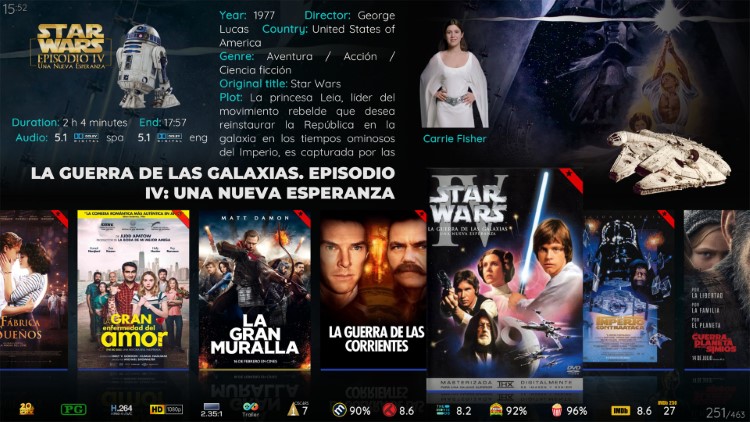
Aeon Tajo is a must-have for your Kodi skin library. It was inspired by the Aeon Nox 5 Skin which is no longer available. If you are a Movie lover, you will enjoy browsing content with Aeon Tajo that displays huge posters and detailed synopsis info.
You can easily navigate the category/widget options and adjust them to your personal preference for a custom Kodi streaming experience.
Below you will find step-by-step instructions to install a Kodi skin. There are tons of fabulous options available within the official Kodi Repository that you can easily install with just a few clicks.
1. Click the Settings Icon.
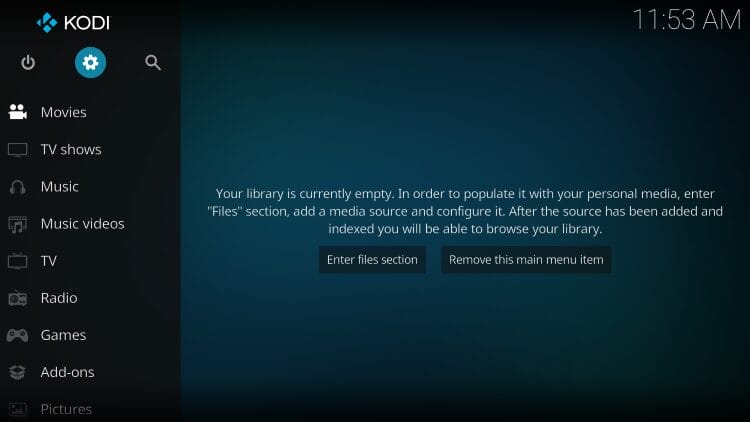
2. Click Interface.
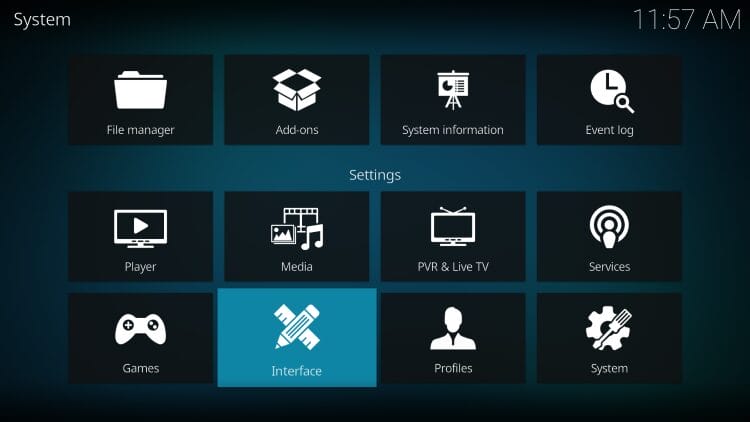
3. Choose Skin.
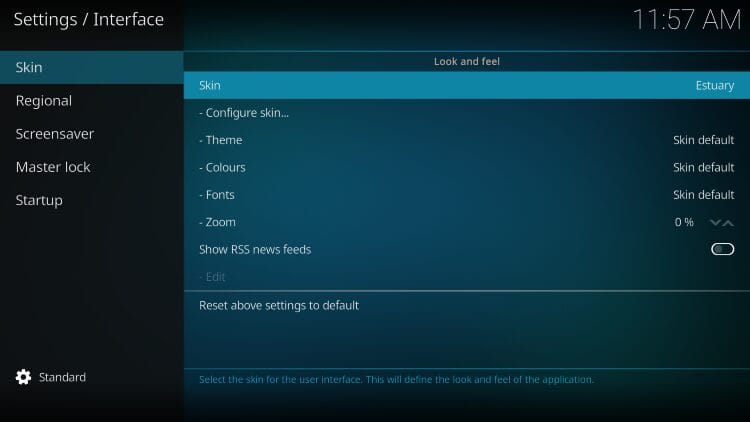
4. Click Get more…
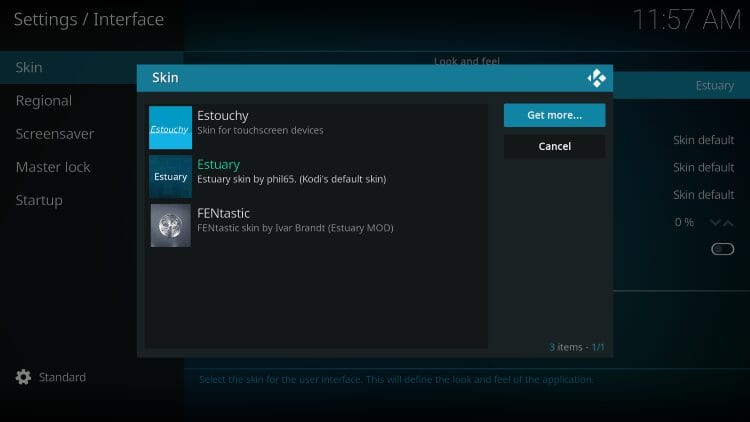
5. Choose from the list of provided Skins.
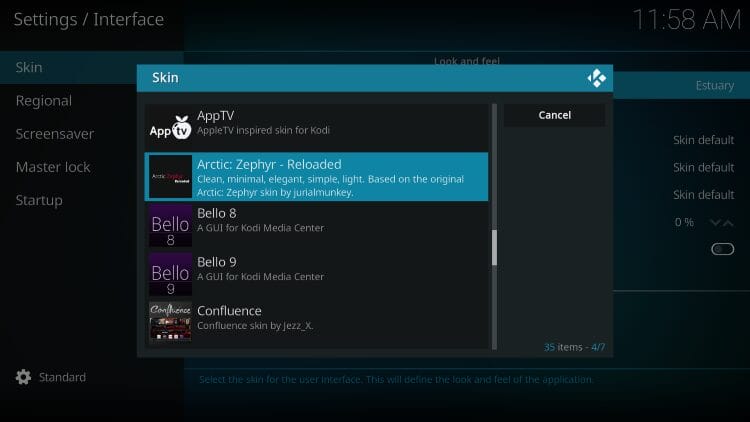
If you are using a 3rd party Skin, a few other steps are required. This is the same method used to install 3rd party add-ons, builds, and more.
1. Select Settings.
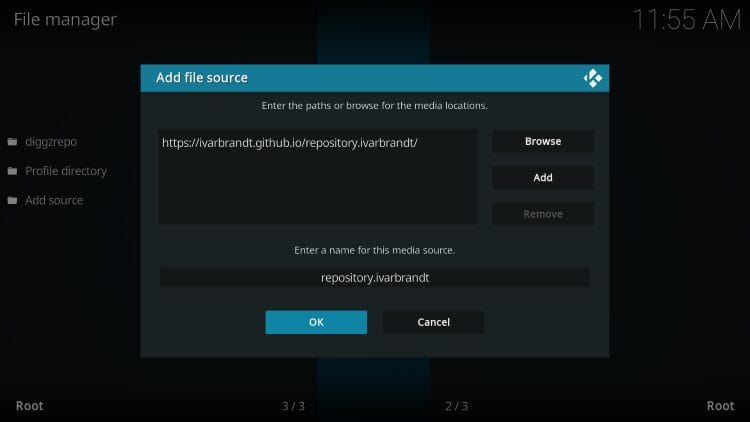
2. Click File Manager.
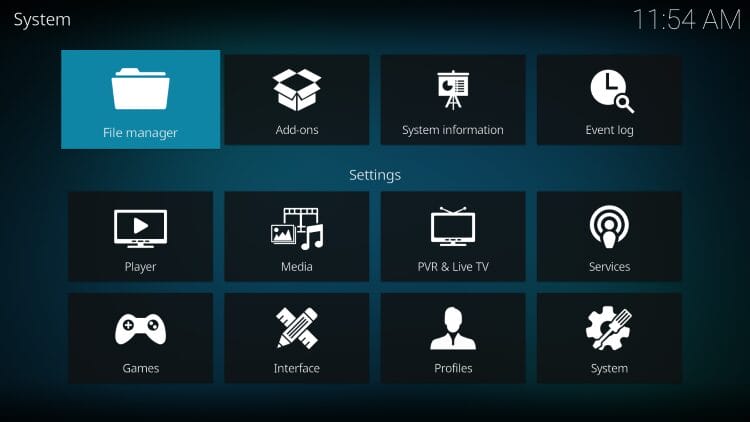
3. Choose Add Source.
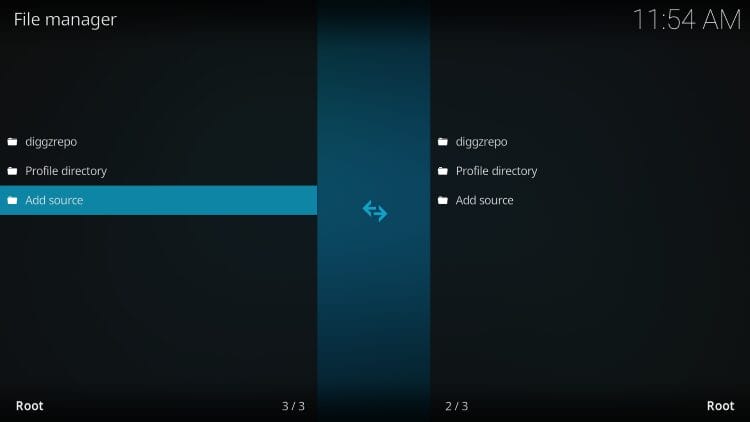
4. Click None.
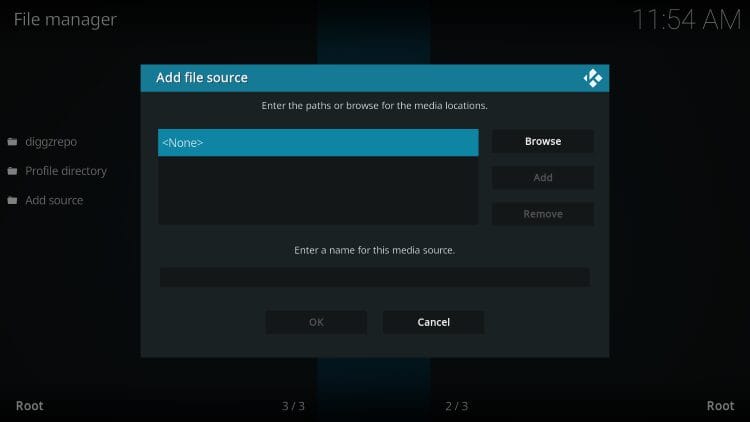
5. Enter the repository URL for your Skin choice and click OK.
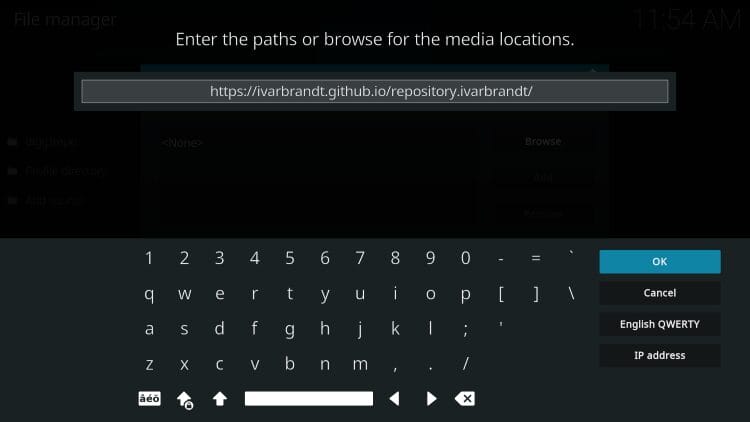
6. Type a name for the media source and click OK.
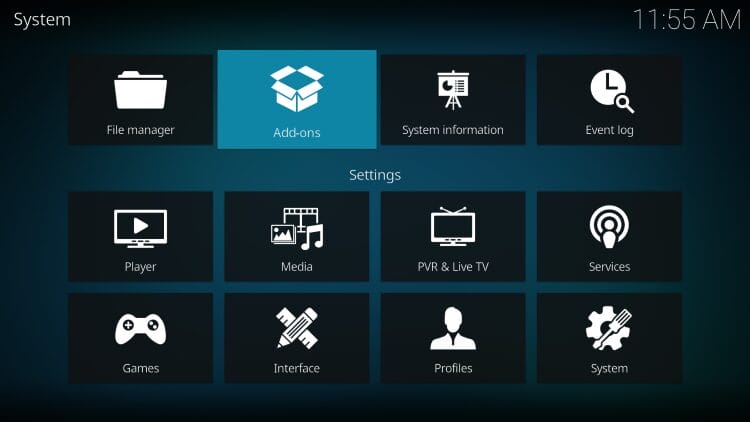
7. Click Add-ons.
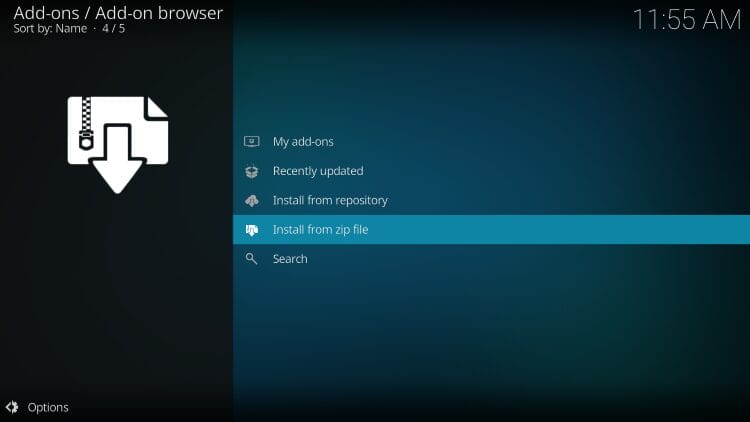
8. Choose install from zip file.
9. Choose your media source.
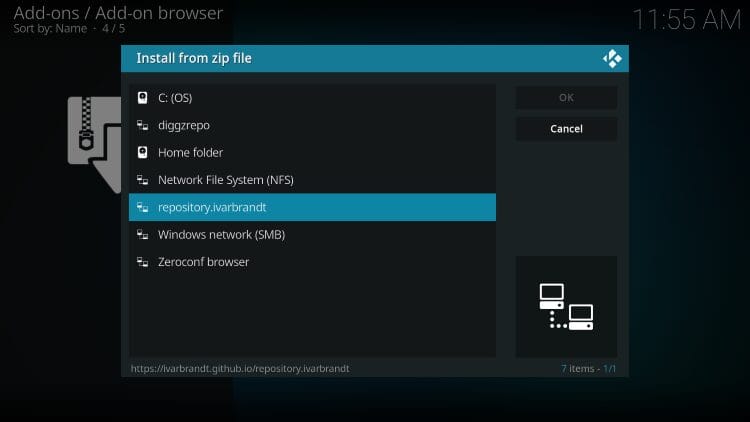
10. Select the zip file.
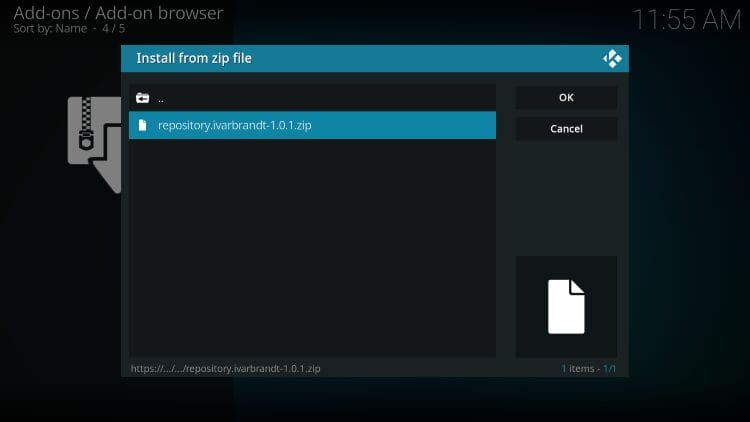
11. You will see the Repository add-on installed message.
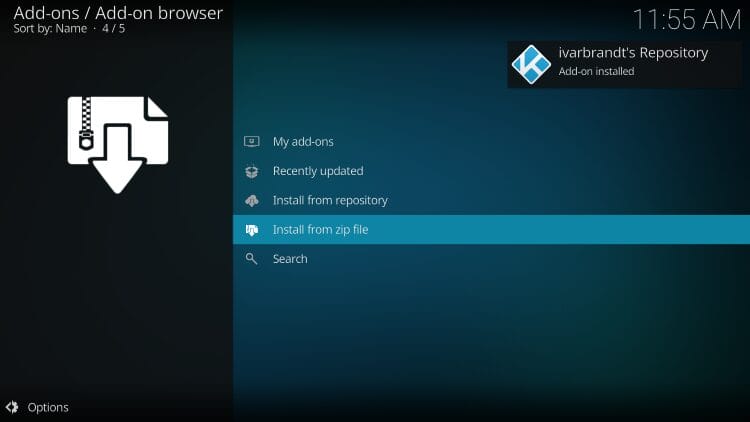
12. Click install from repository.
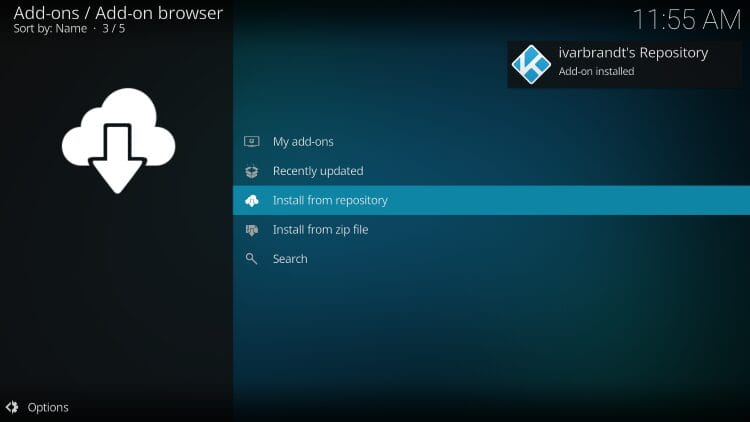
13. Choose your repo.
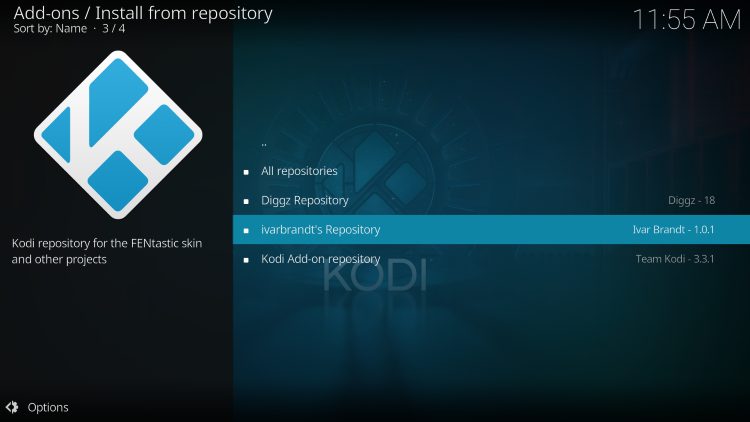
14. Select Look and feel.
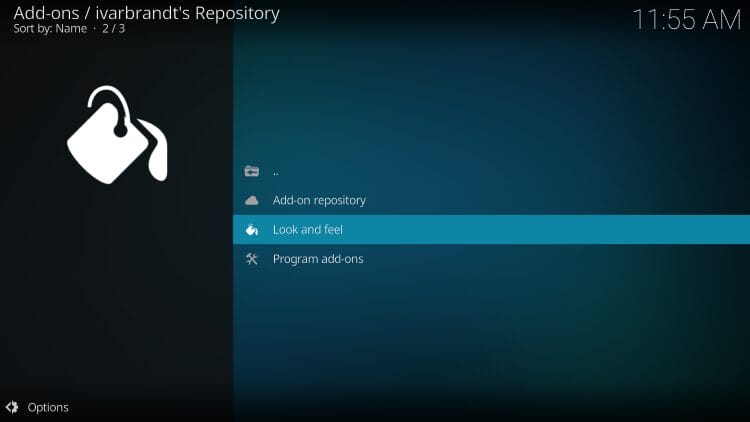
15. Click Skin.
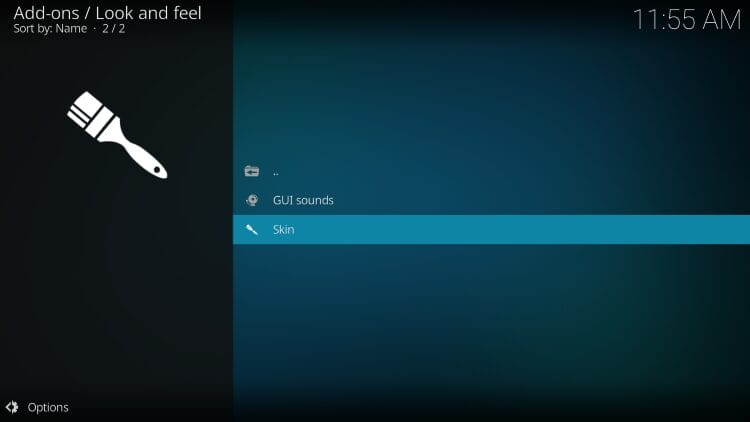
16. Choose your Skin.
With your preferred Skin now in place, there are a few other visual settings you can change within the software.
If you would like to edit the background, font, and more, this can easily be done within Interface Settings. I suggest playing around with these settings until you are happy with how the Kodi screen looks.
If you are looking for the quickest way to set up Kodi, you can also install a build which comes pre-installed with add-ons and skins so you can quickly begin streaming.
If you have a favorite Kodi Skin that is not featured in this list, let us know using the Comment Section below!
This page includes affiliate links where may receive a commission at no extra cost to you. Many times, visitors will receive a discount due to the special arrangements made for our fans. Learn more on my Affiliate Disclaimer page.



© IPTVSub is Proudly Owned by win-design