


 Written by admin
In this guide you will be presented with the Best Tips & Tricks for Android TV/Google TV Devices that will enhance your streaming experience.
Android TV and Google TV devices provide a powerful streaming experience, but many users only scratch the surface of what these systems can do.
Hidden settings, performance tweaks, and lesser-known features can improve speed, simplify navigation, and expand streaming capabilities.
Recently, many cord-cutters have begun switching from devices like the Amazon Fire TV Stick and other Amazon Fire TV products to Android-based streaming platforms.
This is largely due to Amazon increasingly restricting the installation and functionality of certain third-party applications on its Fire TV operating system and blocking popular APKs altogether.
As a result, Android TV and Google TV Devices have become an attractive alternative because they provide greater flexibility, customization, and control over your streaming experience.
A few small adjustments can make a huge difference in usability and we cover the absolute best tips & tricks that will work on any Android TV/Google TV Box.
This includes popular devices such as the NVIDIA Shield TV, Google TV Streamer, Onn 4K Streaming Box, and other Android-powered Smart TVs.
Our guide covers the best Android TV and Google TV tips and tricks that will help you get the most out of your streaming device. If we missed any, let us know in the comment section below!
In the guide below, screenshots are taken using the Onn 4K Pro. However, these tips and tricks will also work for other Google & Android TV Boxes including the Onn 4K Plus and more.
The best and most efficient way to take charge of your Google or Android TV Box is by installing applications that are not available in the Google Play Store.
Many useful streaming apps, utilities, and media players are distributed as APK files that must be installed manually. This process is often referred to as sideloading.
Sideloading allows you to install apps that expand what your streaming device can do. This includes installing Movie/TV Show APKs that serve up free media without a subscription.
The best way to do this is with the TROYPOINT Toolbox via Downloader App which hosts the most popular apps available that you won’t find in the Google Play Store.
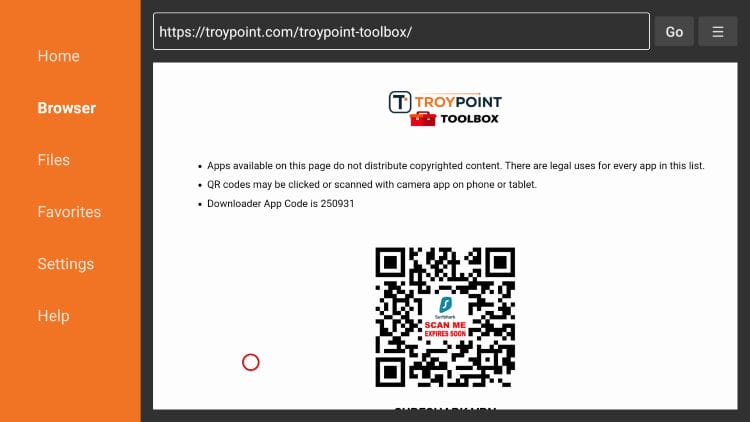
Using Downloader requires users to Enable Unknown Sources within Settings which is often referred to as “jailbreaking”. Use our guide below for more information.
How to Jailbreak Google/Android TV
Google TV and Android TV include a home screen that displays recommendations, ads, and content suggestions.
Your online activity is monitored by your ISP, app/addon/IPTV devs, government, and all websites.
🔒 Become anonymous while streaming & downloading with Surfshark VPN
Save 87% with 24-Month Plan + Get 3 FREE Months
Use on Unlimited Devices & Share 1 Account with Entire Family
CLAIM DEAL HERE
While this interface works well for many users, others prefer a simpler layout that focuses only on your installed appslications.
Installing a custom launcher allows you to change how the home screen looks and behaves with tons of configuration and customization options.
Benefits of using a launcher include:
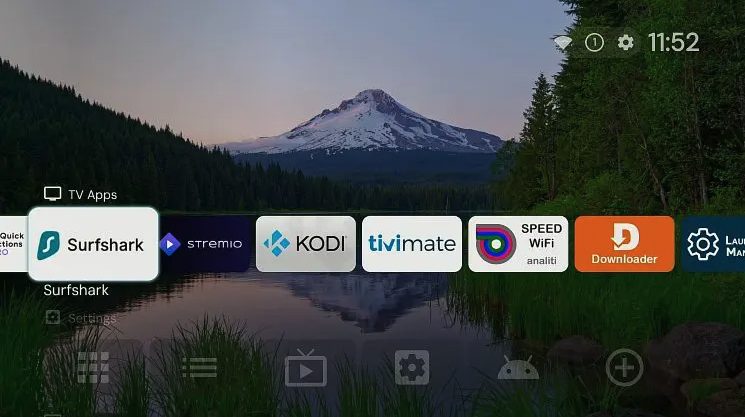
There are numerous Popular Android/Google TV Launchers available that all have major benefits.
The most popular 3rd Party Launcher available, Projectivy will completely change your viewing experience on any Android based streaming device.
Formerly FLauncher, it has been rebranded and includes some advanced settings that will allow you to customize your home screen experience.
A customizable launcher that allows you to organize apps, widgets, and shortcuts.
Best Launchers for Android TV & Google TV
Streaming devices constantly connect to the internet when apps are running. During this time, your internet service provider and other services may see your IP address and network activity.
A VPN or Virtual Private Network helps protect your privacy by encrypting your connection and masking your IP address.
Benefits of using a VPN on Android TV include:
TROYPOINT’s #1 Ranked VPN has tons of advanced features specifically designed for use on Google/Android TV such as CleanWeb to block ads/malware, Split Tunneling, and Kill Switch.
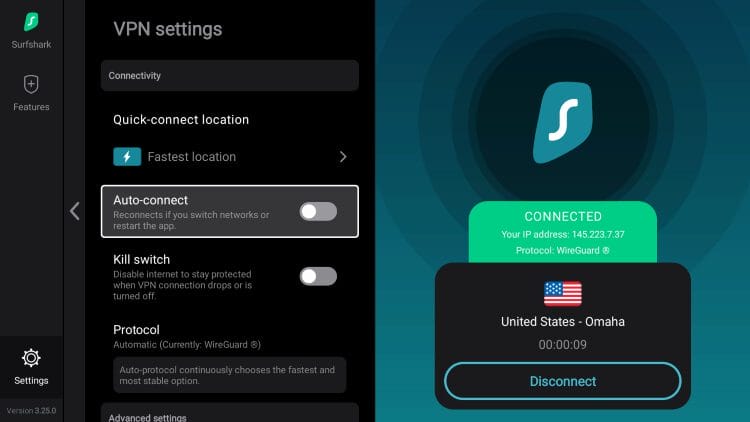
Once installed, simply launch the app and connect to a server before streaming.
Best VPN for Android & Google TV
Many Android TV devices come with limited internal storage. After installing several apps and updates, available space can quickly disappear.
Fortunately, most devices support external storage through USB drives or external hard drives.
We have created a step by step video that will show you How to Expand Storage and Add a Gigabit Ethernet for blazing fast download speeds.
For a more simplified process, check out our video for Adding Internal Storage to your Onn Google TV Box which can also be followed along using other Android/Google Boxes of your choice.
If you are like most cord-cutters, you have likley lost the remote to your Android TV at some point. This can be extremely frustrating as without the remote you have no way of using the device.
Fortunately, Android TV and Google TV allow you to control your device using a smartphone with the built-in Remote Feature on the Google TV Mobile App.
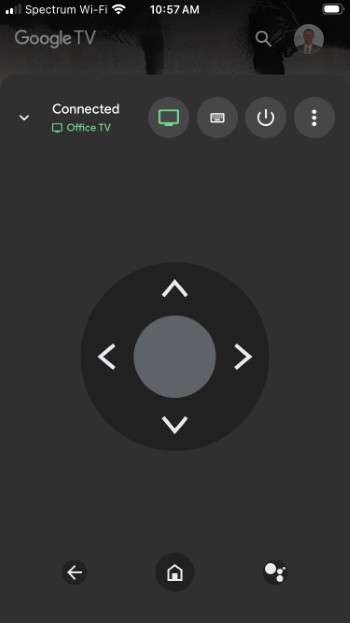
This app works on both Android and iPhone devices.
Features include:
Voice search
Typing passwords or search terms using a phone keyboard is far faster than using an on-screen keyboard with a remote. This is especially helpful for those who use APKs that require installation URLs for variuos Addons.
Instead of using the remote to type in Manifest URLs for various Stremio Addons and more, connect your device to your phone and type with your mobile keyboard.
This is also a great feature to serve as a backup if you ever lose your provided remote or it stops working for any reason.
Google TV App on iOS & Android
Android TV devices support Bluetooth connections for various accessories. Pairing wireless devices can improve your viewing experience.
Common Bluetooth accessories include:
Keyboards
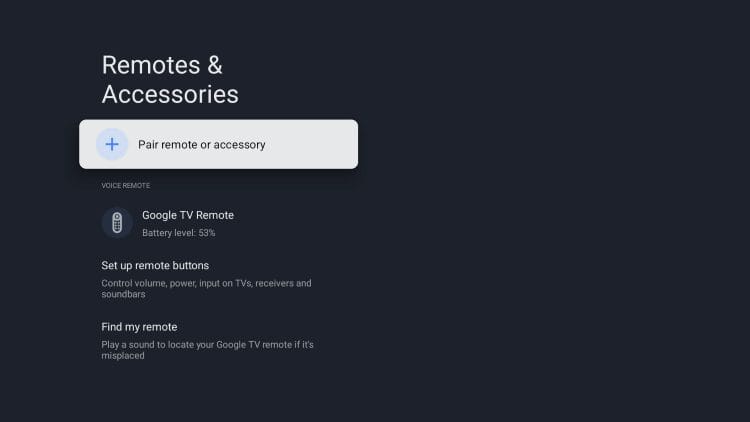
Bluetooth headphones are especially useful for watching TV late at night without disturbing others. Wireless keyboards can also make it easier to type search queries or passwords.
If you use your Android or Google Box frequently, you have likely encountered times where you couldn’t navigate correctly without a Mouse.
This is often true when using Web Browsers or 3rd Party Applications that weren’t created for TV orientation and don’t scroll properly.
Luckily, the Mouse Toggle Application is available via TROYPOINT Toolbox and is compatible with all popular device options.
Those who use websites to Stream Live Sports or Movies/Shows can easily browse all available options on Android & Google TV with Mouse Toggle which is free to install and use.
Install Mouse Toggle on Android & Google TV
Some Android TV remotes include dedicated buttons for streaming services such as Netflix or YouTube and can’t be changed via System Settings.
However, certain apps allow you to remap remote buttons meaning you can assign different actions to them. Button remapping apps can give you more control over how your remote behaves.
If you own a Google TV such as Onn 4K Pro, Plus, or Google TV Streamer, you are likely aware of the Star Button that comes preconfigured with these device remotes.
We have created a full video tutorial that will show you how to “Supercharge” the Star Button and enhance the capabilities of your remote. This also works on most Android TV Boxes as well.
While there are tons of Settings available for Android and Google TV Boxes, advanced features are not typically available and that is where Android TV Tools comes in.
This application will allow you to control and view your streaming device via PC to mass Install Applicatoins, Remove Bloatware, Backup/Restore, and more.
You can also adjust/manage custom Settings like changing the screen density or font size, capture screenshots, and initiate voice commands.
If you want to truly fine tune your media box, Android TV Tools is a powerful application that you should take full advantage of and see everything it has to offer!
Troy’s Android TV Tools Video Guide
Android TV includes a built-in screensaver called Ambient Mode. This screensaver displays photos, artwork, weather information, and time when the device is idle.
However, you can also install custom screensavers for a more personalized experience or enable AI Artwork for a more enhanced screensaver experience.
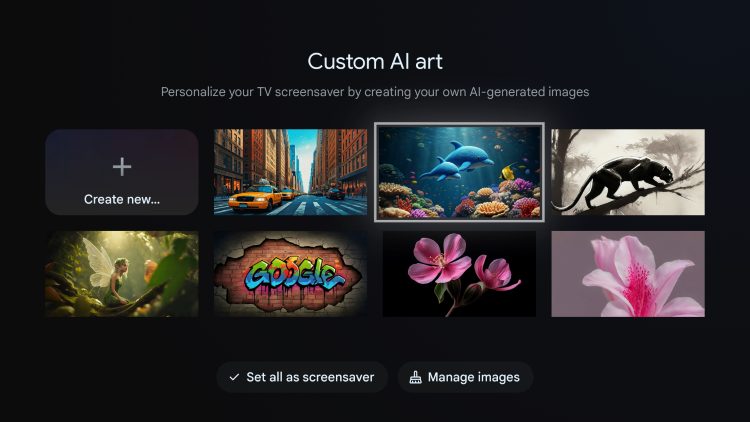
Within Settings are options to use Google Photos, your own Art Gallery (curated images/artwork), and Custom AI art.
Over time, streaming apps store temporary files called cache data.
While cache helps apps load faster, too much stored data can cause slow performance or app crashes. Clearing cache removes temporary files without deleting your login information.
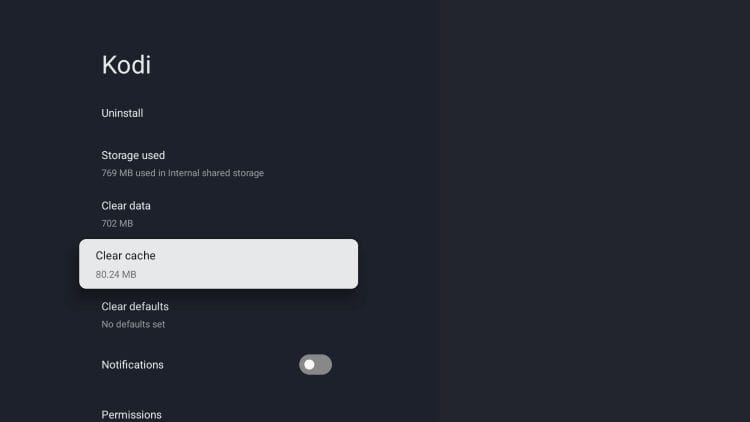
Follow these steps:
If you want a full reset, you can choose to Clear Data which will wipe all data related to the specific app and leave it as a “blank slate”.
Clearing data resets the app to its original state, which means you may need to log in again. Only do this if you want to fully reset the application.
This method often fixes problems such as buffering, freezing, or apps failing to load.
Many Android TV devices include preinstalled apps that users never open. These apps can still run background processes and consume system resources.
Luckily, disabling these unused apps helps free memory and reduce system load for overall better performance on your streaming box.
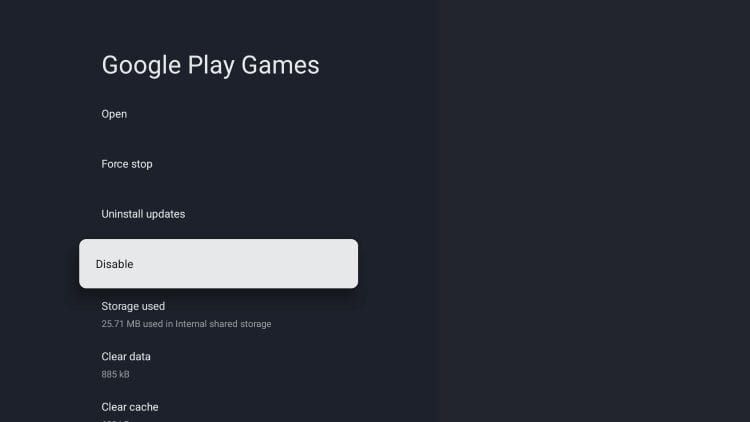
Here’s how to disable a System App on the Google TV Streamer. You can also follow along with other Google TV Boxes or Android TV.
Once disabled, the app will no longer run in the background or appear in the app list. This is a helpful way to keep your device running smoothly and reduce clutter.
The future of streaming is likely with Google and Android TV Boxes as many are making the switch to these devices for more functionality, freedom, and performance.
If you own one of these boxes, you can take full advantage of these capabilities to configure it to your liking.
Installing apps, updating your interface, and managing your preferences will enhance your viewing experience and make your device enjoyable to use.
We want to know what you think of our list of Tips & Tricks and if we missed any, tell us what they are in the comments below!
Be sure to stay up-to-date with the latest streaming news, reviews, tips, and more by following the TROYPOINT Advisor with updates weekly.
This page includes affiliate links where TROYPOINT may receive a commission at no extra cost to you. Many times, visitors will receive a discount due to the special arrangements made for our fans. Learn more on my Affiliate Disclaimer page.



© IPTVSub is Proudly Owned by win-design