


 Written by admin
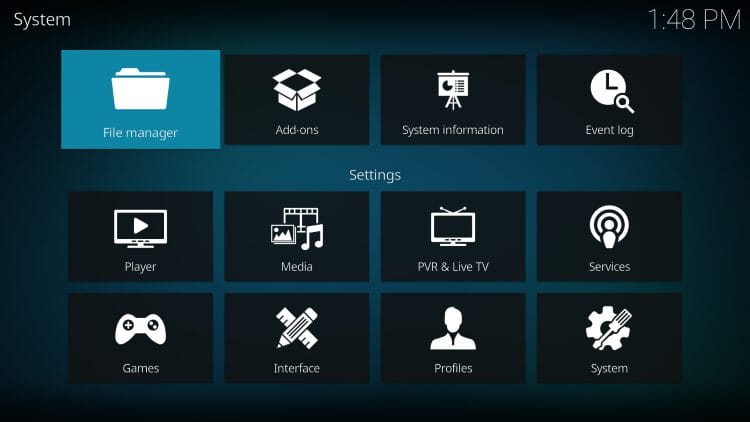
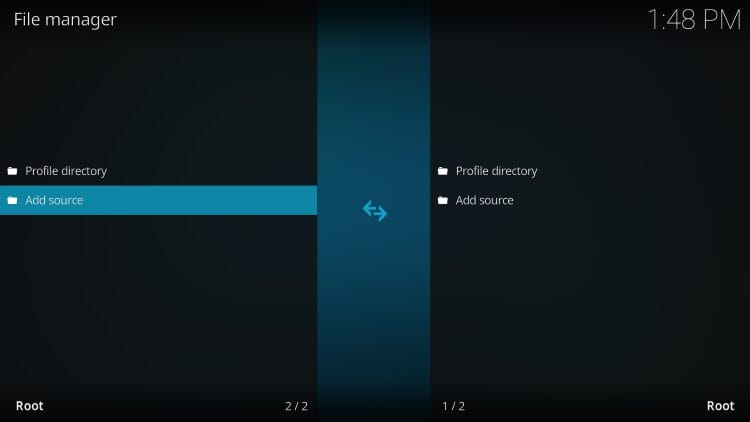
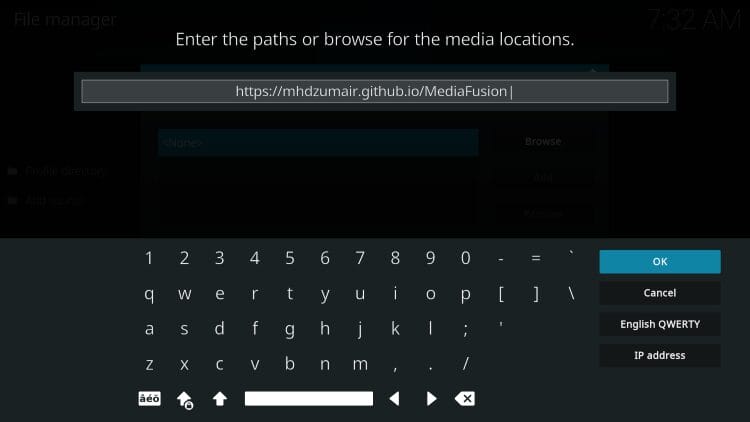
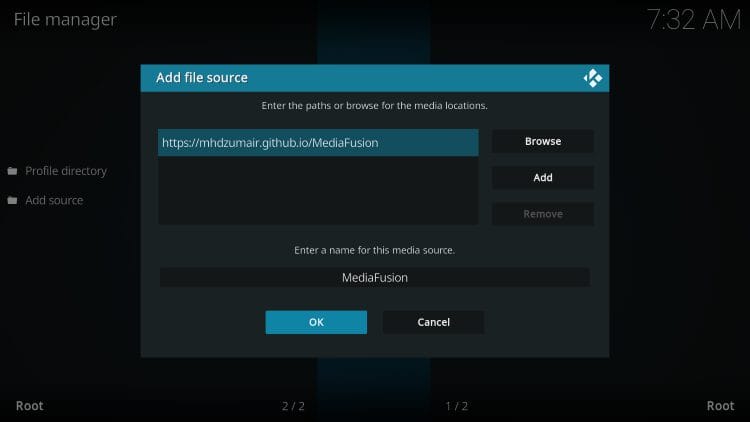
In this guide, you will be provided with instructions to Install MediaFusion on Kodi with a step by step tutorial.
If you have used the popular Stremio Application in the past, you have likely heard of MediaFusion as it is currently one of the most popular Stremio Addons available today.
Luckily, you can also install this platform within Kodi for access to Series, Movies, Live Television, Sports, and more.
The process is exactly the same as you will use the MediaFusion Configuration Page to setup the addon and then install on your Kodi device.
MediaFusion is compatible with numerous Debrid Providers including TorBox, Premiumize, Real-Debrid, and more.
However, if you do not have a premium provider you can also opt to use Torrent Sources but make sure you are using a VPN if you choose to go this route.
In the tutorial below we are using an Onn 4k Pro to install MediaFusion on Kodi. These same steps also work for those using Fire TVs, other Android TV/Google TV boxes, and any device compatible with the Kodi software.
We have broken this process down into 3 steps which include installing the MediaFusion Kodi Addon, configuring via official website, and syncing to your Kodi application.

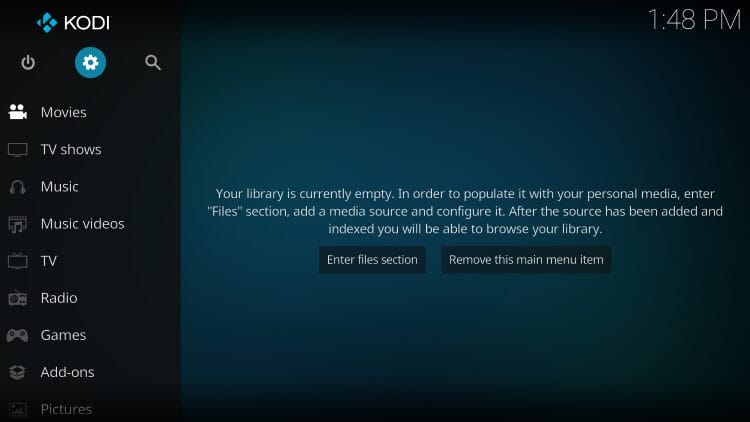

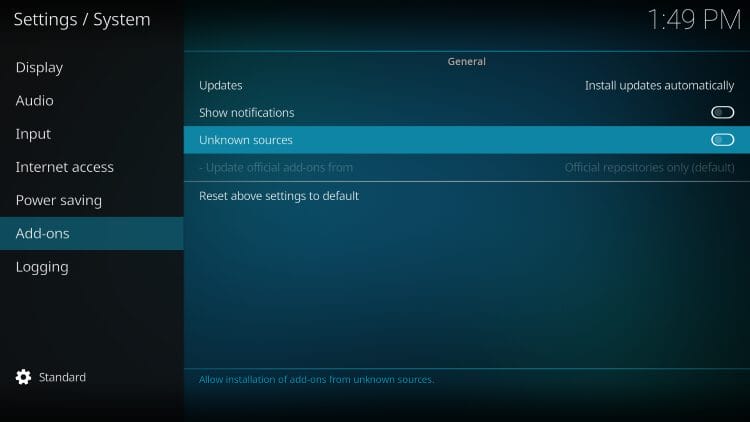
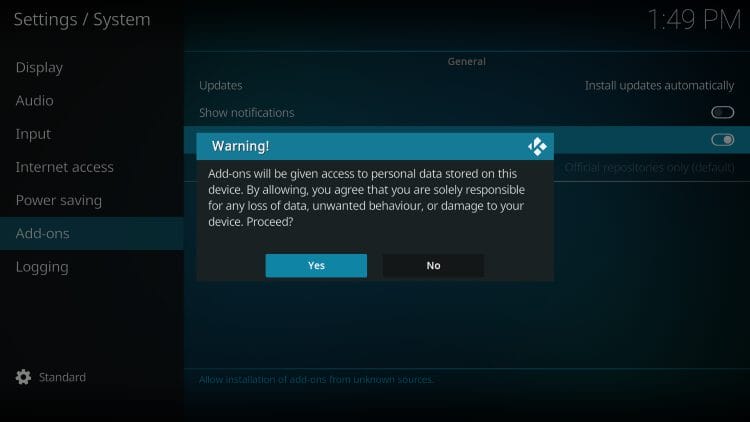


Your online activity is monitored by your ISP, app/addon/IPTV devs, government, and all websites.
🔒 Become anonymous while streaming & downloading with Surfshark VPN
Save 87% with 24-Month Plan + Get 3 FREE Months
Use on Unlimited Devices & Share 1 Account with Entire Family
CLAIM DEAL HERE
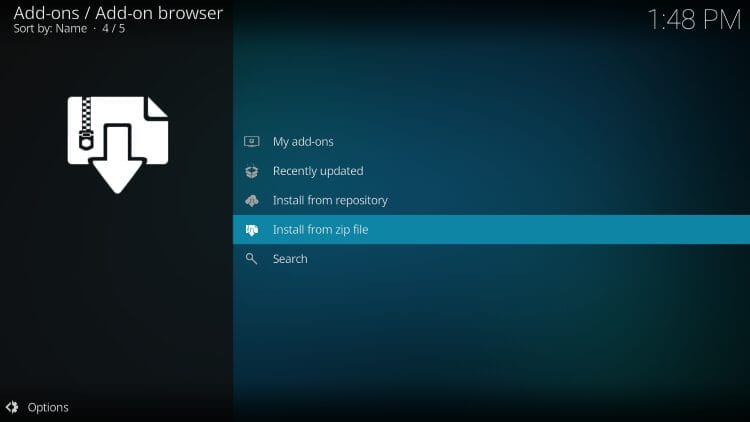
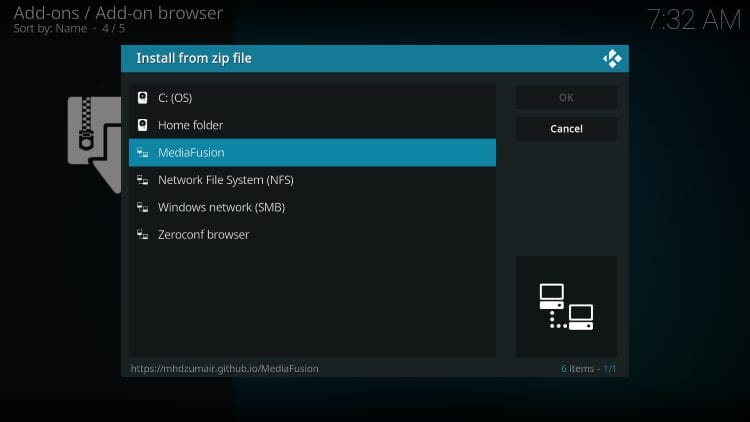
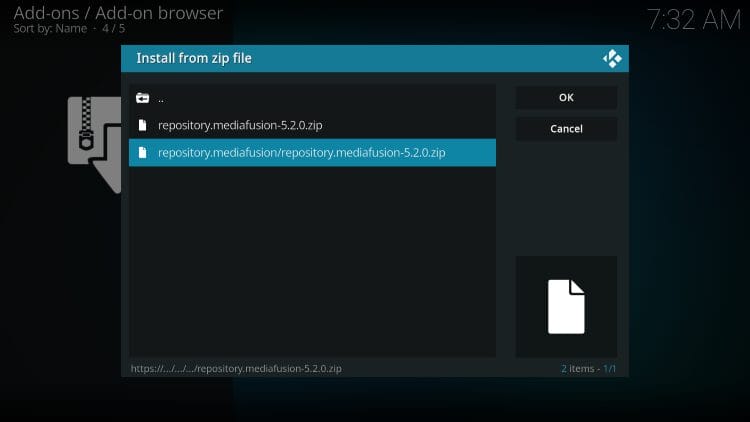
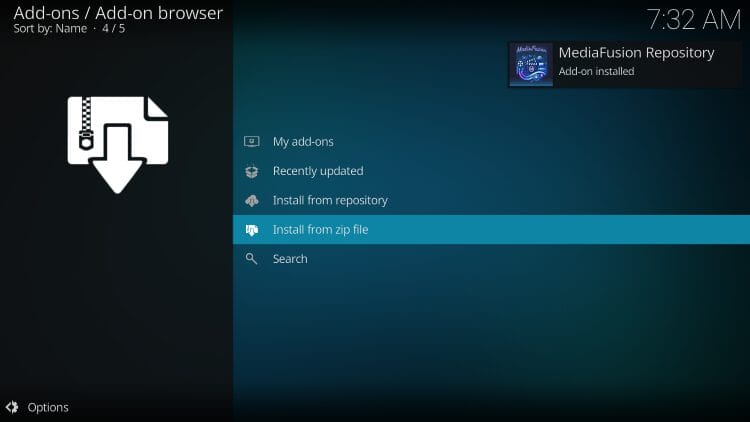

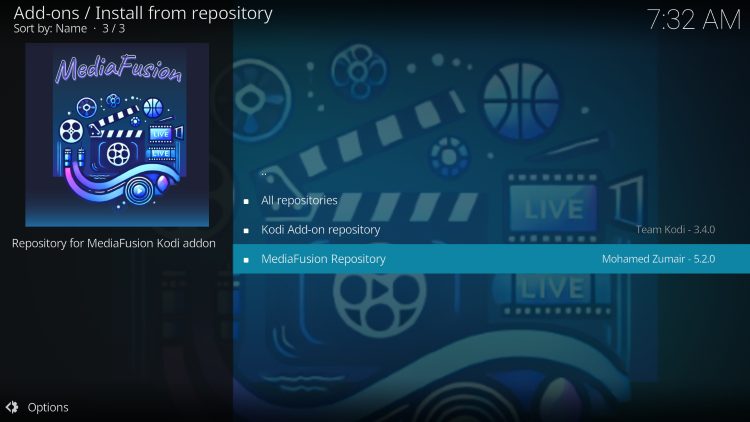
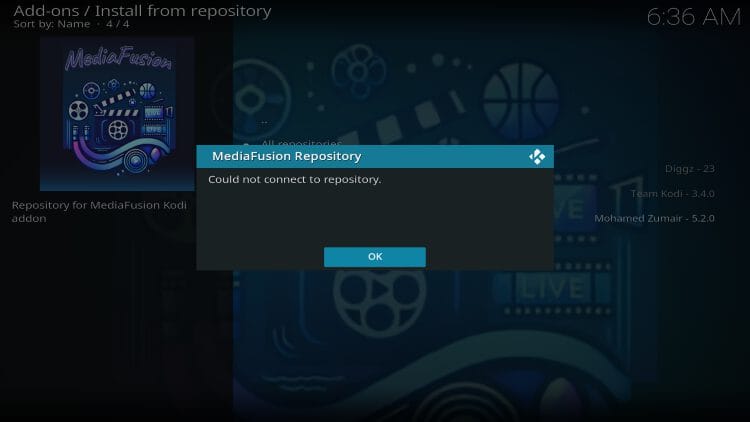
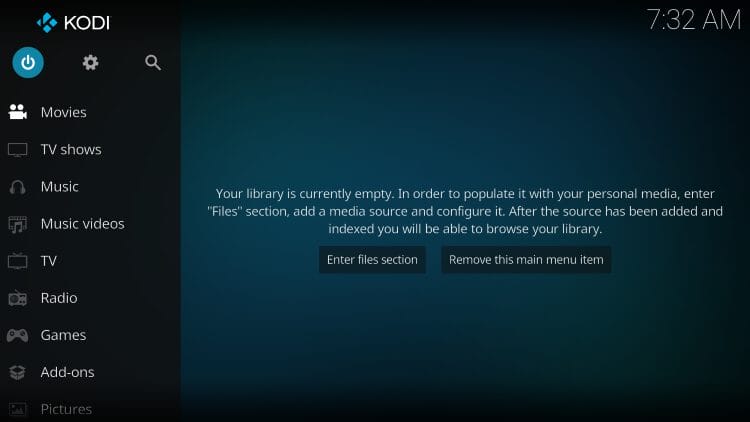
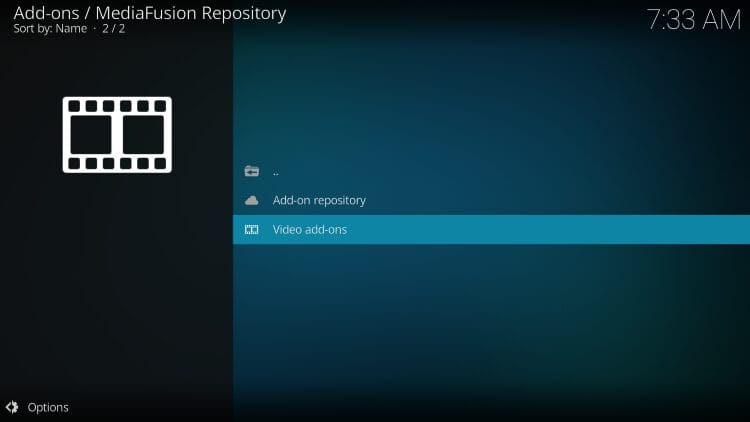
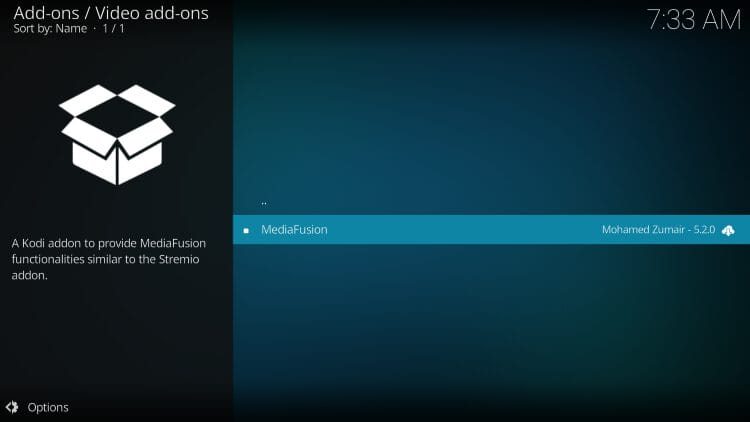
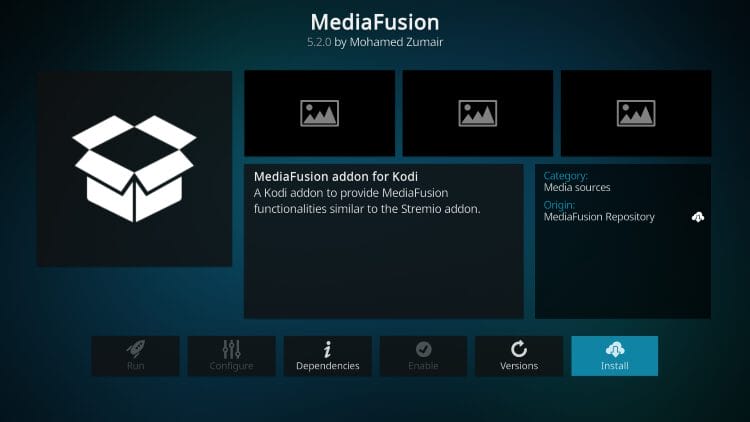
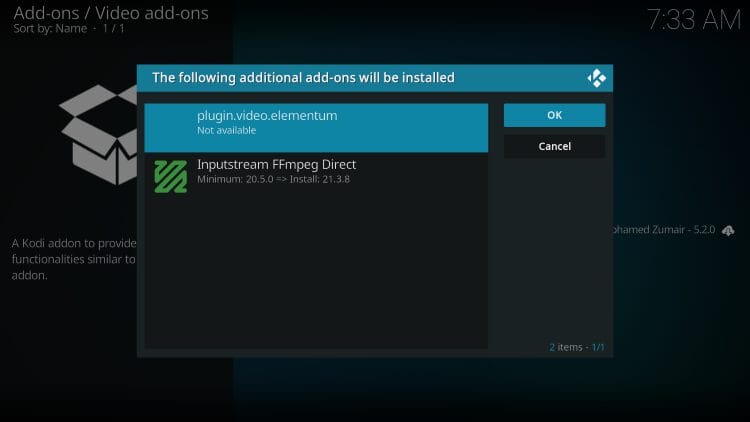
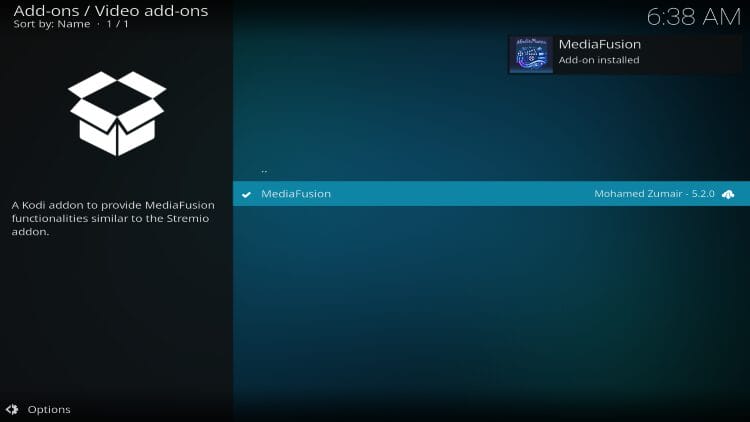
Continue to Step 2.
We will now “Configure” MediaFusion using its official website.
1. Visit mediafusion.elfhosted.com/app and click Configure Add-on.
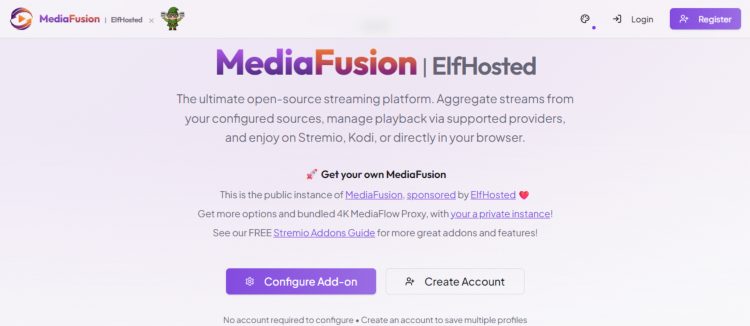
2. Choose Add Streaming Provider and input API Token for your preferred Debrid Service or skip this if you wish to use Torrent Sources.
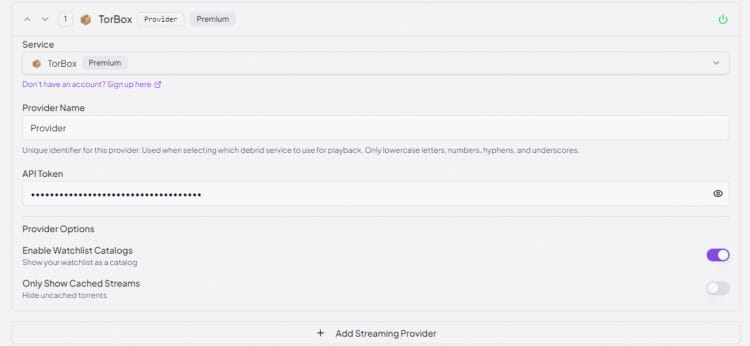
3. Click Catalogs and Configure these to your preferred settings.
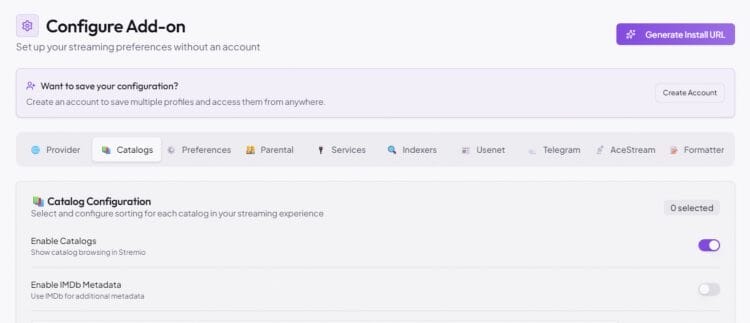
4. Choose the Catalogs you want to display within the Kodi Addon for Movies Series, Live TV, & Sports.
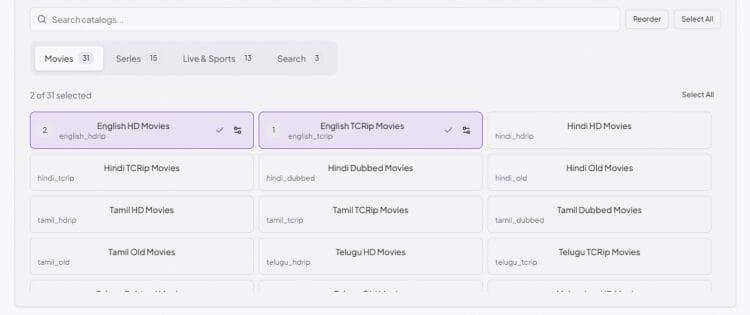
5. Adjust Preferences for Resolutions, File Quality, File Size, and more.

6. Manage any additional Settings (Parental, Services, Indexers, etc.) and scroll down to click Generate Install URL.
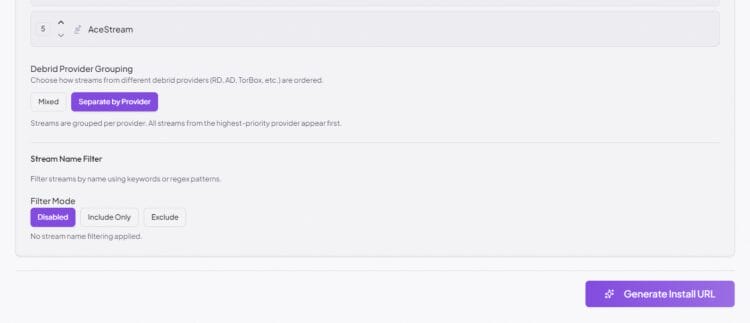
Return to your Kodi device to continue syncing your configuration to the MediaFusion Addon.
1. Launch the MediaFusion addon we downloaded in Step 1.

2. Click Configure Secret.

3. You are then provided with your authorization code.

4. Return to the MediaFusion Configuration Website and input your provided code. Click Link Kodi.
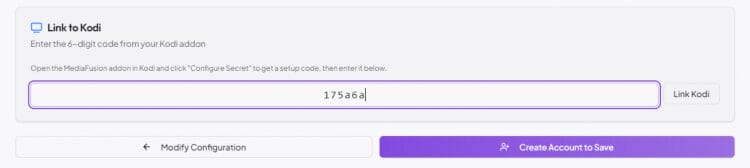
5. You will then see Setup completed successfully message.

Installation is complete. Enjoy!
Just like the Stremio addon, the true power of MediaFusion on Kodi comes from the configuration process that will allow you to setup the addon for your preference.
This includes adding Debrid Service(s), enabling Catalogs, and adjust Parental Controls among other things.
After you have fine tuned the platform to your liking, your settings will be saved and made available within the Kodi Addon.
After making a content selection, your links will be provided depending on how you configured these selections.
Enjoy!
It’s impossible for TROYPOINT to determine whether these unverified add-ons/apps hold the proper licensing.
If and when an add-on is deemed illegal, we notify our users immediately and update reports on our Website to reflect that information.
At first glance, it would appear that MediaFusion is distributing copyrighted works without consent.
The end-user is responsible for all content accessed through unverified add-ons. For verified options, see our list of legal streaming apps.
We are pleased to see MediaFusion available in the form of a Kodi addon as it is likely one of the most recognizable names in the Stremio community.
While the configuration process may take longer to setup, advanced Kodi users will enjoy the capabilities it provides for Films, Shows, and even Live TV.
Let us know what you think of MediaFusion on Kodi in the comments below!
This page includes affiliate links where TROYPOINT may receive a commission at no extra cost to you. Many times, visitors will receive a discount due to the special arrangements made for our fans. Learn more on my Affiliate Disclaimer page.



© IPTVSub is Proudly Owned by win-design