



 Written by admin
In this guide, we will configure and install the Stremio Account Bootstrapper for use on your favorite device.
The Stremio Account Bootstrapper is a fabulous tool for Stremio users, especially those who are just getting into the software. That is because it is a pre-built “package” of addons compiled into one that you can set up and install in just a few clicks.
Bootstrapper features many of the Best Stremio Addons available today so you don’t have to download each one separately. This is very similar to what we see in Kodi Builds for those who use the Kodi platform.
Some of the most popular addons provided include Torrentio, Comet, USA TV, SubSource, Cinemeta, TMDB, Streamify, ThePirateBay+, MediaFusion, and more.
Users can also add a cloud/debrid service such as Premiumize which will seamlessly integrate into all of the available addons so you don’t have to authorize them separately.
If you do not have one of these providers, you can still use the Bootstrapper addon but make sure to use a VPN as you will be downloading torrents as referenced on the official website.

Configuring and adding Bootstrapper to your Stremio platform involves the same process as installing any 3rd party addon as you will see below.
IMPORTANT: If you choose to add this to your library, it will wipe any existing/already installed addons so make sure to proceed only if you wish to use the addons included.
NOTE: In this instance, we will configure Bootstrapper via PC. However, you can also do so on your Android or iOS device via web browser. Make sure you already have the Stremio app installed.
1. The first thing we must do is configure the addon. On your preferred browser, go to bootstrapper.stremx.net/.
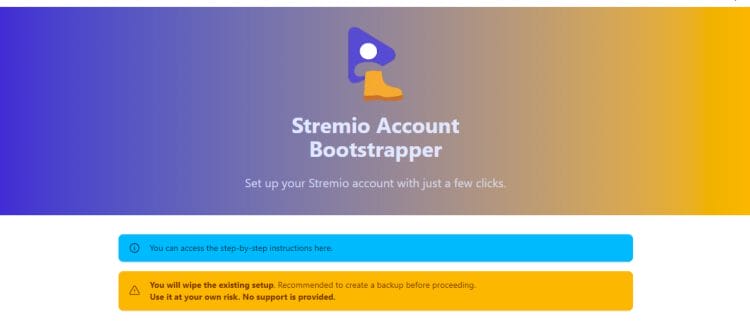
2. Authenticate your Stremio account by entering your login credentials, OR Paste your Stremio Authkey (details on the official site) and click Login.

3. Select Preset (use the question mark next to each option for more info) and your preferred language.

4. Input your Debrid Service Provider credentials. We added TorBox & Real Debrid.

Your online activity is monitored by your ISP, app/addon/IPTV devs, government, and all websites.
🔒 Become anonymous while streaming & downloading with Surfshark VPN
Save 87% with 24-Month Plan + Get 3 FREE Months
Use on Unlimited Devices & Share 1 Account with Entire Family
CLAIM DEAL HERE
5. Click any additional addons you wish to install.

6. If there are other “Custom” addons you wish to install, add the Manifest URL for these here.

7. Choose any additional options you’d like such as Kid-Friendly filters, Max File Size, and more.

8. Add your RPDB Key or TMDB key for advanced setup if you prefer.

9. Click Load addons preset.

10. Customize your addons (Reorder/Delete any you would like).
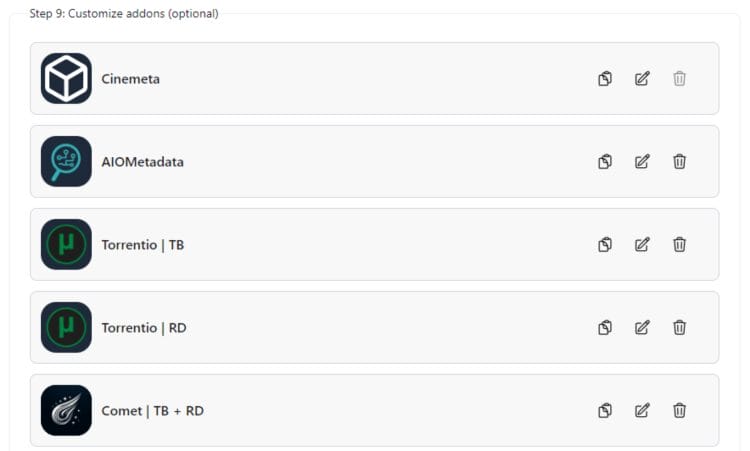
11. Click Sync to Stremio.

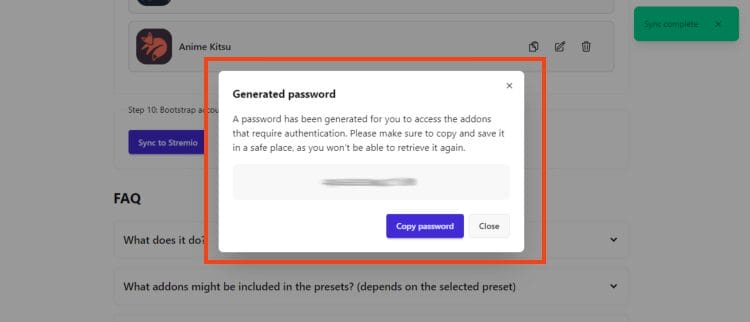
12. You will then see the “Sync Complete” message and are provided with a Password. Make note of this if you need it in the future.
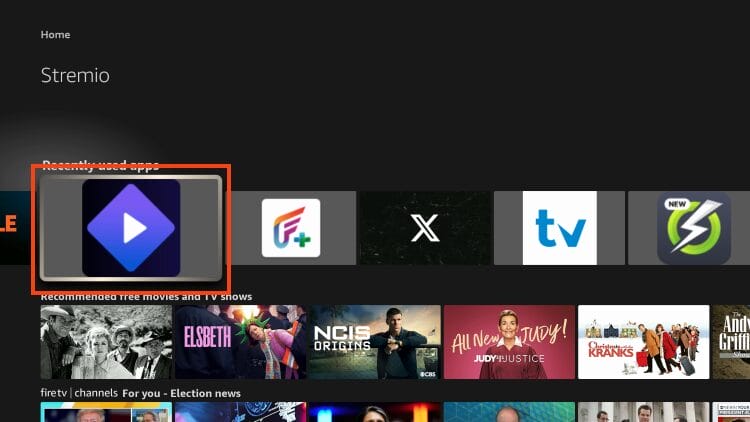
13. Launch the Stremio App on your streaming device, such as Firestick, NVIDIA SHIELD, or Onn 4K Pro.
14. Refresh the app and you will see the complete set of addons from Bootstrapper has been installed!

After configuration and installation, you can find exactly what you are looking for within the application.
This is the absolute simplest, most effective way to get started with Stremio and find all of the content you are looking for!
Once you have made a film/show selection, you will see all of the available addons sourcing links as pictured below.
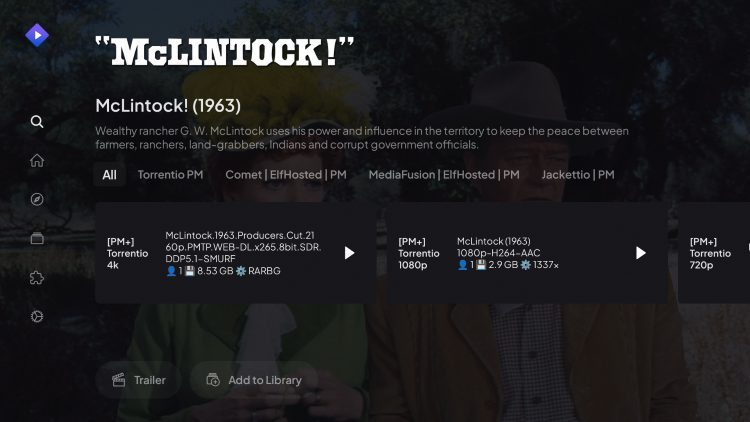
You can even use the built-in USA TV Addon to enjoy live channels that play with just a click.
Bootstrapper turns Stremio into a media powerhouse, and we recommend giving it a try if you are a beginner or an experienced user. Enjoy!
If you are looking for a simple setup process that will provide you with a high level streaming experience with Stremio, Bootstrapper is likely your best bet.
Adding multiple debrid providers is a breeze and you can configure it with personal settings that make finding links extremely easy.
Give it a try and let us know what you think in the comments below!
This page includes affiliate links where TROYPOINT may receive a commission at no extra cost to you. Many times, visitors will receive a discount due to the special arrangements made for our fans. Learn more on my Affiliate Disclaimer page.



© IPTVSub is Proudly Owned by win-design