


 Written by admin
Use the following guide to Watch Stremio on iOS devices including iPhone and iPad.
Stremio has quickly become one of the most widely Free Streaming Apps available today, with millions of users spanning across the globe and popularity continually growing.
While most install the application on Android TV/Google TV/Fire TV devices, many usrs also enjoy streaming on the go via mobile phones and tablets.
Unfortunately, iOS owners are out of luck as the Stremio App is not available for installation via the Apple App Store (after it’s recent removal) with a return unlikely.
If you are an iPhone/iPad owner who wants to install the app on your device, you are currently unable to do so but we can still access the Stremio Platform via Web Server.
This is a simple way to access Stremio on iPhone/iPad and doesn’t require sideloading which can be an extensive and tedious process. Best of all, you can add the web server to your home screen for instant access just like an application.
Before getting started, we strongly recommend following our Stremio Setup Tutorial to make sure you have an active Stremio subscription and your preferred 3rd Party Addons. (This is 100% Free)
Continue below for instructions to access Stremio on iOS and let us know if this process works for you!
NOTE: If you want to unleash your Stremio platform, check out our Ultimate Setup Guide below that provides step by step instructions for adding the most popular addon to stream HD Movies, Shows, and more.
Free Ultimate Stremio Setup Video
In order to stream content via the web server on iOS, you must first install VLC Player on your preferred device.
1. Open the Apple App Store and search for VLC Player. Click Get or Download.
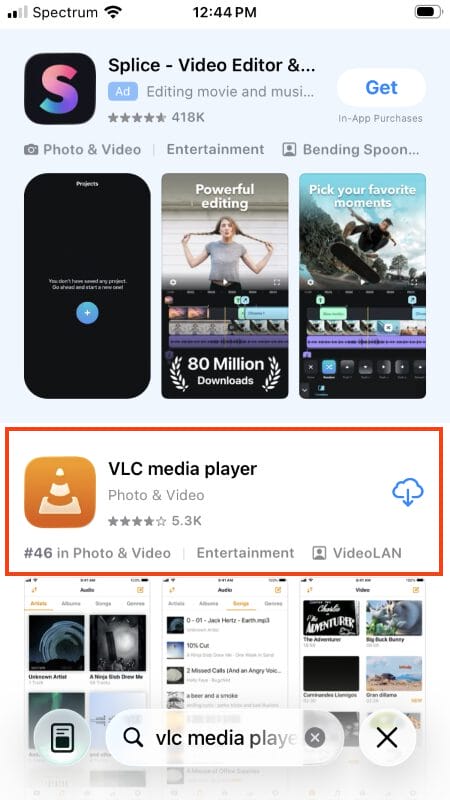
2. Once installed, open VLC and click Done.

3. Return to the home screen of your iOS device and launch your preferred browser. (We are using Safari).
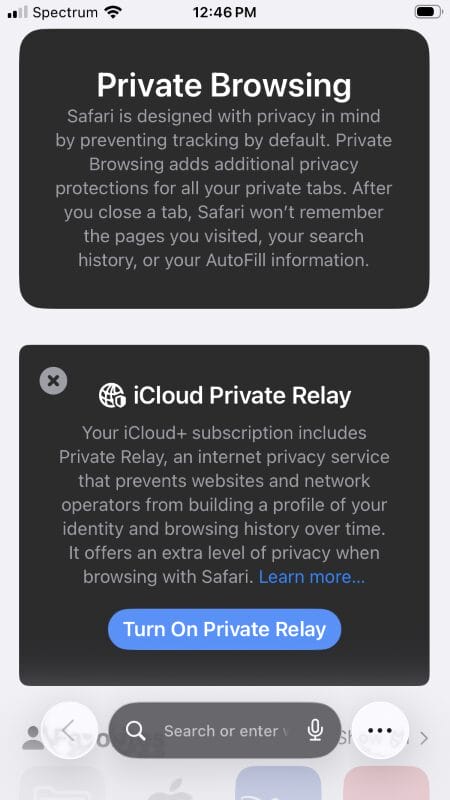
4. Visit web.stremio.com to access the Stremio Web Browser.
Your online activity is monitored by your ISP, app/addon/IPTV devs, government, and all websites.
🔒 Become anonymous while streaming & downloading with Surfshark VPN
Save 87% with 24-Month Plan + Get 3 FREE Months
Use on Unlimited Devices & Share 1 Account with Entire Family
CLAIM DEAL HERE
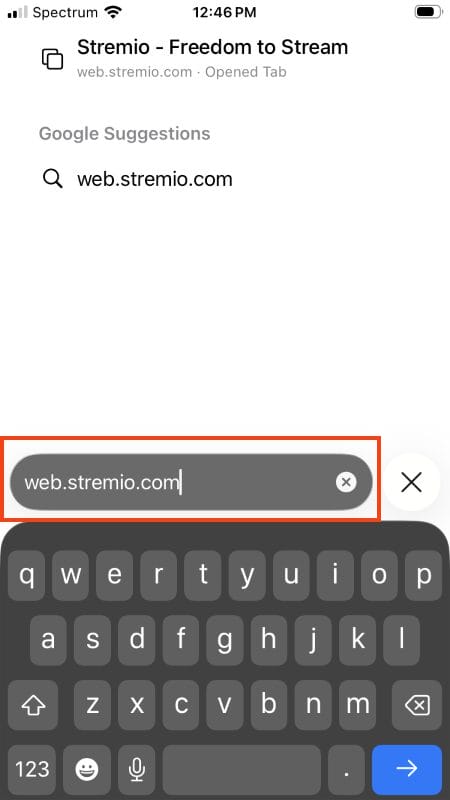
5. You are now in the Stremio Web Browser. Close out of this message if it appears.
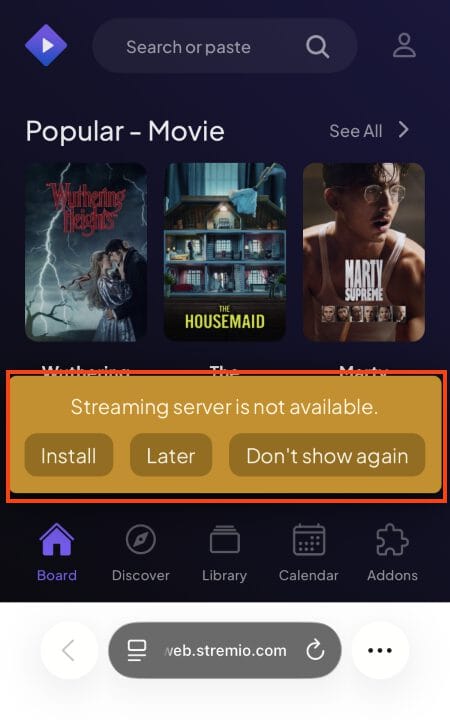
6. Click User Profile in the upper right hand corner and select Log in.
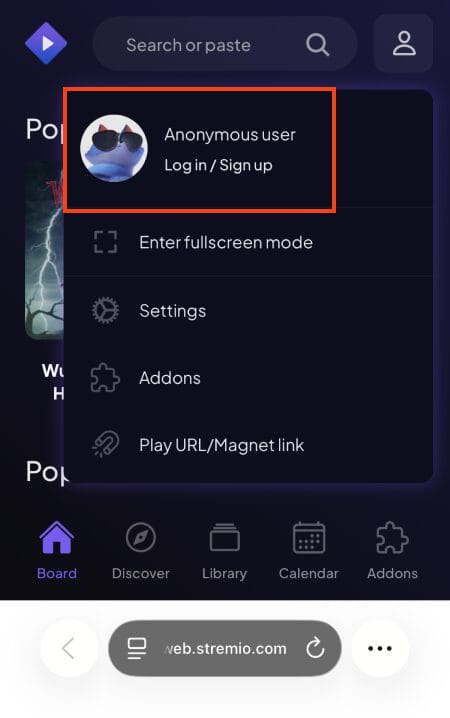
7. Input your Username/Password and click Log in.

8. Open Settings.
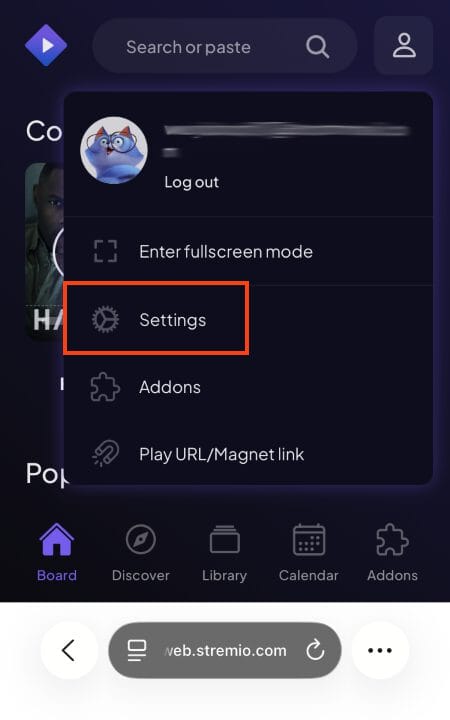
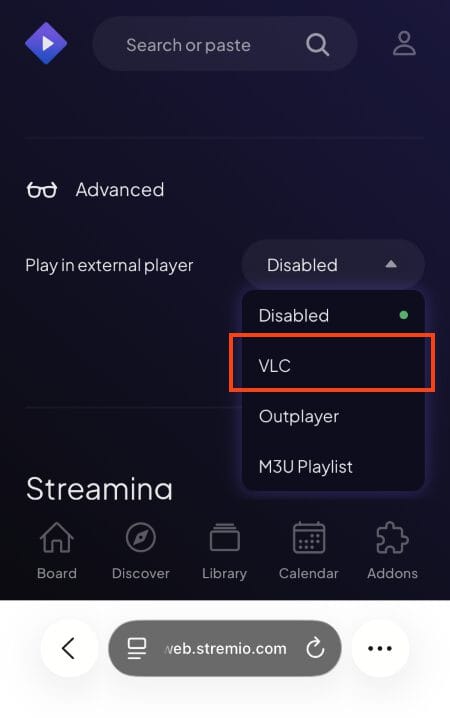
9. Scroll down to Advanced to find Play in external Player.
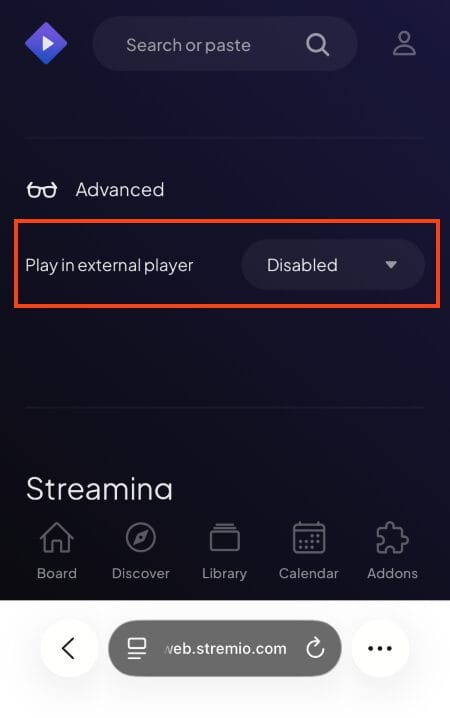
10. Select VLC
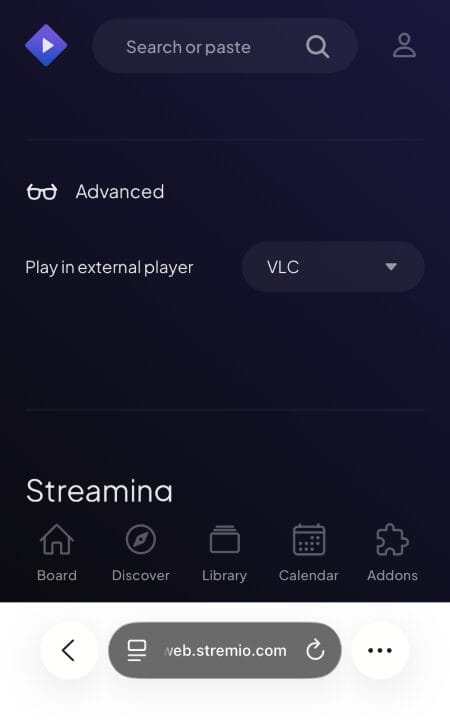
11. VLC is now selected as your preferred video player.
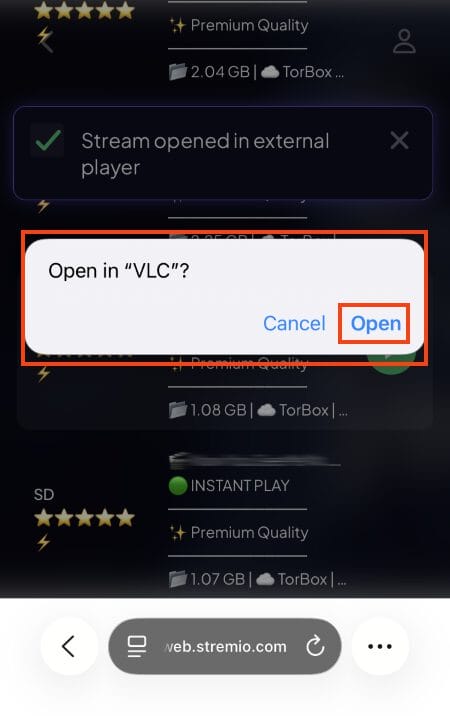
12. When you choose a content selection, select Open in VLC and your Movie/Show will instantly play.
Enjoy!
The best way to use Stremio on iPhone/iPad is by adding it to your home screen for insant access.
When you do this, you won’t have to launch your browser and visit the Stremio Browser website everytime you want to use the platform.
Use these instructions to add Stremio to your home screen for instant launch just like an installed application.
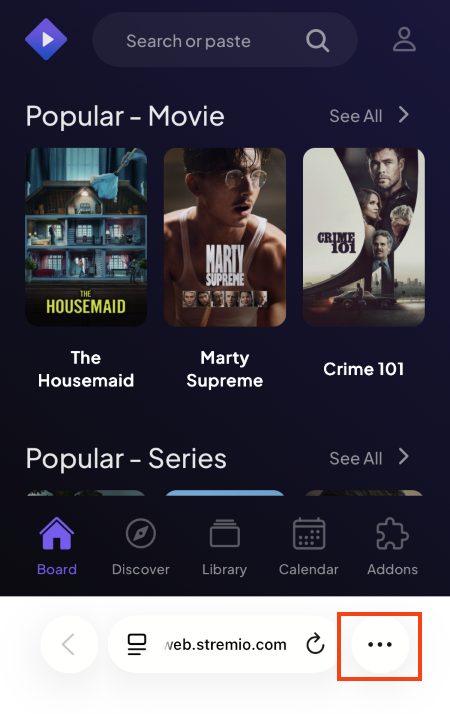
1. Open Stremio on Web Browser and click the 3 dots to open Menu options.
2. Click Share.
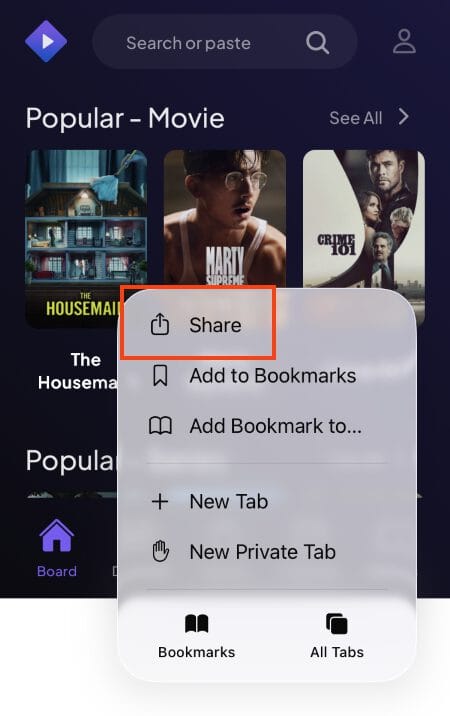
3. Scroll down and select Add to Home Screen.

4. Click Add.
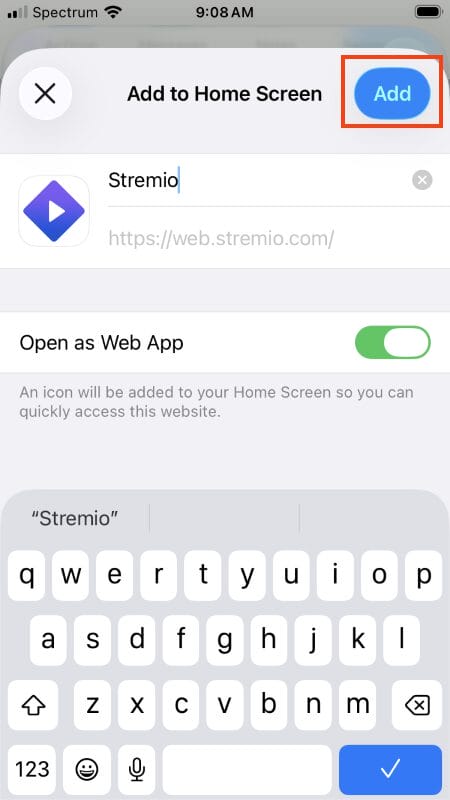
5. Stremio now appears on your home screen.

Enjoy!
One of the main reasons Stremio has gained a massive following is due to the fact that it can be installed and synced across numerous media devices.
Previously, the application was available in the Apple App Store but this is no longer the case and that is why we must use a web browser to access the platform.
While there are methods to “sideload” Stremio on iPhone/iPad, we don’t recommend attempting this unless you are experienced at sideloading IPA files with your PC or Mac.
After logging into your Stremio Account via browser, we suggest bookmarking the page so that you can quickly open Stremio to watch your favorites.
Using Stremio on iOS is a great way to view your favorite media no matter your location without having to find a working stream via other method. Enjoy!
Let us know what you think of the Stremio on iPhone/iPad process in the comments below!
This page includes affiliate links where TROYPOINT may receive a commission at no extra cost to you. Many times, visitors will receive a discount due to the special arrangements made for our fans. Learn more on my Affiliate Disclaimer page.



© IPTVSub is Proudly Owned by win-design