



 Written by admin
SlimBOXtv offers 3rd party firmware for many Android TV Boxes. It specializes in systems that come with Amlogic CPUs but there’s also support for a few Allwinner chips as well. In this tutorial we will be focusing on how to install SlimBOXtv on Android TV Boxes that come with Amlogic processors.
Why would you want to install (flash) a new firmware onto your Android TV Box? There are a few reasons but the primary one is that we can install Android TV onto a cheap China box running Android Open Source Project (AOSP). The problem with AOSP is that it’s built for phones and tablets so the navigation can be clunky and not user-friendly when trying to navigate with a remote control. By installing SlimBOXtv, we can install an Android TV hybrid operating system that’s easier to use and comes with many additional features.
Another reason to install SlimBOXtv is to get away from possible Malware embedded on the China TV Boxes. There’s been no report of malware or viruses present in any SlimBOXtv firmware image but there have been some false positives reported. These usually come from modded APKs included with the firmware or root access feature that’s provided. Either way, it’s safer using this firmware than what comes with most generic Android TV Boxes that originate in China.
We ran a poll on the TROYPOINT Insider asking fans if they preferred Android TV or AOSP on their streaming devices and here are the results. Most TROYPOINT fans favor Android TV over AOSP so that’s why this is an important subject.
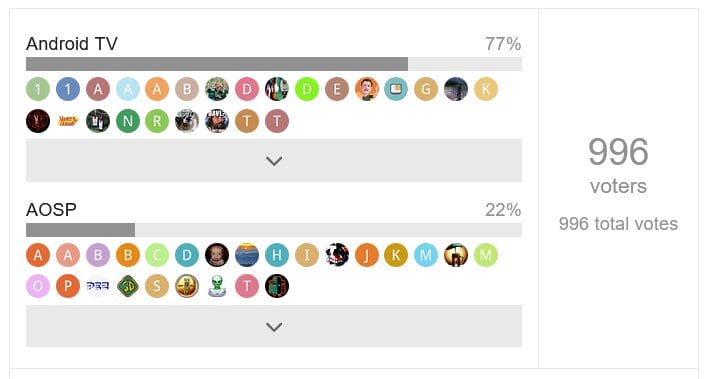
SlimBOXtv doesn’t only cater to those who prefer Android TV though! They also offer an AOSP version for each device that they support. The benefit of doing this is that you will usually get more features than what your original firmware provides.
Disclaimer! There is a risk of bricking your device and you should only do this if you are OK with possibility of losing the ability to ever use the device again. I can’t stress this enough. If you don’t feel comfortable doing this, don’t do it!
TROYPOINT will not be held liable for those who follow this tutorial and ruin their Android TV Box.
Most problems will occur due to people not following proper instructions. If you are someone who can’t pay attention to detail, this isn’t for you.
IMPORTANT! Below you will find both a video tutorial and general screenshot guide. You must watch the video in its entirety or you will have difficulty. There are important details referenced in the video that you won’t find in the written guide.
Free Ultimate Stremio Setup Video
X88 Pro X5M Android TV Box (I use this in video)
Male to Male USB Cable
GMKtec Mini PC Intel Core i7-1185G7
SlimBOXtv Website
TROYPOINT Toolbox
Surfshark VPN Exclusive Discount
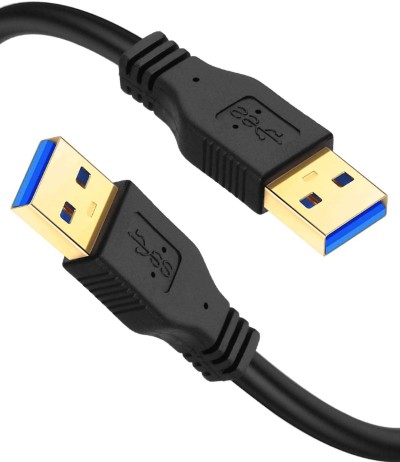
*Most installs will require a Male to Male USB cable so you can connect your Android TV Box to a Windows PC.
Here is the one that I use in the video tutorial above with purchase link below. It’s important to have a quality cable as many cheap ones will not work properly. You will notice that this is a USB 3.0 cable but it’s backwards compatible with USB 2.0 so if your box doesn’t have 3.0 ports it doesn’t matter. This cable will work for all USB ports regardless of USB 3.0 or 2.0.
Purchase Male to Male USB Cable on Amazon
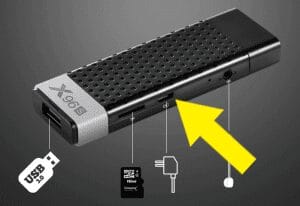
However, some installs are completed through the Micro USB power port on the device.
I had no success flashing the firmware onto my X96S through the USB port.
Your online activity is monitored by your ISP, app/addon/IPTV devs, government, and all websites.
🔒 Become anonymous while streaming & downloading with Surfshark VPN
Save 87% with 24-Month Plan + Get 3 FREE Months
Use on Unlimited Devices & Share 1 Account with Entire Family
CLAIM DEAL HERE
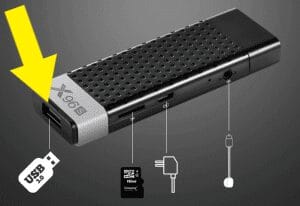
I tried and tried then finally took to Grok AI and asked, “What are common problems when flashing SlimBOXtv firmware onto X96S?” Grok returned the following…
Common issues include wrong USB port (use the micro-USB OTG port for flashing, not the HDMI-side USB), thin cables, or driver glitches.
After seeing this, I used the included USB power cord and connected that instead to my PC and the flash worked!
By the way, if you encounter any problems along the way, ask Grok and more than likely you will get straightened out. It will be faster than scouring multiple websites for your issues as Grok will do the research on those sites for you.
Most Android TV Boxes aren’t powered by a micro-USB port unless it’s a stick like the X96S. The majority of users will required the male to male USB cable.
It’s important to pick the proper Amlogic Burning Tool which will install the SlimBOXtv firmware onto your Android TV Box. There are multiple versions of this software and you must use the one that corresponds to your streaming box.
Use the following table to determine what version you need based on your Amlogic Android TV Box.
| Model | Chip | Available SlimBOX Firmware | Recommended UBT Version |
|---|---|---|---|
| A95X F2 | S905X2 | v9, v42, v54 (Android 9/11) | v2.2.0 – v3.1.x |
| A95X MAX | S905X2 | v9, v42, v54 (Android 9/11) | v2.2.0 – v3.1.x |
| A95X MAX II | S905X3 | v9, v42, v54 (Android 9) | v2.2.0 – v3.1.x |
| A95X W2 | S905W2 | v9, v11, v42, v54 (Android 9/11) | v2.2.0 – v3.1.x |
| A95X Max | S905X2 | v9, v42, v54 (Android 9/11) | v2.2.0 – v3.1.x |
| Beelink GS-King X | S922X-H | v9, v11 (Android 9/11) | v2.2.0 – v3.1.x |
| Beelink GT King II | A311D2 | v9, v11 (Android 9/11) | v2.2.0 – v3.1.x |
| Beelink GT-King | S922X-H | v9, v11 (Android 9/11) | v2.2.0 – v3.1.x |
| Beelink GT-King Pro | S922X-H | v9, v11 (Android 9/11) | v2.2.0 – v3.1.x |
| Beelink GT1 Mini2 | S905X3 | v9, v42, v54 (Android 9) | v2.2.0 – v3.1.x |
| Beelink GT1 Ultimate | S9112 | v9 (Android 9) | v2.1.6 – v2.1.9 |
| Bqeel Y8 Max | S905X3 | v9, v42, v54 (Android 9) | v2.2.0 – v3.1.x |
| Dealdig BOXD6 | S9112 | v9 (Android 9) | v2.1.6 – v2.1.9 |
| EACHLINK X3 mini | S905X3 | v9, v42, v54 (Android 9) | v2.2.0 – v3.1.x |
| H96 Max | H618 (Allwinner) | v9, v11 (Android 9/11) | N/A (PhoenixSuit) |
| H96 Max M12 | S928X | v11, v14+ (Android 11/14) | v3.2.0+ |
| H96 Max W2 | S905W2 | v9, v11, v42, v54 (Android 9/11) | v2.2.0 – v3.1.x |
| H96 Max X3 | S905X3 | v9, v42, v54 (Android 9) | v2.2.0 – v3.1.x |
| H96 Max X4 | S905X4 | v11, v14 (Android 11/14) | v3.0.0 – v3.2.x |
| H96 Pro plus | S9112 | v9 (Android 9) | v2.1.6 – v2.1.9 |
| H96max X4 | S905X4 | v11, v14 (Android 11/14) | v3.0.0 – v3.2.x |
| H9 X3 | S905X3 | v9, v42, v54 (Android 9) | v2.2.0 – v3.1.x |
| HK1 Box | S905X3 | v9, v42, v54 (Android 9) | v2.2.0 – v3.1.x |
| HK1 RBOX W2 | S905W2 | v9, v11, v42, v54 (Android 9/11) | v2.2.0 – v3.1.x |
| IE X3 Air | S905X3 | v9, v42, v54 (Android 9) | v2.2.0 – v3.1.x |
| MXV 4K | S905W2 | v9, v11, v42, v54 (Android 9/11) | v2.2.0 – v3.1.x |
| Mecool BB2 and Pro | S9112 | v9 (Android 9) | v2.1.6 – v2.1.9 |
| Mecool KM6 | S905X4 | v11, v14 (Android 11/14) | v3.0.0 – v3.2.x |
| Mecool KM7 | S905Y4 | v11, v14 (Android 11) | v3.0.0 – v3.2.x |
| Mecool KM9 | S905X2 | v9, v42, v54 (Android 9/11) | v2.2.0 – v3.1.x |
| Mecool KIII Pro | S912 | v9 (Android 9) | v2.1.6 – v2.1.9 |
| Mecool M8S Pro | S912 | v9 (Android 9) | v2.1.6 – v2.1.9 |
| MegaFon M8S Pro+ | S905X | v9, v19, v42, v54 (Android 9) | v2.1.6 – v2.1.9 |
| Minix NEO U22-XJ | S922XJ | v9, v11 (Android 9/11) | v2.2.0 – v3.1.x |
| Minix NEO U22-XJ Max | S922XJ | v9, v11 (Android 9/11) | v2.2.0 – v3.1.x |
| Minix NEO U9-H | S912 | v9 (Android 9) | v2.1.6 – v2.1.9 |
| Magicsee G7 mini | S905W2 | v9, v11, v42, v54 (Android 9/11) | v2.2.0 – v3.1.x |
| Magicsee G7 Pro | S905Y4 | v11, v14 (Android 11) | v3.0.0 – v3.2.x |
| Magicsee G7 Stick | S905Y4 | v11, v14 (Android 11) | v3.0.0 – v3.2.x |
| Magicsee N5 | S905X3 | v9, v42, v54 (Android 9) | v2.2.0 – v3.1.x |
| Magicsee N5 Max X2 | S905X2 | v9, v42, v54 (Android 9) | v2.2.0 – v3.1.x |
| Magicsee N5 Max X3 | S905X3 | v9, v42, v54 (Android 9) | v2.2.0 – v3.1.x |
| Magicsee N6 Plus | S922X | v9, v11 (Android 9/11) | v2.2.0 – v3.1.x |
| Okko Smart Box | S905Y2 | v9, v19, v42, v54 (Android 9) | v2.1.6 – v2.1.9 |
| Openbox A4Pro | S905W | v9, v19 (Android 9) | v2.1.6 – v2.1.9 |
| Skyworth A4041 | S905L | v9 (Android 9) | v2.1.6 – v2.1.9 |
| Smart Box Z1 | S905X3 | v9, v42, v54 (Android 9) | v2.2.0 – v3.1.x |
| Sunvell T95Z Plus | S9112 | v9 (Android 9) | v2.1.6 – v2.1.9 |
| TOX3 | S905X4 | v34, v114 (Android 11) | v3.0.0 – v3.2.x |
| Tanix TX1 | H313 (Allwinner) | v9, v11 (Android 9/11) | N/A (PhoenixSuit) |
| Tanix TX2 | H618 (Allwinner) | v9, v11 (Android 9/11) | N/A (PhoenixSuit) |
| Tanix TX3 Mini Plus | S905W2 | v9, v11, v42, v54 (Android 9/11) | v2.2.0 – v3.1.x |
| Tanix TX4 | S905X4 | v11, v14 (Android 11/14) | v3.0.0 – v3.2.x |
| Tanix TX5 | S905Y5 | v14 (Android 14; e.g., 14.5, 14.6) | v3.2.0+ |
| Tanix TX5 PLUS | S905X3 | v9, v42, v54 (Android 9) | v2.2.0 – v3.1.x |
| Tanix TX5 Plus 2025 | S905X5M | v14 (Android 14) | v3.2.0+ |
| Tanix TX68 | H618 (Allwinner) | v9, v11 (Android 9/11) | N/A (PhoenixSuit) |
| Tanix TX9 / SharksTraid Stick | S905Y4 | v11, v14 (Android 11) | v3.0.0 – v3.2.x |
| Tanix TX9S | S9112 | v9 (Android 9) | v2.1.6 – v2.1.9 |
| Tanix W2 | S905W2 | v9, v11, v42, v54 (Android 9/11; e.g., 11.26) | v2.2.0 – v3.1.x |
| Tanix X4 | S905X4 | v11, v14 (Android 11/14; e.g., 11.31) | v3.0.0 – v3.2.x |
| Transpeed AV1 | S905W2 | v9, v11, v42, v54 (Android 9/11) | v2.2.0 – v3.1.x |
| Transpeed M98 Max | S905Y4 | v11, v14 (Android 11) | v3.0.0 – v3.2.x |
| Transpeed M98 Tv Stick | S905Y4 | v11, v14 (Android 11) | v3.0.0 – v3.2.x |
| Transpeed X3 Air, Plus, Pro | S905X3 | v9, v42, v54 (Android 9) | v2.2.0 – v3.1.x |
| Transpeed X4 / X4S | S905X4 | v11, v14 (Android 11) | v3.0.0 – v3.2.x |
| T95 Max Plus | S905X3 | v9, v42, v54 (Android 9) | v2.2.0 – v3.1.x |
| T95 W2 | S905Y | v9 (Android 9) | v2.1.6 – v2.1.9 |
| T95 X4 | S905X4 | v11, v14 (Android 11) | v3.0.0 – v3.2.x |
| T95Q | S905X2 | v9, v42, v54 (Android 9/11) | v2.2.0 – v3.1.x |
| T95Q MAX X3 | S905X3 | v9, v42, v54 (Android 9) | v2.2.0 – v3.1.x |
| T96Z | S905X3 | v9, v42, v54 (Android 9) | v2.2.0 – v3.1.x |
| Ugoos AM3 | S9112 | v9 (Android 9) | v2.1.6 – v2.1.9 |
| Ugoos AM6 / PRO / Plus (B rev) | S922X | v9, v11 (Android 9/11) | v2.2.0 – v3.1.x |
| Ugoos AM7 | S905X4 | v11, v14 (Android 11) | v3.0.0 – v3.2.x |
| Ugoos AM8 | S928X-J | v11, v14+ (Android 11/14) | v3.2.0+ |
| Ugoos AM9 / AM9 Pro | S905X5 | v14 (Android 14) | v3.2.0+ |
| Ugoos SK1 | S928X-K | v11, v14+ (Android 11/14) | v3.2.0+ |
| Ugoos X2 Cube, Pro | S905X2 | v9, v42, v54 (Android 9/11) | v2.2.0 – v3.1.x |
| Ugoos X3 Cube, Plus, Pro | S905X3 | v9, v42, v54 (Android 9) | v2.2.0 – v3.1.x |
| Ugoos X4Q (Cube/Pro/Plus) | S905X4 | v11, v14 (Android 11) | v3.0.0 – v3.2.x |
| UR02 | S905X4 | v11, v114 (Android 11; e.g., 11.33, 114.20) | v3.0.0 – v3.2.x |
| Vontar X2 | S905W2 | v9, v11, v42, v54 (Android 9/11) | v2.2.0 – v3.1.x |
| Vontar X3 | S905X3 | v9, v42, v54 (Android 9; e.g., 9.2, 42.4, 54.4) | v2.2.0 – v3.1.x |
| Vontar X4 | S905X4 | v11, v14 (Android 11) | v3.0.0 – v3.2.x |
| Vorke Z1 | S9112 | v9 (Android 9) | v2.1.6 – v2.1.9 |
| Vosen V1 | S905X2 | v9, v42, v54 (Android 9/11) | v2.2.0 – v3.1.x |
| WIFIRE Q5 | S905L | v9 (Android 9) | v2.1.6 – v2.1.9 |
| X10 Max X4 | S905X4 | v11, v14 (Android 11) | v3.0.0 – v3.2.x |
| X88 King | S922X | v9, v11 (Android 9/11) | v2.2.0 – v3.1.x |
| X88 Pro X3 (non-encrypted) | S905X3 | v9, v42, v54 (Android 9) | v2.2.0 – v3.1.x |
| X88 Pro X5M | S905X5M | v14 (Android 14; e.g., 14.2, 14.3, 14.6) | v3.2.0+ |
| X92 | S9112 | v9 (Android 9) | v2.1.6 – v2.1.9 |
| X96 Air | S905X3 | v9, v42, v54 (Android 9) | v2.2.0 – v3.1.x |
| X96 Max | S905X2 | v9, v42, v54 (Android 9/11) | v2.2.0 – v3.1.x |
| X96 Max Plus | S905X3 | v9, v42, v54 (Android 9) | v2.2.0 – v3.1.x |
| X96 Max Plus Ultra | S905X4 | v11, v14 (Android 11/14) | v3.0.0 – v3.2.x |
| X96 M200 | S905X5M | v14 (Android 14) | v3.2.0+ |
| X96 M300 | S905X5M | v14 (Android 14) | v3.2.0+ |
| X96 Mini 11 | S905W2 | v9, v11, v42, v54 (Android 9/11) | v2.2.0 – v3.1.x |
| X96 Mini 5G | S905W4 | v9 (Android 9) | v2.1.6 – v2.1.9 |
| X96 Mini Plus | S905W4 | v9 (Android 9) | v2.1.6 – v2.1.9 |
| X96 Q Pro Plus | H728 (Allwinner) | v9, v11 (Android 9/11) | N/A (PhoenixSuit) |
| X96 S400 | H313 (Allwinner) | v9, v11 (Android 9/11) | N/A (PhoenixSuit) |
| X96 X10 | S928X | v11, v14+ (Android 11/14) | v3.2.0+ |
| X96 X4 | S905X4 | v11, v14 (Android 11) | v3.0.0 – v3.2.x |
| X96 X9 | S922X | v9, v11 (Android 9/11) | v2.2.0 – v3.1.x |
| X96Q | H313 (Allwinner) | v9, v11 (Android 9/11) | N/A (PhoenixSuit) |
| X96S (Stick) | S905X | v9, v19, v42, v54 (Android 9) | v2.1.6 – v2.1.9 |
| X96S400 | H313 (Allwinner) | v9, v11 (Android 9/11) | N/A (PhoenixSuit) |
| X98 Plus | S905W2 | v9, v11, v42, v54 (Android 9/11) | v2.2.0 – v3.1.x |
| X98 Pro | S9112 | v9 (Android 9) | v2.1.6 – v2.1.9 |
| X98 S500 | S905X4 | v11 (Android 11; e.g., 11.5) | v3.0.0 – v3.2.x |
| X98H / X98H Pro | H618 (Allwinner) | v9, v11 (Android 9/11) | N/A (PhoenixSuit) |
| X99 Max Plus | S905X3 | v9, v42, v54 (Android 9) | v2.2.0 – v3.1.x |
| Xnano X1 PRO | T972 | v9 (Android 9) | v3.2.0+ |
| YokaTV KB2 Pro | S9112 | v9 (Android 9) | v2.1.6 – v2.1.9 |
| Z10 Pro | H616 (Allwinner) | v9, v11 (Android 9/11) | N/A (PhoenixSuit) |
| Zoomtak King S22 | S922X | v9, v11 (Android 9/11) | v2.2.0 – v3.1.x |
| x88 pro x5m | S905X5M | v14 (Android 14; e.g., 14.3, 14.6) | v3.2.0+ |
| Amlogic S905X (Universal) | S905X | v9, v19 (Android 9) | v2.1.6 – v2.1.9 |
| Beeline RASSE-001 | S905X | v9, v19 (Android 9) | v2.1.6 – v2.1.9 |
| T95 W2 | S905W2 | v9, v11, v42, v54 (Android 9/11) | v2.2.0 – v3.1.x |
| TX3 Mini | S905W | v9, v19 (Android 9) | v2.1.6 – v2.1.9 |
| Tronsmart Vega S96 | S9112 | v9 (Android 9) | v2.1.6 – v2.1.9 |
| Ugoos (General) | Various (S905/S922/S928) | v132 (Android 11/14; e.g., 132.1-132.4) | v2.2.0 – v3.2.x |
| Xiaomi Mi TV Stick 4K | S905Y4 | v11, v14 (Android 11) | v3.0.0 – v3.2.x |
| X96 Max | S905X2 | v9, v42, v54 (Android 9/11) | v2.2.0 – v3.1.x |
| X96 mini | S905W | v9, v19 (Android 9) | v2.1.6 – v2.1.9 |
| X98 Plus | S905W2 | v9, v11, v42, v54 (Android 9/11) | v2.2.0 – v3.1.x |
Now head over to the TROYPOINT Toolbox and download/install the version that you need. You will find the software under the “Windows PC Downloads” heading.
You will see that I have 3 versions for download and I’ve tested them all on various Android TV Boxes. The table above references a range of software than can be used for each mode and the three releases that I’ve provided should cover all models in the chart above. If not, there is a link provided that will take you to a page where you can download any version that you need.
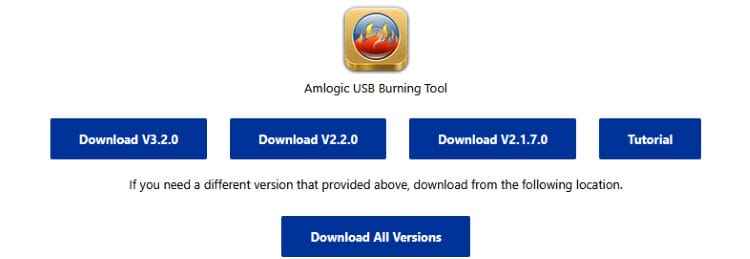
Now that you’ve installed Amlogic USB Burning Tool onto your Windows PC it’s time to download the SlimBOXtv firmware!
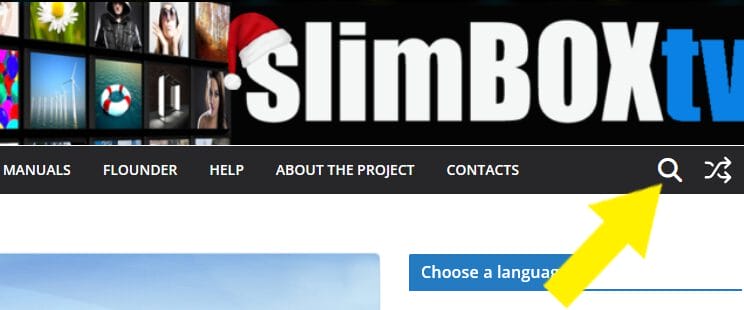
Go to the SlimBOXtv Website and in your browser translate to English or your preferred language. This is a Russian site so this step is important.
Search for your Android TV Box model that you want to flash.
You will then click the “Download ATV or AOSP” link for SlimBOXtv firmware.
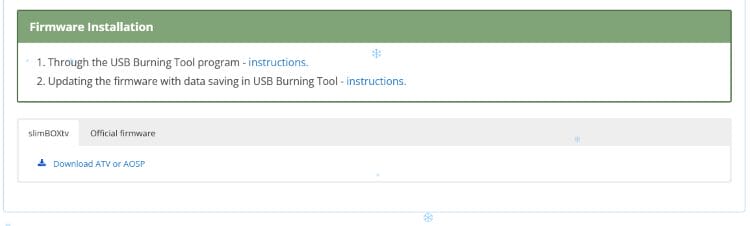
Download the zip file that corresponds to the version of the firmware that you want (AOSP or Android TV).
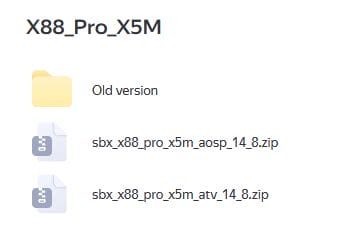
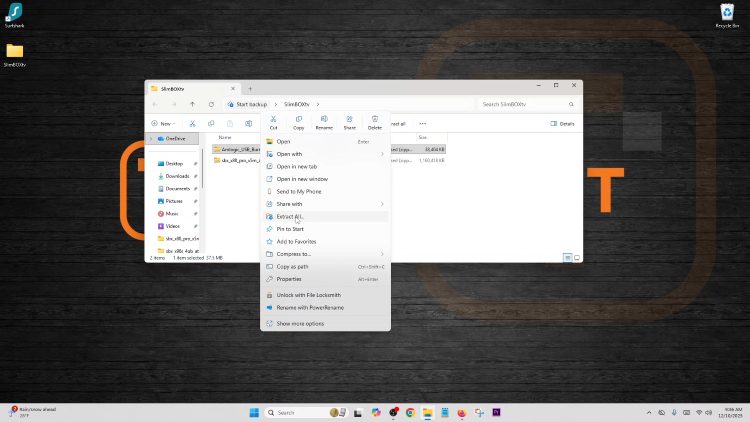
You will now have two .zip files downloaded to your Windows PC. Extract both zip files into their own folder. Details in video above not shown below.
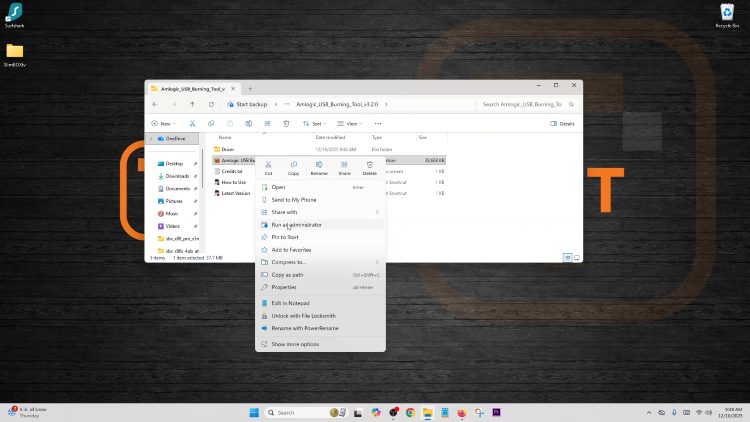
Right click Amlogic Burning Tool .exe file and Run as Administrator to install properly.
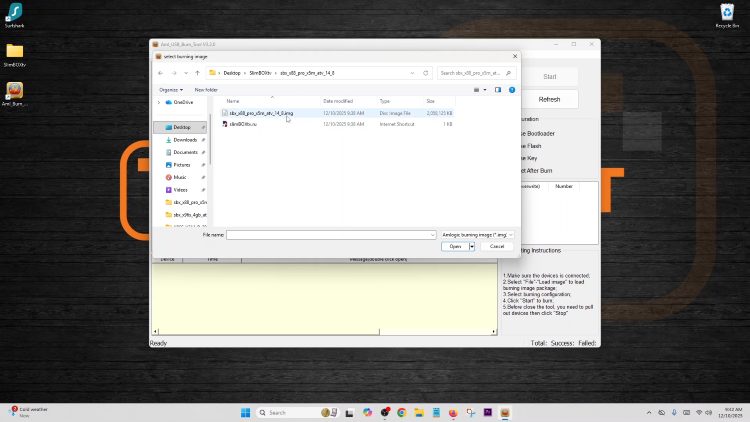
Open Amlogic USB Burning Tool and import SlimBOXtv firmware .img file.
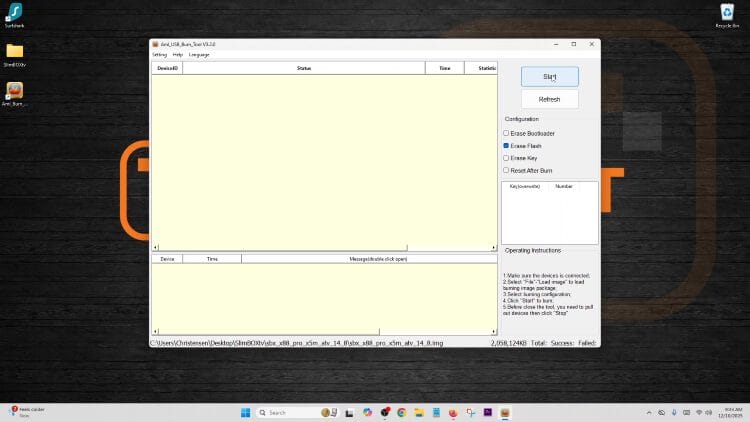
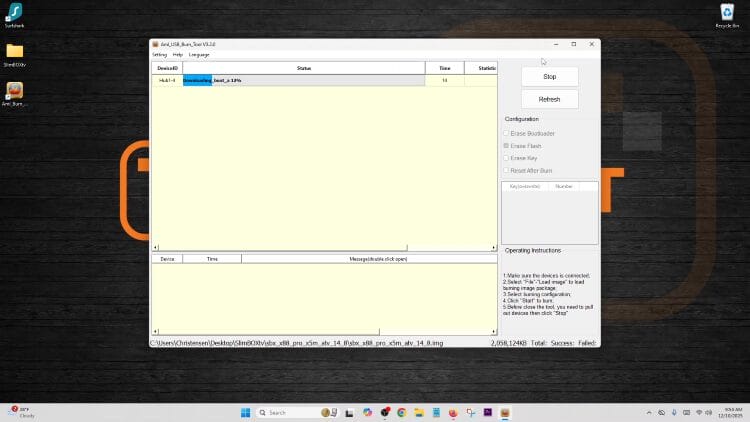
Uncheck the box that reads “Erase Bootloader” and click Start button in Amlogic USB Burning Tool.
Connect the male to male USB cable to an available port on the Windows PC.
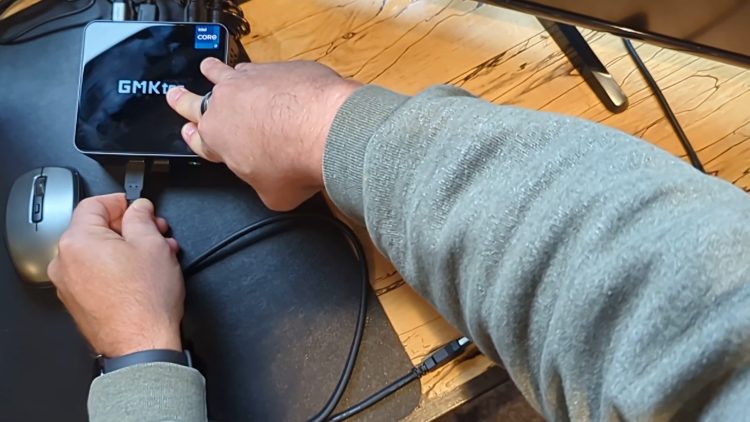
Hold in on reset button via AV port with toothpick while also inserting USB cable into Android TV Box at same time.
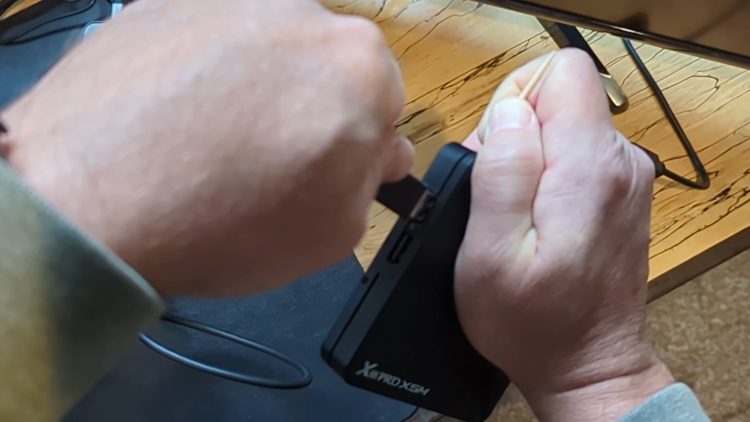
Wait for successful connection within Amlogic USB Burning Tool software before releasing toothpick.
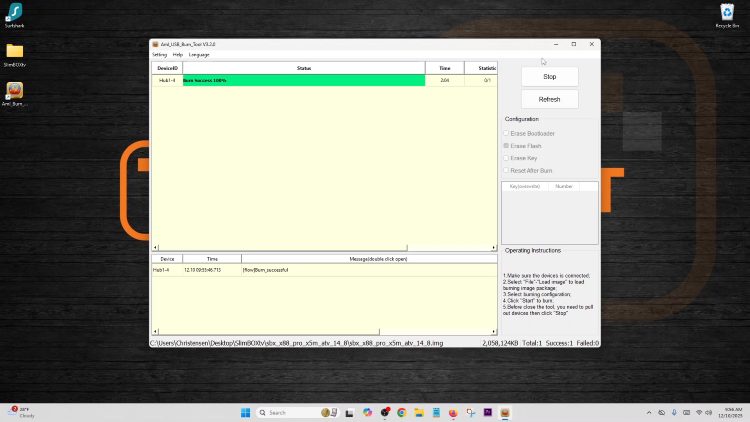
Once green bar is present at 100%, the flashing of SlimBOXtv is complete and you may disconnect Android TV Box from USB cable and close software on PC.
This is one of the few tutorials that we provide where you must watch the video above to successfully complete this task. There are many details provided in the video that are difficult to explain through writing. If you are having trouble and haven’t watched the above step-by-step video, please do so before going any further.
We will continue adding to the help section below as we learn more from our fans who encounter various problems.
Try connecting to different USB ports on the Android TV Box with the cable. Also, if your box is powered by a micro-USB connector, you may need to connect through that instead of the USB port on the box.
Ensure that you are using the proper Amlogic USB Burning Tool software version per the table above.
Try different methods of pushing in the toothpick and connecting the USB cable to the Android TV Box. As you see in the video above, my box only works if I push in the toothpick and connect the USB cable at the exact same time. Usually, you will want to push in the toothpick first and then connect the USB cable.
Try connecting the USB cable to a different port on your Windows PC.
Make sure you are pushing the proper reset button on the device. Most are located in the AV hole but there are some that have a dedicated button on the side or bottom of the box.
Not all USB cables are created equally. Use a high quality thick cable like the one I use in the video. I’ve used this in over 10 SlimBOXtv installs and it works great.
This is usually due to flashing an older Android TV device with an outdated bootloader. In this situation, try keeping the “Erase Bootloader” box checked along with “Erase Flash” checked as well. This may also be caused by choosing the wrong SlimBOXtv firmware .img file.
The SlimBOXtv team may also provide support through the following outlets.
SlimBOXtv XDA Developers Forum
This page includes affiliate links where TROYPOINT may receive a commission at no extra cost to you. Many times, visitors will receive a discount due to the special arrangements made for our fans. Learn more on my Affiliate Disclaimer page.




© IPTVSub is Proudly Owned by win-design