Search Your Query

All Cart

Cart

  • Home
  • How to Install LG Channels Addon on Kodi (Free Live TV)

How to Install LG Channels Addon on Kodi (Free Live TV)

images images
  • admin Written by admin
  • October 21, 2025
  • 3 minutes

The following tutorial will show you how to install the LG Channels Kodi Addon on any streaming device.

The LG Channels add-on is pulling in content from its official website which is a free live streaming website for viewing live channels and on-demand content.

For those who prefer viewing content from LG Channels without ads this add-on is a great choice!

The LG Channels add-on can be installed from the cMaN Wizard Repo, which is a great repository that holds other popular add-ons and builds.

In this tutorial, we are using an Amazon Firestick 4K but this process will also work for any Kodi device including Android TV/Google TV, PC, Linux, phone, tablet, and more.

Prior to using the LG Channels add-on, you must first install the Kodi application on your Firestick or Android device.

How to Install LG Channels Kodi Addon

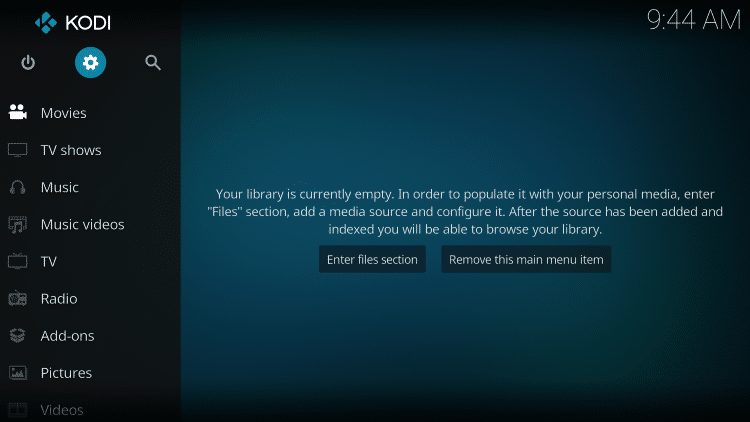
  • Launch Kodi
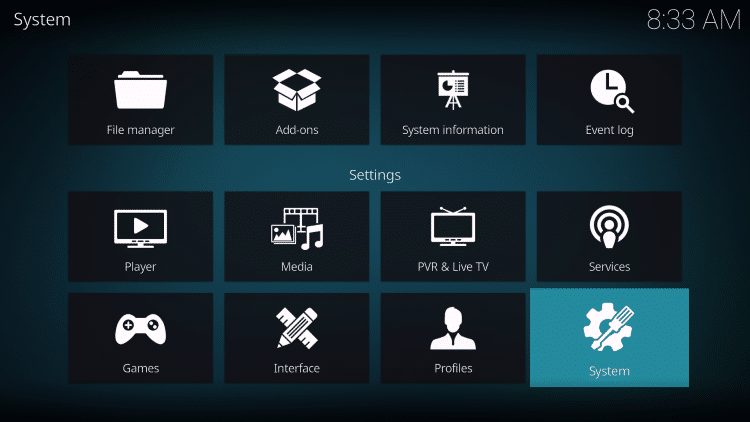
  • Click the settings icon  Kodi Settings IconKodi Settings Icon
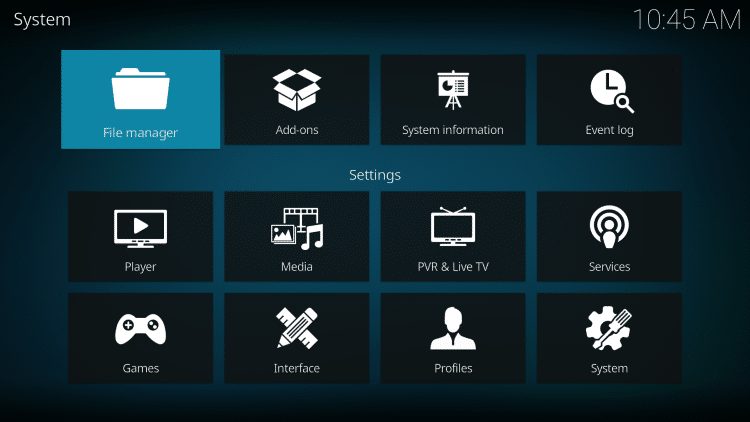
click settings icon click system
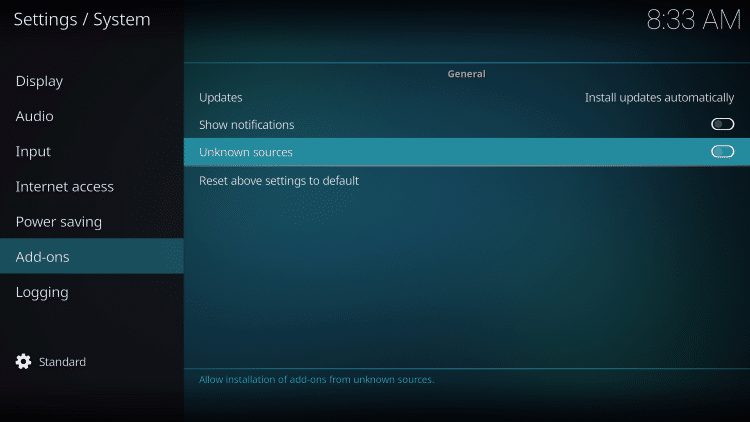
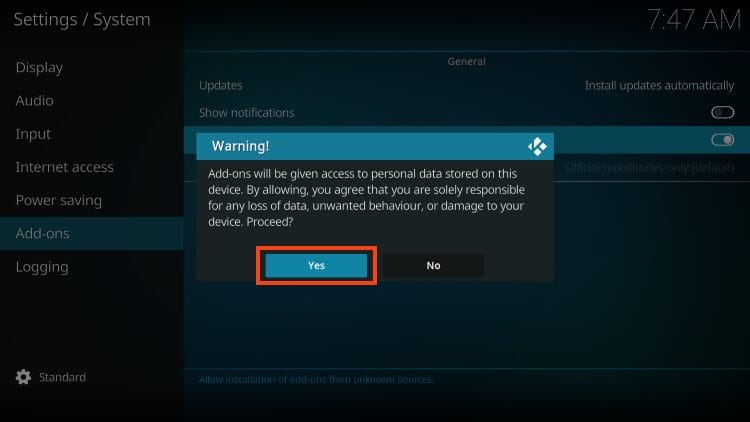
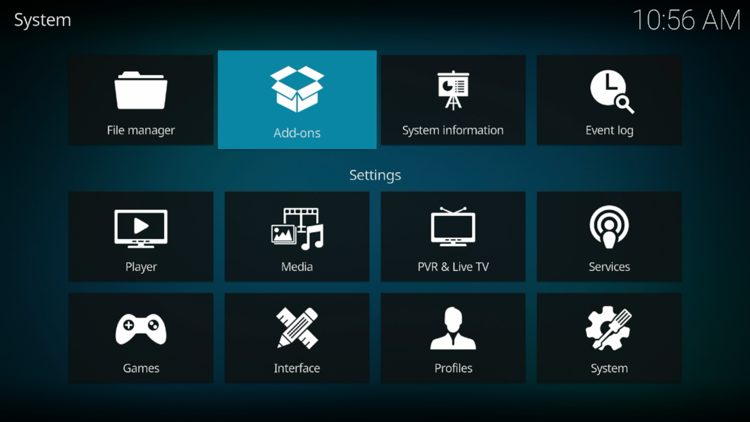
  • Hover over Add-ons menu item and turn on Unknown sources if not already on
turn on unknown sources Click Yes
  • Click back on remote to go back to the System page
  • Select File Manager
select file manager


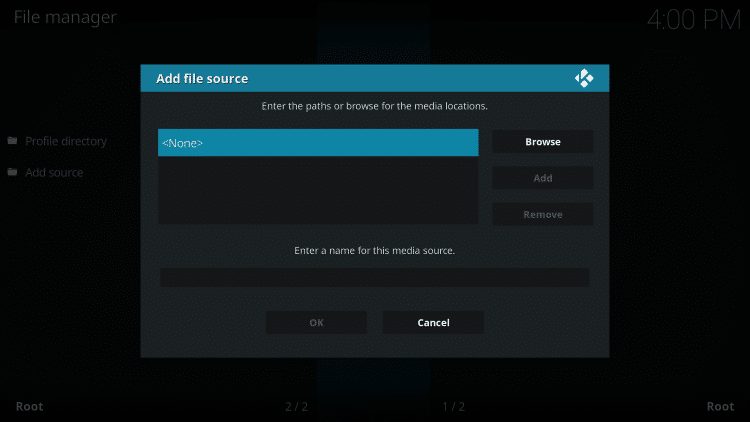
click none
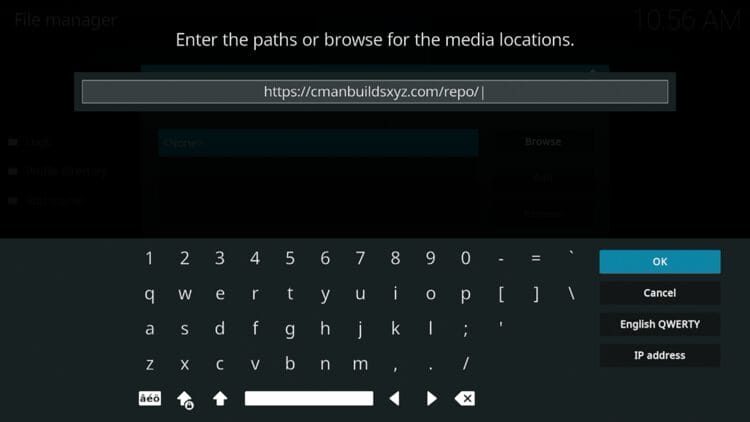
  • Type the following URL exactly how it is listed here and click OK – https://cmanbuildsxyz.com/repo/
Type the following URL exactly how it is listed here and click OK – https://cmanbuildsxyz.com/repo/
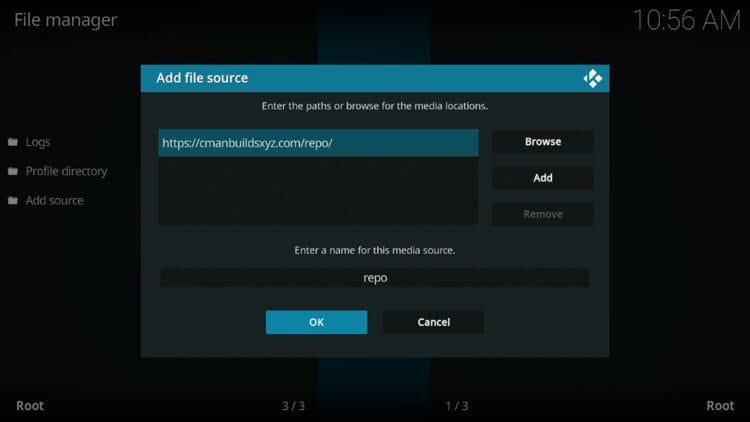
  • Type “repo” or any other name you would like to identify this source as and click OK
Type "repo" or any other name you would like to identify this source as and click OK
  • Click the back button on your remote until you are on the System screen. Then click Add-ons
Click the back button on your remote until you are on the System screen. Then click Add-ons
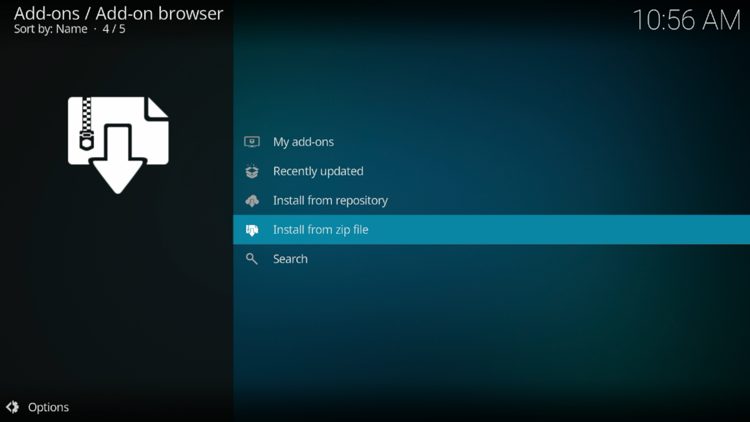
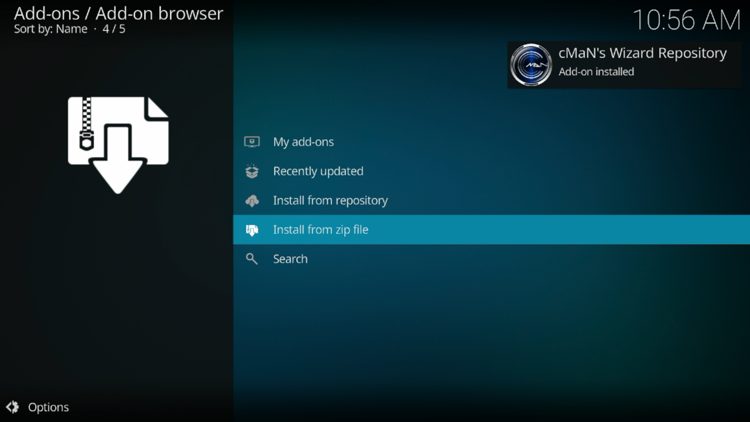
  • Click Install from zip file
Click Install from zip file
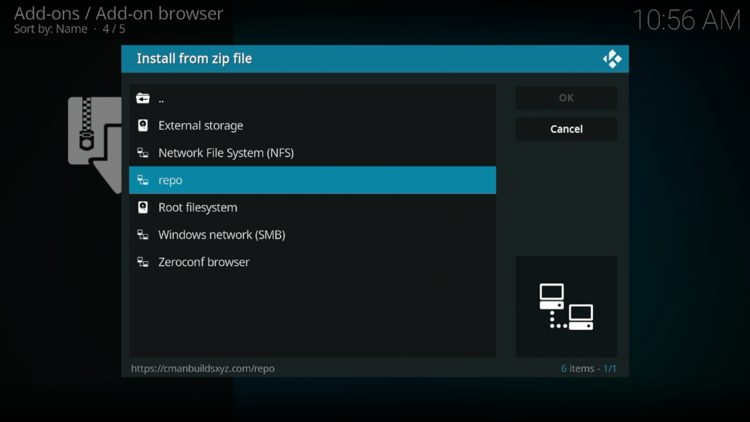
  • Select “repo” or whatever you named the media source in the previous step
Select "repo" or whatever you named the media source in the previous step
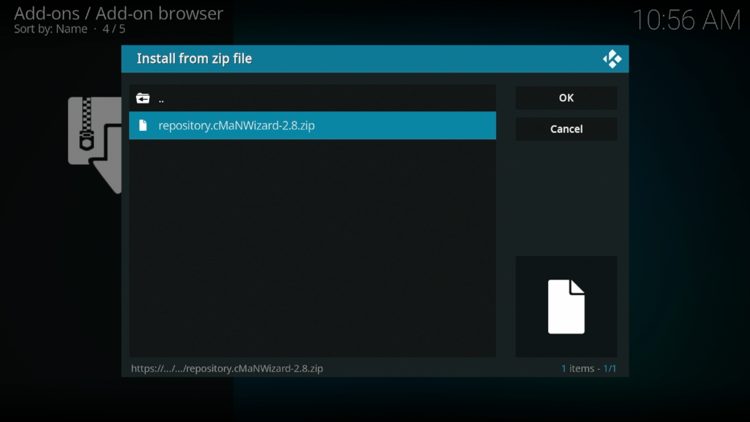
  • Click the zip file URL – repository.cMaNWizard.zip
Click the zip file URL - repository.cMaNWizard.zip
  • Wait for the “cMaN’s Wizard Repository Add-on installed” message to appear
Wait for the "cMaN's Wizard Repository Add-on installed" message to appear
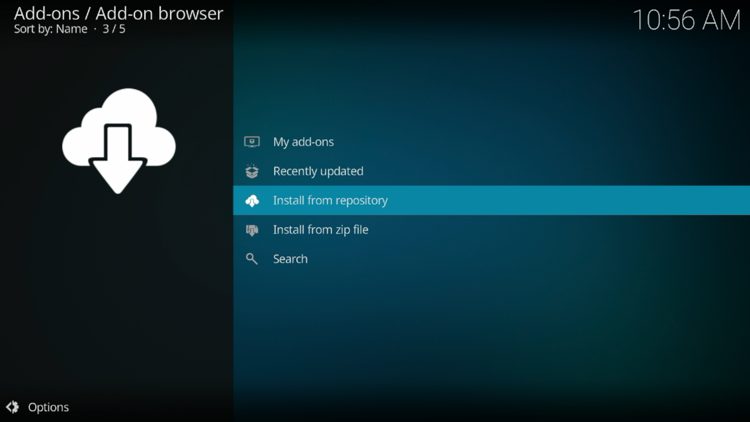
  • Next click Install from repository
Next click Install from repository
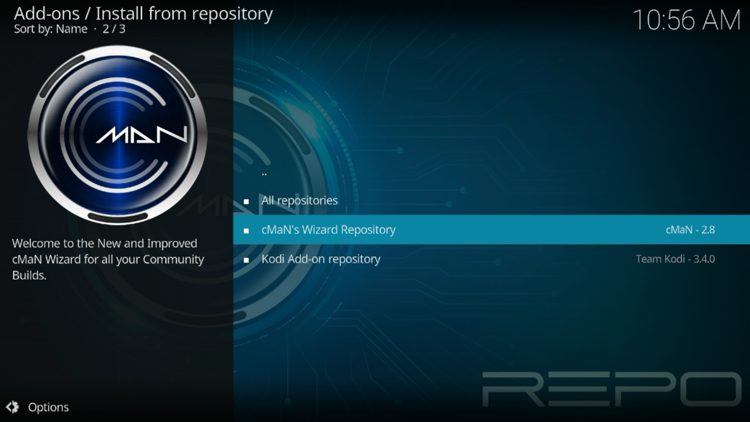
  • Click cMaN’s Wizard Repository
Click cMaN's Wizard Repository
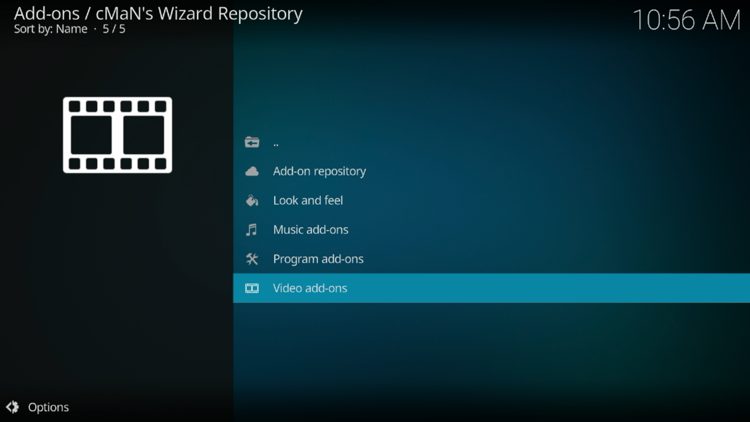
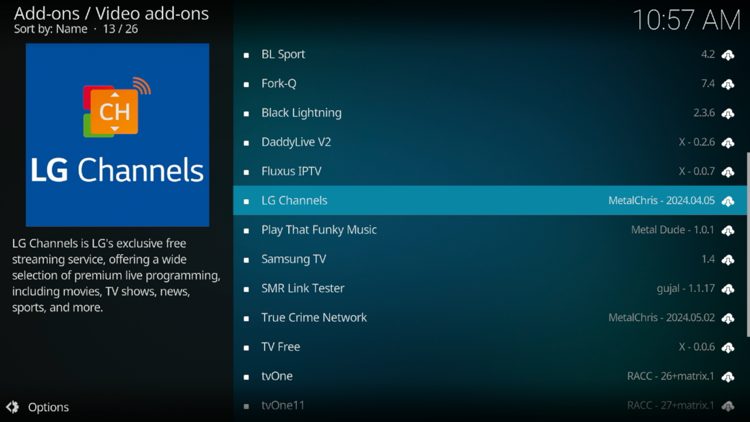
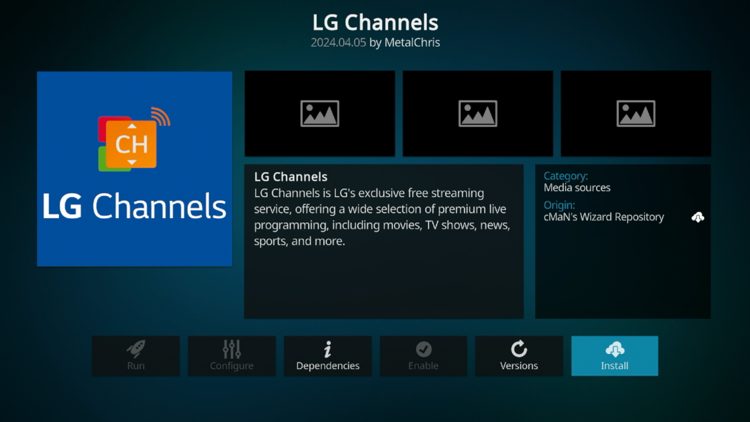
  • Scroll down and select Video add-ons
Scroll down and select Video add-ons Select LG Channels Click Install
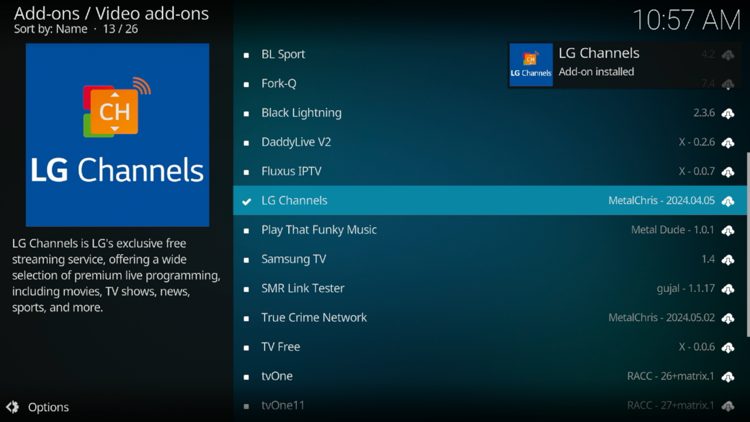
  • Wait for the “LG Channels Add-on installed” message to appear
Wait for the "LG Channels Add-on installed" message to appear
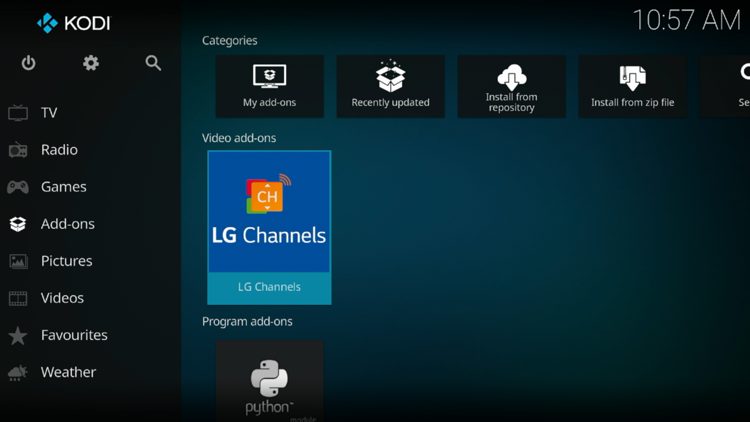
  • Return back to the home screen of Kodi and hover over Add-ons. Then select LG Channels.
Return back to the home screen of Kodi and hover over Add-ons. Then select LG Channels and installation is now complete!
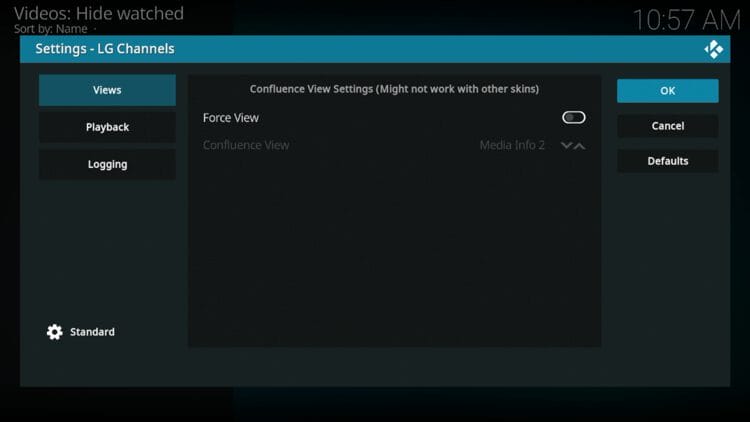
  • When launching this add-on for the first time the Settings menu will appear. Just click OK.
When launching this add-on for the first time the Settings menu will appear. Just click OK.
  • You have successfully installed the LG Channels add-on!
You have successfully installed the LG Channels add-on!

LG Channels Addon Categories & Details

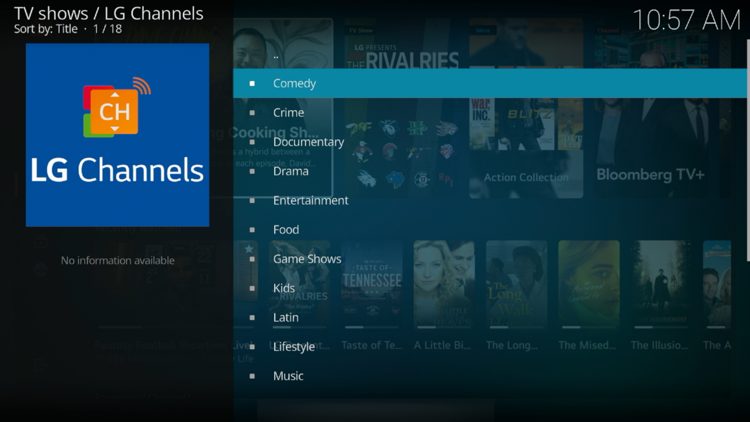
After installing the LG Channels add-on you will notice several categories to choose from: Comedy, Crime, Documentary, Entertainment, News, Sports, and more.

LG Channels Categories

Inside each category you will find some notable channels to stream.
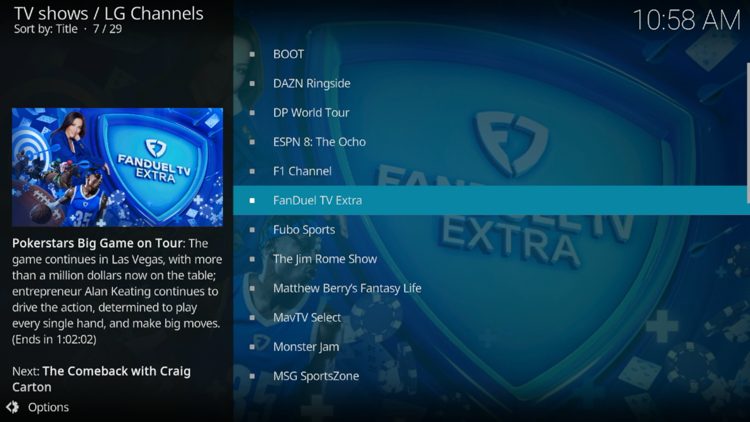
LG Channels Sports Category

After testing we found that not every channel worked, but most of them worked fine.
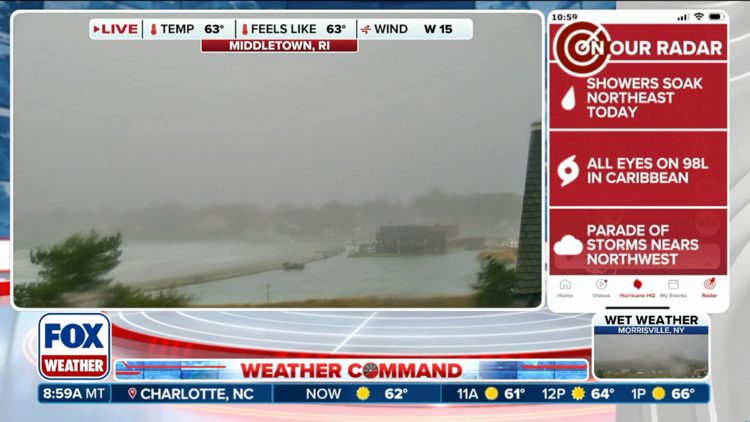
LG Channels Fox Weather

For more details and content options provided by LG Channels, we suggest visitor their official website (lgchannels.com).
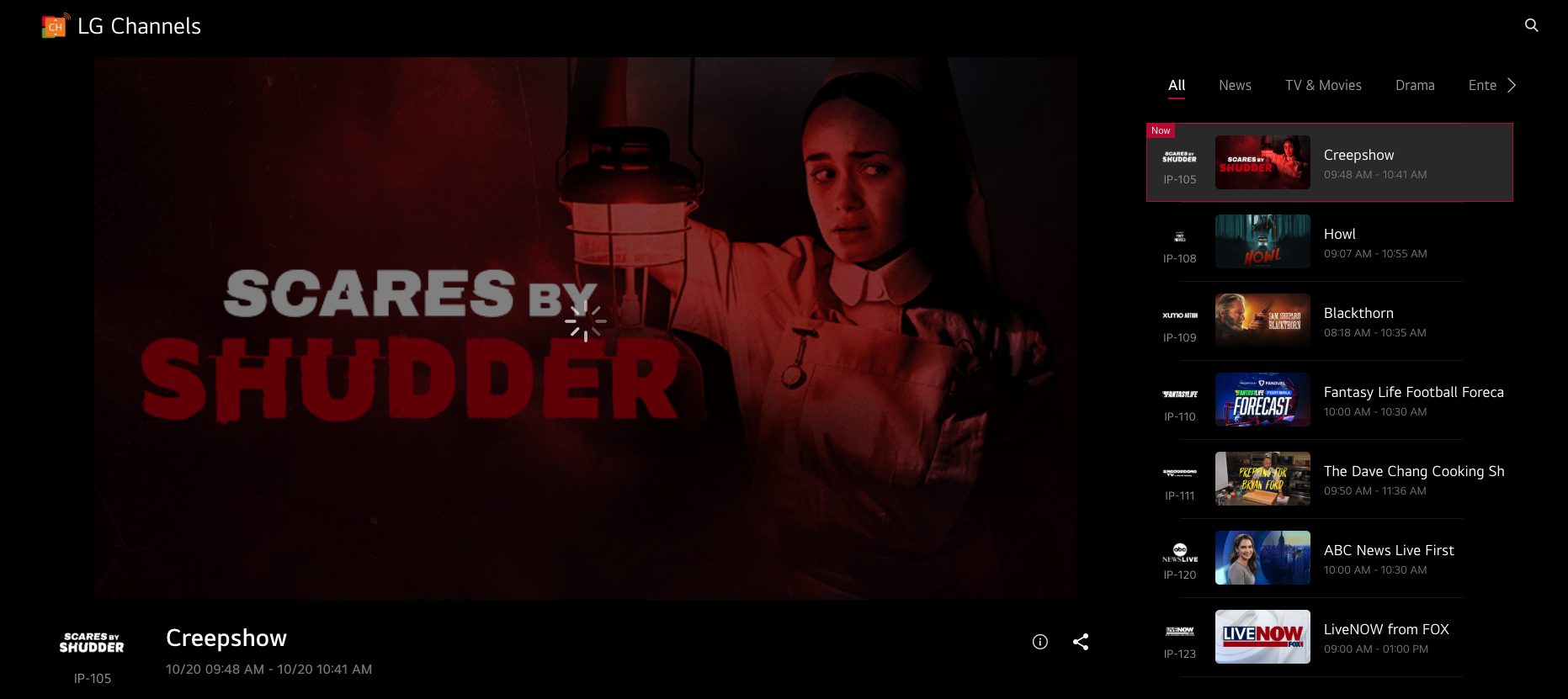
LG Channels Website
LG Channels Website

Is the LG Channels Add-on Legal?

It’s impossible for TROYPOINT to determine whether these unverified add-ons carry the proper licensing.

While LG Channels is a verified streaming platform, it’s difficult to know if the “SlyGuy Repository” is providing this content with consent.

The end-user is responsible for all content accessed through unverified add-ons. For verified options, see our list of legal streaming apps.

Is This Safe to Use?

It is extremely important to know the safety of these 3rd party add-ons and the best way to determine this is by scanning the Repo URL for files or malware.

A screenshot of this scan from VirusTotal is provided below.
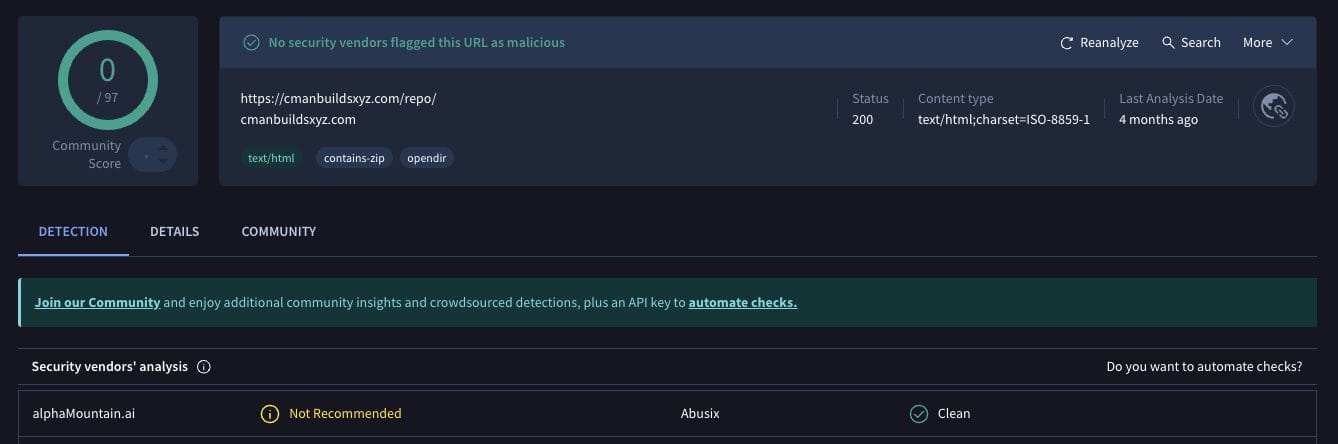
LG Channels VirusTotal Scan

VirusTotal did find one suspicious file within the cMaN Repository URL. We should always protect ourselves when streaming content from 3rd party add-ons.

The best way to protect yourself is with a reliable VPN. A VPN will provide you with an anonymous connection while using questionable add-ons such as this. See our VPN on Firestick tutorial for more details.

Are you a fan of the LG Channels add-on? Let us know what you think of this add-on in the comment section below!

This page includes affiliate links where iptvsubscrib may receive a commission at no extra cost to you. Many times, visitors will receive a discount due to the special arrangements made for our fans. Learn more on my Affiliate Disclaimer page.


Images Images