


 Written by admin
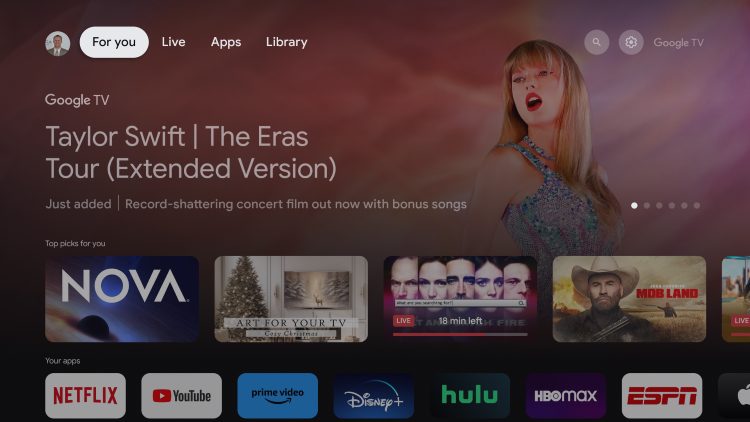
A new update is now available for Google TV that is completely upgrading the user interface these devices
provide
.
This is a major improvement (it appears) as the top navigation bar has been completely renovated with new menu items and fewer options to choose from.
Here are some screenshots of the new update with a description of each tab and what it provides. Your Google TV may have different options than ours as these vary for each device. Let us know what yours looks like in the comments below!
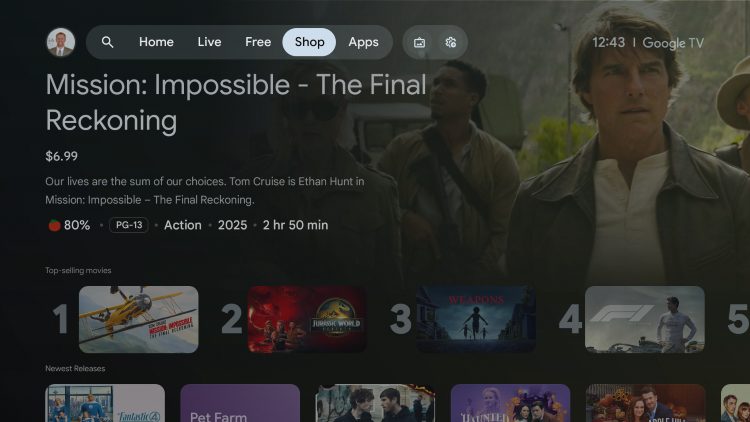
The “For You” tab has been removed and replaced with a “Home” tab, along with Live, Free, Shop, & Apps.
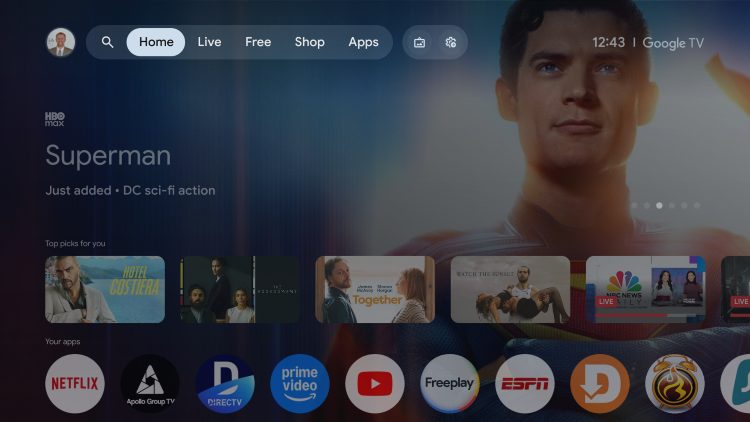
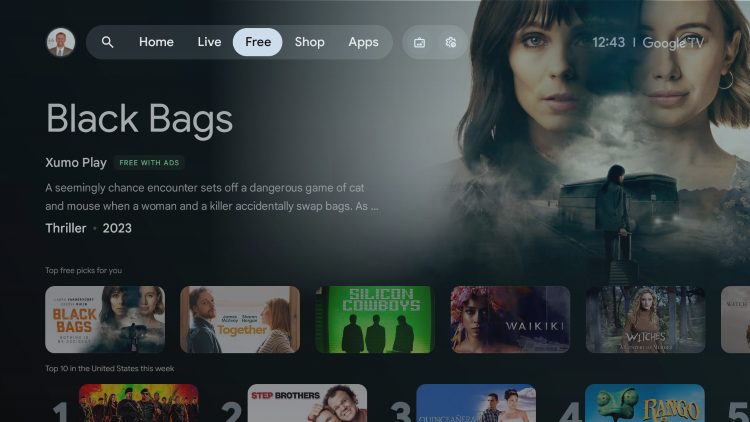
The “Free” category provides access to Movies, Series, and more that are available at no charge via Free Streaming Apps.
We also have a “Shop” tab that serves up the top selling Movies and more that users can purchase through various applications.
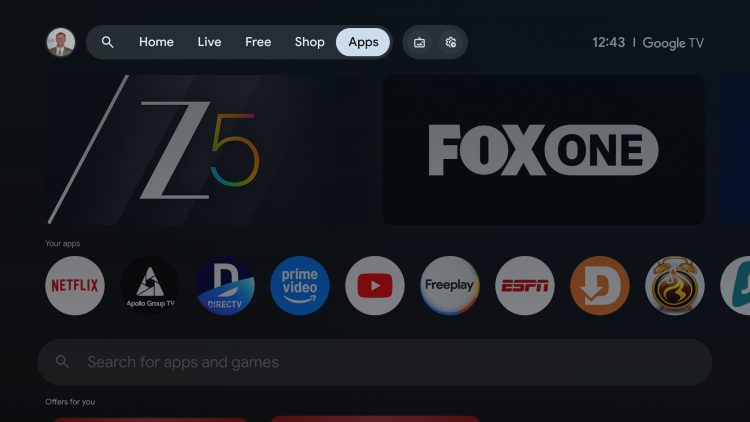
Within Apps is the same options as before with access to Google Play for installation of various applications for your device.
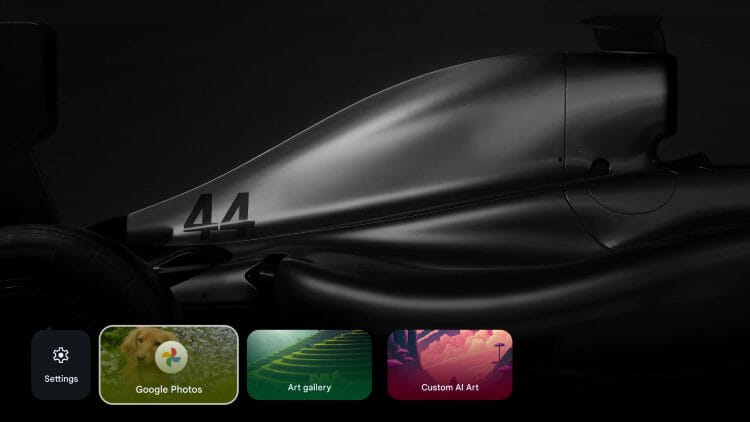
Next to Apps are two icons – one for Screensaver and one for Settings.
The screensaver icon will allow you to quickly edit or adjust your screensaver via Google Photos, Art gallery, or Custom AI Art.
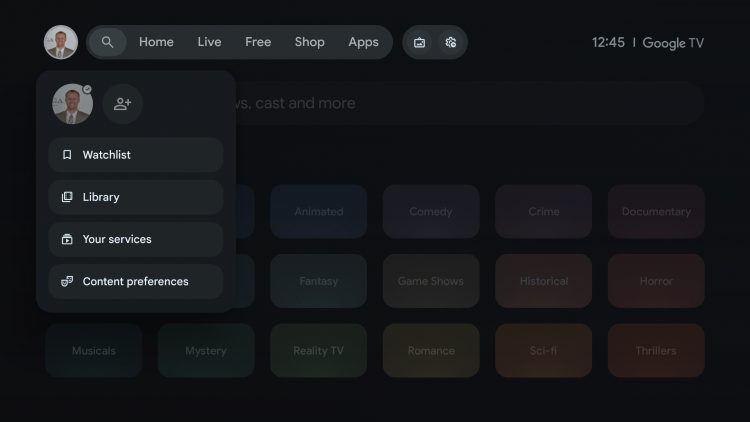
If you scroll all the way to the far left and hover over your user profile you can choose from various options including Watchlist, Library, Your Services, & Content Preferences.
This update has slowly been rolling out to devices with Google TV capabilities and this includes popular streaming boxes like the Onn 4K Pro, Google TV Streamer, and more.
Our screenshots were taken using a Chromecast with Google TV and it appears as though other devices (such as Smart TVs with Google TV built-in) are getting this update with different menu options.
If you received this update on your Google TV device, let us know what it looks like for you on your device!
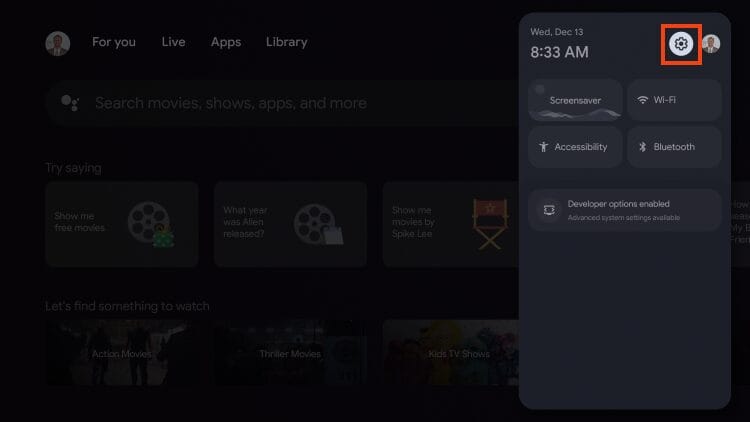
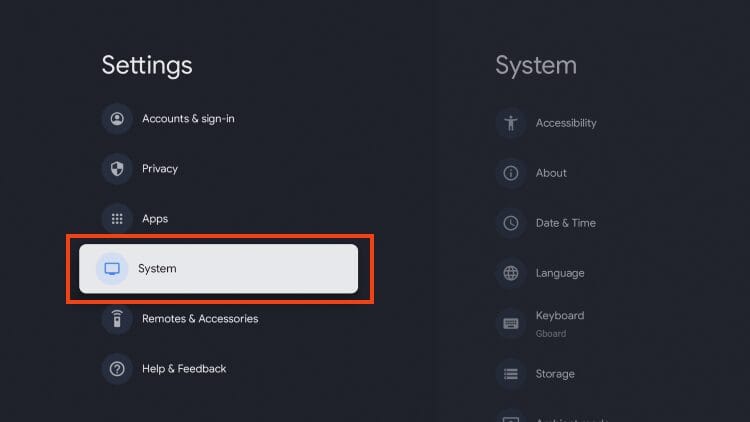
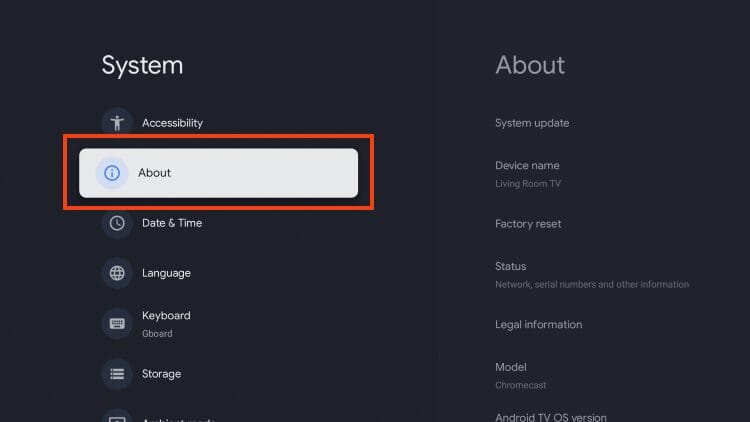
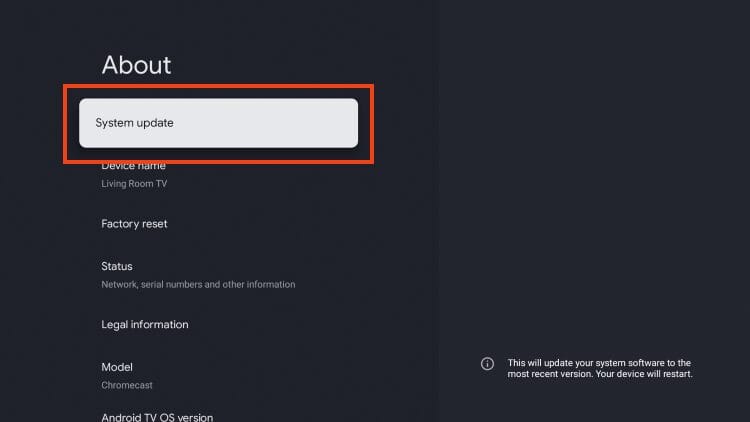
The update should automatically install on your device, however, if you need to do so manually you can follow the instructions below.
1. From the home screen of your device open Settings.
2. Click System.
3. Choose About.
4. Click System update.
5. Click Check for update.
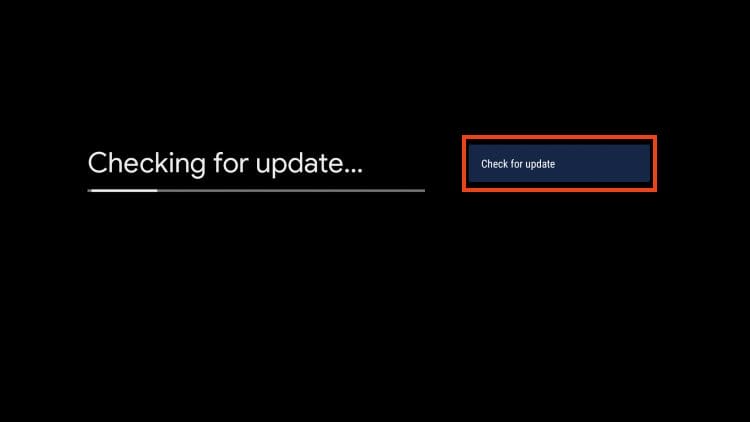
6. Click Download.
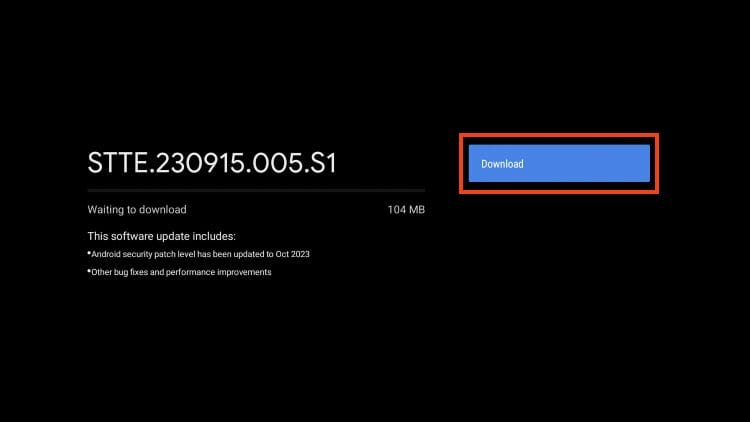
7. Wait for the software to update.
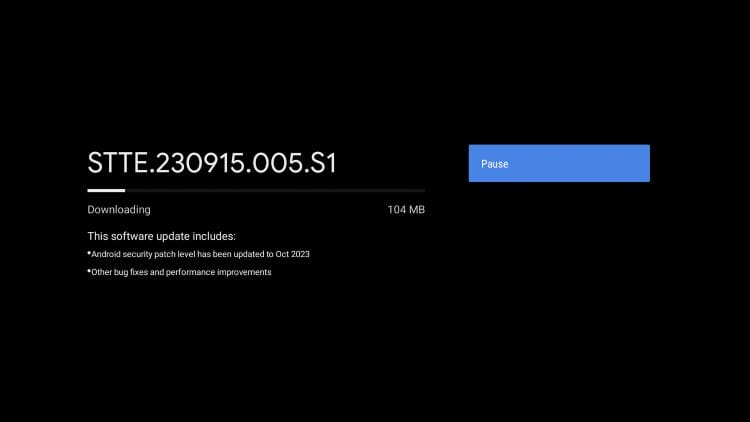
8. Click Restart now.
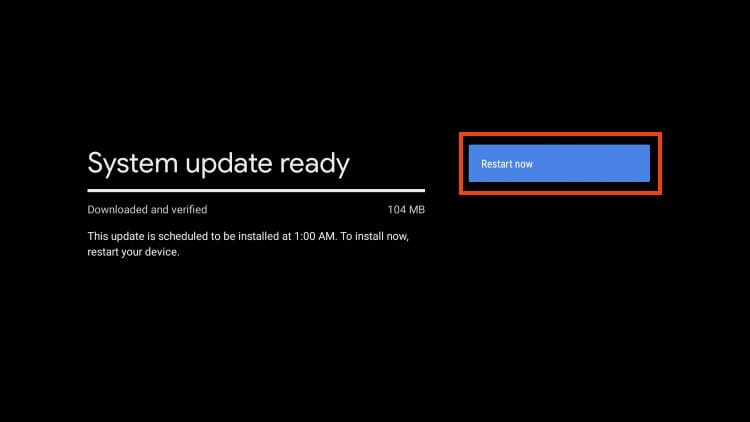
9. Your device will begin installing the latest update.
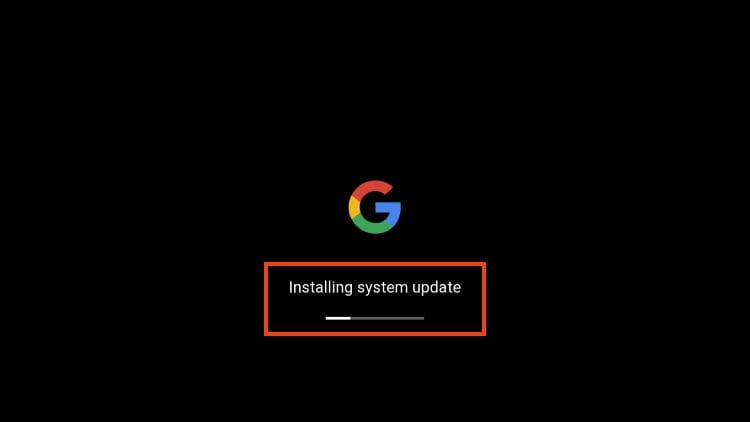
10. Google TV update installation is now complete.
Enjoy!
Use the links below for more useful resource guides for your Google TV device.
Be sure to stay up-to-date with the latest streaming news, reviews, tips, and more by following the TROYPOINT Advisor with updates weekly.
This Advisor provides all the best cord-cutting tips to get the most out of your favorite streaming devices and more.
Click the link below to join the other 800,000 Advisor subscribers.
This page includes affiliate links where TROYPOINT may receive a commission at no extra cost to you. Many times, visitors will receive a discount due to the special arrangements made for our fans. Learn more on my Affiliate Disclaimer page.



© IPTVSub is Proudly Owned by win-design